Ok this has been brought up before (Here), but I don’t think enough is known about it so here is an expansion on the topic.
This thing is awesome. I will cover 3 different scenarios from the example.
Create a default log
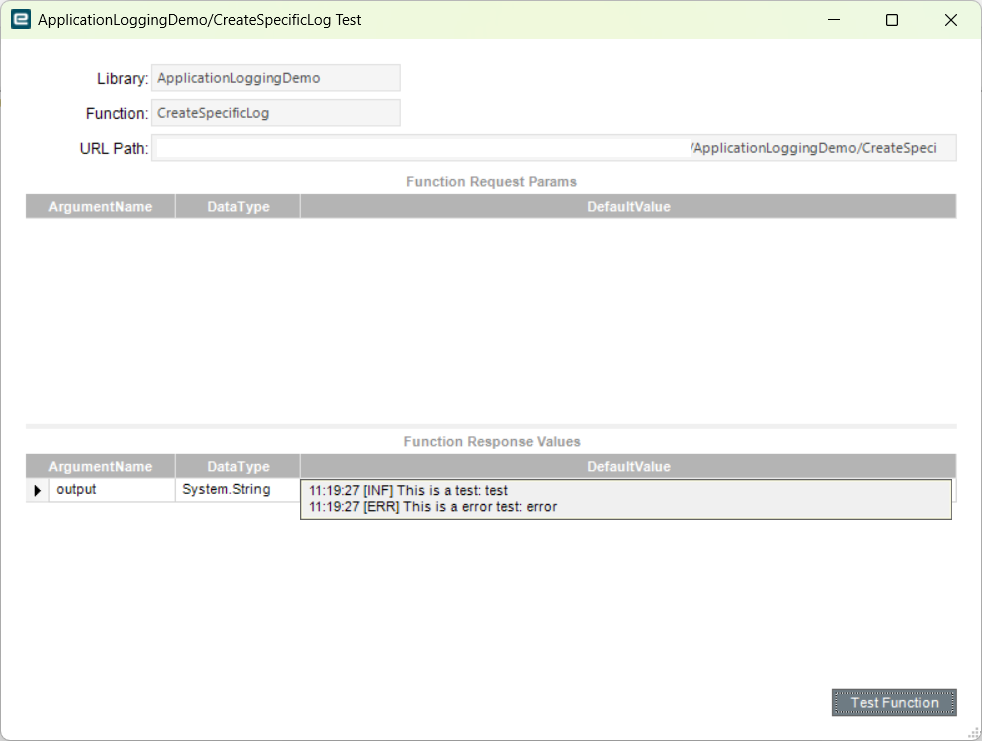
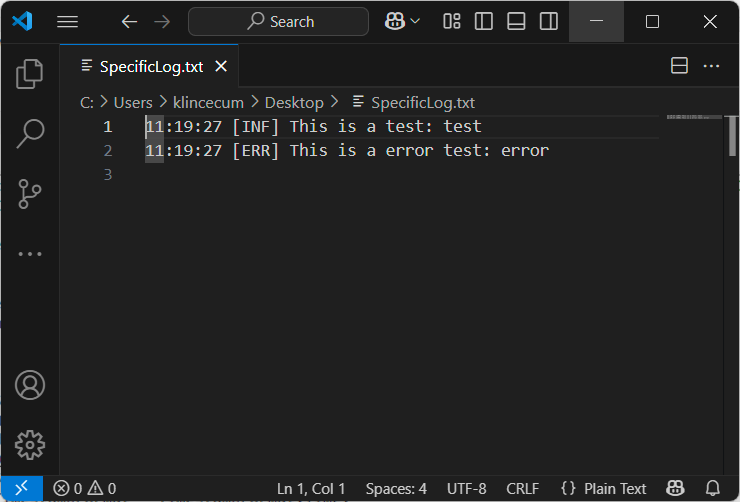
Create a specific log
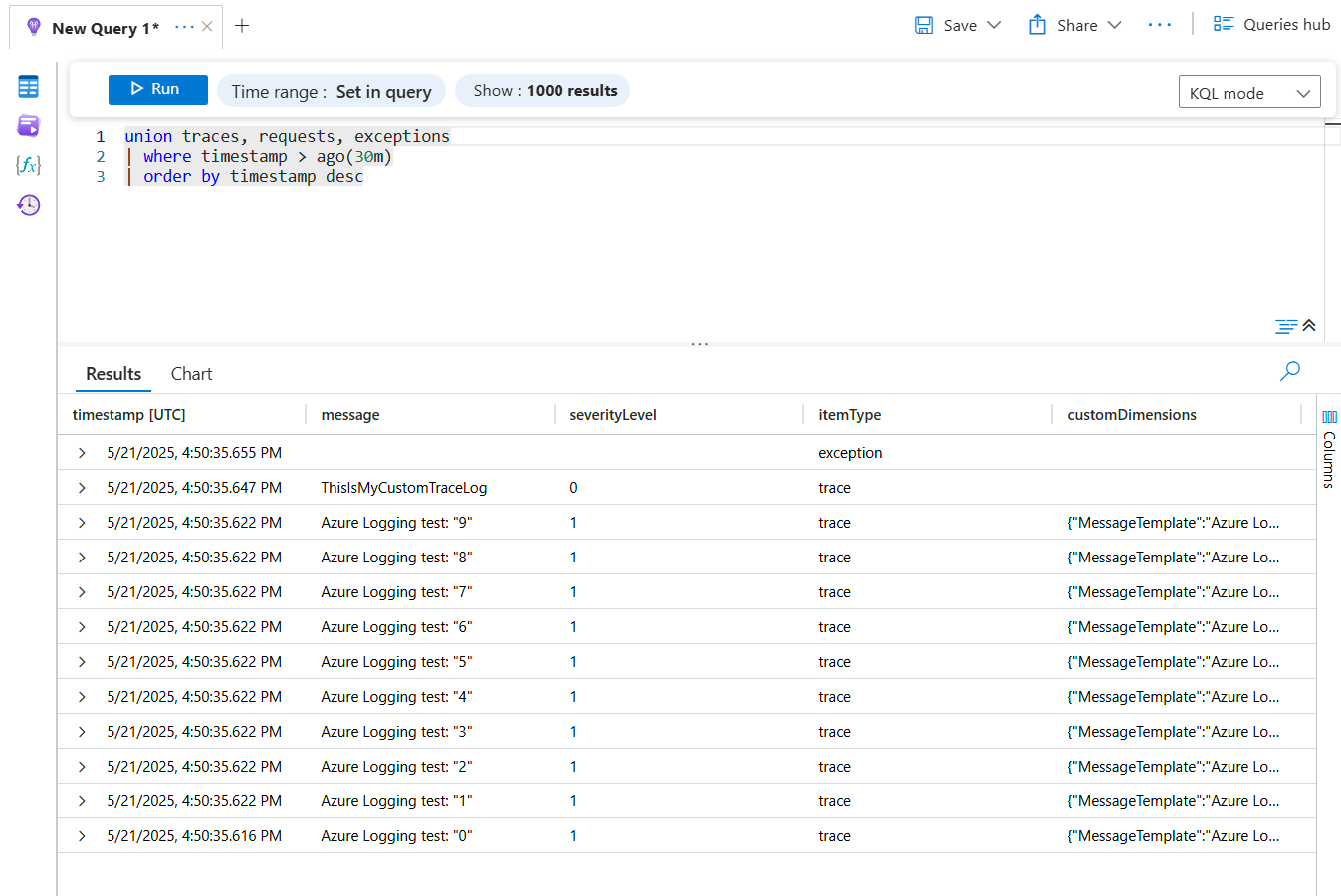
Create an Application Insights Log (Yes you read that right, it logs to Azure…)
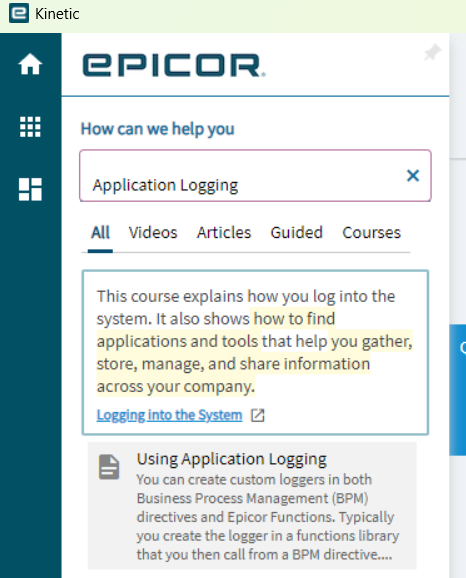
From the help →
You can create custom loggers in both Business Process Management (BPM) directives and Epicor Functions. Typically you create the logger in a functions library that you then call from a BPM directive. The logger generates the application logs. Application logging captures errors and tracks specific Kinetic activity. You define what an application log captures and tracks by creating a custom logger. You can then better locate the causes of issues or capture process calls.
You can find the help from the client by searching like so:
//refs:
//Microsoft.Extensions.Logging.Abstractions.dll
//Microsoft.Extensions.Logging.dll


//using Microsoft.Extensions.Logging;
//using Ice.Logging;


/* Example uses C# 8, so this is wrong for us.
using logger = Ice.Logging.ApplicationLoggerBuilder.CreateDefaultBuilder(this.Session, "LogId")
    .Build();

logger.LogInformation("Log message");
*/


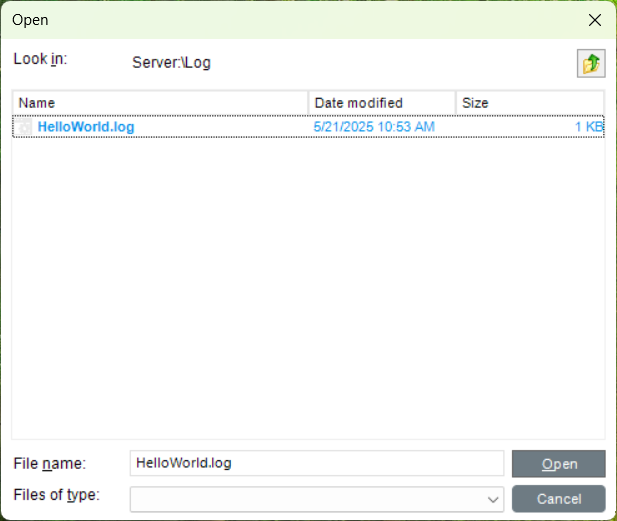
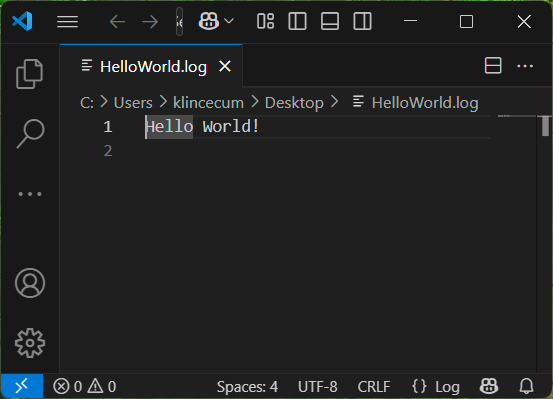
//This is based on the session, so this will write a file called "HelloWorld.log" to the 'EpicorData/Users/UserName/Log/' folder.
//In my case -> 'EpicorData/Users/KLINCECUM/Log/HelloWorld.log'

//In the default logger, this will add '.log' to the name.
string fileName = "HelloWorld";

using (var logger = Ice.Logging.ApplicationLoggerBuilder.CreateDefaultBuilder(this.Session, fileName).Build())
{
    logger.LogInformation("Hello World!");
}

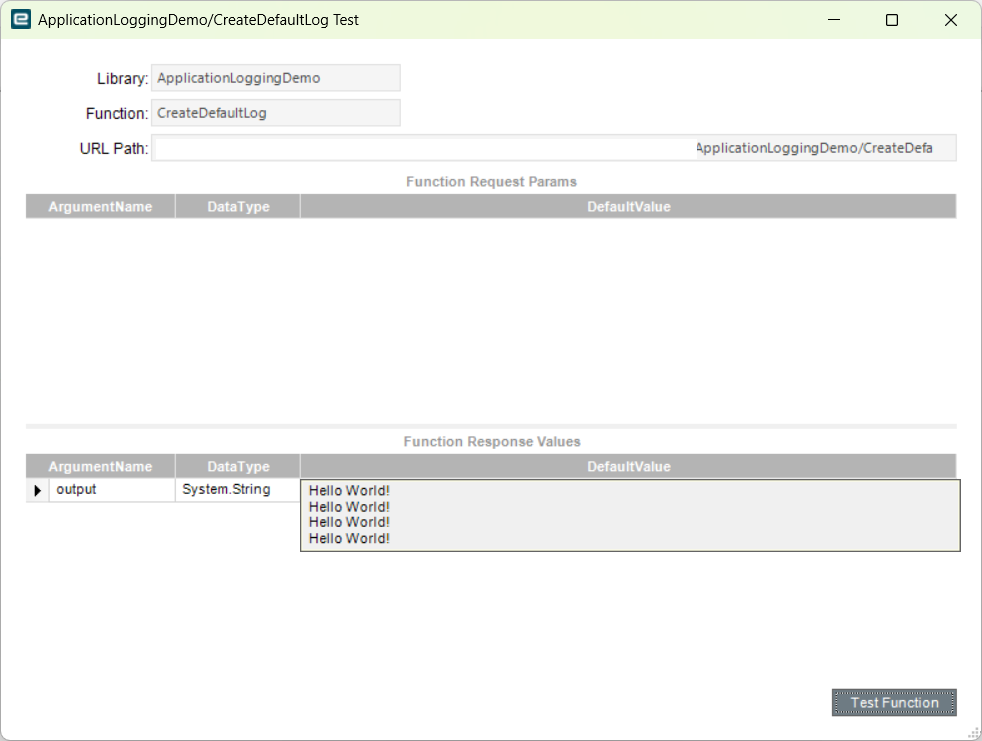
//Pudding ->
var file = new FilePath(ServerFolder.UserData, $"Log/{fileName}.log");

output = Sandbox.IO.File.ReadAllText(file, System.Text.Encoding.UTF8);
//refs:
//Microsoft.Extensions.Logging.Abstractions.dll
//Microsoft.Extensions.Logging.dll


//using Microsoft.Extensions.Logging;
//using Ice.Logging;


//This is based on the session, so this will write a file called "SpecificLog.txt" to the 'epicordata/Companies/YOURCOMPANY/Log' folder. (path is not exact)
//In my case -> 'epicordata/SITEID/Companies/YOURCOMPANY/Log/SpecificLog.txt'

//We can use an arbitrary name and extension here.
string fileName = "SpecificLog.txt";

var logger = ApplicationLoggerBuilder.CreateBuilder()
    .SetMinimumLevel(LogLevel.Information)
    .AddFile(
        options =>
        {
            options.Session = this.Session;
            options.FileName = fileName;
            options.Folder = LogFolder.Company;
            options.MessageOptions.QuoteValues = false;
            options.MessageOptions.ShowLogLevel = true;
            options.MessageOptions.TimestampFormat = TimestampFormat.Time;
        })
    .Build();

using (logger)
{
    logger.LogInformation("This is a test: {Value}", "test");
    logger.LogError("This is a error test: {Value}", "error");
}


//Pudding ->
var file = new FilePath(ServerFolder.CompanyData, $"Log/{fileName}");

output = Sandbox.IO.File.ReadAllText(file, System.Text.Encoding.UTF8);
Yes, you can log to Azure, right from inside Epicor.
I’ll come back and add some instructions for setting that up in Azure.
Code
//refs:
//Microsoft.Extensions.Logging.Abstractions.dll
//Microsoft.Extensions.Logging.dll
//Microsoft.ApplicationInsights.dll <- For Going Further

//using Microsoft.Extensions.Logging;
//using Ice.Logging;

//Going Further...
//using Microsoft.ApplicationInsights;
//using Microsoft.ApplicationInsights.Extensibility;


/*
From the example ->
const string connectionString = "InstrumentationKey=aaaaaaaa-aaaa-aaaa-aaaa-aaaaaaaaaaaa;IngestionEndpoint=https://centralus-0.in.applicationinsights.azure.com/;LiveEndpoint=https://centralus.livediagnostics.monitor.azure.com/";


using var logger = ApplicationLoggerBuilder.CreateBuilder()
    .AddApplicationInsights(
        options =>
        {
            options.ConnectionString = connectionString;
        })
    .Build();
*/


  //See this beauty... Yep, we can log straight to Azure.
  string connectionString = "Put your own key here, looks similar to below.";
//string connectionString = "InstrumentationKey=aaaaaaaa-aaaa-aaaa-aaaa-aaaaaaaaaaaa;IngestionEndpoint=https://centralus-0.in.applicationinsights.azure.com/;LiveEndpoint=https://centralus.livediagnostics.monitor.azure.com/";

  var logger = ApplicationLoggerBuilder.CreateBuilder()
      .AddApplicationInsights(
          options =>
          {
              options.ConnectionString = connectionString;
          })
      .Build();


  using (logger)
  {
      for(int x = 0; x < 10; x++ )
      {
          logger.LogInformation("Azure Logging test: {Value}", x.ToString());
      }
  }

  //Or you can go further down the rabbit hole...
  using (var config = TelemetryConfiguration.CreateDefault())
  {
      config.ConnectionString = connectionString;
      var telemetryClient = new TelemetryClient(config);

      telemetryClient.TrackEvent("ThisIsMyCustomEvent");
      telemetryClient.TrackTrace("ThisIsMyCustomTraceLog");
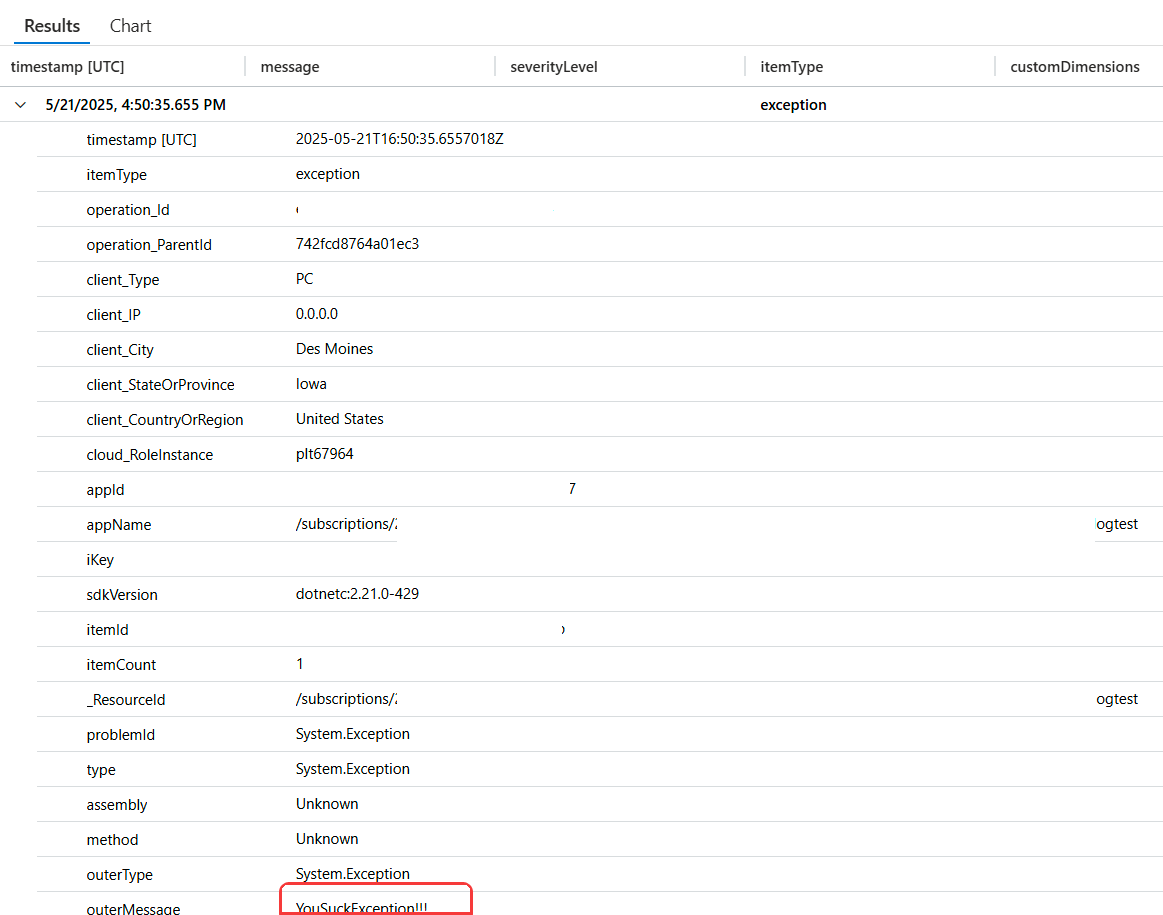
      telemetryClient.TrackException(new Exception("YouSuckException!!!"));
  }
Where did Sandbox.IO come from? Is that only in cloud or newer than 2024.2?
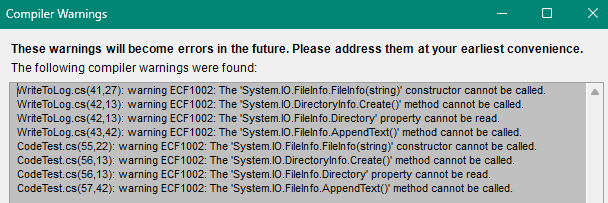
I get warnings about writing directly to a file using System.IO stuff - I guess there has been other chatter about Epicor removing these at some point (although I can ignore the warnings it does currently work on 2024.2.10):
I saw your code and thought maybe there is a correct way to write to a log file and avoid these warnings, but I tried the ApplicationLogger stuff and wasn’t happy that I couldn’t get it to write to:
\\server\KineticData\EfxLogs\logname.log
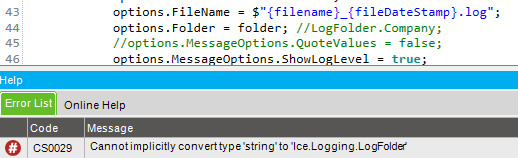
Seems like you have to pass in an object of type LogFolder to the options.Folder and not sure if I can get my own arbitrary folder a few levels up to be part of that path.
My “problem” with LogFolder.Company (e.g. \\server\KineticData\Companies\MYCOMPANY\Log\) is that it is already full of ImportEDI logs, and other noise.
Do you know a way to identify the Epicor username who generated the trace in Application Insight?
We currently log using file mode in EpicorData folder, each user having its own logs directory. Would be great to have the Epicor Session.UserID in a specific field of the trace / exception.