I have a BAQ calculated field converting a decimal to string which is:
convert(varchar,UD14.Number01)
and the result is:
21799134.360000000
Is there any way to convert this into:
$21,799,134.36 ?
Please help!!!
Thank you,
Richard
I have a BAQ calculated field converting a decimal to string which is:
convert(varchar,UD14.Number01)
and the result is:
21799134.360000000
Is there any way to convert this into:
$21,799,134.36 ?
Please help!!!
Thank you,
Richard
Thank you so much!
With this:
FORMAT(UD14.Number01, ‘C’, ‘en-us’)
I got:
$21,799,134.36
and
$31.00
Does anyone know how I can right justify both numbers to get:
$21,799,134.36
$31.00 ?
Please help!
Thank you,
Richard
Does anyone know how I can right justify both numbers to get:
$21,799,134.36
$31.00
Right justified?
Please help!
Thank you,
Richard
I don’t think you can.
Maybe with a calculated field? Build a string, formatted as you want, then check the length of it, and pad it with spaces on the left side to a known length?
Pad to the left: SELECT CAST(‘Test’ AS CHAR(20))
A fake out!

CAST(FORMAT(UD14.Number01, ‘C’, ‘en-us’) AS CHAR(20))
did not work.
This was close enough, it centered it for some reason.
case when UD14.Character01 = ‘’ then ’ ’ + UD14.Key2 else substring(’ ',1,20 - len(FORMAT(UD14.Number01, ‘C’, ‘en-us’))) + FORMAT(UD14.Number01, ‘C’, ‘en-us’) end
Now when I put it into a dashboard, the Classic version display my newly centerd numbers but the Kinetic version left justifies the numbers again. WTF!!!
You can probably change the regular space to another kind of space to get around that.
Thank you for your Reply.
Would you please give me more information about what the another kind of space is please?
Thanks,
Richard
Since Kinetic is HTML based, perhaps a   will work.
Also, why are you converting a number to string? Number columns are automatically right justified.
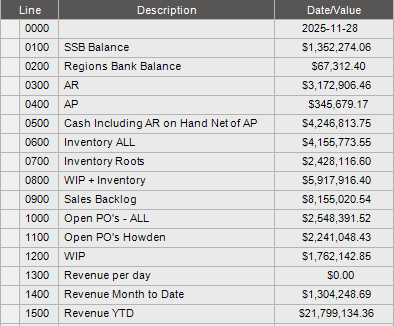
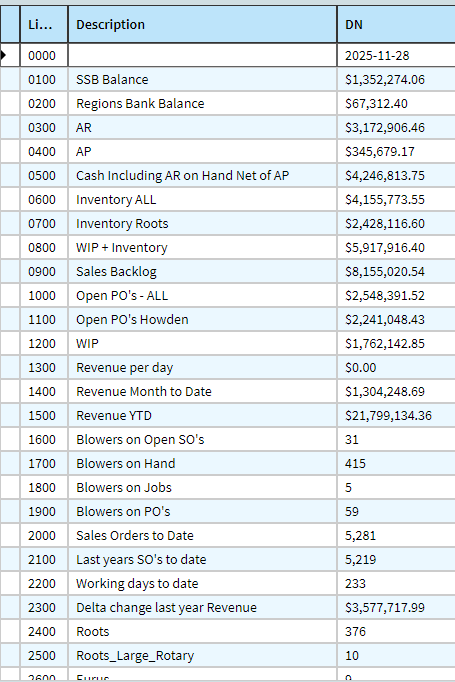
If you look at my screen shot, you can see that the first row has a date in it as a column heading. I need to convert everything to a string in order to have date and currency values in the column. Is there a better way to do this?
Thanks,
Richard
Someone either applied or didn’t disable a trim() affecting everything in these grids.
Of all the whitespace characters (Wikipedia has a list), the one that canned trim() functions should never trim is the Braille space.
Copy/paste one of those. If that gets trimmed, that’s a bug that might actually compel a presentation fix. The UI should never fool around with Braille for appearance reasons.
in your formula above try replacing ' ' with CHAR(160)
Thank you so much Kevin.
The CHAR(160) worked great!
Richard