BAQ Parameters - Replace Slide-Out with on-page Search Filters
Prereqs:
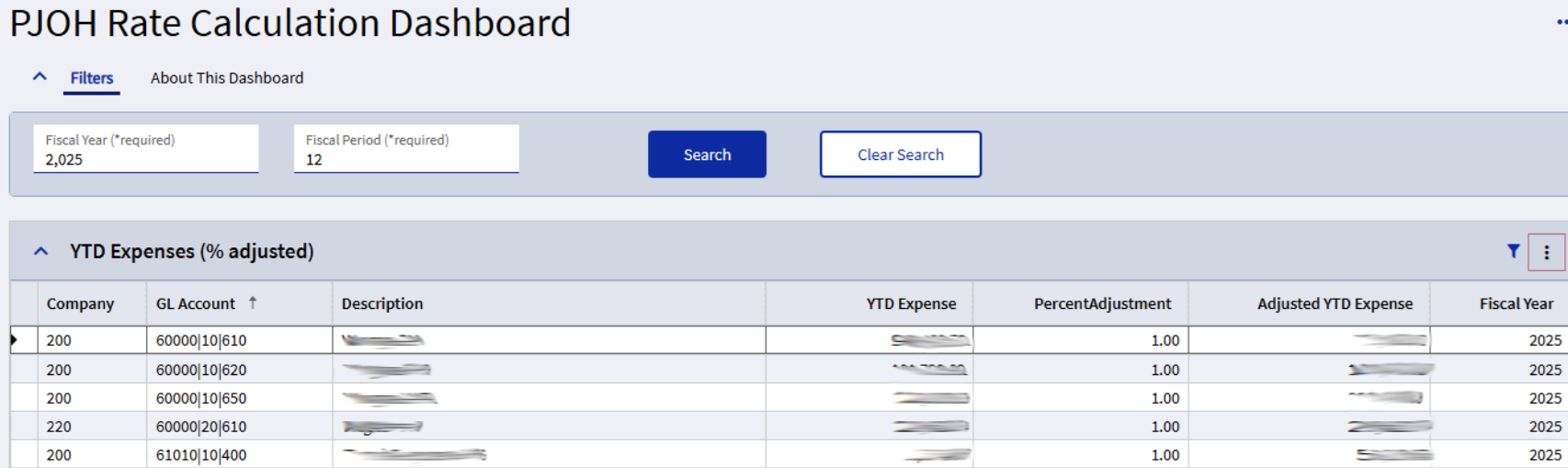
Filters panel card with a search field for each BAQ parameter, and a Search button (as in the Innovative Automation Dashboard Template)
Search fields are bound to the SearchFilters data view, e.g. SearchFilters.FiscalYear
Results grid Where List: set BAQ columns to the entered filters, making them required, e.g. GLJrnDtl_FiscalYear = ‘?{SearchFilters.FiscalYear}’
Note: a single ? ensures the BAQ will run only if the filter has been entered. With a double ? the BAQ could run before the parameters are set and you’ll get the dreaded slide-out panel!
Indicate to the user that the field is required (add *required to the Label Text)
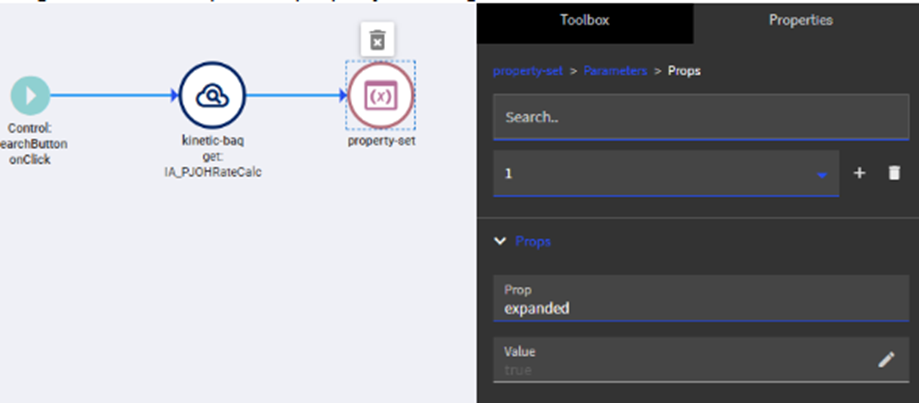
Results grid has “Expand at Runtime” turned off (ensures the BAQ won’t execute before the parameters are set)
Data view to hold the results of the BAQ
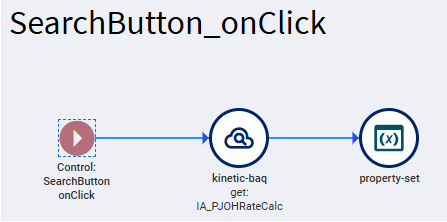
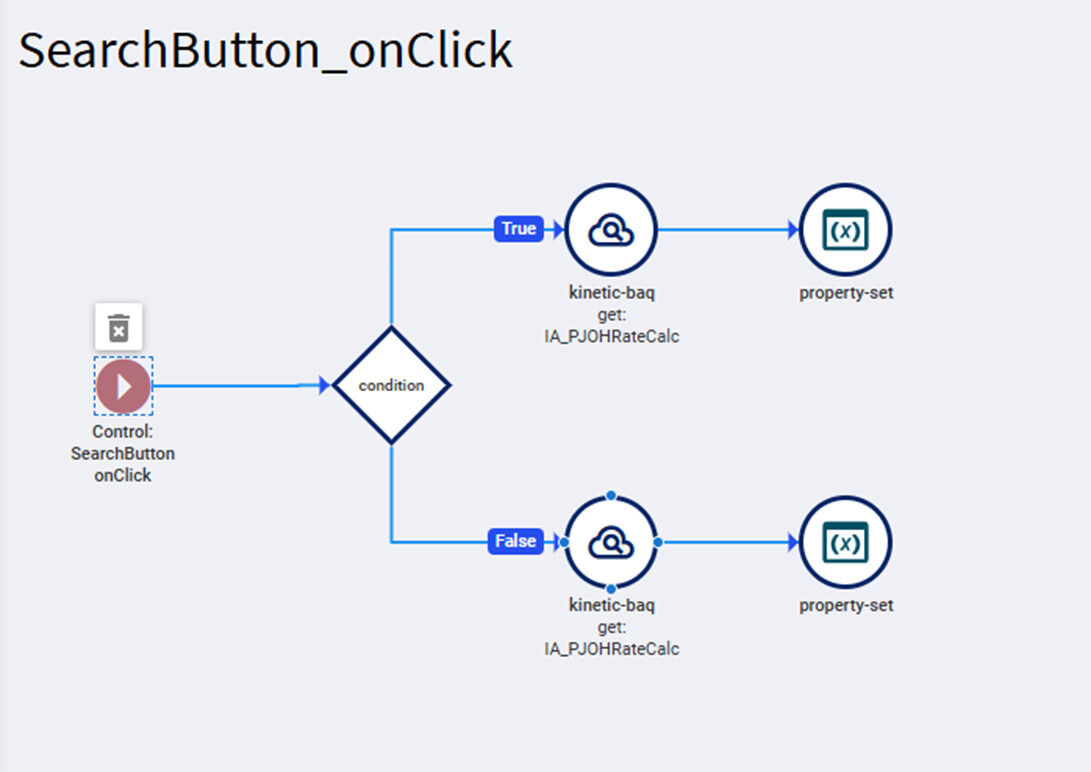
1. Modify the Search button onClick event to get the BAQ results using the entered search field as the BAQ parameter
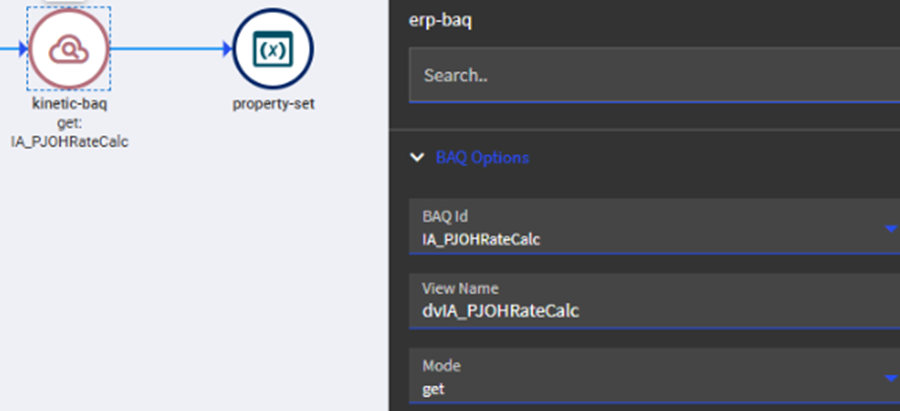
In the event, add a kinetic-baq widget to get the BAQ results. Place it before the property-set widget if it exists
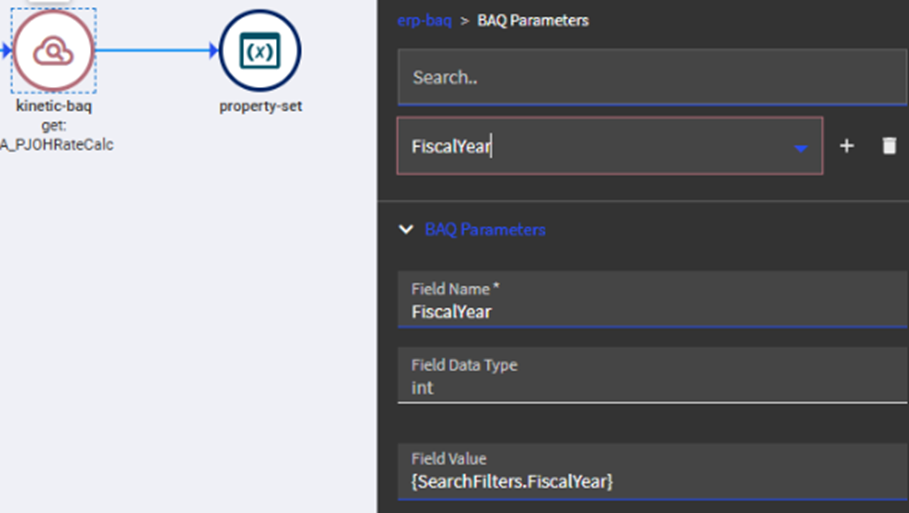
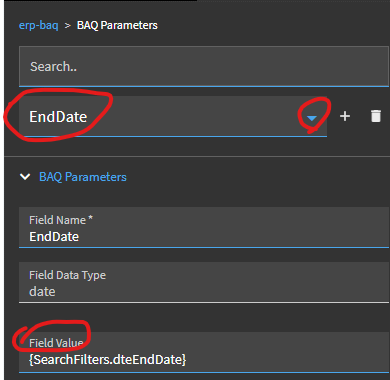
Open the BAQ Parameters section. Your parameters should be listed already. Set each one’s value to {DataView.Column} (the epBinding for your search field).
e.g. Field Name = FiscalYear; Field Value = {SearchFilters.FiscalYear}
5. (optional) Add a condition widget to the Search button onClick event to check for an empty search filter and display a msg
Condition to check for:
Date fields: “{SearchFilters.ToDate}” !== “undefined”
Text fields: “{SearchFilters.ProjectID}” !== “”
My Example: Does anyone know how to get rid of that comma in the Fiscal Year integer field?
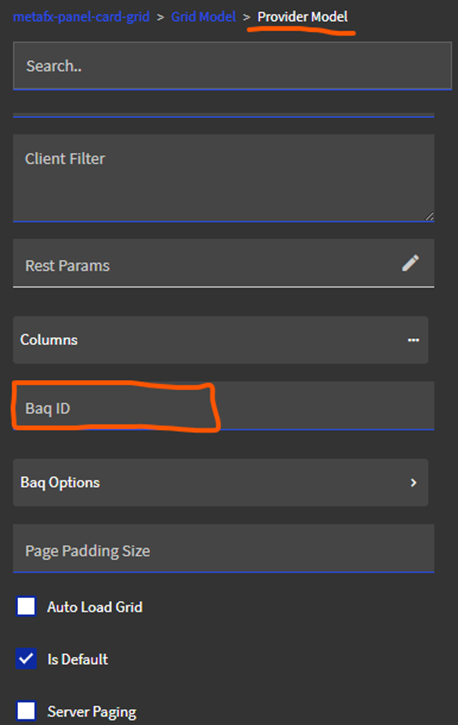
I did a test and it seems that whether or not the Baq ID is entered in the Provider Model, the text search field is ignored. If you do include the Baq ID, then you have to click the Search button twice to get your results. When I have some time, I’ll do some testing and figure out how to include additional filters.
I hadn’t forgotten. Took a stab at it a while ago, got stuck, left it, and went back at it again today
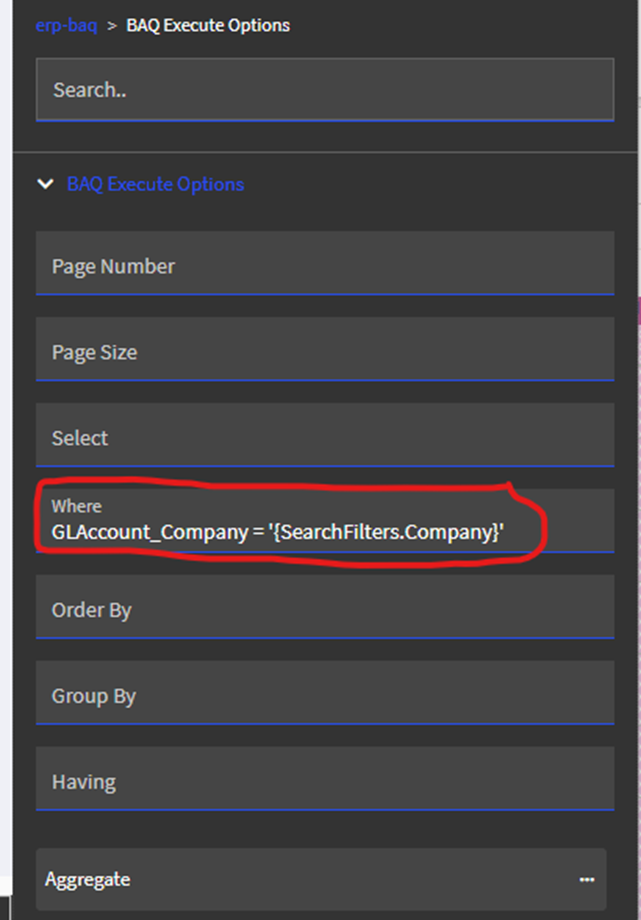
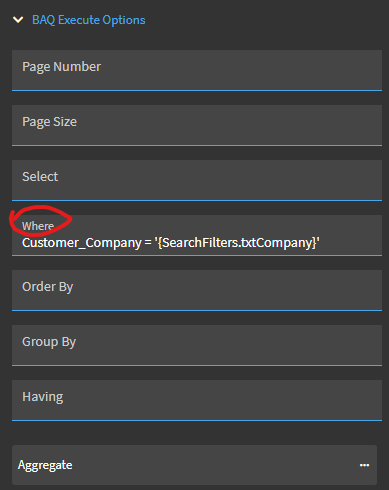
You can add the text filter to the kinetic-baq get widget in the BAQ Execute Options in the Where field (e.g. Table_Column = ‘{SearchFilters.Text}’) but this will fail (no results) if you don’t enter anything in the text search field, making it required.
To get around that, you can insert a Condition widget at the start of the SearchButton_onClick event. If SearchFilters.Text is not empty (this expression worked for me: “{SearchFilters.Company}” !== “undefined”), execute the kinetic-baq with the Where clause set. If it is empty, execute the kinetic-baq without the Where clause. This works but it’s not scalable. If you have a lot of search filters, your condition checking could get messy.