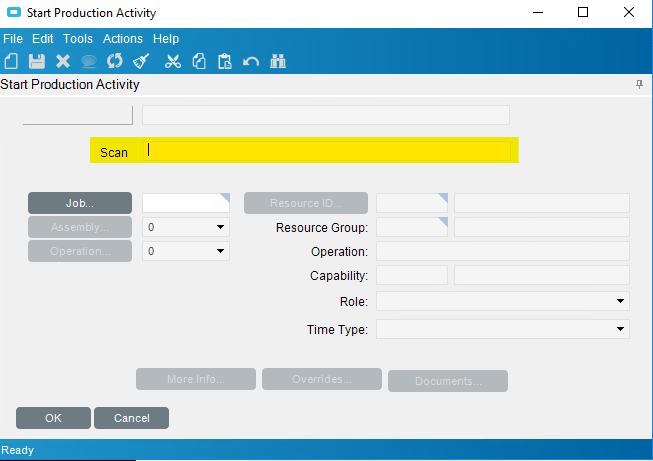
We have the same scanner. What I did was customized the start/rework/end activity screens and added a single text box. I came up with special delimiters that would tell the customization JobNum:Assy:Oper. I also had a “terminating” character that told the customization the scan was done. Then the customization loads the data through the adapter and fills in all of the fields.
The problem with trying to code it into the barcode with tabs is sometimes the data takes a bit to load up, and the data doesn’t get passed to the correct fields.
When you use the barcode font, this will allow you to scan all three in the customized forms that will break down these fields into a customized scan text box:
Then Add in your view and add the code to detect the scan (example from Start Activity:
public class Script
{
	// ** Wizard Insert Location - Do Not Remove 'Begin/End Wizard Added Module Level Variables' Comments! **
	// Begin Wizard Added Module Level Variables **

	private EpiDataView edvStart;
	private EpiButton btnOK;
	// End Wizard Added Module Level Variables **

	// Add Custom Module Level Variables Here **

	public void InitializeCustomCode()
	{
		edvStart = ((EpiDataView)(this.oTrans.EpiDataViews["Start"]));
		btnOK = ((EpiButton)csm.GetNativeControlReference("025fc115-fee3-4973-946e-ba209189d62e"));
		// ** Wizard Insert Location - Do not delete 'Begin/End Wizard Added Variable Initialization' lines **
		// Begin Wizard Added Variable Initialization

		this.edvStart.EpiViewNotification += new EpiViewNotification(this.edvStart_EpiViewNotification);
		// End Wizard Added Variable Initialization

		// Begin Wizard Added Custom Method Calls

		this.txtScan.Leave += new System.EventHandler(this.txtScan_Leave);
		// End Wizard Added Custom Method Calls
	}

	public void DestroyCustomCode()
	{
		// ** Wizard Insert Location - Do not delete 'Begin/End Wizard Added Object Disposal' lines **
		// Begin Wizard Added Object Disposal

		this.txtScan.Leave -= new System.EventHandler(this.txtScan_Leave);
		this.edvStart.EpiViewNotification -= new EpiViewNotification(this.edvStart_EpiViewNotification);
		// End Wizard Added Object Disposal

		// Begin Custom Code Disposal

		// End Custom Code Disposal
		this.edvStart = null;
	}

	private void txtScan_Leave(object sender, System.EventArgs args)
	{
		// ** Place Event Handling Code Here **
		// FORMAT: JOB$ASSEMBLY$OPERATION.
		if (txtScan.Text == "") return; //data removed
		if (txtScan.Text.Substring(txtScan.Text.Length-1)!=".") return;

		string tmp = txtScan.Text.Substring(0,txtScan.Text.Length-1);

		txtScan.Text = "";

		string[] res = tmp.Split('$');

		if (res.Length != 3)
		{
			MessageBox.Show("Scan error!");
			return; // not enough segments
		}

		edvStart.CurrentDataRow["JobNum"] = res[0];
		edvStart.CurrentDataRow["AssemblySeq"] = res[1];
		edvStart.CurrentDataRow["OprSeq"] = res[2];

		btnOK.Focus();
	}

	private void edvStart_EpiViewNotification(EpiDataView view, EpiNotifyArgs args)
	{
		// ** Argument Properties and Uses **
		// view.dataView[args.Row]["FieldName"]
		// args.Row, args.Column, args.Sender, args.NotifyType
		// NotifyType.Initialize, NotifyType.AddRow, NotifyType.DeleteRow, NotifyType.InitLastView, NotifyType.InitAndResetTreeNodes
		if ((args.NotifyType == EpiTransaction.NotifyType.Initialize))
		{
			if ((args.Row > -1))
			{
				txtScan.Text="";
				txtScan.Focus();
			}
		}
	}

	private void StartProdForm_Load(object sender, EventArgs args)
	{
		// Add Event Handler Code
		txtScan.Focus();
	}
}
I added some other code to try to help ensure the txtScan had the focus…
We did this many years ago. I have attached two documents we used to use. In the most part this worked very well but we ended up splitting the scan into two scans…the first scan being the job, the second scan the remaining. We processed two scans because occasionally due to speed/timing it would drop off the leading number in the assembly which closed the wrong subassembly. Add the delay configuration helped but didn’t completely fix it.
Make sure you also have the barcode font Epicor recommend (DWBAR39 - DataWorks bar 39).
The first attachment is what we used to use to setup al our scanners, the second is from Epicor. Hope this helps. Below is what we used…please check though as it hasn’t been used for over 3 years (crystal reports). $I is the tab and $M the enter.
Thank you for this. So you created a new text field called Scan. This is where you capture the combined barcode. Behind the scenes is the code you provided to then take the full string and parse it out to the job, assembly, operation.
I’m an okay programmer, enough to be dangerous, so I need a bit of direction. The code you provided is add behind the text field somewhere.
I customized the Start Production/Rework/Setup activities in the MES screen. There I added a EpiTextBox that was called txtScan. Then the provided script should be able to be used in the Script Editor to capture the scanning events. You may only need to copy/paste certain parts.
I’ve done this on a few projects, using the same process as @PaulMorgan and it worked well. I did run into an issue for the most recent client, where the scan worked fine in Notepad, but only filled the Job field in MES. Turned out the scanner sent the characters faster than MES could accept them. After much headscratching, we fixed it by adjusting the keystroke delay setting on the LS2208 scanner. Guess the scanner chips have improved faster than the MES app.
Also, there is a great scanner application called Zebra_123Scan. Let’s you create configurations and test scanning. With a configuration, you create it once, then upload to multiple scanners. No more having to scan a bunch of barcodes for each scanner. It says it can push configurations over a network, although I have not tried it. And best of all, the price is right - free! Don’t let the “Zebra” name worry you, it works great with Symbol scanners including the LS2208.