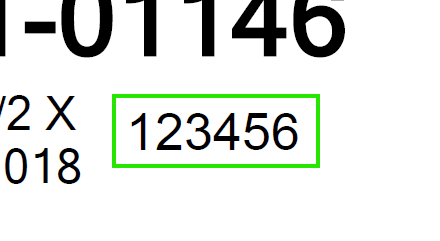
The problem here is that MtlTags is a pain to work with. Its not a database table… its just a system query that Epicor designed, so it is difficult to work with. A lot of other have struggled with this… especially with one-to-many relationships. You’re wanting to pass LaborDtl information. Well, you could have many LaborDtls tied to a specific LaborHed, tied to a job, tied to a part… its not a very clear path.
If you want to give it a shot, you could try using CallContextBpmData. I got this to work… but there are a LOT of hoops to jump through!

In your End Labor Activity app… you need to look at the PrintTags event. There are (3) separate calls to print tags, depending on whether you’re printing tags for Current, Scrap, and/or Discrepency (non-conformance).
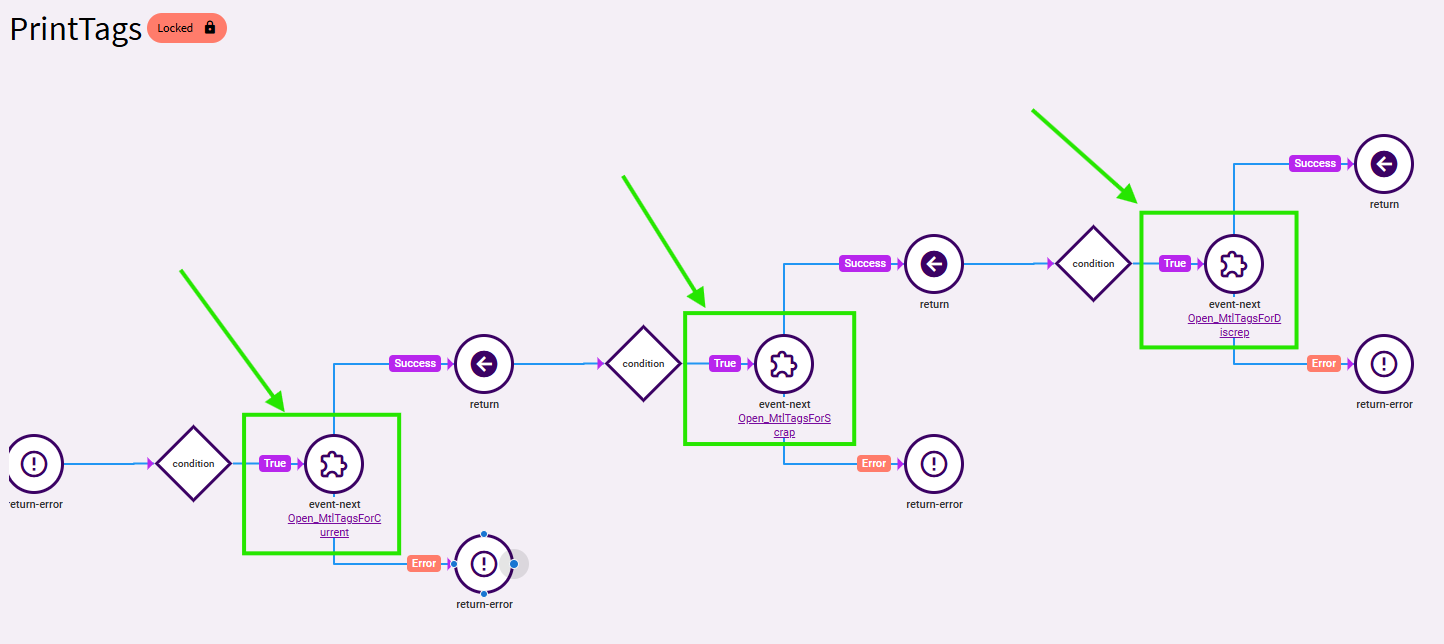
Depending on what “Print Tags” button you select on the form, it is going to choose one of the (3) different paths. But, I’ll go down the normal “Print Tags” button… “Current”.
That opens this event:
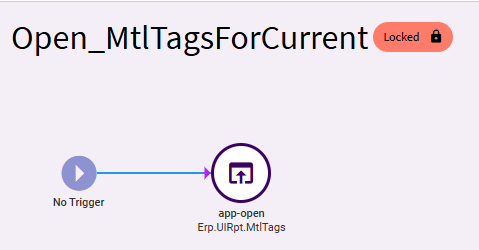
In the events panel, you’ll need to search for this event, right-click and make a copy.
With your new copy of that event… we need to edit the Launch Options of the app-open action.
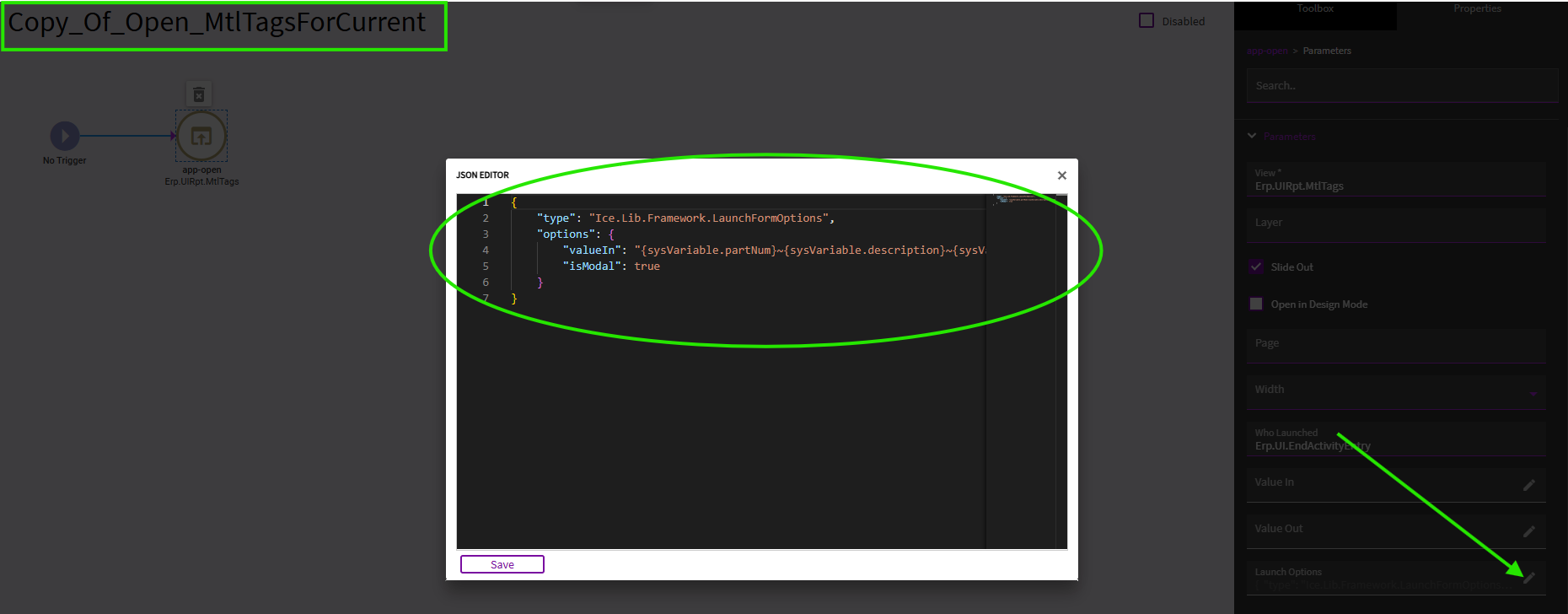
It is already pass a LOT of various values to pre-populate the Material Tags. We need to inject your LaborDtl.InsLot_c into the values being passed in the app open:
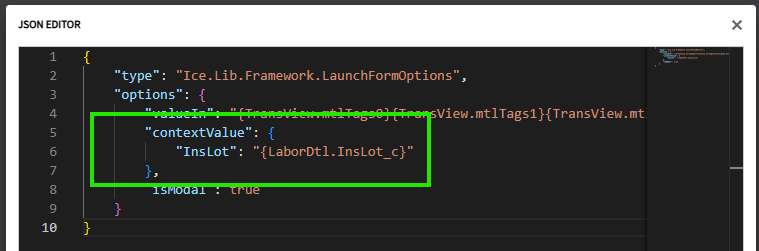
Here is the full JSON expression that should work for you (assuming I got your binding correct):
{
    "type": "Ice.Lib.Framework.LaunchFormOptions",
    "options": {
        "valueIn": "{TransView.mtlTags0}{TransView.mtlTags1}{TransView.mtlTags2}{TransView.mtlTags3}{TransView.mtlTags4}{TransView.mtlTags5}{TransView.mtlTags6}{TransView.mtlTags7}{TransView.mtlTags8}{TransView.mtlTags9}{TransView.mtlTags10}{TransView.mtlTags11}{TransView.mtlTags12}{TransView.mtlTags13}{TransView.mtlTags14}{TransView.mtlTags15}{TransView.mtlTags16}{TransView.mtlTags17}{TransView.mtlTags18}{TransView.mtlTags19}{TransView.mtlTags20}{TransView.mtlTags21}{TransView.mtlTags22}{TransView.mtlTags23}{TransView.mtlTags24}{TransView.mtlTags25}",
        "contextValue": {
            "InsLot": "{LaborDtl.InsLot_c}"
        },
        "isModal": true
    }
}
This is now going to send your InsLot_c value along when it opens the Print Tags app.
Save and publish.
We now need to customize the Print Tags app in app studio to receive the newly passed value.
~ Receiving Form: Print Tags ~
Preamble: I attempted to receive the passed value directly to CallContextBpmData.Character01… and my events DID show the value was set. But somewhere after my event, CallContext was getting wiped! So… I pivoted and stored the value in TransView instead… and then I pass it to CallContext right before I print.
I added (2) textboxes to the form so I could see when things worked correctly.
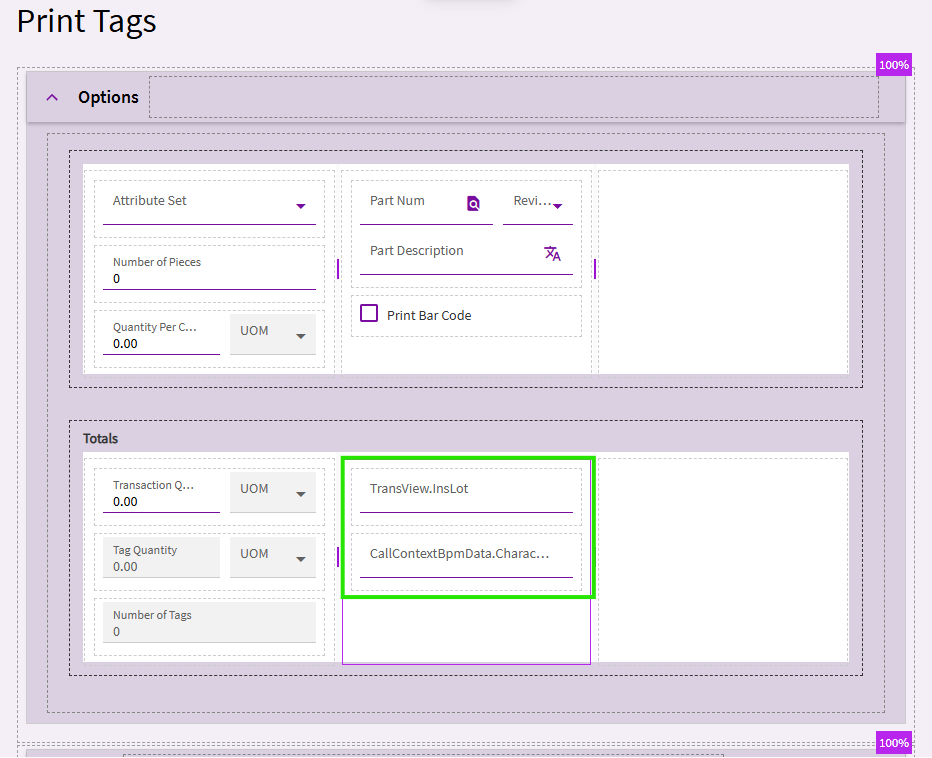
The top is bound to TransView.InsLot
The second is bound to CallContextBpmData.Character01
You now need a new event to receive the InsLot_c value that is being passed from the End Activity app.
I set mine with a trigger of Event > After > GetNewParameters

Row-update:
Binding: TransView.InsLot
Expression: context.initialValueIn.contextValue.InsLot
Save… publish… ADD this custom PrintTag layer to your Print Inventory Tags menu…
Menu Maintenance… search for Erp.UI.Rpt.MtlTags.. add your custom layer to the menu.
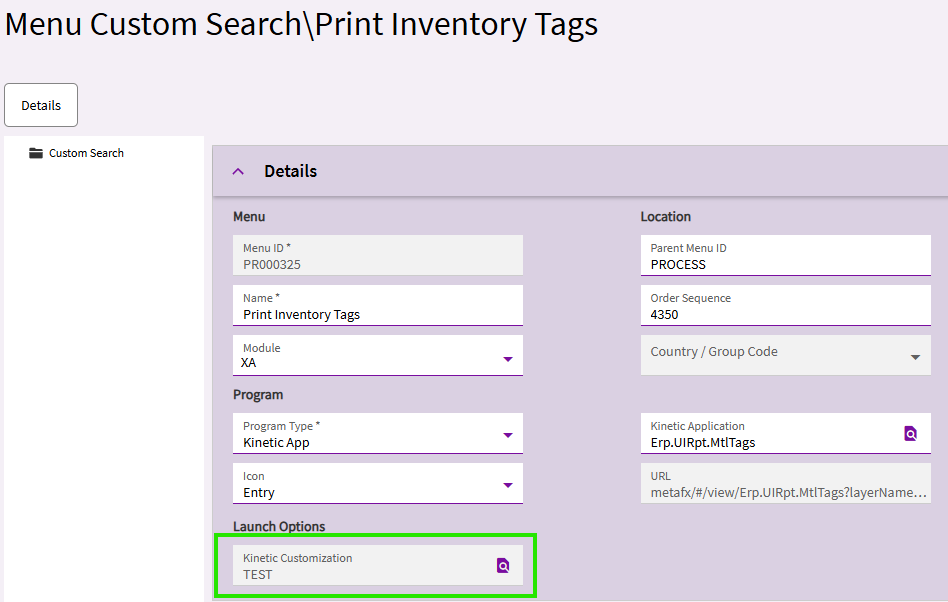
Save the new menu change.
Pause…
At this point we set up End Activity to pass a new value when it open the Print Tags app. We created a new custom layer on Print Tags to receive that value. BUT… we need to go BACK to the End Activity app. We need to tell the app-open event there to open Print Tags WITH our newly created PrintTags layer applied!
So, back in End Activity… add the PrintTags layer you just created.
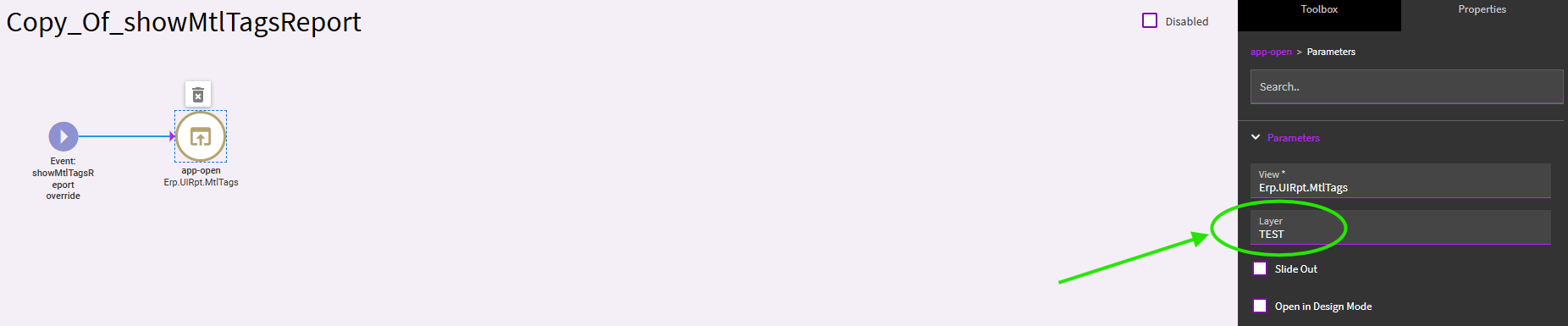
Save & publish.
~~
At this point, (unless I’ve gotten turned around somewhere), you should be able to test the value being passed from one app to the other.
In End Activity… enter a InsLot value.
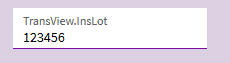
Then click the Print Tags button.
Print Tags should open and you SHOULD see your InsLot value in the TransView.InsLot textbox:
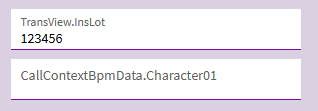
Now… like I mentioned before, if I passed the value directly to CallContextBpmData… it was getting wiped. Never found what was causing that. Instead, I created a new event to pass that value JUST BEFORE I clicked the PrintPreview button.
So, in the Print Tags app… create another new event.

Trigger: Event > Before > printpreview (or something else if you’re network printing, etc.)
Row-update:
Binding: CallContextBpmData.Character01
Value (JSON): "{TransView.InsLot}"
Save. Publish.
You should now be able to test again. Go to End Activity… enter a InsLot value… Print Tags… you should see your InsLot_c value in your TransView field.
Click Print Preview
When you click Print Preview… you should then see your value pass to the textbox we bound to CallContext:
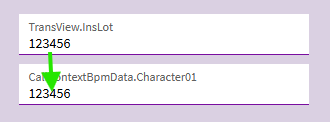
If that’s all working… we can get back to modifying the actual report.
REPORT CHANGES:
The good thing is… we don’t need to modify the RDD at all.
Open the RDL.
We’re going to add a new Dataset entirely.
Right-click the Datasets folder and select Add Dataset…
Give it a name… I used CallContext
Select the option to use a dataset embedded in my report… select dsPartTags
Then Click into the expression…
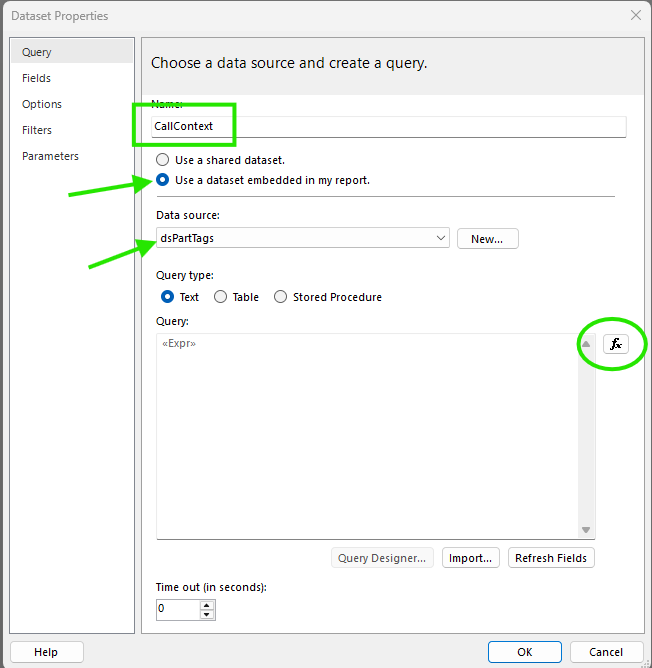
Expression:
="SELECT
    Character01,
    SysRowID
FROM CallContextBpmData_" + Parameters!TableGuid.Value
You don’t really need SysRowID… I just had that in there for testing/troubleshooting.
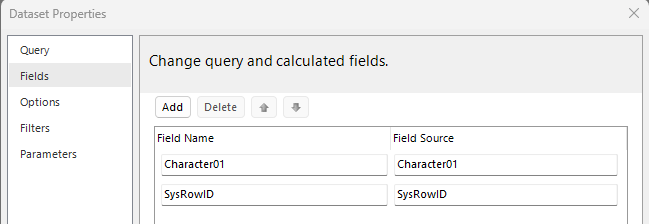
Save that and then add your fields to the dataset:
On your form, add a field with the below expression:
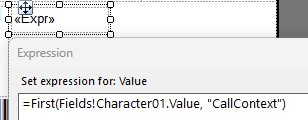
=First(Fields!Character01.Value, "CallContext")
Save the RDL. Upload and test. HOPEFULLY… you’ll see your LaborDtl.InsLot_c value… which was passed from the End Activity app to the Print Tags app… received into Transview… passed to CallContextBpmData… land on your printed report.