We have a big customer using on-prem IDC. They process hundreds of invoices per week.
They have been having a problem with document separation not working too well. They receive paper invoices from their vendors, scan them in to IDC in a big batch (so multiple distinct invoices per batch), and many many times, they have to split up the invoices into their own separate documents, as often a new invoice will be listed as page 2 of another.
They find this super annoying given the volume of invoices they process. We are not using classification since they only have one doctype (invoices). We are using DocSeparator misc parameter on the invoice number to do the split.
It’s been very hard to troubleshoot as when they tell me a batch didn’t split, I re-upload the same PDF and it works! I’m guessing because they’ve just made the manual corrections, and I am loading in the exact same invoice.
IDC support point at that and say “see it works” but the problem is subsequent invoices. Next week, they put in a new batch, but it seems like the system hasn’t learned AT ALL from all the corrections the customer has to do (which support claim is how it works). THe system cannot extrapolate from previous data it seems, so every week, the customer has to manually go through in Data Verify and split the documents that didn’t split.
Has anyone else had issues with document separation? I am getting worried we might lose this customer due to this problem.
Is the Azure OCR capabilities installed for their IDC environment? This is something that needs to be installed for OnPrem but available by default for cloud.
As for the DocSeparator, I’ve had mostly positive results, but scanned documents are always a challenge due to quality, orientation, etc. If they are collecting these to scan, could they use a blank page or something else to split the documents apart that way?
Sorry I forgot to mention that - yes Azure OCR is ON. The OCR itself is quite an improvement after doing this. It’s just the page splits that’s the problem.
I could suggest adding a doc separator page, but at this point they are big mad about the amount of time this already takes. I’ll be sticking my neck out if I suggest they take even more time to add barcode separators or blank pages. I’ll just be hit with “well we shouldn’t have to!” Which I understand tbh.
I get the reasons re: quality of scans, but to be honest, the quality is good. They’ve sometimes put through bad scans and I can clearly see why it didn’t work, but most often they’re perfectly legible and clear. They have pretty good scanners.
in today’s world, this seems odd, so I have to ask - are they receiving these via email first or are they really getting paper invoices via Postal service?
I ask b/c if they can correct this, and have them sent via email, then IDC can read each email/pdf separately and eliminate the need for batch input and page separation - or at least minimize it - and then the separator page might not be such a hurdle.
It’s a grocery store. They get their invoices along with the shipments straight off the delivery trucks.
One or two of their vendors will email, but 98% of them are hard copies. Trust me lol we’ve already had this conversation with them, going digital for all their invoices just isn’t happening sadly
Do they have any control over the format of the invoice? Can they get a barcode, or special text string added to the page? OCR could use either to denote the document change boundary.
What flags are set on the VendorName field? Ensuring “Unique” is set may improve the accuracy and training data as this creates a specific training set, as far as I understand it.
Very little unfortunately. I can bring it up again. They might get one or two of their vendors to change, but they deal with 100s if not 1000s of vendors.
We do have a VendorOCR field that is mapped to Vendor (for cases where there’s just a logo, no readable name), and that is set to Unique. Should they both be?
From what I have been told by Ancora, the Unique flag is what locks the training date to a specific dataset which then can help ignore lower confidence matches. I asked ChatGPT to summarize the Ancora documentation on this flag.
“Unique” Field Flag in Ancora IDC
The “Unique” flag identifies fields whose values are unique to a specific document type and origin (e.g., invoices from a particular vendor). These fields help Ancora IDC recognize and apply the correct layout and processing rules for each document, even when layouts vary visually.
For example, a vendor’s tax ID, name, or email could serve as unique identifiers for all invoices from that vendor.
Purpose and Benefits
Establishes a clear link between a field’s value and the document’s source (origin).
Supports vendor-specific configurations introduced in version 8.2, where unique field values can influence both validation and data capture rules.
Enables accurate field capture even when no matching training data exists or when layouts differ significantly.
Recommendations
Mark fields used for vendor-specific configurations as Unique.
Apply strong validation (e.g., dropdown lists or strict regular expressions) for these fields to ensure reliability.
How It Works (Technical Behavior)
The value of each unique field is stored in the corresponding training data.
When identifying a document:
Templates with mismatched unique field values are rejected.
If no matching template is found, Ancora searches the document text directly for the unique field.
If a match is found, templates containing that same unique value are re-evaluated under relaxed criteria.
If the unique field is tied to vendor-specific configurations, it is detected first, activating the relevant rules before capturing other fields.
In short:
The “Unique” flag in Ancora IDC enhances document classification, vendor-specific processing, and data accuracy by using reliable, validated fields to drive intelligent matching and configuration selection.
If linking to a logo, OCR may experience troubles with identifying the Logo as the same text twice.
What version of IDC is in use? Since the Azure was available in 9.34, it’s safe to say the version is greater than/equal to 9.34.
When documents split incorrectly, this could be based on the attachment pages interferring with the OCR process. I typically delete the training data for the Supplier and retrain the documents when I can’t identify the key factor. I would, before deleting the training data check if the attachment pages are marked accordingly, if they are not, check if the pages that you eventually mark as attachments have green boxes to indicate that the page has training data captured on the page. Then right click on the attachment page and delete training data for the one page.
Otherwise, sometimes painful but necessary steps are to delete all data for the supplier AP Invoice and retrain, which can take between 3 and 5 times training the document.
Some invoices have logos yes, but we use a VendorOCR field mapped to the Vendor field so the customer can input a phone number/tax ref/other unique ID and match it to the vendor.
We’re on the latest version
We are not using any attachment settings whatsoever. Only one of their invoices comes with a clear attachment, and when we tried to set it up it was a huge pain in the ass. So we disabled it.
If the files do not split consistently I would suggest it is the scan quality or DPI of the scan. Difficult to know every variable involved with this supplier.
It’s possible that deleting training data for this supplier would help with identifying if the documents can be pull the right data. I would suggest downloading the training data before deleting and only deleting for that particular vendor.
VendorOCR sounds fine as configured.
Are you using ‘Attachment Detection’ on your DFD? If yes, how does the data capture work with that page, does it ignore it or does IDC puts boxes around the fields on the document?
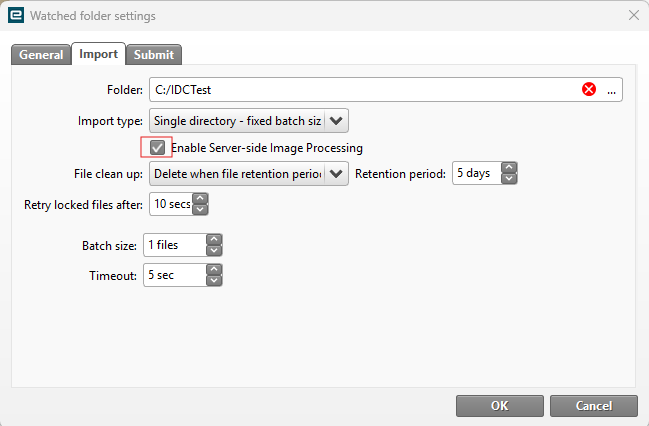
I would suggest trying the file that is directly received with no scanning involved to validate how the document processes without the scan process. Does the file work better through manual batches or is the Input Service Configuration tool used to import files into IDC? Make sure if they are Cloud to set the ‘Enable Server-side Image Processing’ to True since this has interfered with files and cause import errors.