If I want to adjust the QTY Issue and QTY Required columns to 4 decimal places, whereas the original values were 2 decimal places,
what additional changes do I need to make?
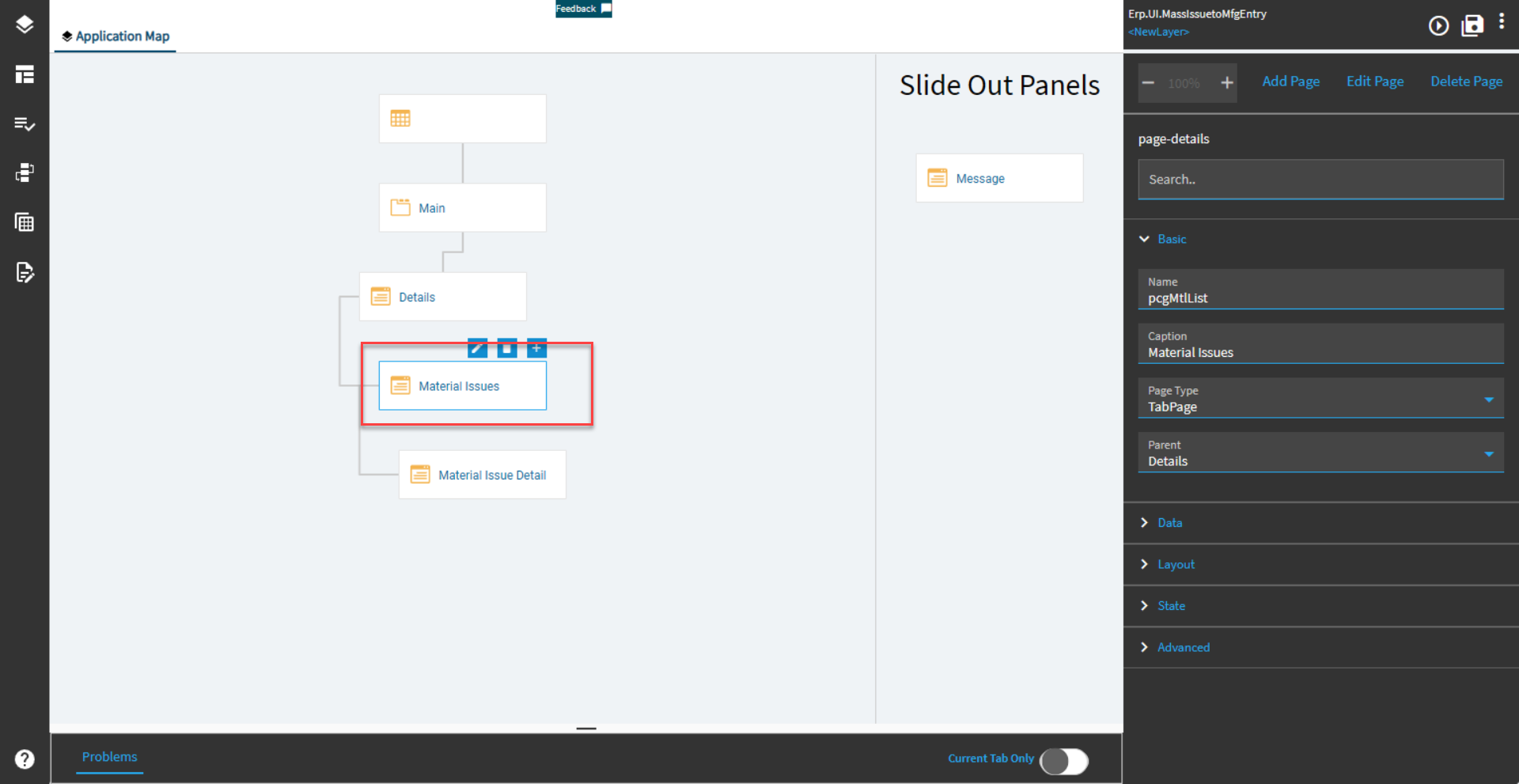

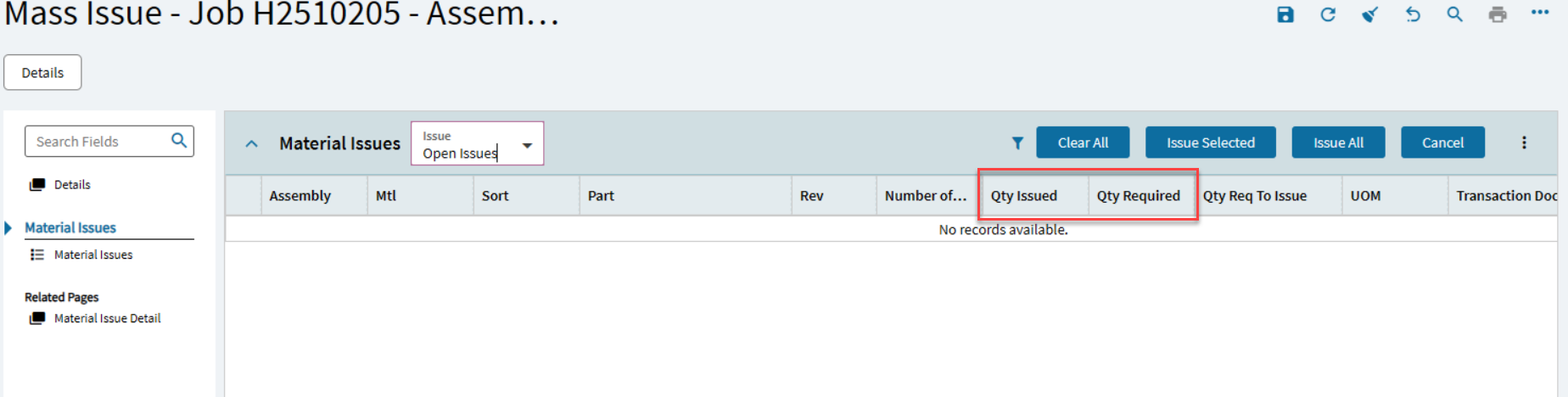
A few things you can try:
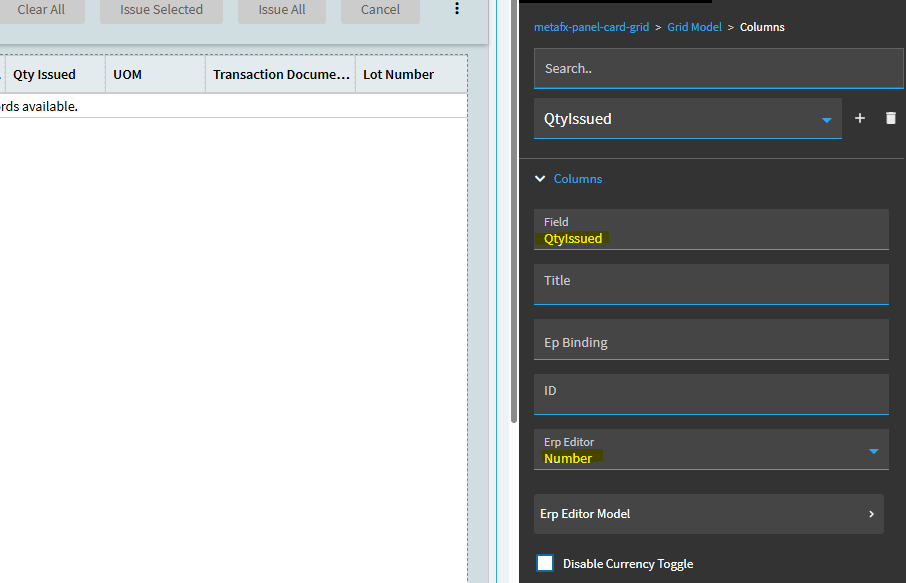
In the Grid Model > Columns properties, you can set that column to Erp Editor of Number. Then click into the Erp Editor Model settings
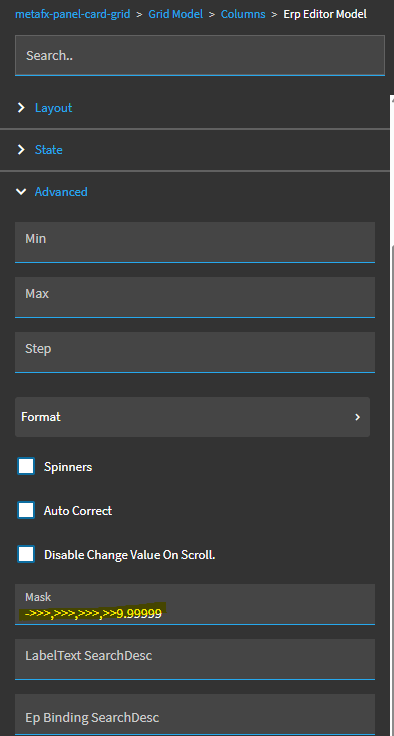
Under the Advanced settings, you can then set a Mask for that column:
In the Format area, you can also set a Minimum Fraction Digits value:
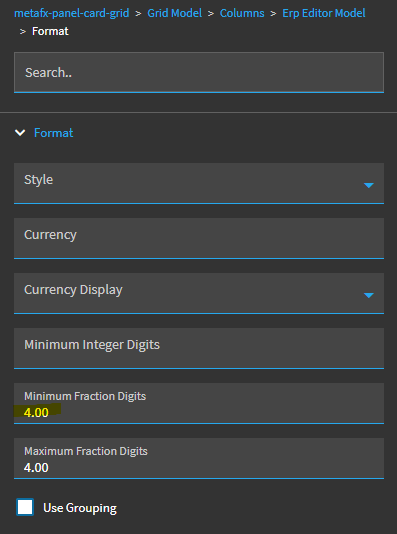

Now… that all being said… the number of digits in values like this are also (ultimately) controlled by the number of digits on that particular unit of measure.
For example, if my Inches UOM is set to only 3 decimals:
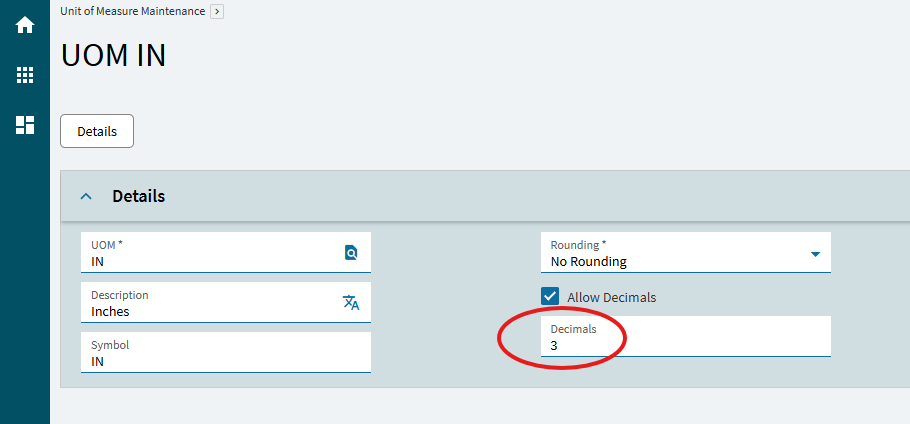
Even if I type in 1.1234… it is only going to ACCEPT the first (3) digits of the decimal:
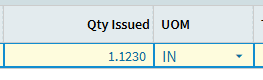
1 Like
Also check Extended Properties to see what the decimal values are for those fields in the database. IIRC they’re more than two but best to verify.
1 Like
Thank You I Love You
Thank You I Love You 
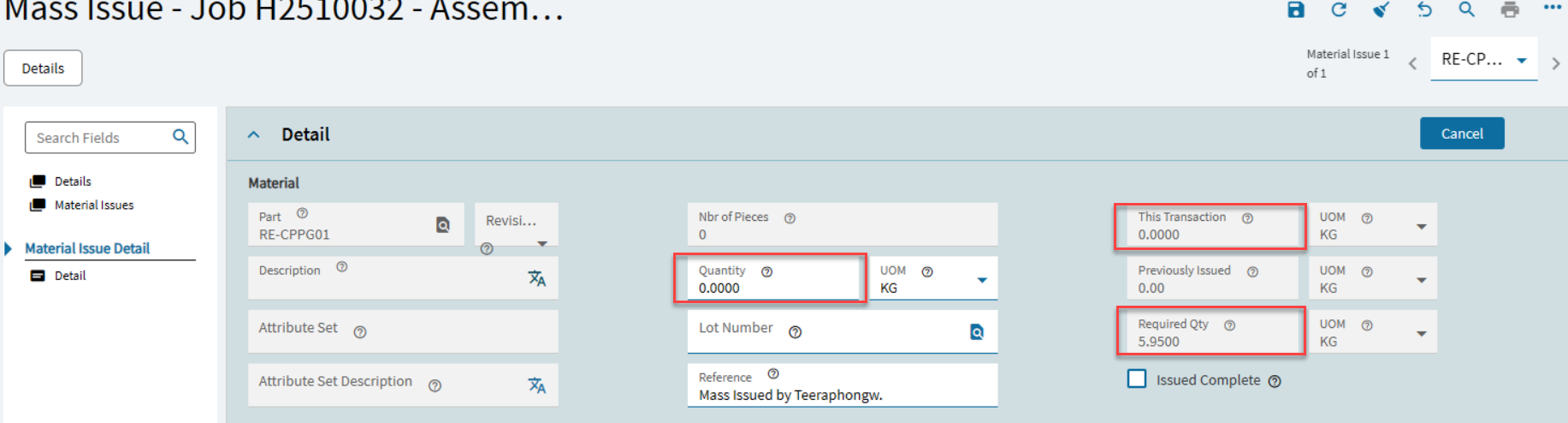
I tried it but it still has 2 decimal places, which might be related to Company Configuration.
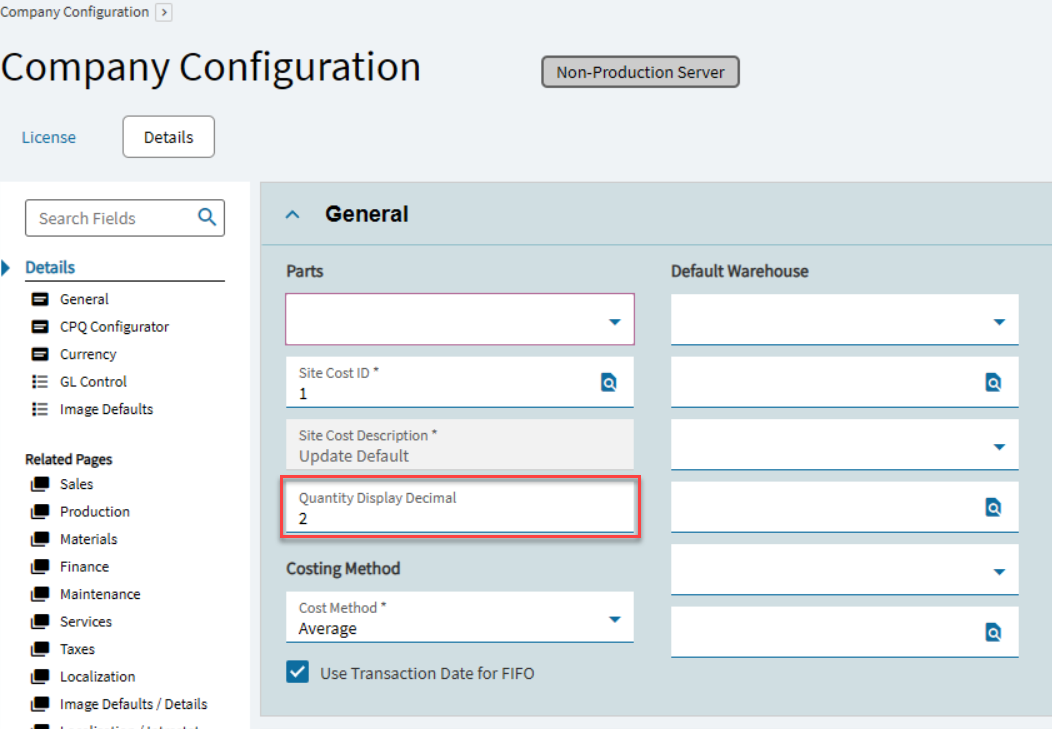
Is there a way to separate this from this point?
There are some forms that have changed. The column part is displayed as 2 decimal places as before.

1 Like
Well, one thing I’ve noticed is.. yes, the company config setting may play a role IN THE DISPLAY.
Here’s the field help description:
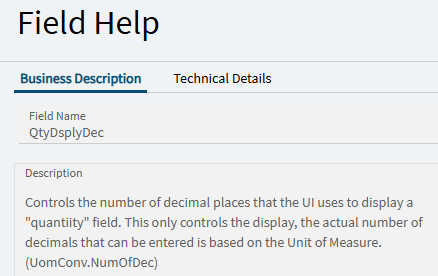
So, this only REALLY impacts the number of decimals “the UI uses to display a quantity field”. Even here it mentions the UOM decimal places is the controlling factor.
Now, when I first load my customization in “Preview”… I only SEE (2) decimals. I also have it set at (2) in my Company Config setting.

But, if I click into that cell, I can type in (4) because of the other settings I changed:

If I leave that screen and come back… I see this:

The asterisk (I believe) means there is either rounding, OR, there are more decimals in play in the actual value than are being displayed.
2 Likes
Thank You