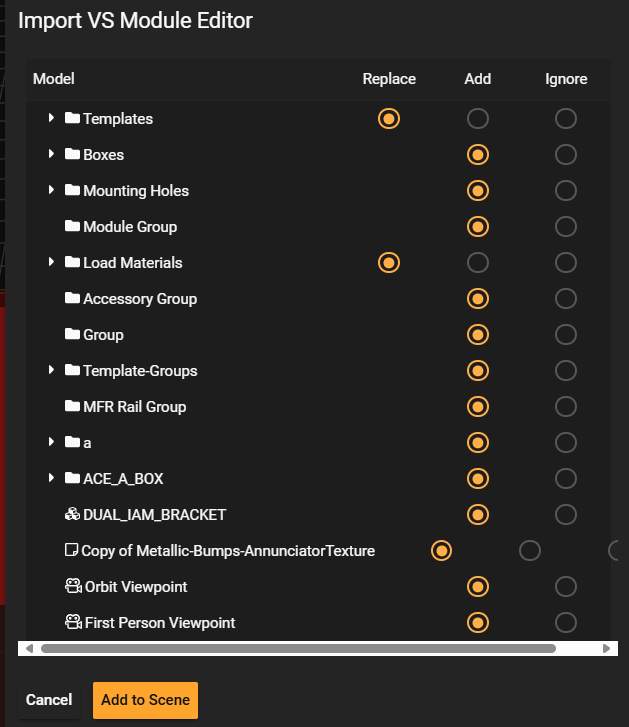
So I have two different 3d scenes and I was trying to import one part into the other. When the menu pops up for importing, it defaults to trying to replace or add all parts from one scene into the other which is a little clunky since there is no option to select ignore all and choose the one part to add. There are quite a lot of parts in the config I am looking to import from and having to go through and click ignore for every mesh, texture, viewpoint, etc. is really quite annoying. If its possible to add an ignore all feature and then select the individual parts to import that would be a life saver! And no selecting the topmost folder does not ignore everything in it, you have to drill down to every level and manually select each one.
1 Like
Hi Randy,
I hope your day is going well!
That sounds like a good candidate for the “Ideas” portal.
If you haven’t already, go-ahead and submit that idea–I’ll vote for it.
I do see some tangentially related ideas already present that you could vote for as well:
Hey Alexander!
Just upvoted those ideas you linked. Here is the link to the idea I just created:
Importing Custom mesh nodes from one scene to | Epicor Ideas Portal
1 Like
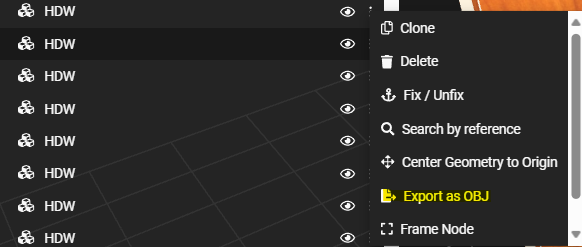
Greetings, have you tried exporting the mesh from Scene 1 as an OBJ and then importing that OBJ into Scene 2 from “Upload Files”?
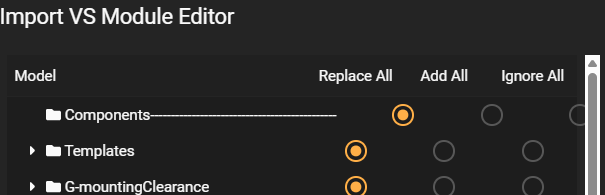
So I ended up submitting this in the ideas portal and got a response. It turns out if you hold control and click, it will effect all of the parts in the sub folders of whatever you click which was exactly what I was looking for (Ignore All). I wish it was more obvious kind of a hidden feature.
1 Like