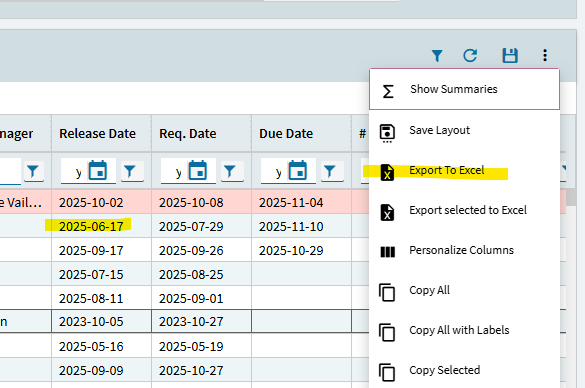
Kinetic - Export to Excel in grids have the dates with a timestamp. Is there a way to keep the date format but without the T00:00:00?

I’m talking about this option:

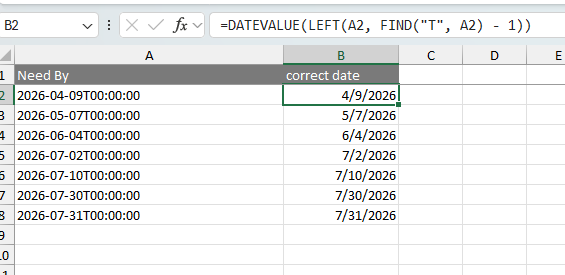
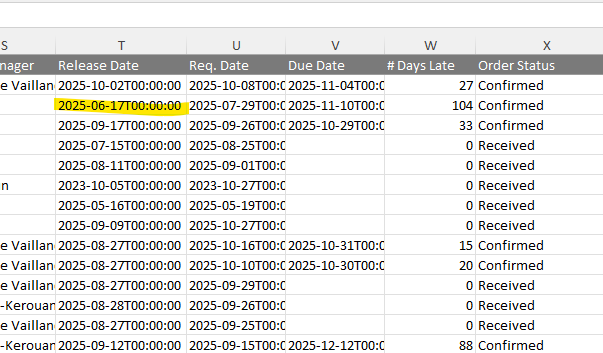
When opening the Excel file that was generated, we see T00:00:00 at the end of every date

I searched on the forum and the only solution that I saw was to create a calculated column as varchar. However, pretty sure that by doing that, we’ll lose the ability to correctly filter the date in the dashboards, no ? And it seems like a lot of work to rework on all our dashboards just because the default export option doesn’t format the date as it’s shown in the grid

Is there an alternative to this or is there a simple way in Excel to format the column ? I tried to change the format to custom but nothing changes

Use a custom formula in excel:

=DATEVALUE(LEFT(A2, FIND(“T”, A2) - 1))
Note careful with the copy/paste of the double quotes. they copy as curly quotes and they need to be straight.
Where A2 is your date field.

Oh right ! However, doing this for every single date (Every time an export is done) would be too long because there is often multiple columns

I wonder if just a simple ctrl + f and replace the ‘T00:00:00’ for all columns would be a faster approach

2 Likes

That’s what I do. Well, Ctrl+H, but same thing.

2 Likes

Yes! That can do it, and you can make it part of a macro.

Honestly changing the BAQ is better IMO. That way you dont have to rely on any changes after the export. Good luck!

1 Like

With the amounts of Dashboards that we have, it would be a lot of work to add calculated columns and then change the customization layer to reference that new column. Changing row rules sometimes too

I understand that if we knew that before, it would have been done when building the BAQs but most of these BAQs were started on Epicor Classic and the export worked correctly for these columns in the Classic Dashboards

Let’s hope that Epicor allow us to choose how we want this export to behave with dates

1 Like

I think the other alternative to getting the desired data format is use the right click > copy all with labels instead of overflow > export to excel.

1 Like

Added an idea: Customize Export To Excel Field Formats | Epicor Ideas Portal

3 Likes

True! I haven’t been using this in Kinetic, but it does work like expected! This might be good enough for the OP.

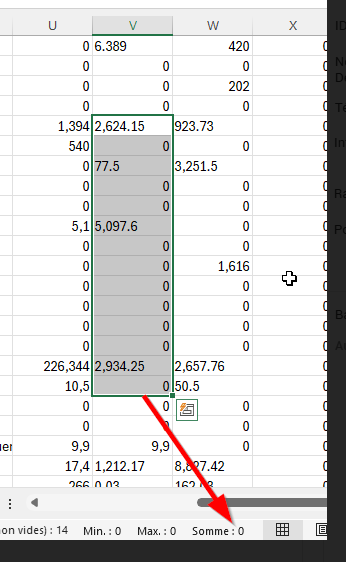
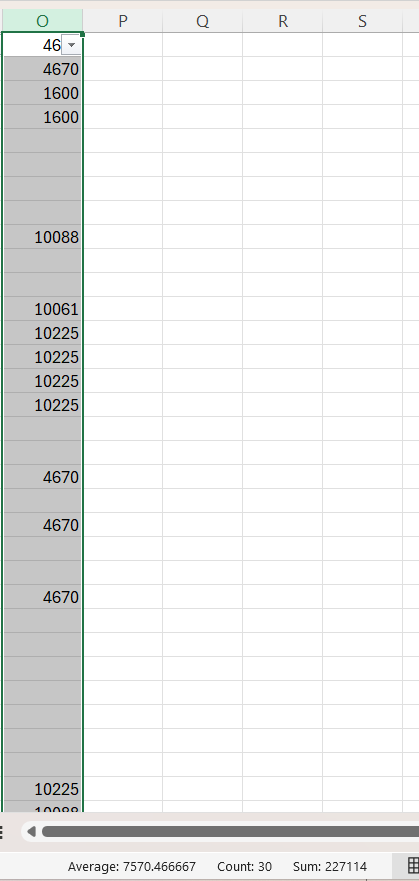
I tried this but when doing that, the numeric values are not correctly displayed. The user (Who reported me this date format problem) told me that there were problems with sums on numeric columns in Excel when using that Copy / Paste option. I was also able to replicate it myself when it was reported

What format do you have for that column in your grid options? I just did copy all > paste, and it summarizes fine:

1 Like

You can see in the example some of the numbers are left justified, and contain a comma. These are likely being brought in as plain text, and Excel just can’t handle it (without some extra clicks). You can define those fields as all numeric, but you have do it manually in Excel after you paste (look for the drop down that shows up when you paste).
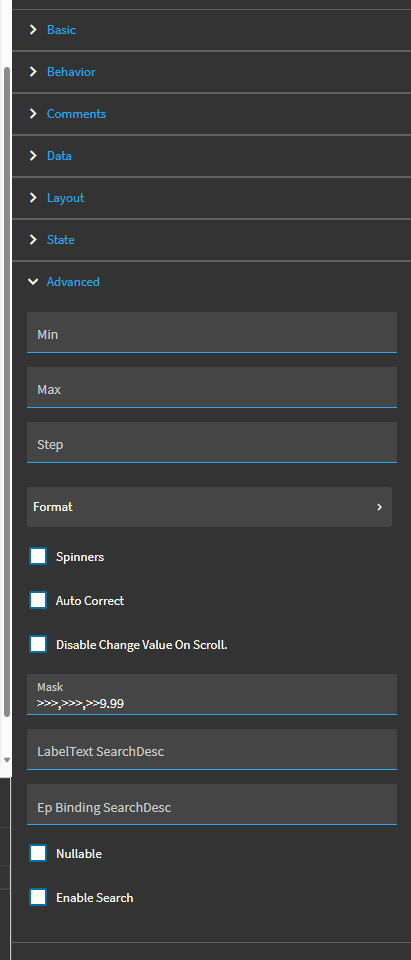
I usually have this format: >>>,>>>,>>9.99

Because it looks better in the Dashboards ! But I understand now that this format is the one that causes problems in the Excel file

So for now, there’s nowhere that is perfect. But I think the Export to Excel and ctrl+h to replace the dates is the easier and faster approach for now

2 Likes

In Excel can’t you just change the column type to ShortDate or something?

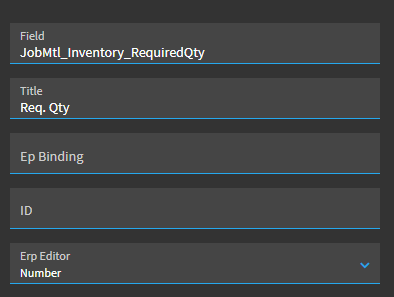
But do you have the erp editor set to number on that column in the grid? It doesnt look like it?

No that doesn’t work to get rid of the time portion.

1 Like

Yes:


This is what is configured on all of my number columns in kinetic

And after the copy to Excel:
image

2 Likes

What is the data type on that column in thr baq?

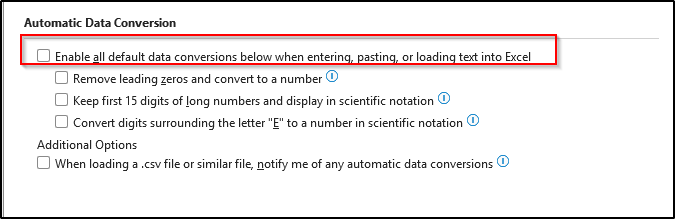
Check your Automatic Data Conversion settings in Excel, it might be trying to help you. Try it with it unchecked if not already

1 Like