Hi,
I have added a custom button on the Kinetic MES screen on the main page. I want to understand how I can make it default for the users.
Regards,
Vishal
Hi,
I have added a custom button on the Kinetic MES screen on the main page. I want to understand how I can make it default for the users.
Regards,
Vishal
Hi Vishal,
Assuming you have already published the layer in Application Studio…
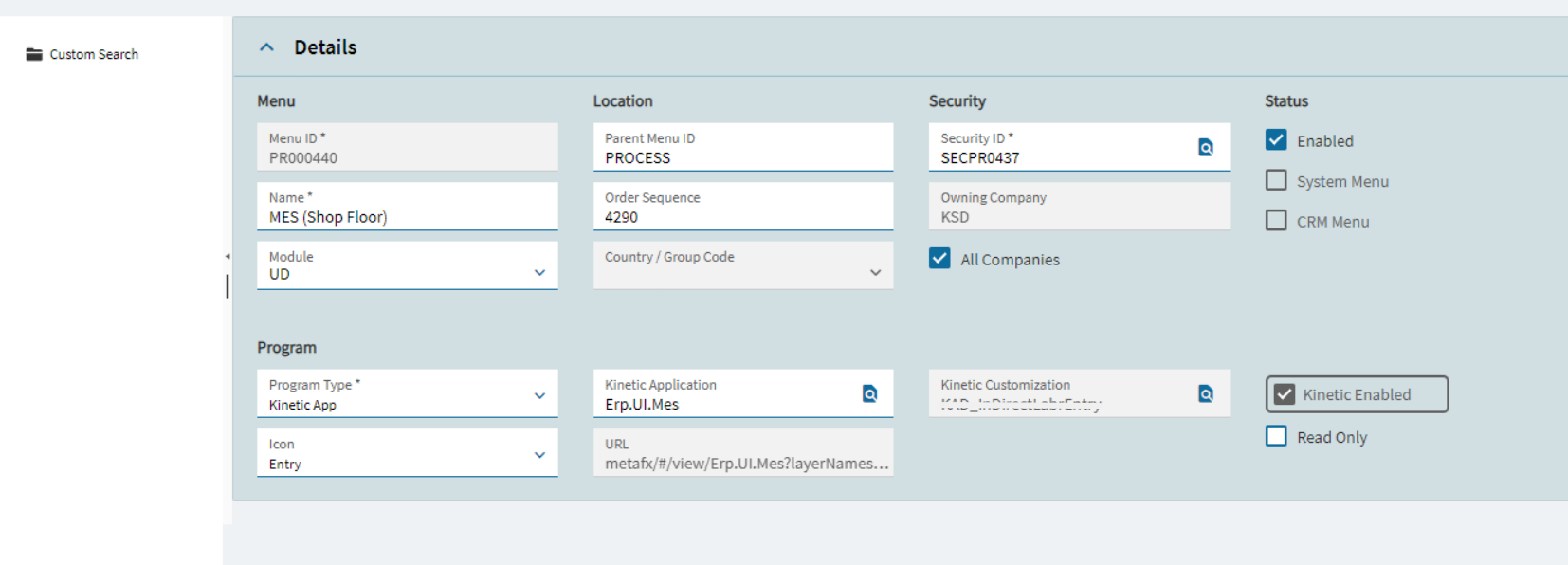
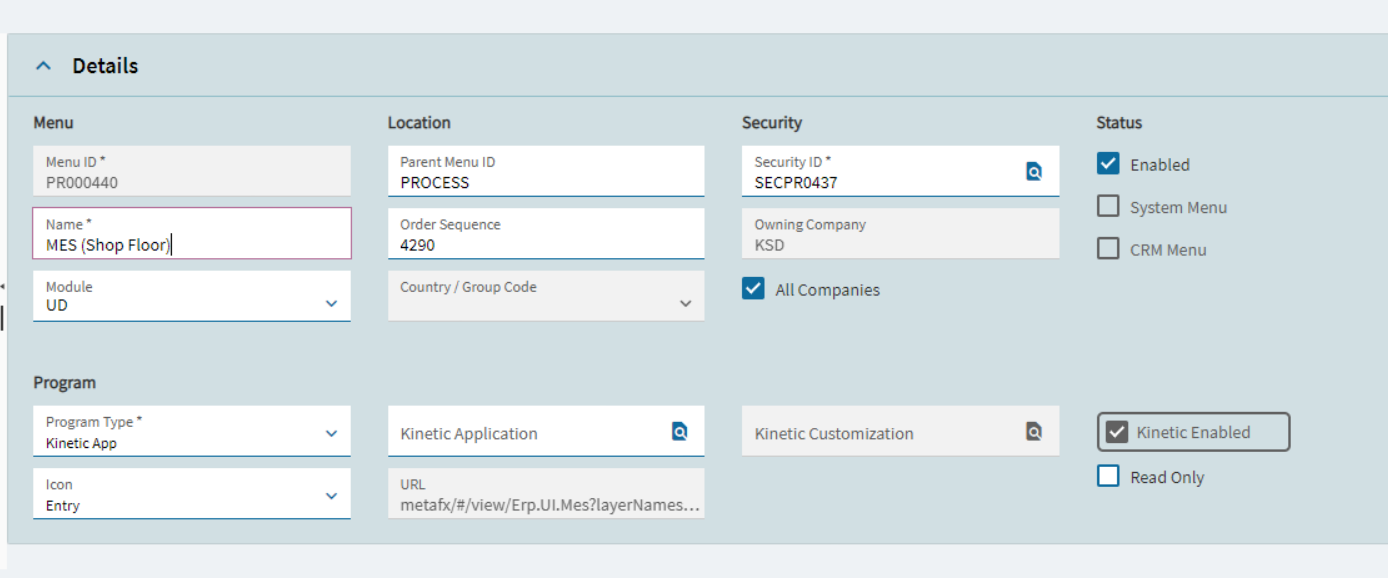
This is weird to me. I applied my layer like below and when I came back again to the menu maintenance it was again empty. Does any of you experience the same?
After Apply:
Checked again and it is all gone:
Any Idea guys? I am still searching for the answers.
Hello All,
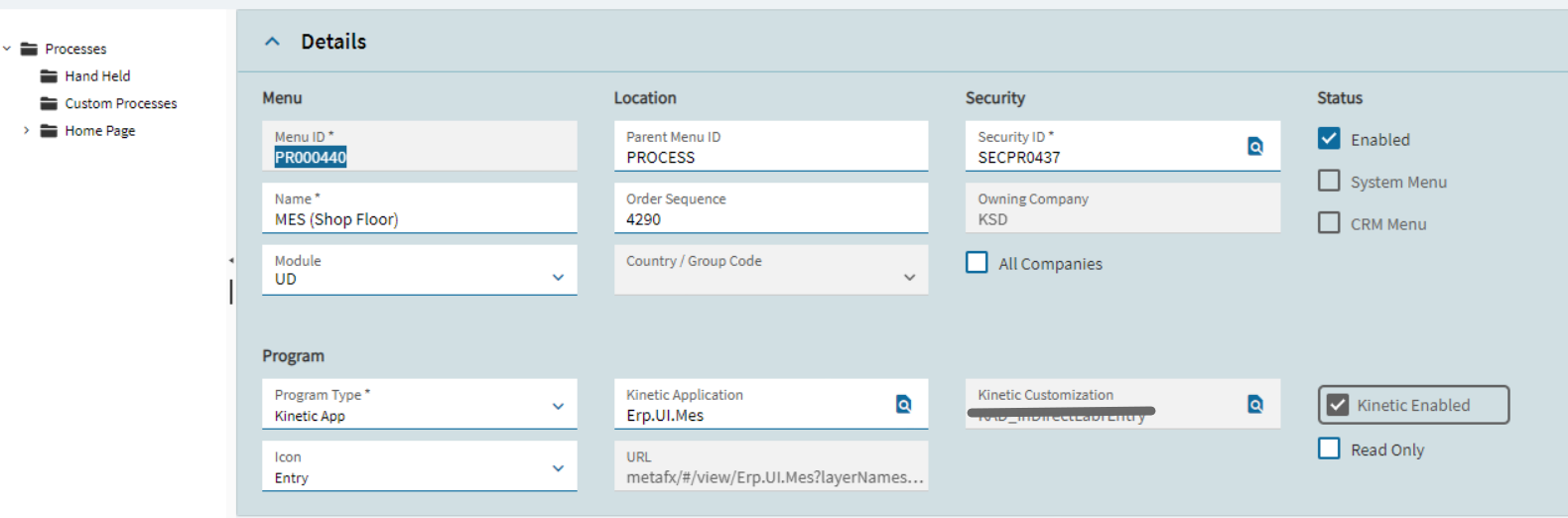
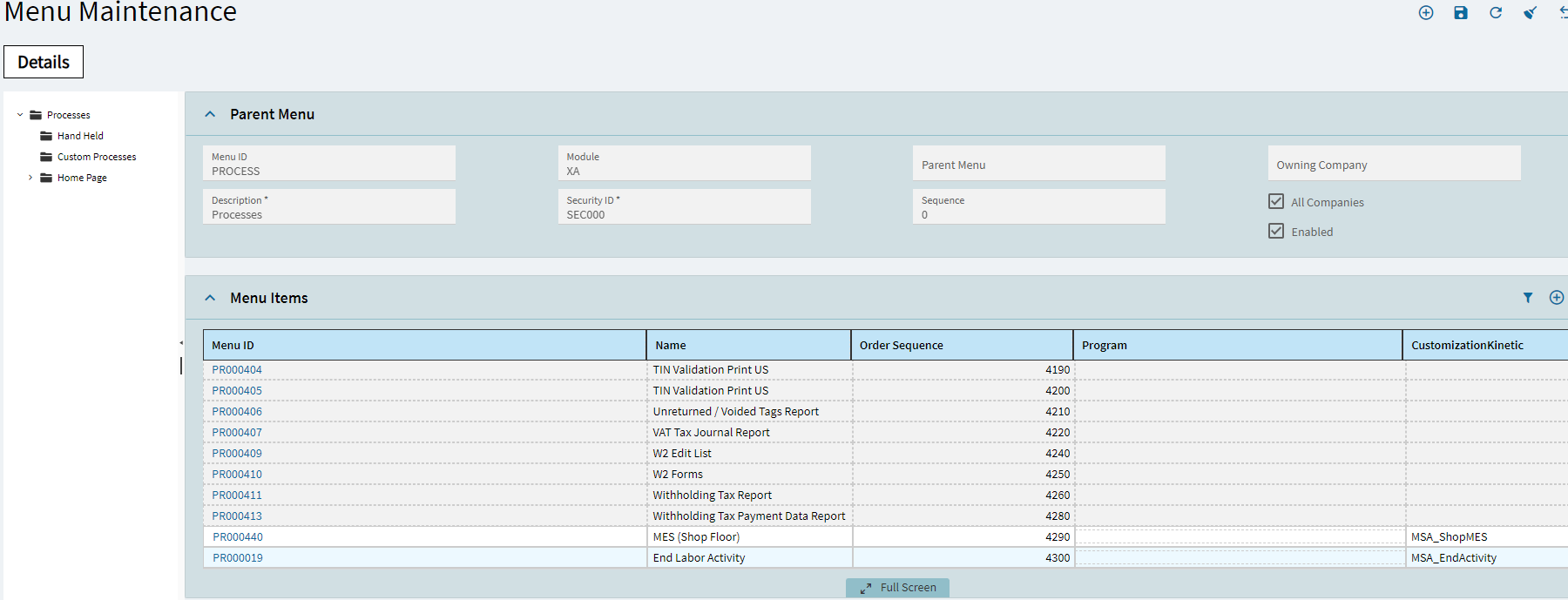
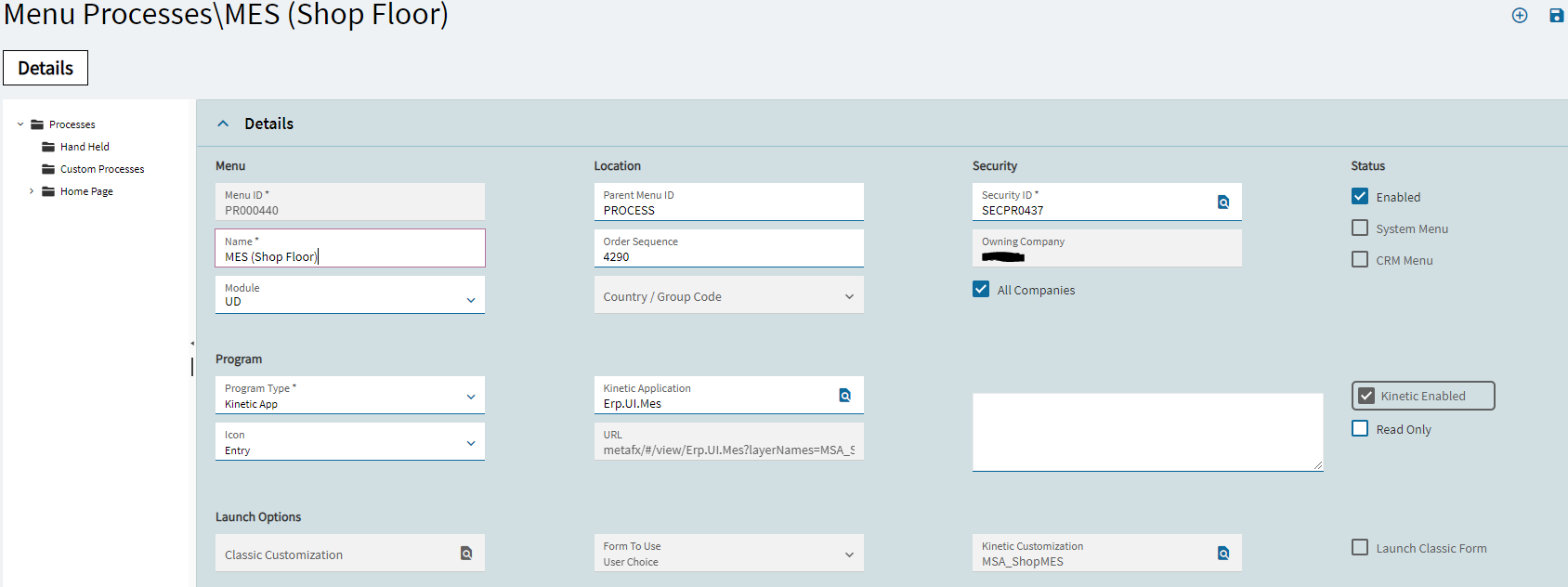
I see the layer added in the custom menu PR000440 but I don’t see it reflecting in MES web.
@Vishal.Sharma185 did you ever find a solution to this?
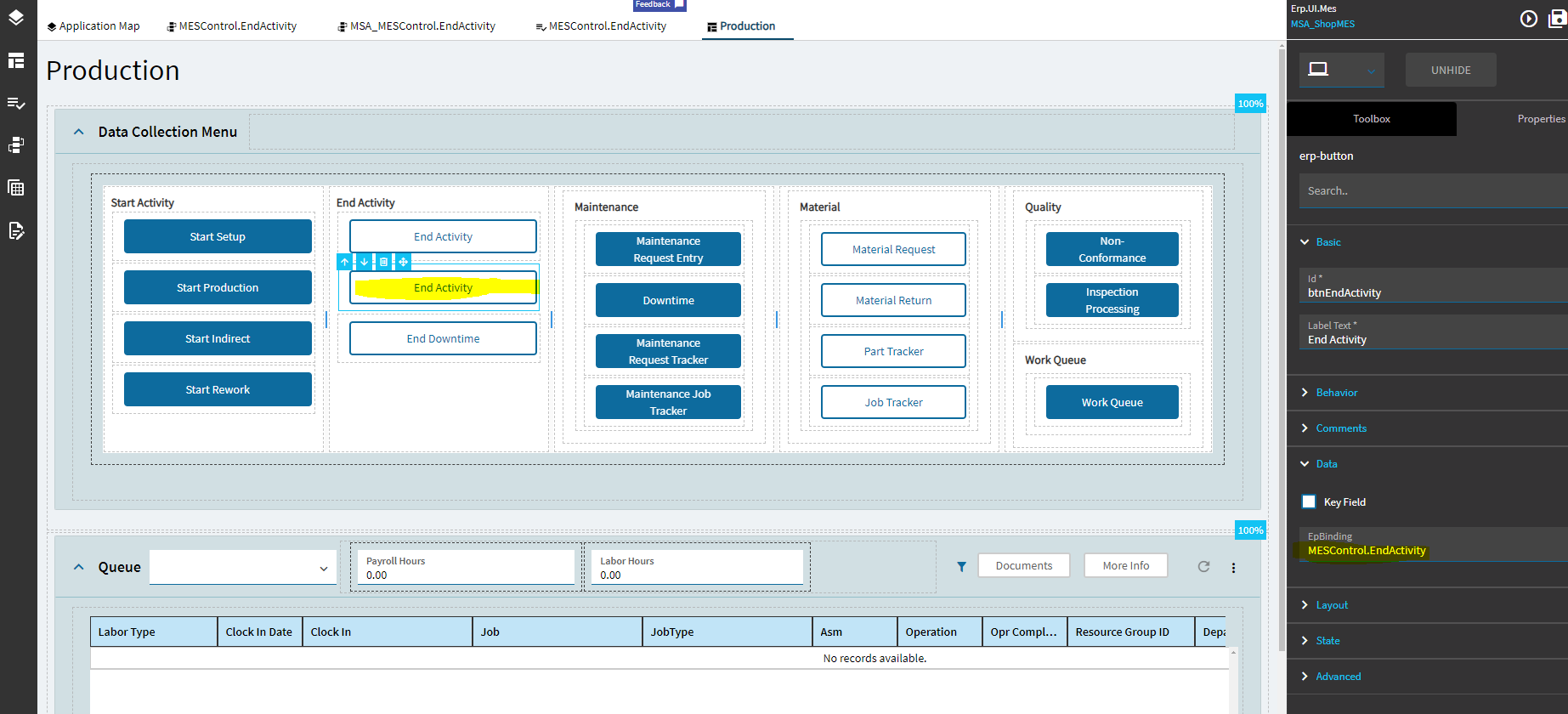
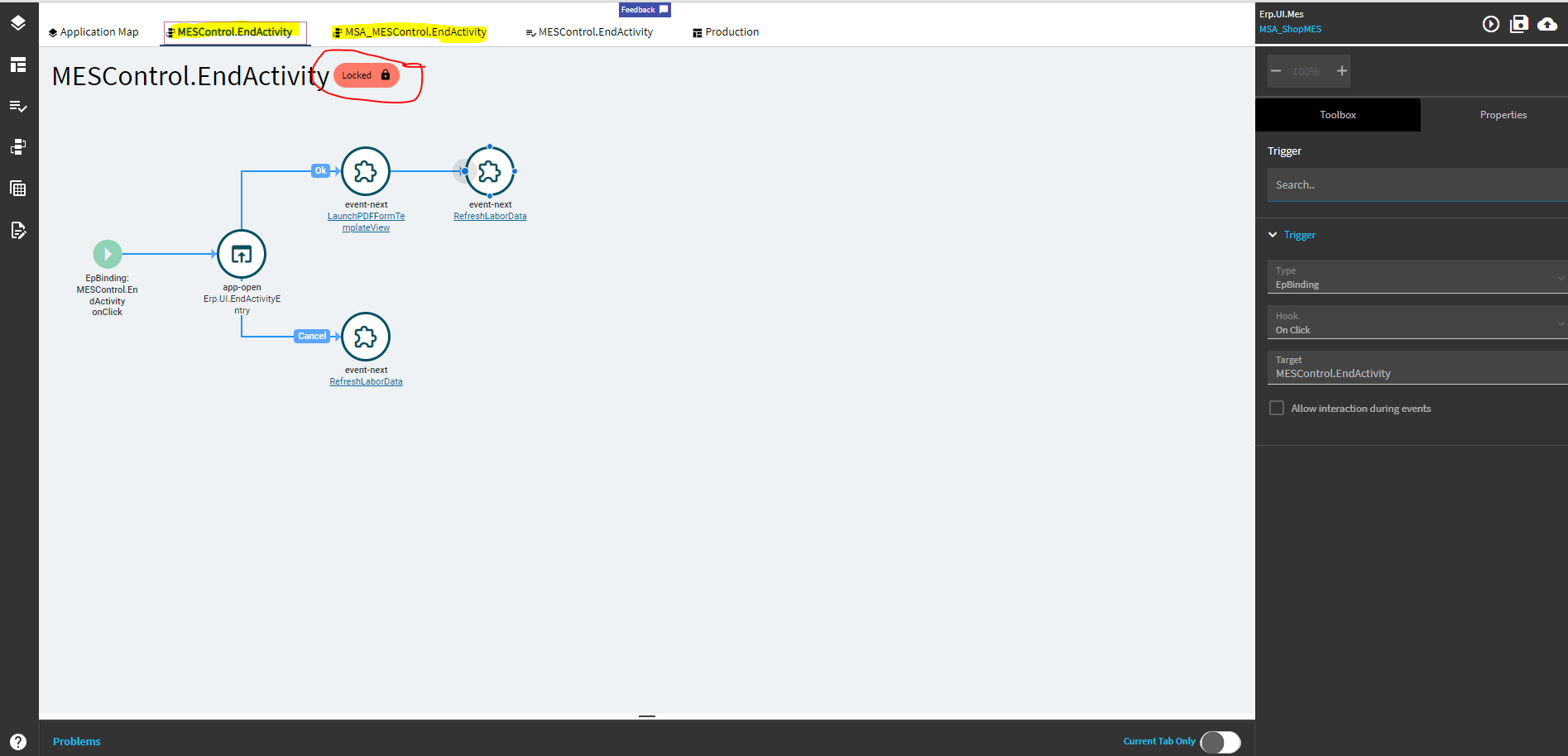
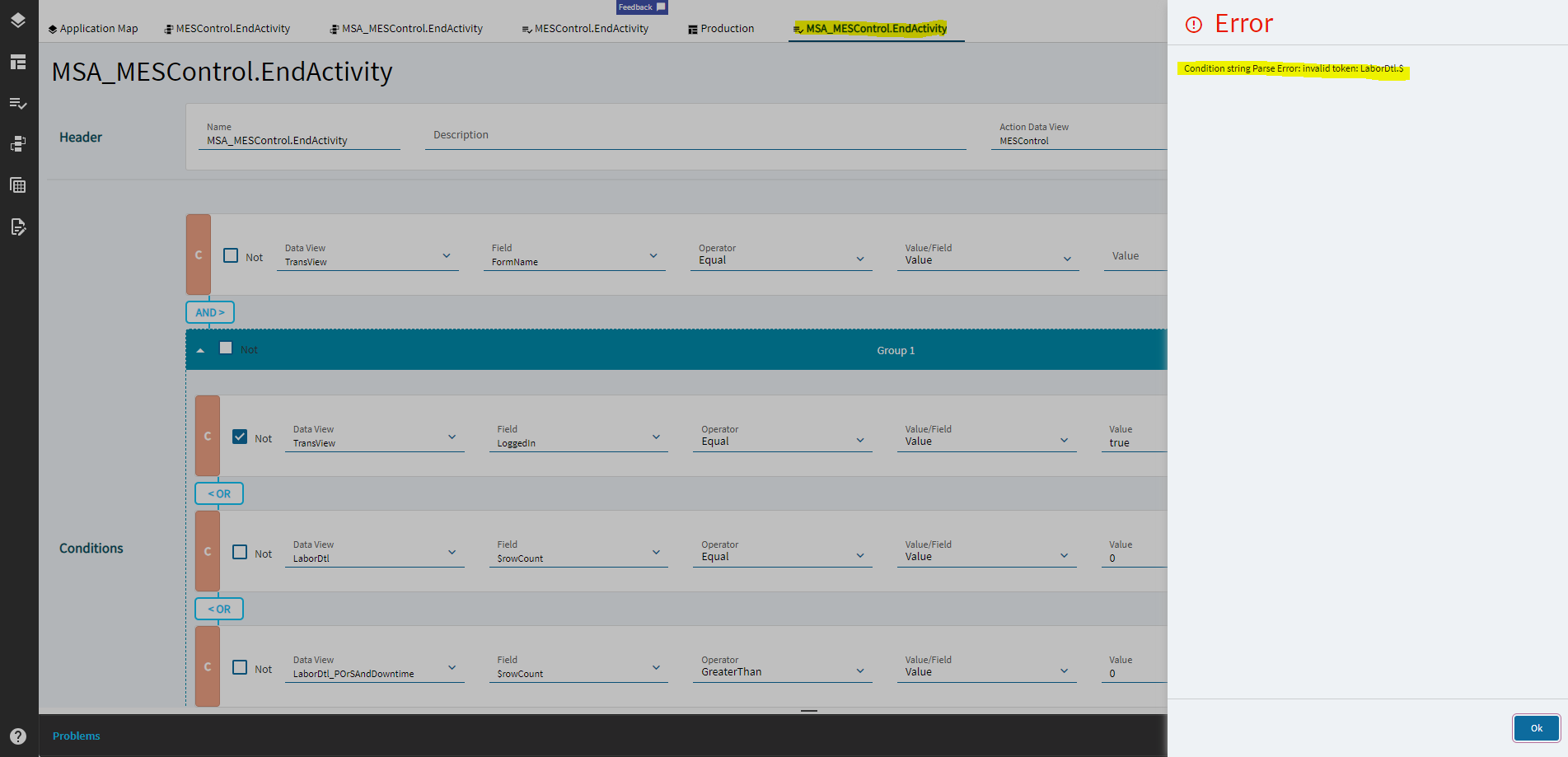
I have an open case for a similar issue, but am spinning my wheels. I also tried following the Knowledge Article: Steps to deploy a Kinetic Customization to a Kinetic 2021.1 Data Collection Button, KB0115622, but run into a snag when trying to save a copy of the Data Rule. My new Event works, but the rule deactivates the End Activity button and needs to be replaced. Any thoughts on this?
Based on the below post, it sounds like there are known bugs in this functionality.
There’s a newer Knowledge Article out on this: KB0132464 EpicCare Login - EpicCare. It is version dependent, the layer is a little finicky… log-out/log-in and repeat, but it “works”  when combined with Kb0123146.
 thank you