We are need the PartNum field on the Sales Order Entry to not allow users to type in the field. We want them to search the part and choose what they want and not just freely type in the PartNum field. Is this possible?
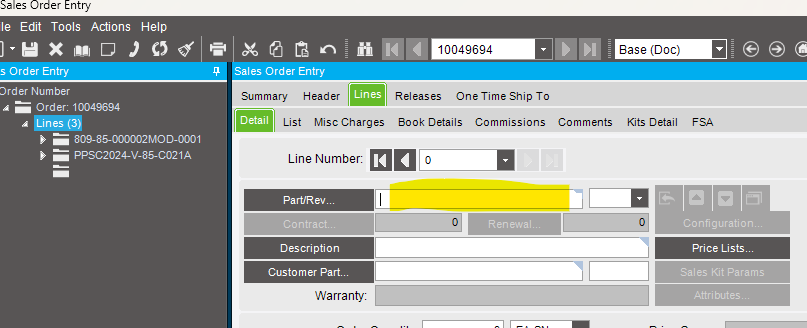
Yes you can use the Customization Tools Dialog to select the field and mark Enabled to False. The field will still show up and display your part numbers but they will not be able to type in it. They will have to search using the Part/Rev… button.
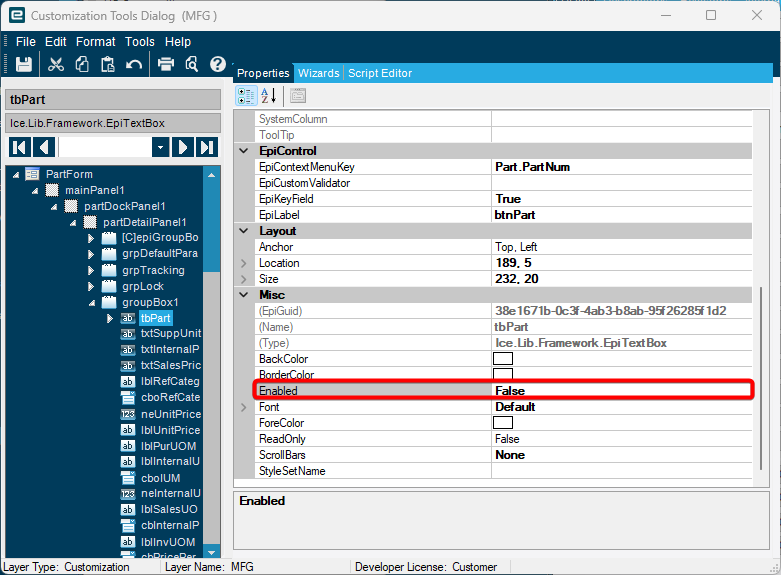
How do I get to that screen?
First you need to turn developer mode on. From the Home Screen, depending on which version of this you use. It’s in different places. When you click to open the Sales Order Entry screen it will show you the available layers. Make sure you select the right one for the right company if you have multiple. Once the screen opens you need to select Tools from the Menu bar at the top and you should see Customization. This will open the form I screenshotted. You then click the field you want to do this for and chaged the Enabled property to False and click save. Then clost it all out and open the form again and it should work like you want.
This open after I turn on Developer Mode. Seems like it just wants to customize for me. How can I be sure this changes for everyone?
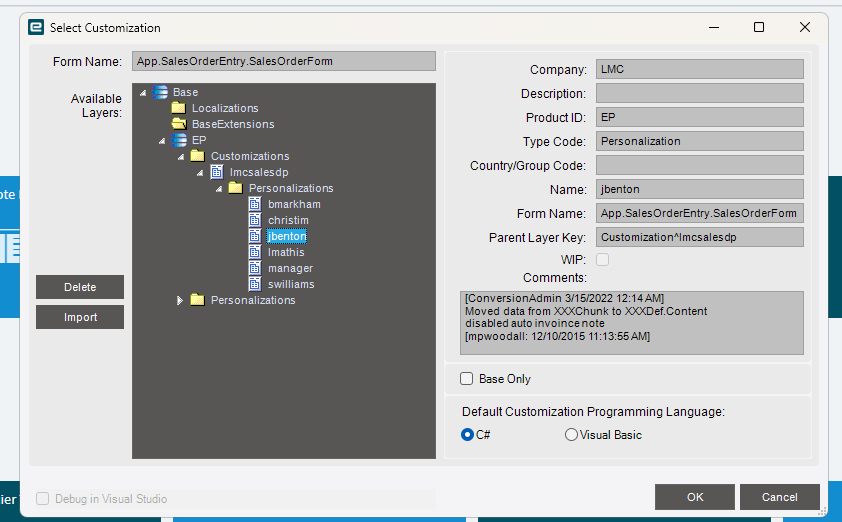
Select the one under Customizations Imcsalesdp. That one will change it for everyone. But they will need to logout and back in for it to take effect.
1 Like
Select “Imcsalesdp”
You will also need to put the customization in place using Menu Maintenance.
What’s the screen look like in Menu Maintenance?
And how do I get this working in the Kinetic browser version?
So in Menu Maintenance you need to navigate to the exact path of the Order Entry screen you want the customization to be on. When you get to the one you want you should see Imcsalesdp as a selection.
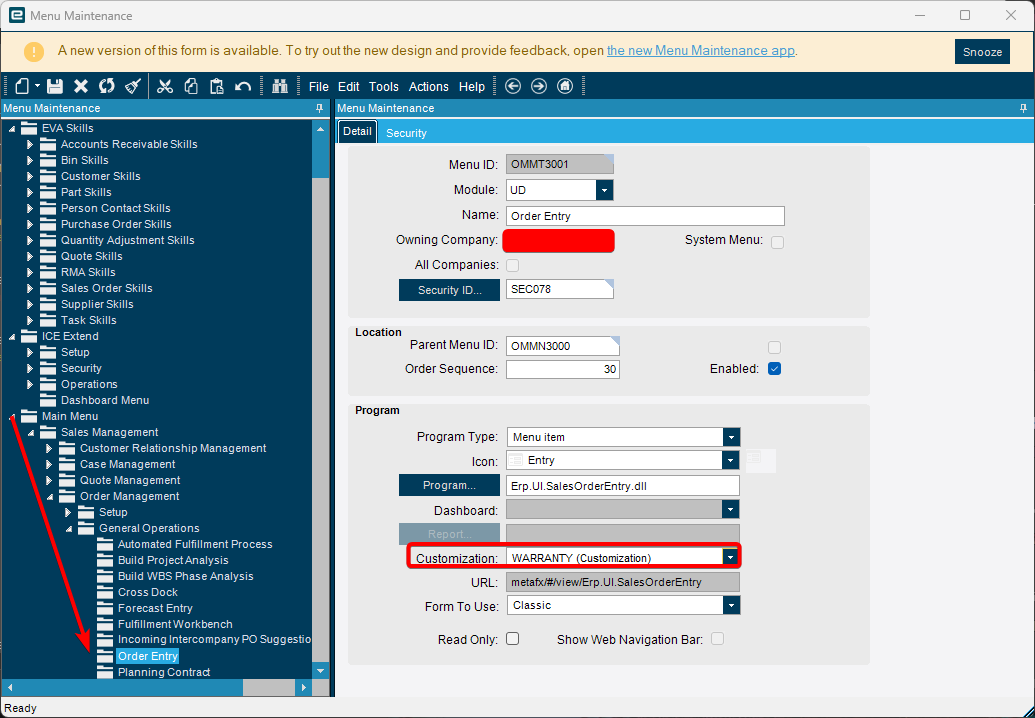
As for making this work in the browser. That is a whole other thing inside of application studio that I do not know how to explain.
Thanks for all the help!
No problem!!