HI, I need some help.
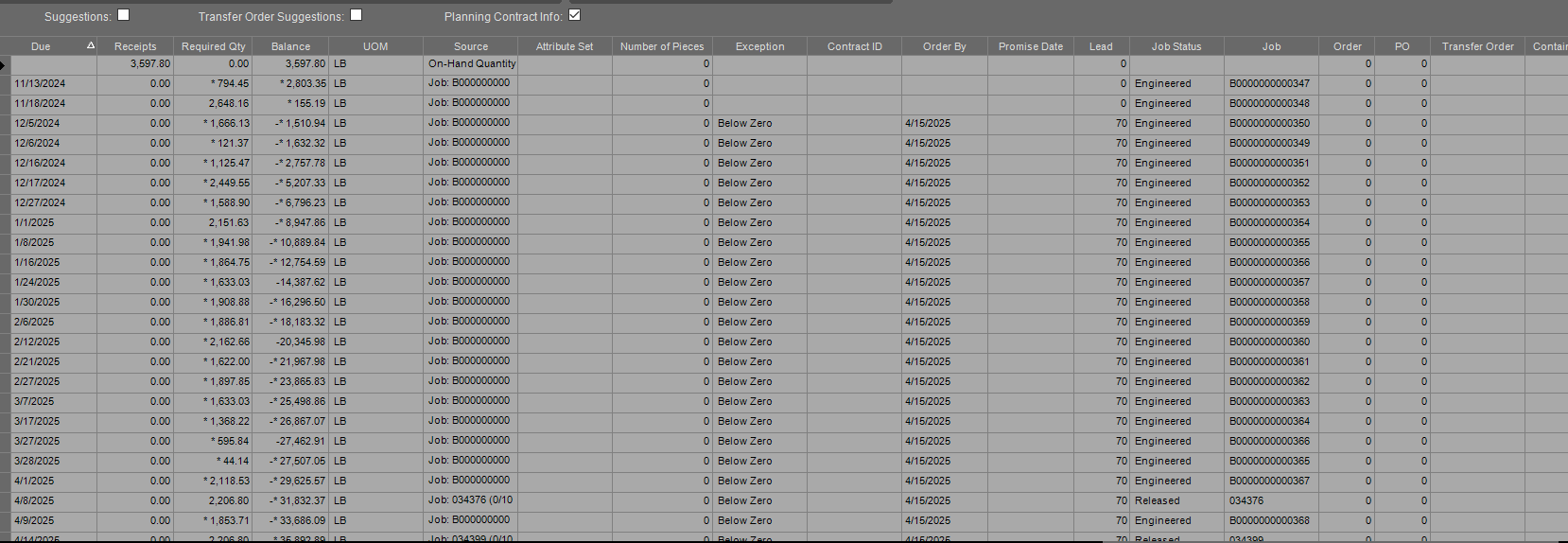
Time Phase is showing demand for material dating back to Nov. of 2024. We have already run production for said demand, but for some reason it keeps showing up. It shows this demand for a other parts that use the same material.
Could someone please point me in the direction I need to go - to remove these inaccuracies.
Thank you in advance for any help!
I appreciate the response. That is what no one in this building knows - what they are or where they came from. Do you have any ideas where I could begin looking? I’ve never really poked around in the job planning area of Epicor.
Thanks
The Bxxxxx jobs look like MRP jobs.
I don’t see forcasting driving a demand.
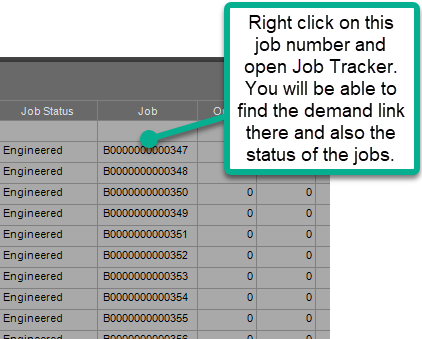
Open up one of the jobs to see what the demand link is.
I am guessing that the job had material required that didn’t get issued and job is still open, but the job has been received to stock or shipped.
From time phase you can launch the job entry.
Check with one of your production planners to walk through the job screen.
Again, my bet is the jobs were completed physically, but never closed in Epicor.
UPDATE: I believe I may found the problem, but I cannot test out my theory during business hours. It appears “process MRP” has not run since November 2024… I’ll run the process and see what happens tomorrow and will update this thread.
Thank you in advance to those who has been helping me, I appreciate it.
UPDATE 2:
So MRP has not run since Nov. '24. The user who had MRP Task Scheduled is no longer with the company. Apparently he was the only one with access to scheduling.
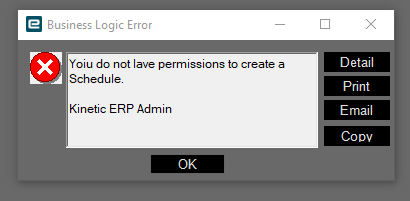
I’ve tried setting up a new daily task schedule to run for MRP Process, I get an error each time telling me I do not have the necessary permissions to crate these tasks/schedules. I have full power in Epicor but I cannot figure out where/which setting I need to enable for me to be able to create schedules.
Could someone please enlighten me as to where I should be looking,
Post a path: X > Y > Z >
Thank you
Where are you seeing the error - in System Agent or in Process MRP?
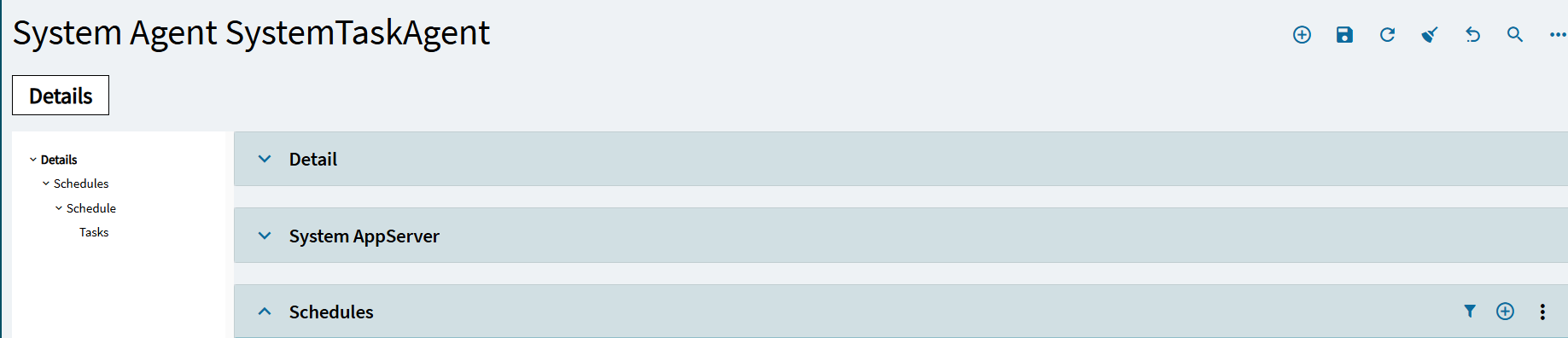
System Setup >> System Maintenance >> System Agent
If it doesn’t show as Started, nothing’s running.
If it is, click the link under the agent name. Should call up this screen below.
You can probably hide the Detail and System AppServer sections.
Go to Schedules and click the plus sign…should allow you to create a schedule entry. Follow the prompts to create the entry (daily, interval, etc.).
Once the schedule entry is created/saved, then you can go to Process MRP and add the actual task…go to the advanced tab, select your newly-created schedule and check off the Recurring box.
That doesn’t look like a standard Epicor error message. Looks like output from a BPM or something. Who’s your “Kinetic ERP Admin”? Is that the person that left? If so, might need to reactivate their account and change the password…and then maybe the original task might kick off again.
Definitely a custom error message. If you have someone technical you could have them disable the directive and create your scheduled task.
I’m a big fan of creating a “service account” to run all your scheduled tasks (e.g. SvcBatch). You create the account, then log in under that account to submit the task to the agent. That way you don’t have to worry about tasks no longer running if a user leaves and their account is disabled - just make sure you don’t inactivate the service account and set the password to never expire