My shipping department wants to be able to scan the order number in, but wants it to auto tab as well. I am unsure on how to do this. Any ideas would be helpful.
There are a few ways to handle this. Typically by default sometimes the Handhelds and Stationary USB Scanners tend to send a Carriage Return after the scan. You can change that typically through the Handheld Settings by researching the Vendors Config Guides. Sometimes its as simple as scanning a “configuration barcode”. Sometimes they send nothing, likewise its a matter of configuring it. I am sure if you provided the Model Numbers someone here can direct you better.
Another option is; Assumption is that they are logging into HH via a specific HandHeld UserID and in that case you could login once to the Full Client as that HH User, open up any Epicor Entry Screen and navigate to Tools -> Options on the File Menu and set the following setting:

Then logout and they would be all set. (If the Scanner is indeed sending a CR)
3 Likes
When we first implemented Vantage 8, we tried importing parts by feeding the key-strokes to the Part Maintenance screen. This was not ideal as there was no feedback as to whether the part was successfully added or not. Remembering that the Sales Rep said that the UI and Business Objects were separated, I wrote a program that interacted directly with the BOs since DMT wasn’t a thing yet. The process was much cleaner.
The bar code scanning process feels like the same problem. We try to force data into the form without feedback. A cleaner solution would be a function that accepted the bar code, pre-processed the data (removed leading characters or split into multiple fields) and then use .Net automation to fill the fields and provide feedback to the user. One could add a text field to a form to receive the barcode and then load the fields or a form might be able to go into “scan mode” and just process the keystrokes there.
Ultimately, do we want to tie this function to a specific UI? Wouldn’t it be better to have a service that interacted with the reader directly? Why lock ourselves into a Windows form object with technology like Kinetic on the way? < shrug />
Mark W.
1 Like
Many scanners can be programmed to append a char (like [TAB], [LF], [CR], etc…) after the scan.
The downside is that it will always TAB after.
We’ve occasionally printed sheets with scan codes for “special keys”, and scanner configurations (most scanners are “programmed” via scanning special barcodes)
3 Likes
Yup. We just add the tab to the scanner via a sheet like this (if you have a Zebra scanner, you just scan each bar code from top to bottom, then the scanner will add a tab after scanning your order)
2 Likes
You can also add a tab character (Code 39 ASCII Extended) to the barcode in the report:
“OrderNum$I”
1 Like
We use Code 39 here on our Job Travelers. We have consolidated barcodes for Start Production Activity, and Issue Material. It’s one barcode to enter Job, Assembly, and Operation, rather than 3.
1 Like
Hey Brad can you elaborate on this? Going thru an E10 implementation right now and would like to know how this can be done.
How does your consolidated barcode know which assembly/operation is to be scanned?
I’m still green here so any help is appreciated
We use custom Report Styles that contain the barcodes in Code 39.
This is a sample value of the custom field:
=""&Fields!JobHead_JobNum.Value & “%F” & Fields!JobAsmbl_AssemblySeq.Value & “%F” & Fields!JobOper_OprSeq.Value &""
The barcode scanner is programmed to handle the %F separator.
Here is a screenshot as the forum is formatting the code incorrectly:
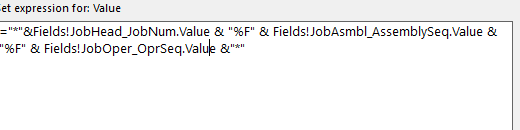
We use string designators so that it knows which barcode is being scanned to use which barcode scanner rule.