So, I think I mentioned this in another thread, but I sidestepped this issue by hiding the original grid, adding my own, then loading it with data via the rest-erp action and the Erp.BO.DynamicQuerySvc.executeById method.
- Add a
rest-erp action to an event. Hook the event to whatever you want.
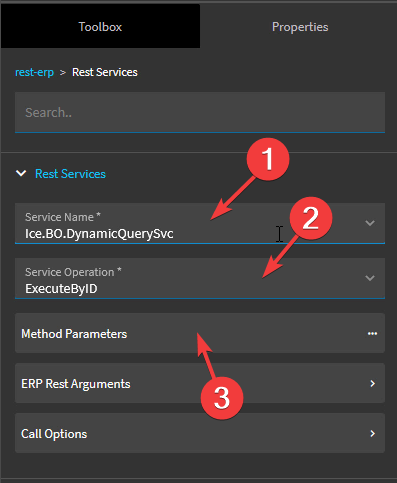
- In the action’s properties, specify the service name as
Ico.BO.DynamicQuerySvc, the service operation as ExecuteByID.
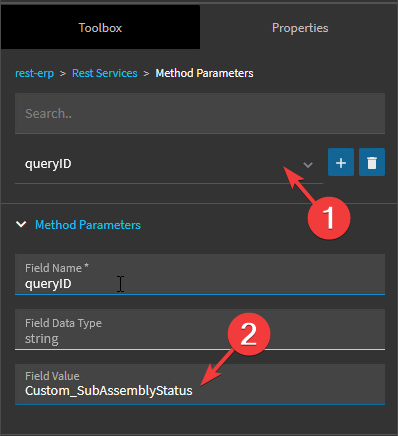
- Click into Method Parameters. For the
queryID parameter, specify the ID of your BAQ in the Field Value field.
In the executionParams field, specify your BAQ parameters using a JSON object…
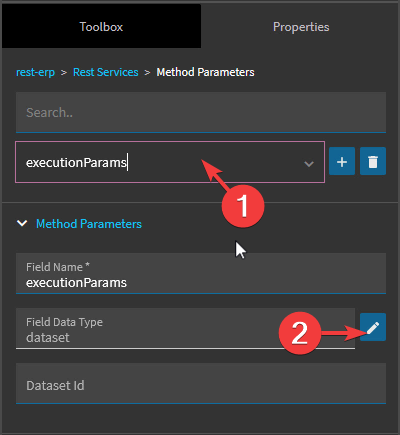
similar to the following:
{
	"ExecutionParameter": [
		{
			"IsEmpty": false,
			"ParameterID": "JobNum",
			"ParameterValue": "{TransView.JobNum}",
			"ValueType": "string"
		},
		{
			"IsEmpty": false,
			"ParameterID": "AsmSeq",
			"ParameterValue": 0,
			"ValueType": "number"
		},
		{
			"ParameterID": "SortColumn",
			"ParameterValue": "Calculated_SourceBin"
		}
	]
}
ParameterID is the ID of the parameter from the BAQ parameter editor. ParameterValue contains the actual parameter value. You can interpolate dataview values here with the {} syntax. Since parameter values are sent as strings, ValueType can be used to specify otherwise. If the value is truly empty, IsEmpty can be used. This is important when triggering the Skip Condition If Empty BAQ parameter setting.
The rest-erp response from the executeByID method returns a JSON object of the format
{
  "returnObj": {
    "Results": [
      {
        "Part_PartNum": "BM56737",
        "Part_PartDescription": "RAM PUMP FEEDER 702 034PUMP W/RH-CONTROLS",
        "JobAsmbl_JobNum": "202443-21-1",
        "JobAsmbl_AssemblySeq": 0,
        "ParentJobAsmbl_PartNum": "BM56737",
        "ParentAsmblPart_PartDescription": "RAM PUMP FEED"
     }
  ]
}
- The last step is to configure the
rest-erp action to update a dataview with the response. This assumes you’ve created a blank dataview already. See this post by @Ishkaran for a video about this.
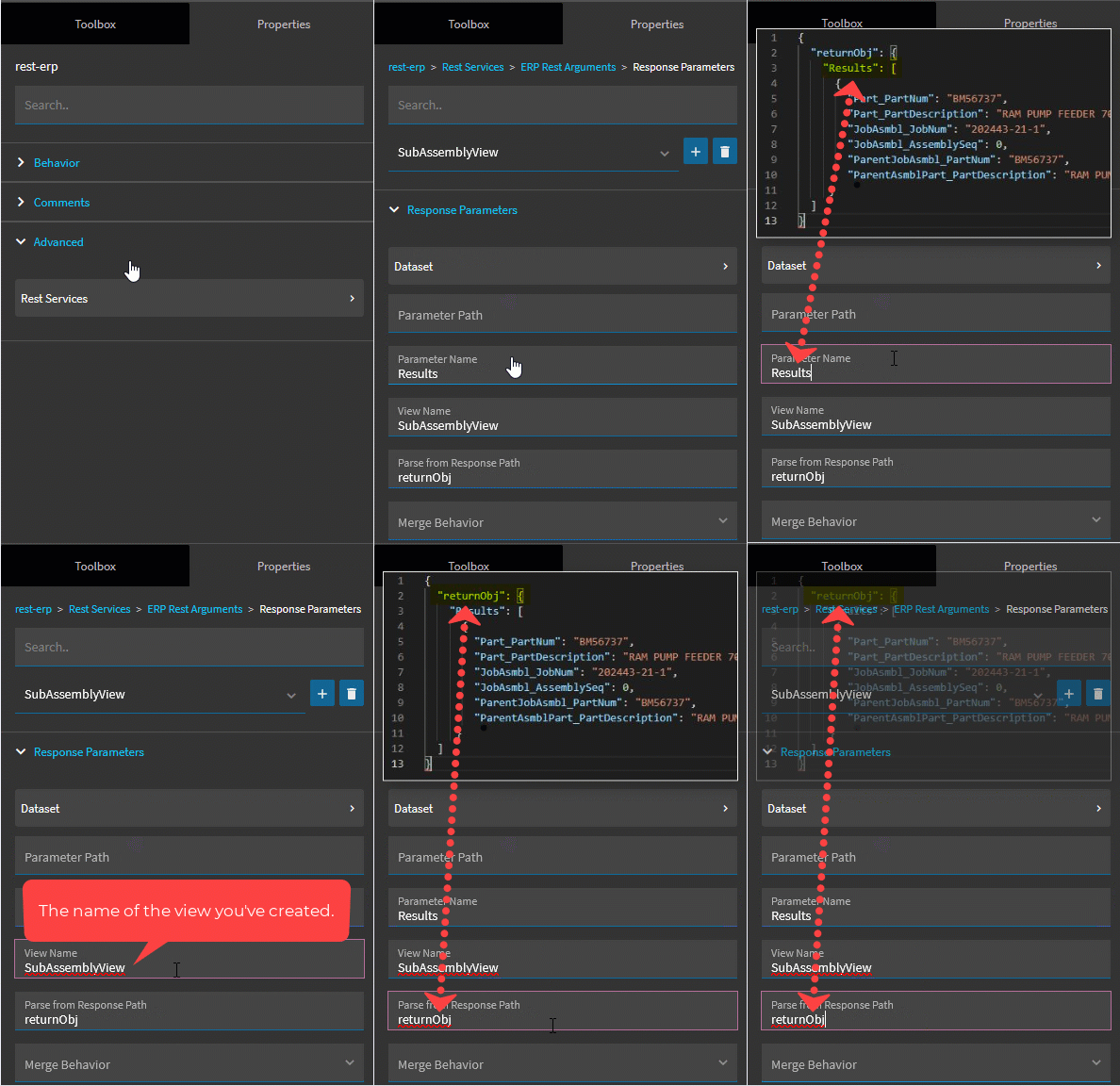
In Rest Services → ERP Rest Arguments → Response Parameters add a new parameter and set Parameter Name to Results, View Name to the name of the view you created and Parse from Response Path to returnObj.
This should result in the data from your BAQ successfully loading into your dataview. The next step is binding your dataview to your grid and (probably?) defining columns.
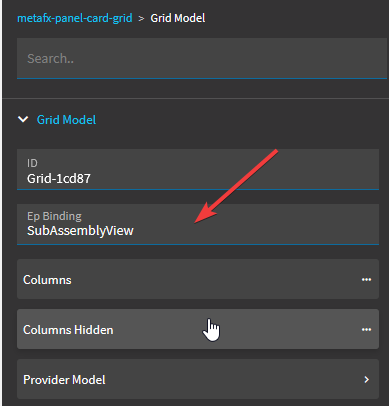
- On your grid’s properties, specify the view name in the Grid Model → Ep Binding field.
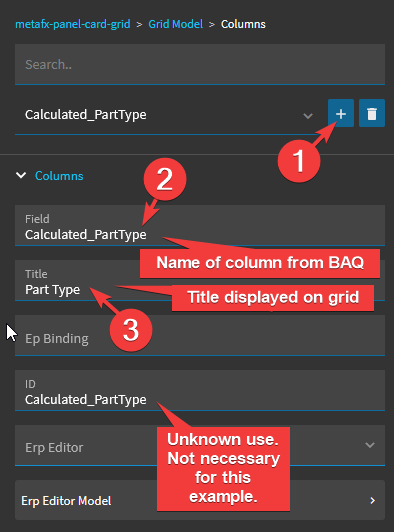
- Under Grid Model → Columns, add columns to the collection that you’d like displayed on the grid. Set the
Field property to the column name from your BAQ. The Title property is used to set what text is displayed in the column’s header.
That should be it for the basic example of calling a BAQ with parameters. This method is far more flexible that the built-in BAQ binding. You can design your parameter forms however you want. You can bind different controls (textbox, combo, whatever) to a view (like TransView), then reference those values in the JSON payload.
I haven’t used this method for specifying traditional BAQ filters, but they can specified by adding ExecutionFilter to the JSON payload. As per the REST docs:
"ExecutionFilter": [
    {
      "DataTableID": "string",
      "FieldName": "string",
      "Neg": true,
      "CompOp": "string",
      "RValue": "string",
      "SysRowID": "00000000-0000-0000-0000-000000000000",
      "RowMod": "string"
    }
]