It sounds like you want to make one .rdl that is “Report Style Aware” and could have multiple report styles pointing to the same RDL path/file (which would allow you to modify/upload it only one time, but your change be immediately applicable to each report style without having to upload it to each one)
That sounds neat. Let’s make it work.
First, conceptually, in cloud, SSRS is hosted on a separate VM instance from our app server, in a one-to-many customer-to-SSRS-server setup. Our Custom Report Styles are segregated by SiteID to keep yours and mine separate, if we are hosted on the same SSRS instance.
This means that report style A can see the same folder structure as report style B and report style C, which makes your concept possible.
I’m using JobTrav as an example, this would apply to any report style.
Since Report Style (ReportStyleNum) isn’t available to SSRS anywhere, let’s find out where it is available, and make it available to SSRS.
First, a quick trace, what BO fires when we submit a SysTask to generate a report? In the case of JobTrav, it’s Erp.Rpt.JobTravSvc/SubmitToAgent.
Knowing the right BO to target, let’s go into BPM Designer on that BO, and set up a Pre-Processing Directive with custom C# code. Open the code designer.
At the right side of the custom code designer, we can see the objects available to us under the Data tab.
Looking to the Kinetic F12 Dev Tools trace when we submit a report, we can see the dataset that is sent to SubmitToAgent. ds\ReportStlye contains all Report Styles for this Report ID. ds\JobTravParam contains the parameters used to generate this report, and the one of particular note at the moment is “ReportStyleNum”
The first object of note under Data tab is “Parameters” → “ds” → “JobTravParam” → “ReportStyleNum”
The second object of note under Data tab is “Call Context” →
There we can see two DataTables available to us, “callContextBpmData” and “callContextClient” - the latter already gets populated by Epicor, and we don’t want to override it for this task. Let’s use the former.
Paste this into the Custom Code:
callContextBpmData.Number01 = ds.JobTravParam[0].ReportStyleNum;
This will pull the first row of JobTravParam (we can see in our F12 Dev Tools trace that only one row is sent) - and set callContextBpmData.Number01 equal to the ReportStyleNum (1002)
Now, with this BPM Saved and enabled, the data is available to us within SSRS.
We can utilize this same method to make any other data we like available within SSRS through the Pre BPM, like user email who printed the report, for example. (I know that’s a popular ask and only available as a calculated field on some RDDs!)
Now, make a copy of the base style, in my example my copy is 1002.
Download the copied report style locally, which gives a path something like reports/CustomReports/JobTraveler/Traveler
Set the report location to a custom folder that doesn’t exist yet. In my case i used reports/CustomReports/JobTravelerMod/Traveler
Change the local path of your downloaded folder structure to match this (Rename the JobTraveler folder to JobTravelerMod)
Open up Traveler.rdl
Add a new dataset. Name it CallContextBpmData, set the Data Source to the existing source of dsTraveler.
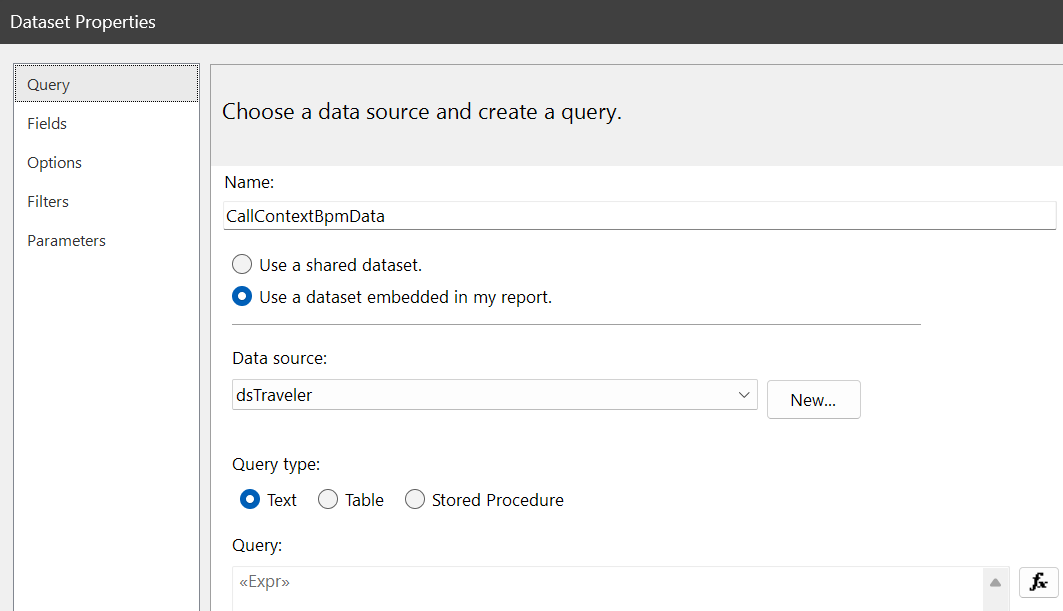
Hit fx to create a query
Use this for your query:
="SELECT * FROM CallContextBpmData_" + Parameters!TableGuid.Value + " T1"
That will pull the “CallContextBpmData” object that we modified earlier to set Number01 to our Report Style from the BPM. (we pull all fields because we are lazy, and who knows when we might want to add more to expand the usage)
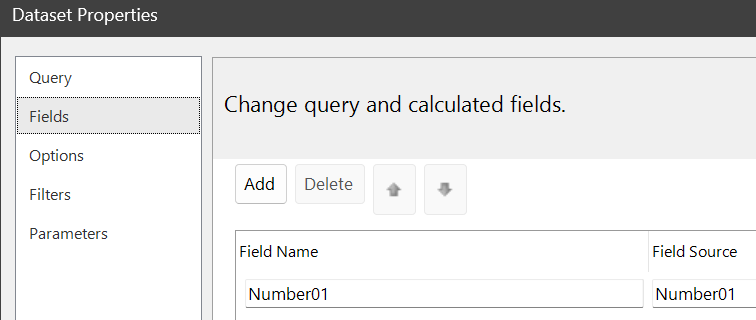
Now, save the query (hit ok), then go to “Fields” section of the “CallContextBpmData” Dataset Properties, and add “Number01” to your fields.
Now, somewhere in your report, set a textbox equal to expression:
First(Fields!Number01.Value, "CallContextBpmData")
Save your .rdl, upload it, and you should see your report style number show up in the textbox. Copy the report style, use the same Custom Path (in my case, my first copy would be 1002, and my second copy 1003, set up identically)
If user prints from report style a, you should see 1002 in your textbox (1002.00000 because it’s a decimal vs. an int, but close enough!), and from report style b you should see 1003.
With that data now available, you can format your report conditionally to allow for the same RDD/RDL to output different visible presentation based on the report style printed, by using switch/case or if statements in your expressions.