Hi.
I do need some help here, I am working on updating the sales order entry in application studio.
I have a text field that I want to popultae with the selections from a quick search.
I created the event, but when I get to the last step of electing the value, I noticed that the field is not populated with the value I selected from the search.
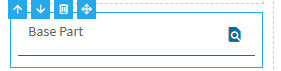
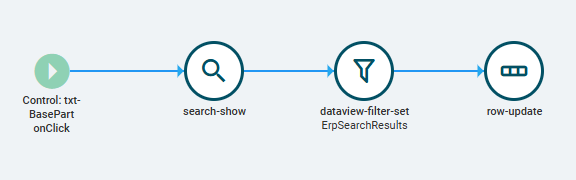
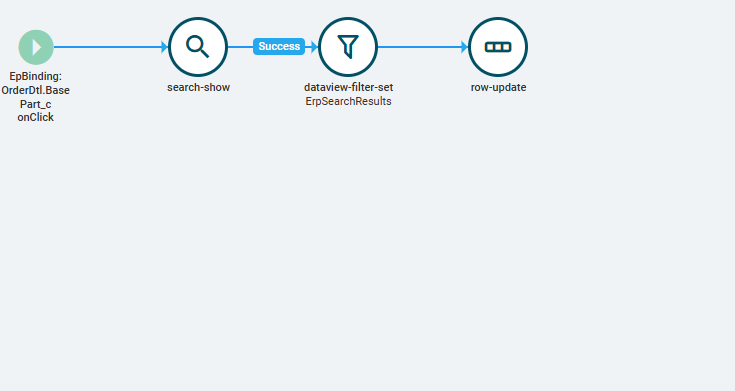
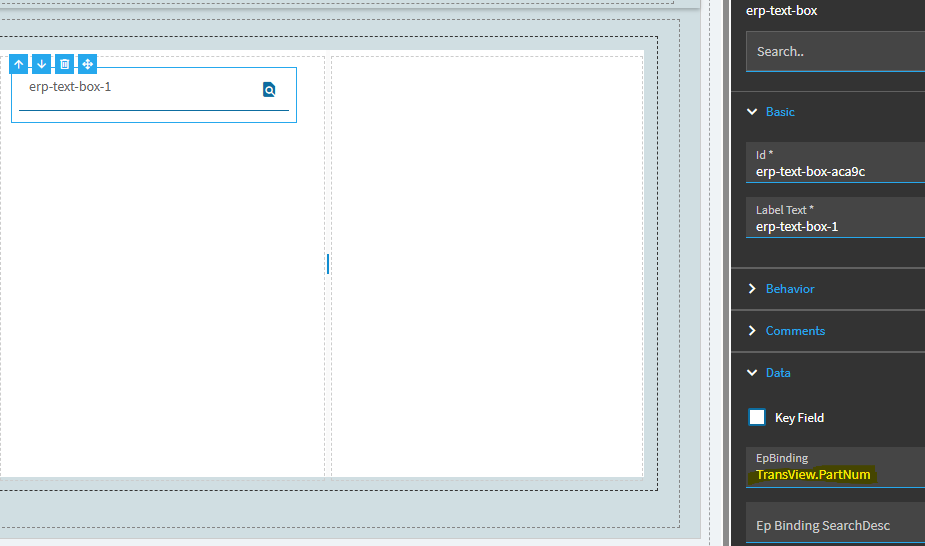
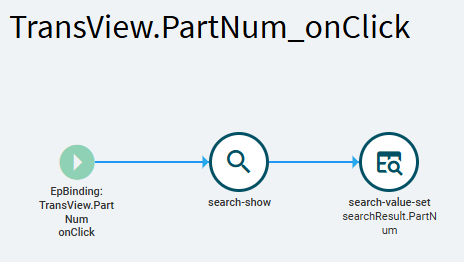
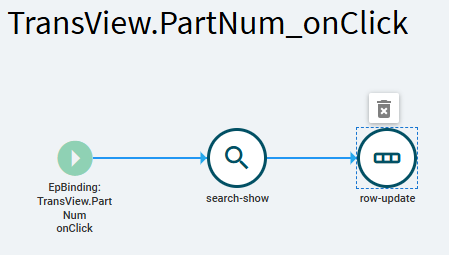
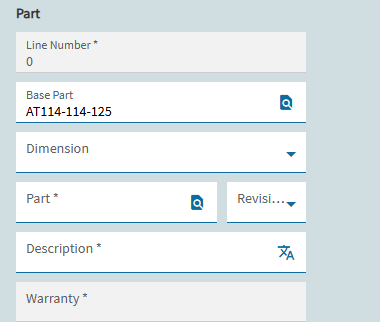
above is the text field I want to populate and below is the event I created
.
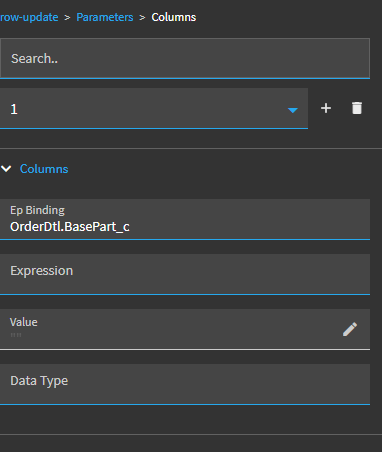
In the row update, I realised that the JSON editor for the value is not saved and I have tried severally to save it but to no avail. I am not sure if this is the cuase of the issue.
I would appreciate any help.
Thanks
I would assume, yes, the JSON not saving is potentially your issue. Right now you’re row-updating OrderDtl.BasePart_c to a value of ‘empty’
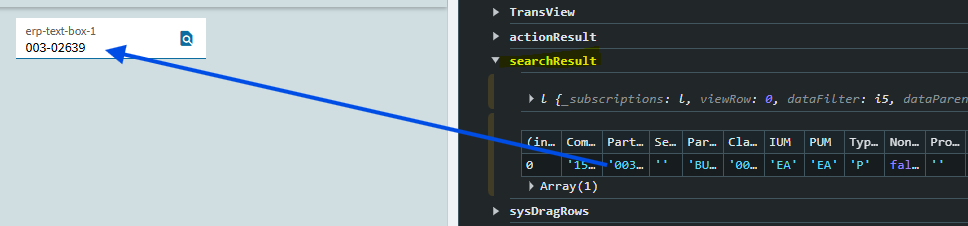
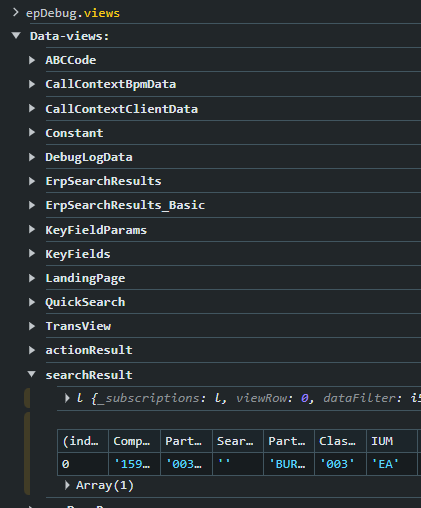
I’m not overly familiar with setting up quick searches, but if they’re anything like standard searches… you use the search-show to pull up your search. When you make a selection and click “ok”… the result from the search is typically stored in the searchResult dataview.
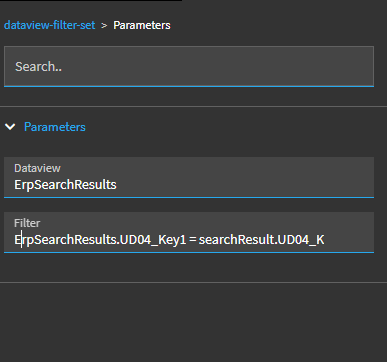
I don’t know what you’re trying to do with your dataview-filter.
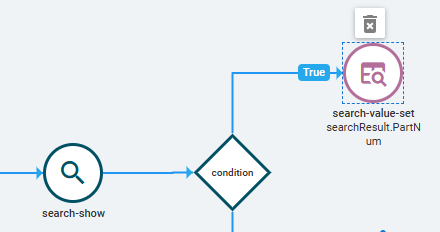
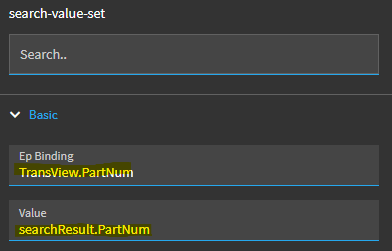
Again, typical set-up is to have your search-show… and following that you would have a search-value-set where you would simply put your Ep Binding of OrderDtl.BasePart_c and a value of searchResult.PartNum (or whatever field you’re capturing from the search response).
Here’s an example. I do have a condition in place, but that was just to check if %searchResult.count% === 1
Thanks very much David.
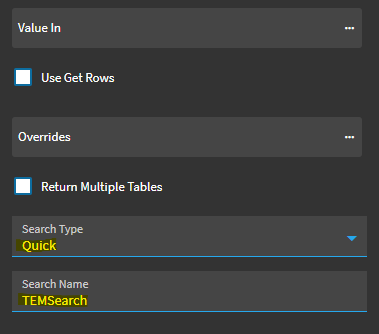
I think because I set up a quick search. I also read somewhere in the community after many tries that the quick search does not work with the search-value-set. That is the main reason I went along with the data-view-filter approach. The approcah you suggested, have you tried that before with quick search? And also my main issue is the fact that the text field is not populating with my selection.
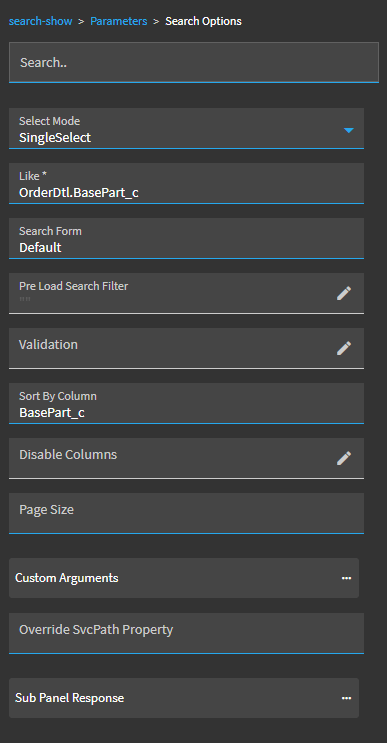
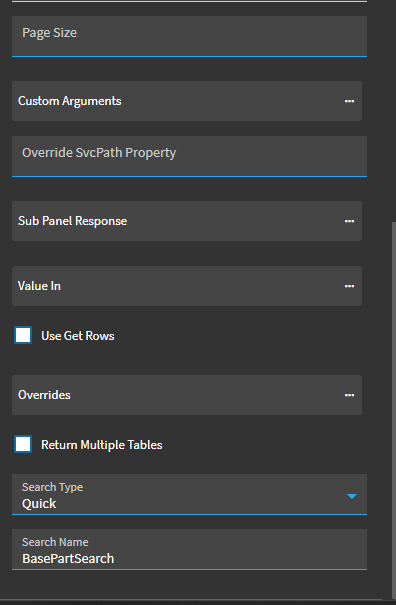
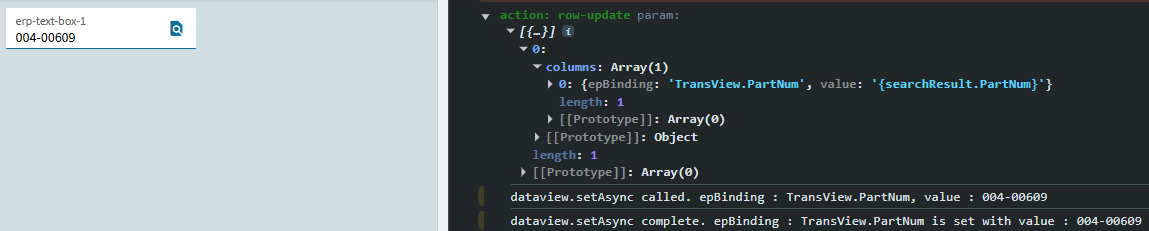
Below is my current approach
If you have tried quick searches, you can help me on this. Also, do you have a way to create standard searches? Maybe that would be another Approach I could use.
Thanks very much
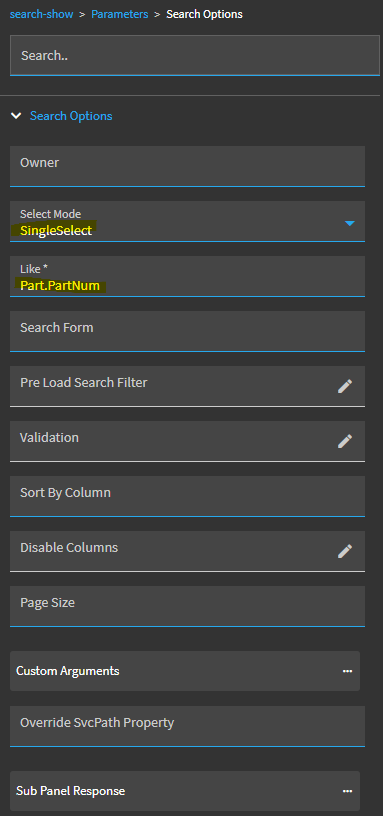
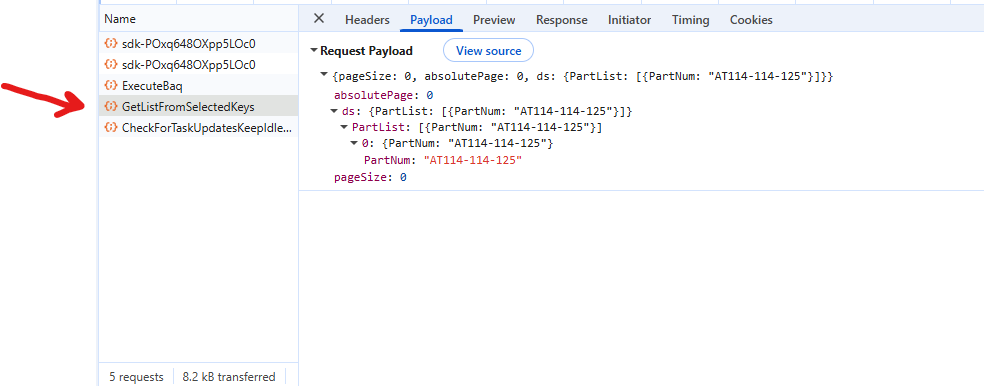
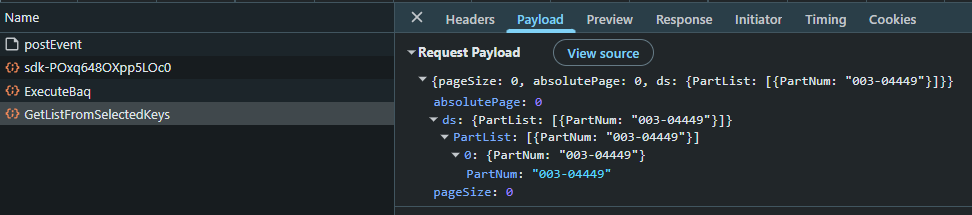
I think I noticed that the payload that returns from my quick search defaults to PartNum, Instead of the UD04_Key1 that I used. So my question is, Can I create a Quick search with a context key(Like) that does not default to Part.PartNum
The crux of the matter is that the search-show results are, by default, returned to the searchResult dataview. So that is where you can grab the value and send it where you want it.
@dcamlin Thanks so much for this help, So my problem now is when I check the payload, it seems to me that the process is not passing the search-show.Seems I am missing something, if you are ok to walk me through this I will appreciate. Because I see yours working seamlessly. I do sincerely appreciate you
Thanks so much…
So what approach will you use to populate the Dimensions drop down with the values in the table that match the Base Part value.
I am think to run a baq ?
I’m not sure what the Dimensions are you’re returning. Are you looking to choose a specific “Dimension” from the Part attributes? (length, width, height, etc.?)
So I create a UD Table that has columns Base_Part and Dimension.
So the thing I want to achieve is to select the basePart and then the Dimension dropdown(Combo box) will populate with the Dimensions from the UD table that correspond to the select basePart.
Now that you have your Base_Part value , you could do a GetByID rest call to your UD table and populate a dataview with the results… then base your combobox off of that dataview.
Or yeah, you could create a BAQ and drive your combobox off of that.