Using Data Rules with TransView Columns

Hi All,

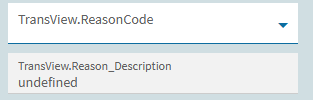
Is it possible to use Data rules with conditions that check the status of columns in TransView. The drop down doesn’t show any available fields. I tried just pasting in my field name, but my data rule is not firing.

FYI I’m trying to set fields so they are read only if a given transview column is empty (default seems to be “undefined”)

It should work, the drop down only populates if the fields are explicitly defined in the data view tab (and even then, might show up as object Object), but you’re free to paste whatever you want and if it doesn’t exist, will just be undefined.

I’m unsure about the best way to check for empty values, I’m not sure Epicor’s current way of handling some “codeless” features translates well into JavaScript. I sometimes will set a TransView column to true / false, use an event to set the value, then apply rules based on whether it’s true or not. Annoying, but works when I’m annoyed or need a feature rules don’t support (like $count).
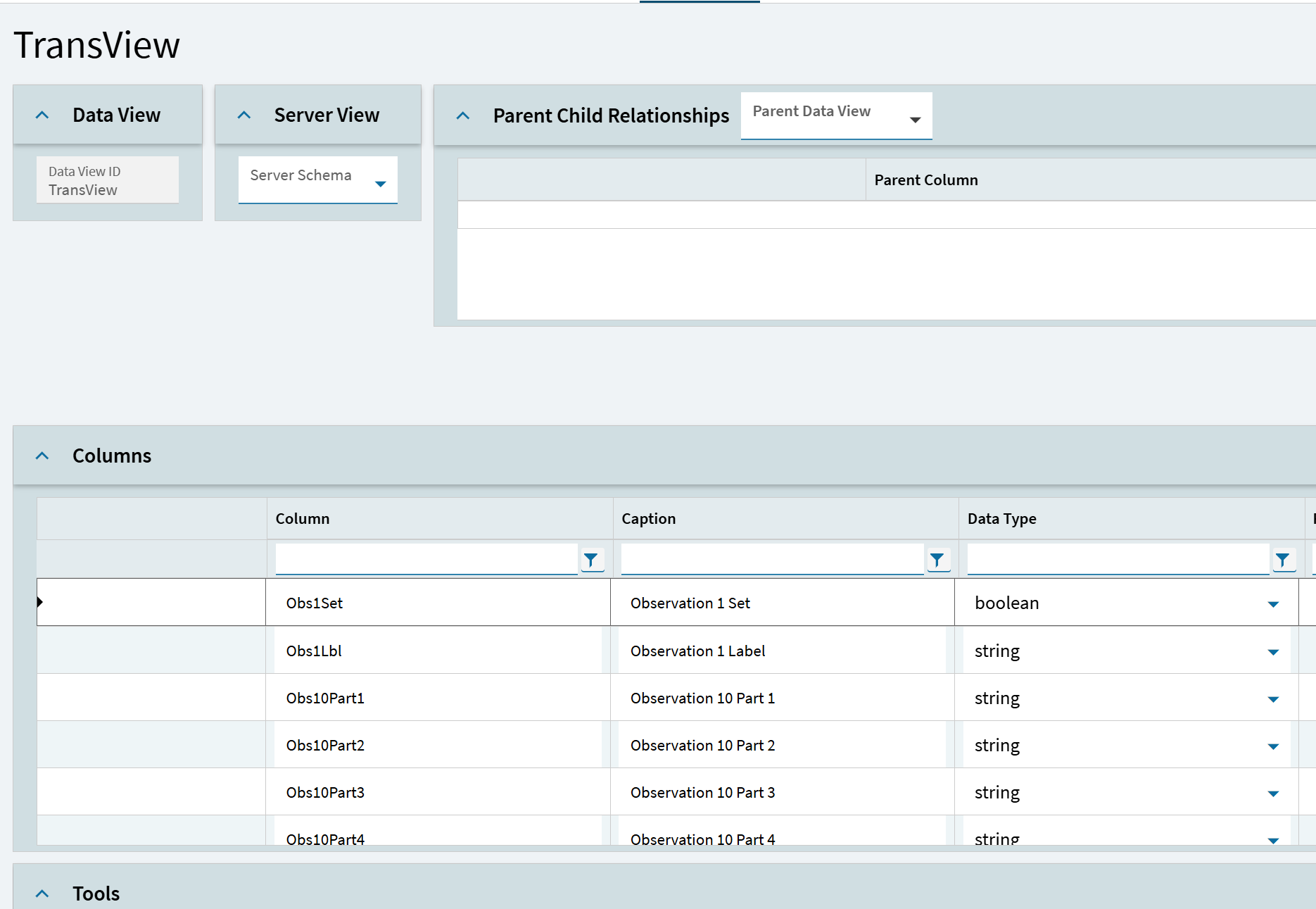
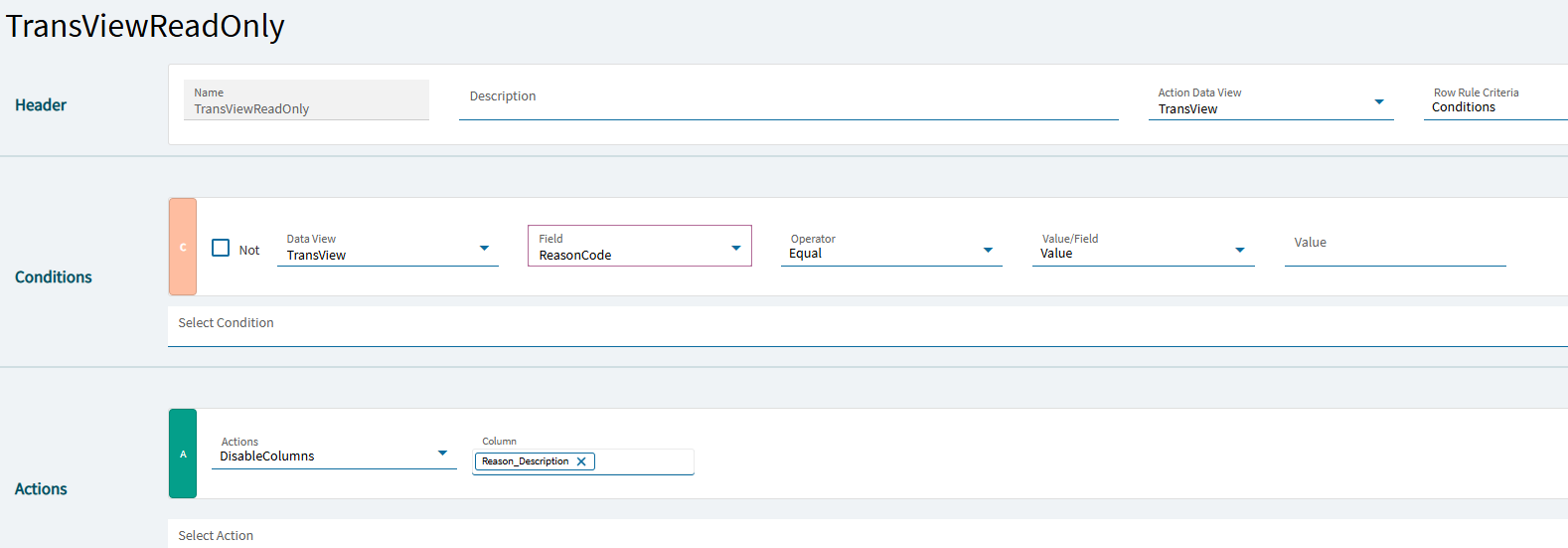
Thanks, I have defined the columns in the TransView dataview, like so;

I’m not initialising my transview (rookie error) via a row-add when the app loads. So could that be the issue?

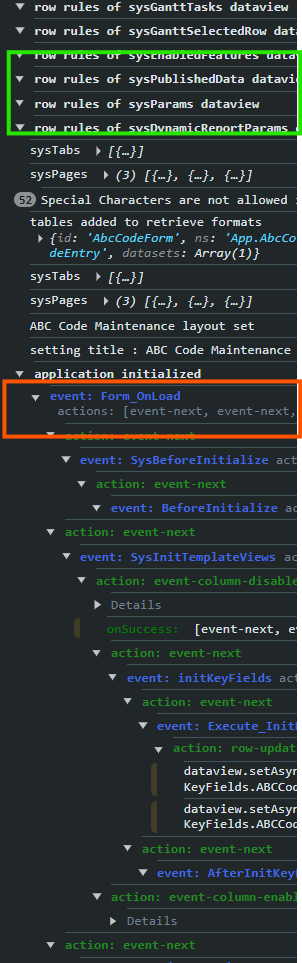
Part of the issue may be that row rules are evaluated BEFORE even Form_onLoad or other following events even come into play:

So, the row rule may always fail because TransView hasn’t even been initialized yet. There’s nothing there to evaluate.

What WILL work… if the value of your TransView field changes, the row rules bound to the TransView dataview will be re-evaluated.

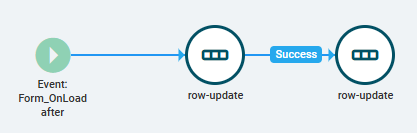
So… as silly as it sounds… create an event after_FormOnLoad or something that happens after everything is initialized…

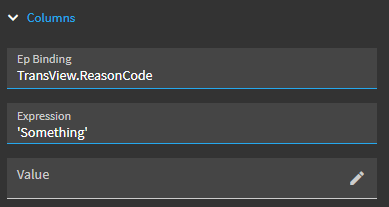
Row-update: TransView.YourTargetField to a value of “something”.

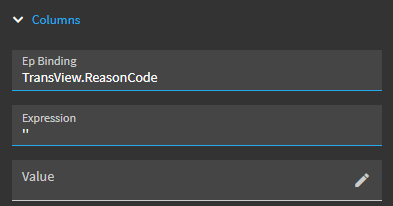
On-Success > Row-Update TransView.YourTargetField BACK to a value of ‘’.

First row-update

Second row-update

When your TransView column changes… the Row Rule will be re-evaluated.

Results:
Row Rule successfully disabled my TransView.Reason_Description column