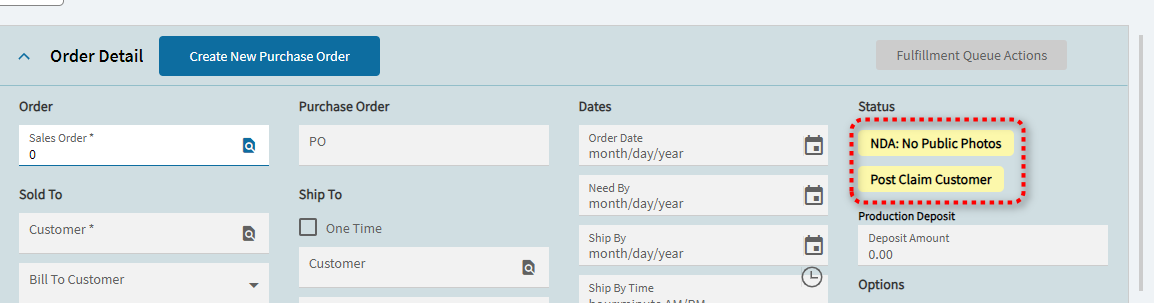
Hello guys, how do I check the Customer table if one fields is true while in the Order Entry? I wanted to check if its true then I will set the Shape visible if its false it will be hidden.
To help the community provide the best answer, could you include as much of the information below as you can? Your question appears to be lacking some much needed context
- Epicor Version
- Deployment Type (Cloud, On Prem, 3rd Party Cloud etc)
- The business problem you’re trying to solve
- What you’ve already tried
- Is this a Kinetic UX (Web) or Epicor Classic issue?
- Is it related to a Method Directive, Data Directive, Function, BAQ, UBAQ, Configurator, etc.?
- Any screenshots, error messages, or logs.
- Any code you’ve written (or borrowed , make sure it is property formatted)
```
code here
``` - Steps to reproduce the issue
For tips on how to ask questions effectively, check out this guide:
Tips for Asking Questions on the Forum

2 Likes
Hi Michael,
- Epicor Kinetic
- Cloud Deployment
- I have created a NDA checkbox in Customer and it was saving it on Customer table. Now how can reflect the value of it to Sales order when I select the customer.
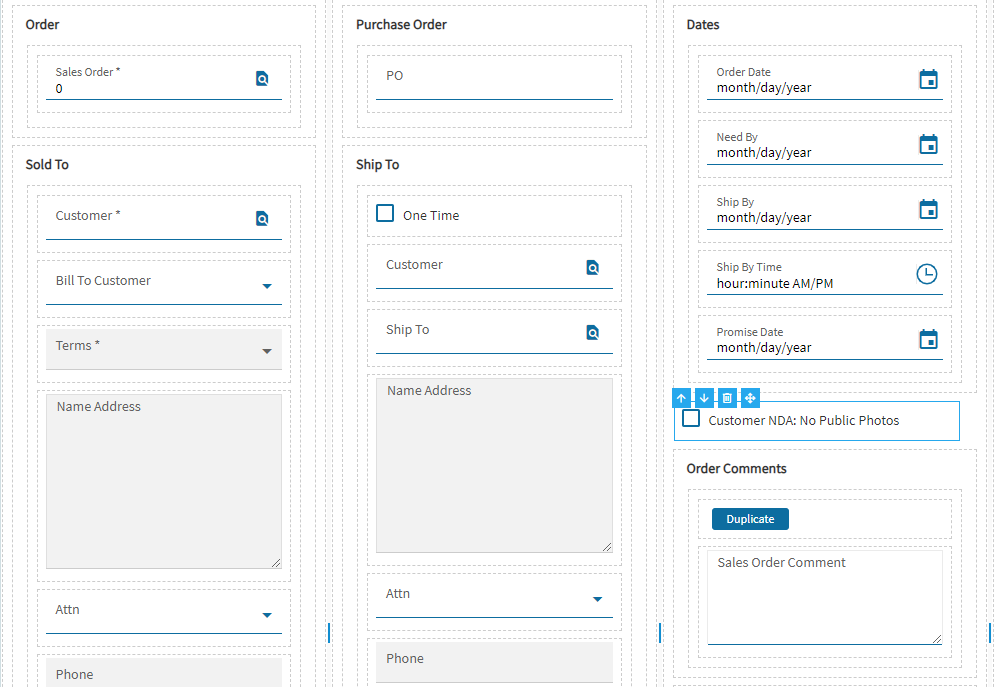
1 Like
Hi Sam,
Based on this, I suggest you follow the instructions in this topic. By adding a field from another table to the dataset returned by the BO method (GetByID likely), you can easily bind it to your shape.
2 Likes
Still can’t figure this out 
is it really possible to check the Customer Table for a specific field while in Order Entry based on CustNum and grab the value and set to a checkbox?
1 Like
Hi Sam, this is certainly possible.
My approach to this would be to add a Customer dataview to Order Entry.
You’ll then need an event that performs a rest call against the Erp.BO.CustomerSvc GetByID method.
You’ll pass the OrderHed.CustNum in the method parameter, and it will return all the Customer table columns for that customer into your Customer dataview.
You can then easily map those fields to display on the Order Entry form.
Not sure of your experience level on the above, but if you need help with it, just shout.
3 Likes
Thank you David! my level of experience on this is really new to epicor but I’m getting hook on it.
Do I have to add it via this way?
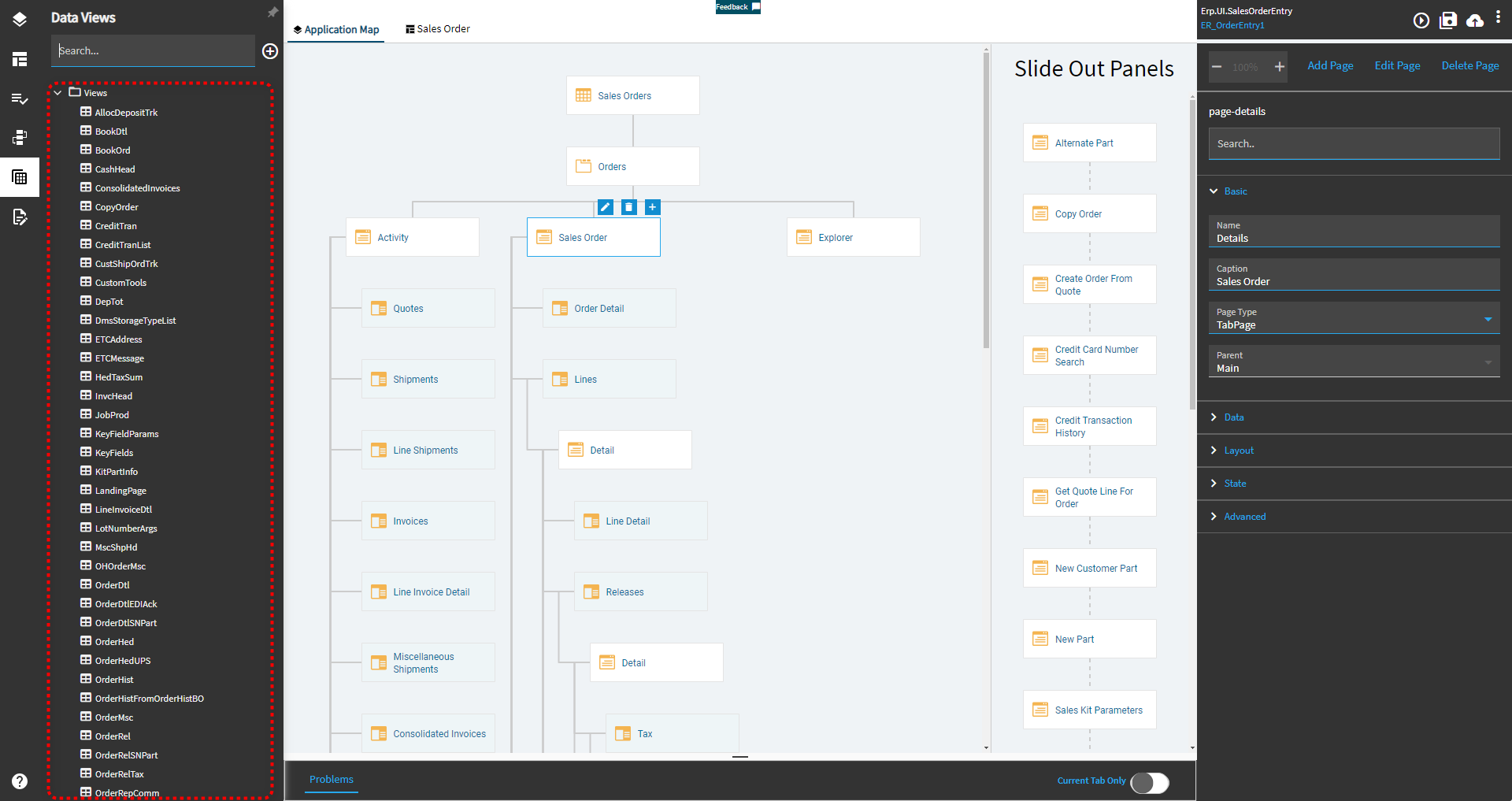
Yes. Click the New (+) icon there and use the Data View Guided Setup wizard.
Source Type: BO Service Call > Next
Service: Erp.BO.CustomerSvc
Method: GetByID
You’ll then have to select one (or many) response parameters. The only one you’ll need is “Customer”. Select that and click Next
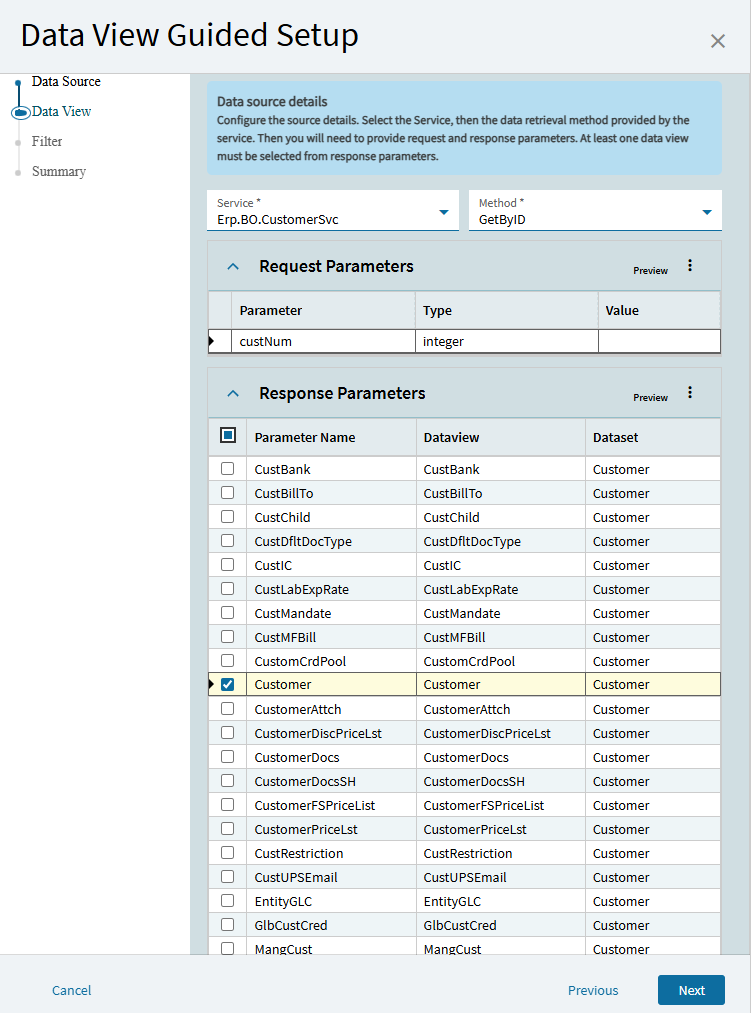
It’ll provide a Data View called Customer in the next screen (drop down). You don’t need to create a “save” or “delete” event. So, don’t click those options.
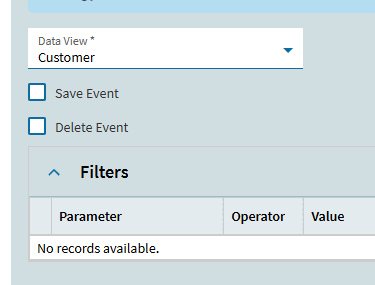
You should see this screen. It is going to create the Customer DataView and a “GetByID” event for you.

In the event it creates for you, you’ll want to go into the properties: Advanced > Rest Services > Method Parameters
Add {OrderHed.CustNum} to the Field Value. This is the value we’re going to send with our rest call.
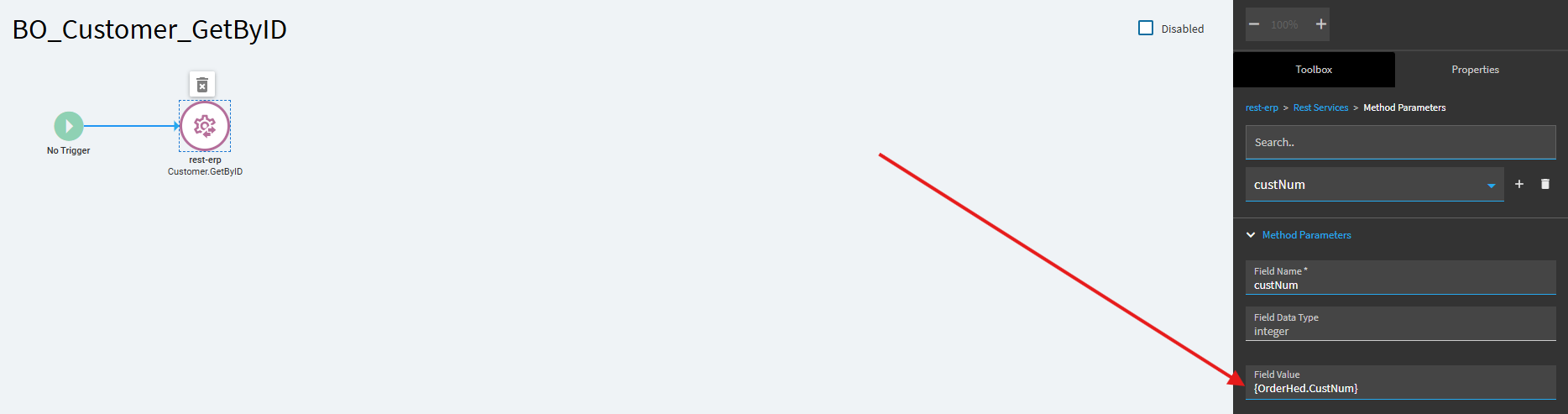
That should be the only thing you need to set. The wizard should have already filled in the response parameters.
Leave the trigger on this event blank. We actually need to call this in a couple different scenarios… so just leave it with no trigger.
NOW… you need to decide when you want this event to fire.
(1) You’ll want this event to fire when an existing Sales Order is opened.
Create a new event.
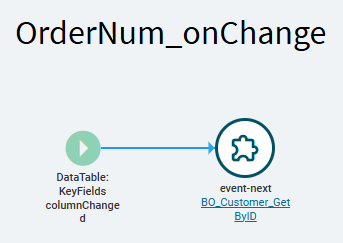
Trigger:
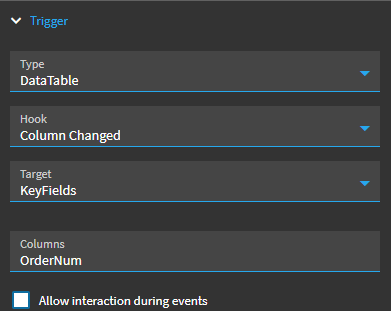
and (2)… you need this event to fire when someone enters or changes the customer on the Sales Order (for new orders or changes to that field).
In this case there is already some events that fire when you change customers on the Sales Order… so we’re going to pin our event to fire AFTER they do.
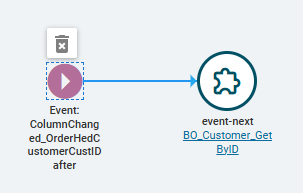
Trigger:
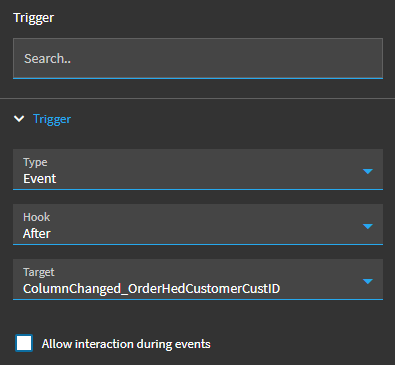
If you have a field on your form mapped to Customer.YOURFIELD… it should get updated whenever these fire.
Give it a shot.
2 Likes
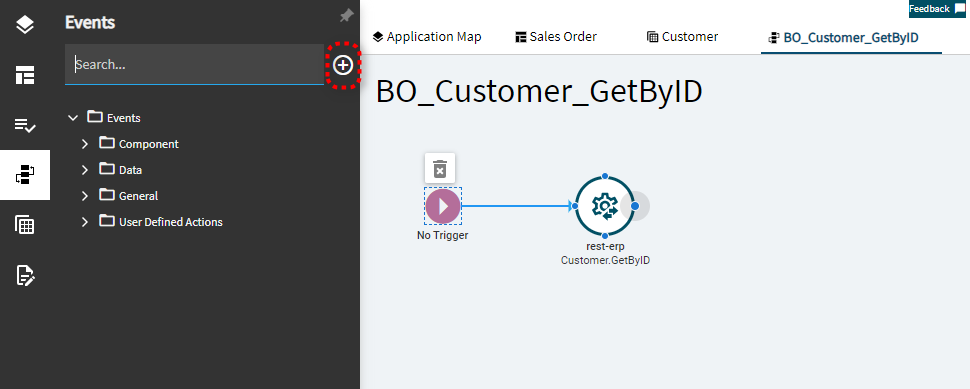
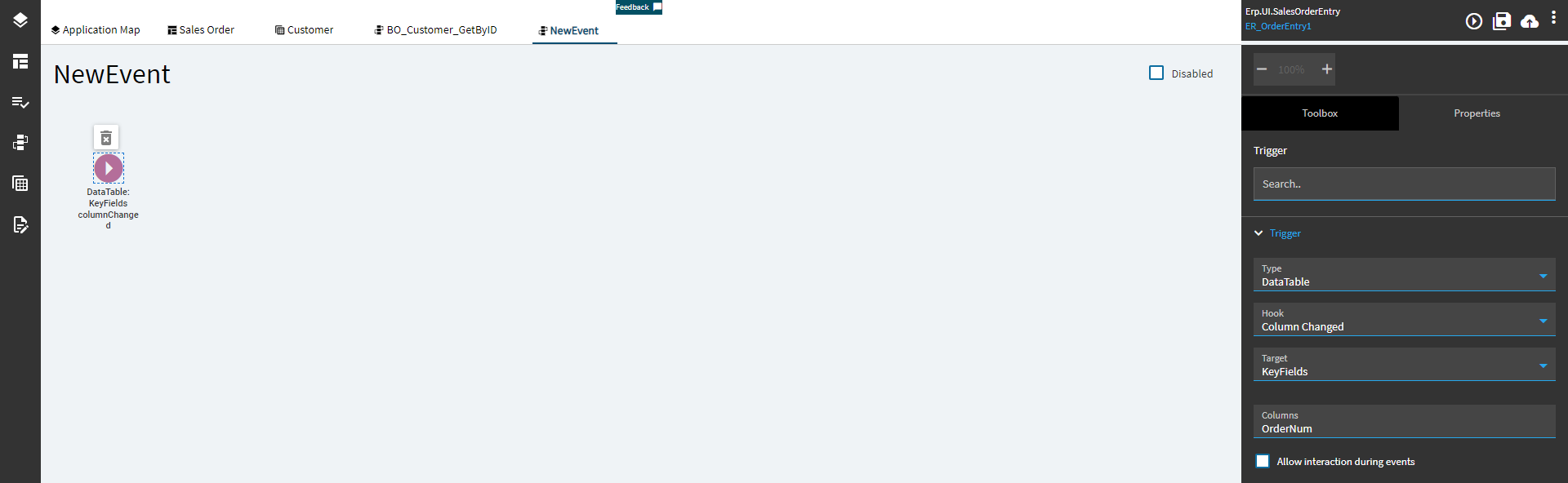
where do i find that?
First, if you click the title… you should be able to rename your event to whatever you want.

once you’ve saved the event, you won’t be able to rename it.
1 Like
To call another event within your event, go into the tool box and search for event-next.
click and drag that onto your canvas.
Then you can click into the properties of that event next and you’ll have to type in the name of the event you want to call. In this case: BO_Customer_GetByID
1 Like
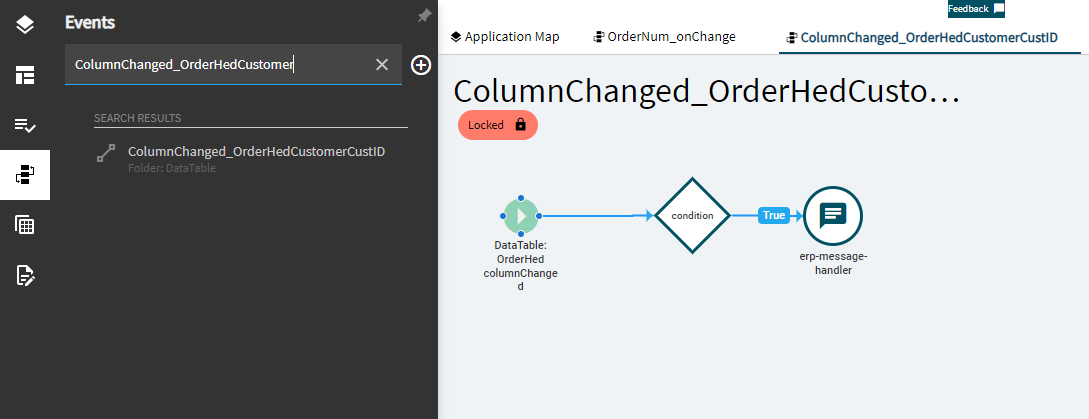
Yes, you would create a NEW event… and the trigger would be set so it fires after the one you have pictured.
1 Like
I can name it anything right? Thanks again.
1 Like
yup. name it whatever you want.
Its probably good habit to put an easy prefix at the beginning on custom event names. This makes them easy to search for. As you can see, a given form can have a TON of events, and its a pain to know which are base events and which are custom events by just looking at the list.
But if all of your custom events start with “xxx”… then all you need to do is search for “xxx” and you get an easy list of custom events.
For example, my company’s name is NFM… so I try to remember to put “nfm” at the beginning of all my custom event names.
Not a necessity, but a good habit to get in to!!! You’ll thank yourself later for doing it!
1 Like
It worked! now when I do that and cancel the transaction how to clear it?
What do you mean by cancelling the transaction? Just want to make sure I understand.