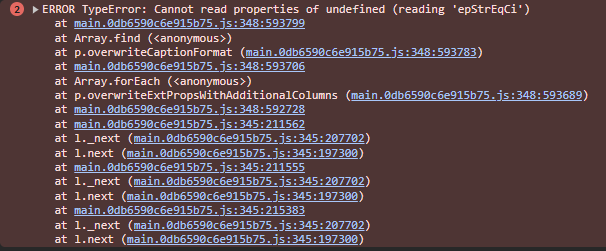
I see this has been posted several times before, and I’ve gone through, I think, all of the posts to see if any of the solutions work. So far, no luck. I added a selector column to the OrderDtl view on the Sales Order screen. I haven’t done anything with the grid itself. I just added a field to the DataView, and I’m seeing the attached error and no order lines show up in the main order details screen. Any other thoughts on what would cause this? This is on version 2023.2

That’s a pretty generic error message.
It might help to see where in the event sequence this error happened… and is there an error on a Network action, too?
The network action is SalesOrderSvc.GetByID.
If I start with a brand new layer for SalesOrderEntry, and all I do to that layer is go into the OrderDtl dataview and add a field. Then I run the layer, I get that error, and no records show up in the Lines panel card. Here is a screenshot of the testing window. There are 5 lines on this order that will show up if I remove the newly added field to the OrderDtl Dataview
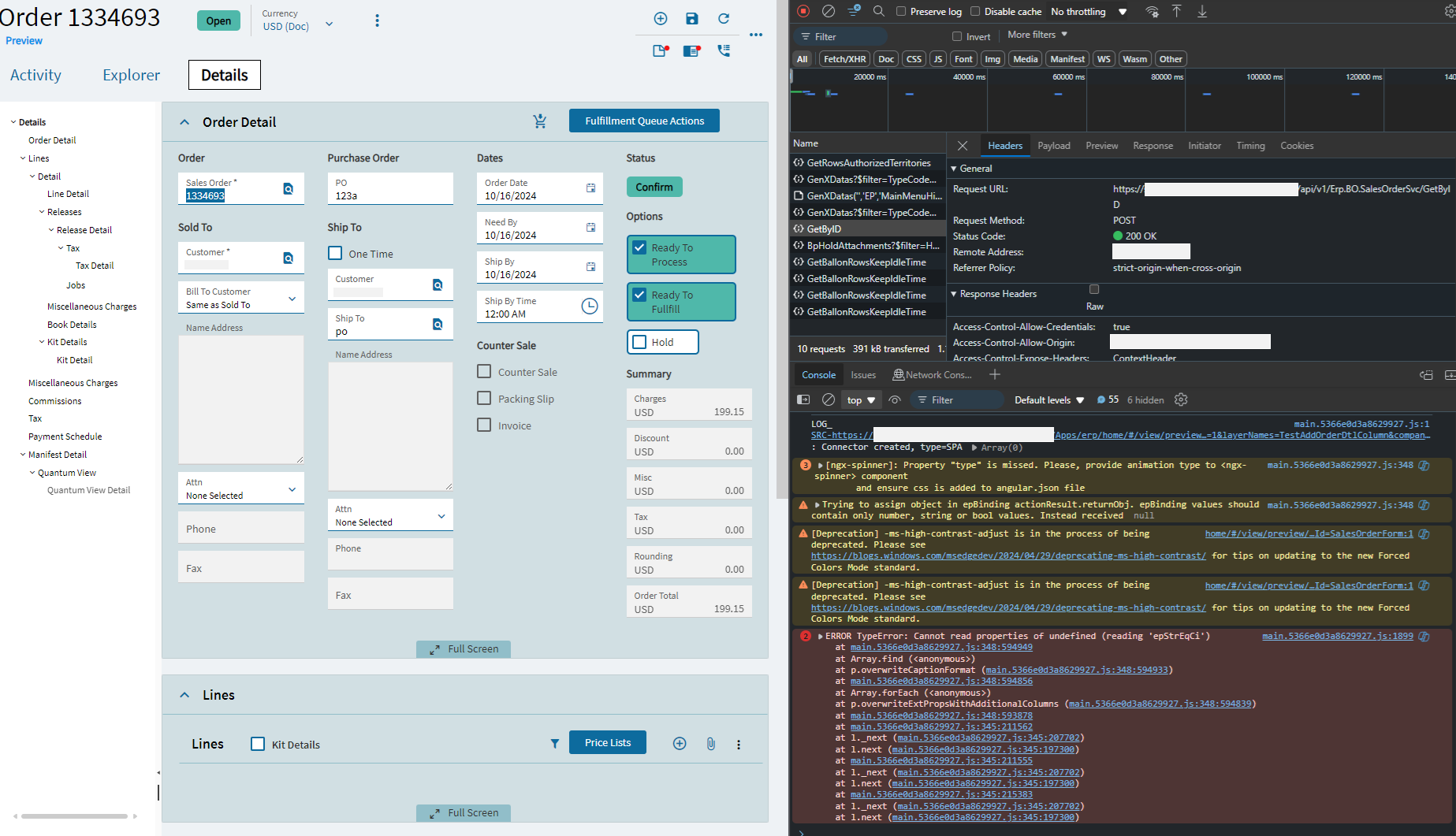
What’s the response of GetByID?
I guess it does not have your “new” field.
You could do a simple test by adding the column to the dataset/tableset in the GetByID BPM ( Adding Custom column to DataView). Depending on result we could say if it needs to have the same structure or not.
If it helps, you have the answer.
Otherwise investigate further.

Looks like a bug.
I was able to reproduce, exactly as you said. Add custom column to the OrderDtl on an otherwise vanilla layer, and it errors.
I also tried as @pawel.malicki suggested to add the field to GetByID with a BPM - confirmed the field is coming back in GetByID, and it still has the same error and no Lines displayed on the Order Details page.
Adding a Custom Column is a totally normal and (usually) simple thing to do … this is just not working. Maybe some calculation is being done on all the data in the OrderDtl table …
EDIT:
I thought that maybe the custom column was coming in as undefined, and then there was some action made against its value - resulting in the error Cannot read properties of undefined … so I added an event that runs after RowChanged_syspages (the event right before the error is thrown)
My event checked for a value in my custom boolean column “Selector” and for each undefined value, set it to false
It made no difference

Depending on what you are doing … could you just add a selector to the Lines grid?
In the Grid Model, make the rows Selectable, then you can edit the Selection Options to add a Checkbox
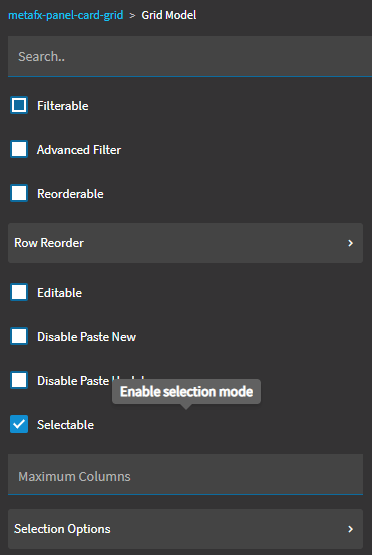
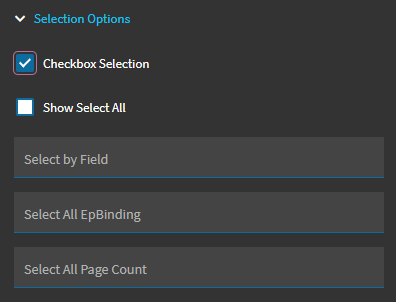
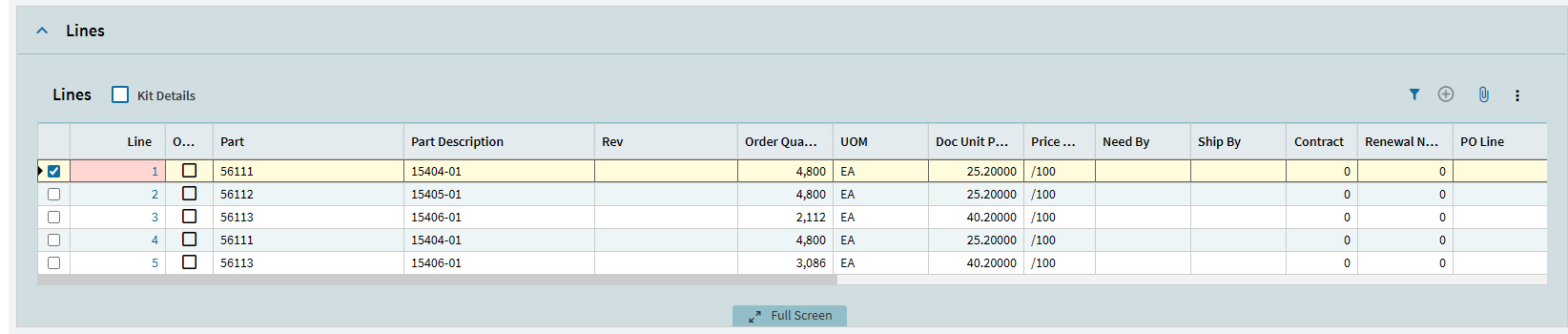
That could work if there is a way to tell which rows are selected. I haven’t been able to find that in all my attempts at Kinetic so far. I can find the last one selected, but not all of them. All of the posts on this I’ve seen say add a field to the original dataview, but that is where I run into the problem.
You should be able to add it to the grid without adding it to the data view:
I followed the attached article, and I still run into the same problem. I am able to add the checkbox to the grid just fine. When executing the dataview-condition statement it doesn’t iterate through the grid. I’m assuming this is because the “Selected” column doesn’t exist in the dataview. I was wondering if there is a special column or special way to grab the selected rows from the grid. So far I haven’t found it
I have ran into this as well. I believe this is a bug but I haven’t been able to convince support to submit it to development. The problem with just adding it in the grid, and not to the data view, is I can’t figure out how to drive data rules off a column that doesn’t exist in the grid. Does somebody have a solution for that?
I got it to iterate through the grid of OrderDtl lines - and it only performs the iterative event on the selected data
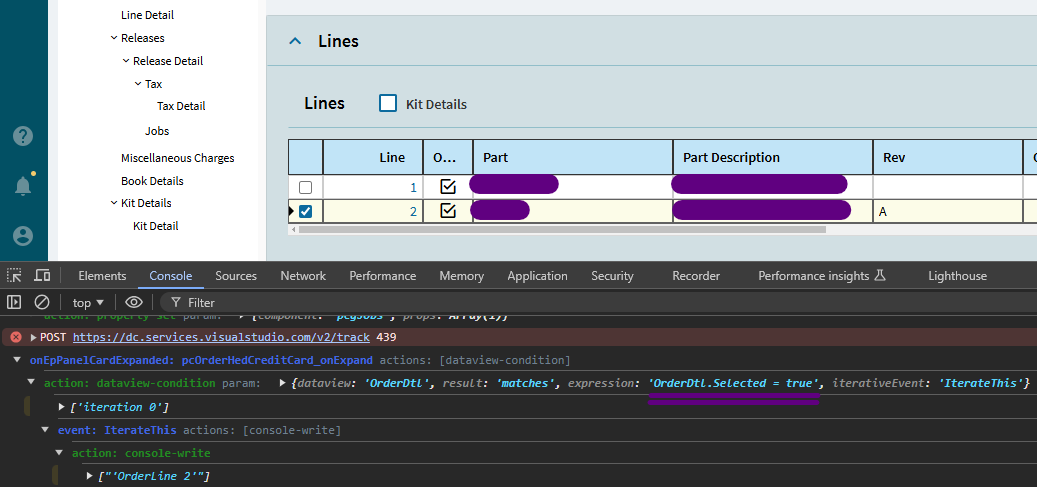
Note the expression:
OrderDtl.Selected = true
Here’s my dataview-condition widget:
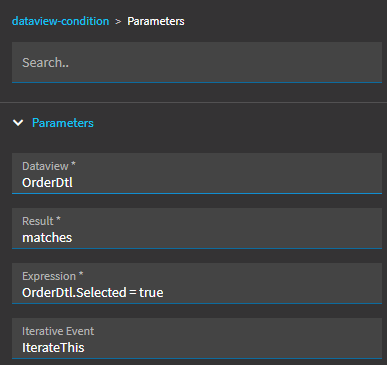
and my iterative event:
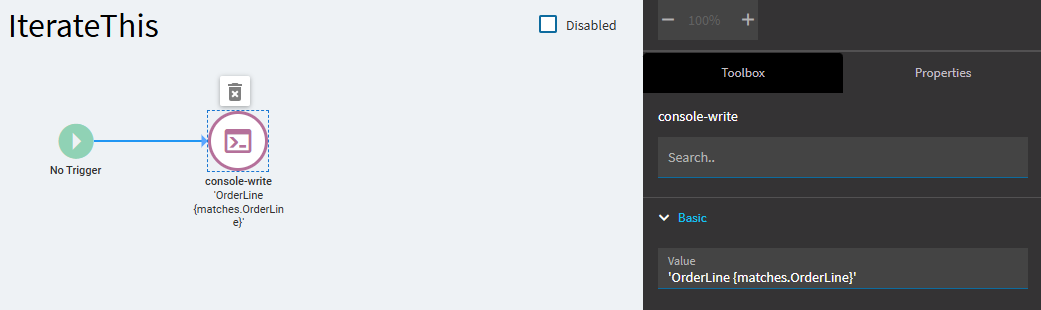
I kept it simple just as proof of concept … it should work on the OrderDtl Lines grid on the Sales Order Details page - without adding a column to the data view
1 Like
It only iterates over the last line selected for me, not all the lines selected.
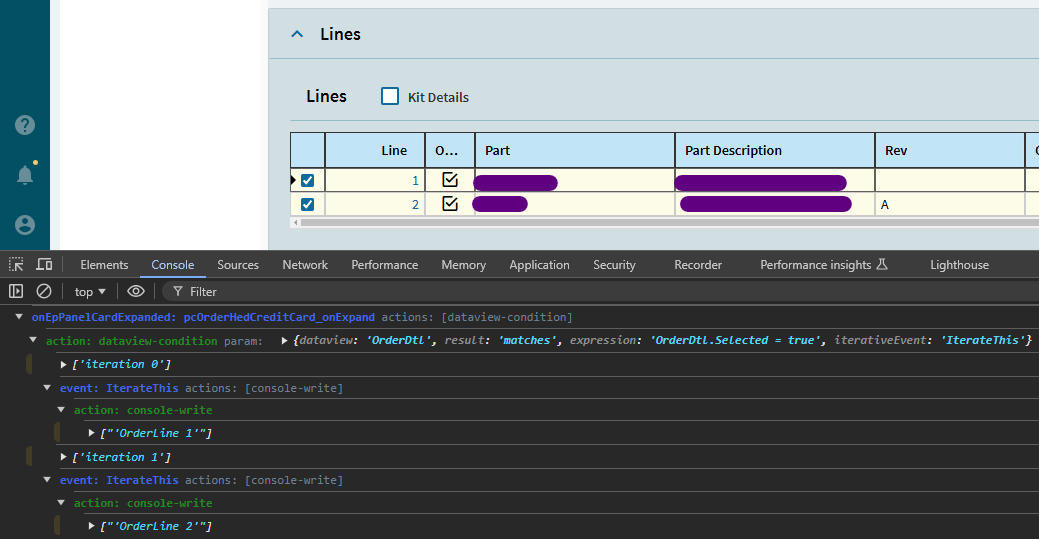
Thank you very much for your encouragement so far. I was able to get it to iterate multiples by changing my test. What I’ve found is that it doesn’t iterate over all of them about 10% of the time, and my test was falling within that 10%. I tried it with other tests and it iterated over all selected items. I’ll see if I can figure out why it isn’t doing it in some cases and report back if I find it, but thanks again for persisting with me.
That is scary
Please do let us know what you find!
1 Like
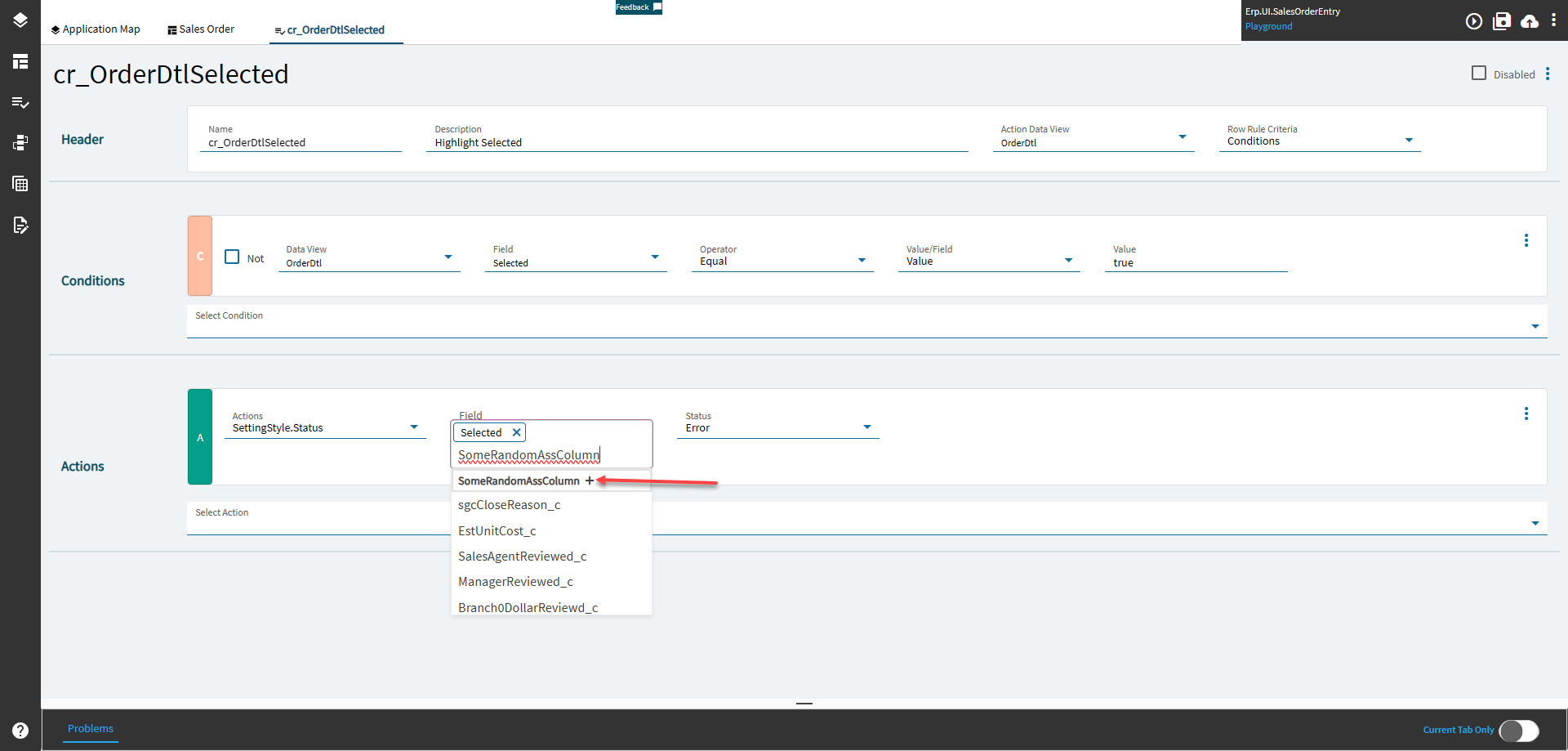
It doesn’t need to exist in the DV for it to work.
It won’t show up with “intellisense”, so you’ll have to type it in yourself, but it works.
This is the only setup I did:
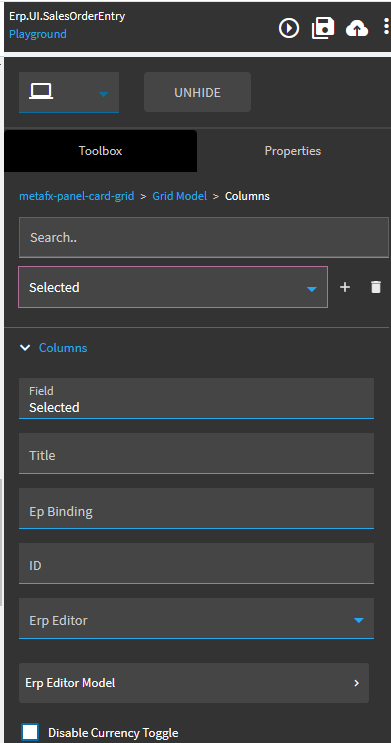
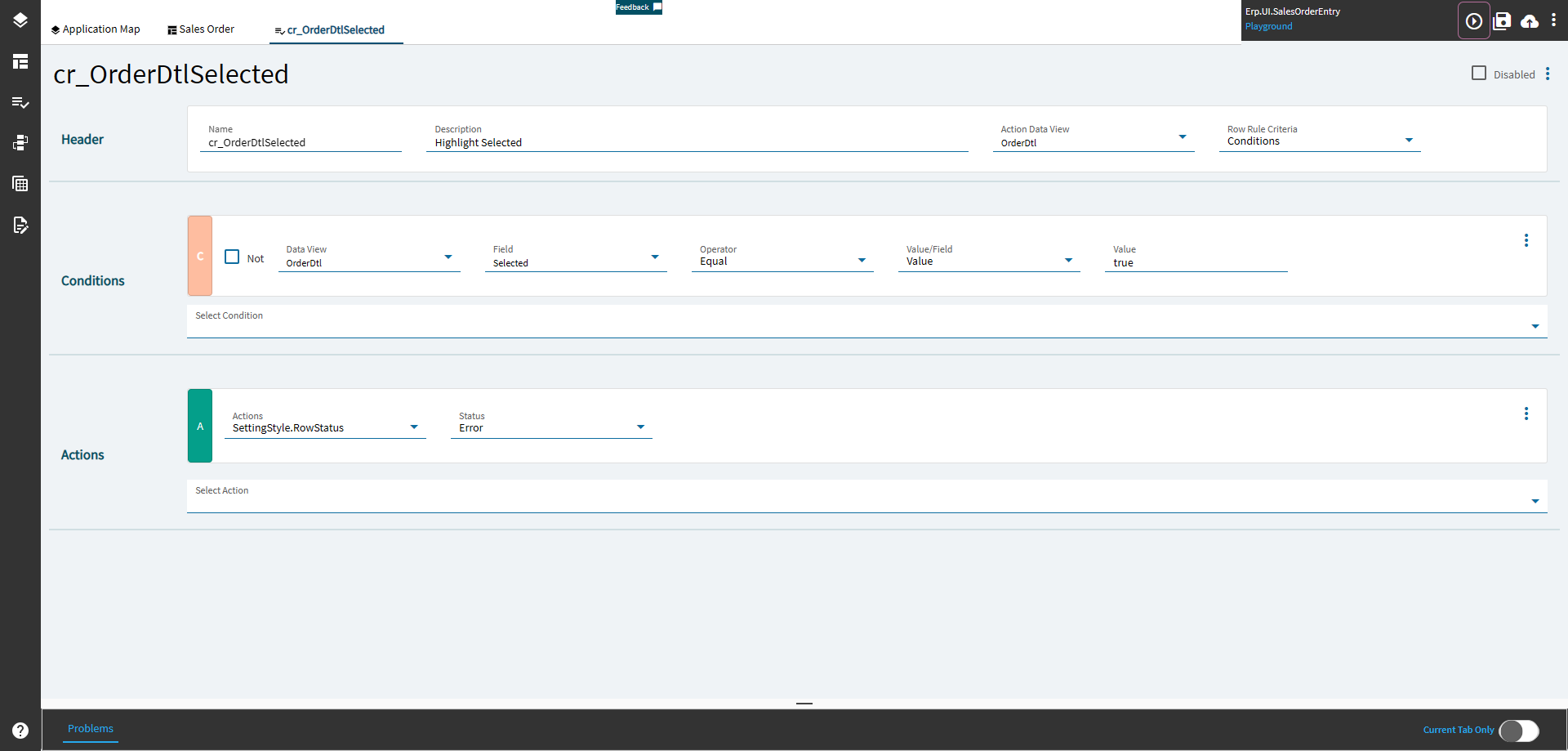
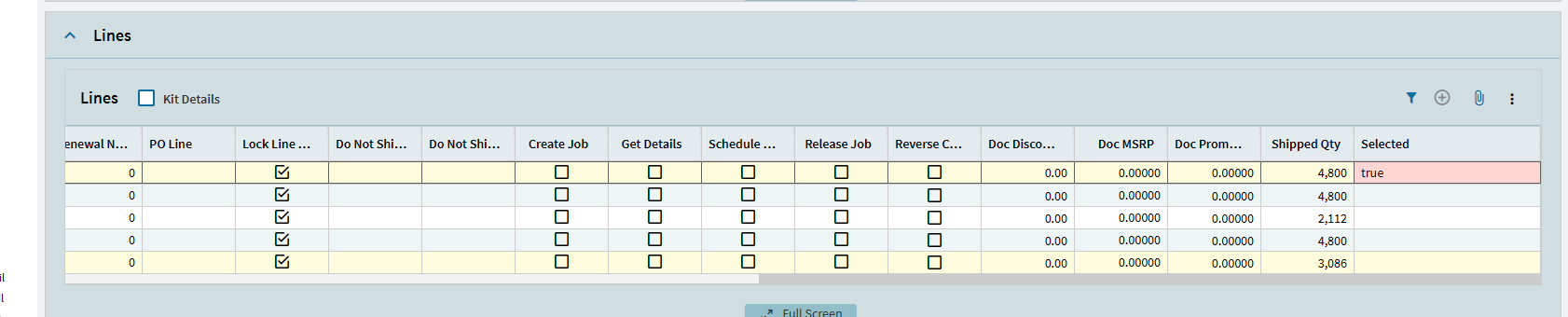
And it highlights. However, the real crime here is the “highlighting.”
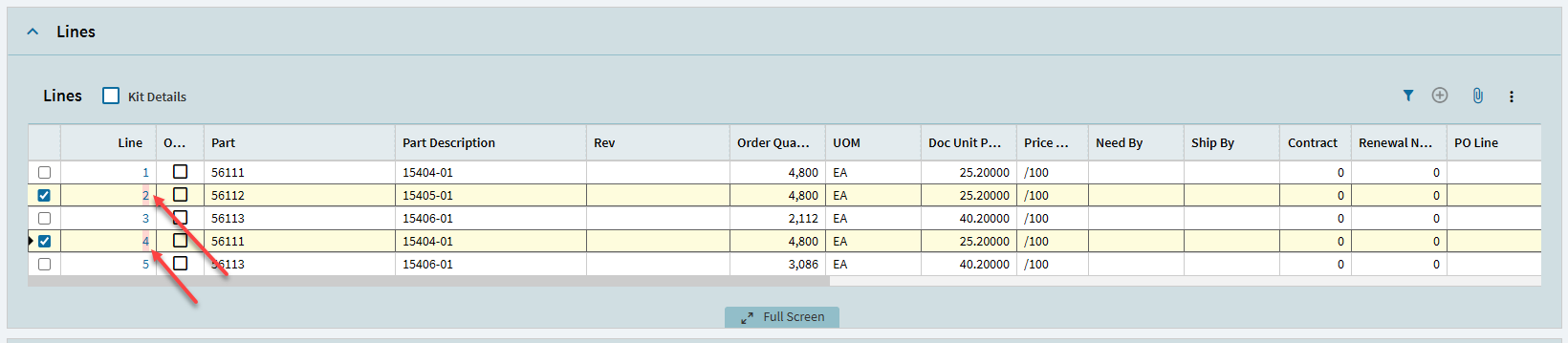
2 Likes
Interesting, I will try again. I had been trying to do the type of row where you select multiple columns in the actions area and it wasn’t letting me just type them in.