Continuing the discussion had in Application Studio - Function Output to Grid - Help Needed.
I am now attempting to write a slightly more complex function to a grid.
using (DataSet outDS = new DataSet("outDS"))
{
    var oDT = new DataTable("outResult"); // Create the DataTable with the name "outResult"
    var dfq = new Dictionary<Tuple<string, string>, DataRow>(); // Use string-based tuples for job number and due date
    oDT.Columns.Add("OpSeq", typeof(string)); // First column is OpSeq (row labels)

    // Sample data (this should be replaced with your actual table from the previous step)
    var data = new[] {
        new { JobNumber = "109673", DueDate = new DateTime(2025, 2, 8), OpSeq = "10" },
        new { JobNumber = "109673", DueDate = new DateTime(2025, 2, 8), OpSeq = "20" },
        new { JobNumber = "109673", DueDate = new DateTime(2025, 2, 8), OpSeq = "30" },
        new { JobNumber = "109673", DueDate = new DateTime(2025, 2, 8), OpSeq = "40" },
        new { JobNumber = "184438", DueDate = new DateTime(2025, 3, 9), OpSeq = "10" },
        new { JobNumber = "184438", DueDate = new DateTime(2025, 3, 9), OpSeq = "20" },
        new { JobNumber = "184438", DueDate = new DateTime(2025, 3, 9), OpSeq = "30" },
        new { JobNumber = "184438", DueDate = new DateTime(2025, 3, 9), OpSeq = "40" },
        new { JobNumber = "960313", DueDate = new DateTime(2025, 2, 25), OpSeq = "10" },
        new { JobNumber = "960313", DueDate = new DateTime(2025, 2, 25), OpSeq = "20" },
        new { JobNumber = "960313", DueDate = new DateTime(2025, 2, 25), OpSeq = "30" },
        new { JobNumber = "960313", DueDate = new DateTime(2025, 2, 25), OpSeq = "40" },
        new { JobNumber = "996094", DueDate = new DateTime(2025, 3, 6), OpSeq = "10" },
        new { JobNumber = "996094", DueDate = new DateTime(2025, 3, 6), OpSeq = "20" },
        new { JobNumber = "996094", DueDate = new DateTime(2025, 3, 6), OpSeq = "30" },
        new { JobNumber = "996094", DueDate = new DateTime(2025, 3, 6), OpSeq = "40" }
    };

    // Add columns for JobNumbers
    var jobNumbers = data.Select(d => d.JobNumber).Distinct().ToList();
    foreach (var jobNumber in jobNumbers)
    {
        oDT.Columns.Add(jobNumber, typeof(string)); // Ensure all columns are of type string
    }

    // Populate the DataTable with data
    foreach (var entry in data)
    {
        var jobNumber = entry.JobNumber;
        var dueDate = entry.DueDate.ToString("yyyy-MM-dd"); // Convert DateTime to string (YYYY-MM-DD format)
        var opSeq = entry.OpSeq; // OpSeq is already a string

        // Check if we have already encountered this OpSeq
        var existingRow = oDT.AsEnumerable().FirstOrDefault(r => r.Field<string>("OpSeq") == opSeq);

        if (existingRow == null)
        {
            // Create a new row for this OpSeq if it doesn't already exist
            var newRow = oDT.NewRow();
            newRow["OpSeq"] = opSeq; // Set the OpSeq (row label) as string
            oDT.Rows.Add(newRow);
            existingRow = newRow;
        }

        // Find the column for the JobNumber and assign the DueDate value as a string
        existingRow[jobNumber] = dueDate;
    }

    // Create a simplified output structure
    var simplifiedOutput = new List<object>();
    foreach (DataRow row in oDT.Rows)
    {
        var rowData = new Dictionary<string, string>();
        foreach (DataColumn column in oDT.Columns)
        {
            rowData[column.ColumnName] = row[column].ToString(); // Ensure everything is converted to string
        }
        simplifiedOutput.Add(rowData); // Add the row to the simplified list
    }

    // Add the simplified output to the DataSet
    outDS.Tables.Add(oDT);  // Add the DataTable to the DataSet

    // Optionally assign the outDS to a field, if necessary
    this.outDS = outDS; // Assuming you need this reference elsewhere in your class
}
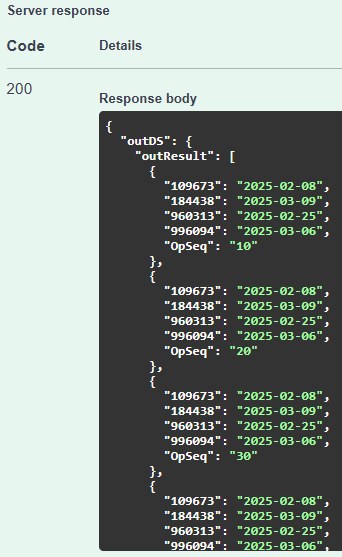
I have the function outputting as it should:
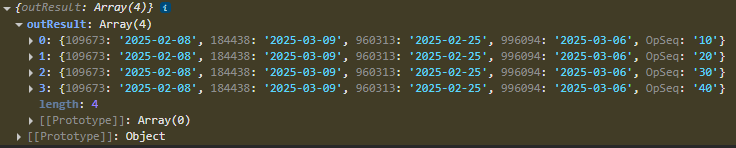
I can see the data attempt to parse when I do my button click event:
The issue I’m running into is that even though the button click successfully shows me the data I am after, it gives me the following error:

And the grid I am using attempts to load columns that were previously in the dataview but have been removed:

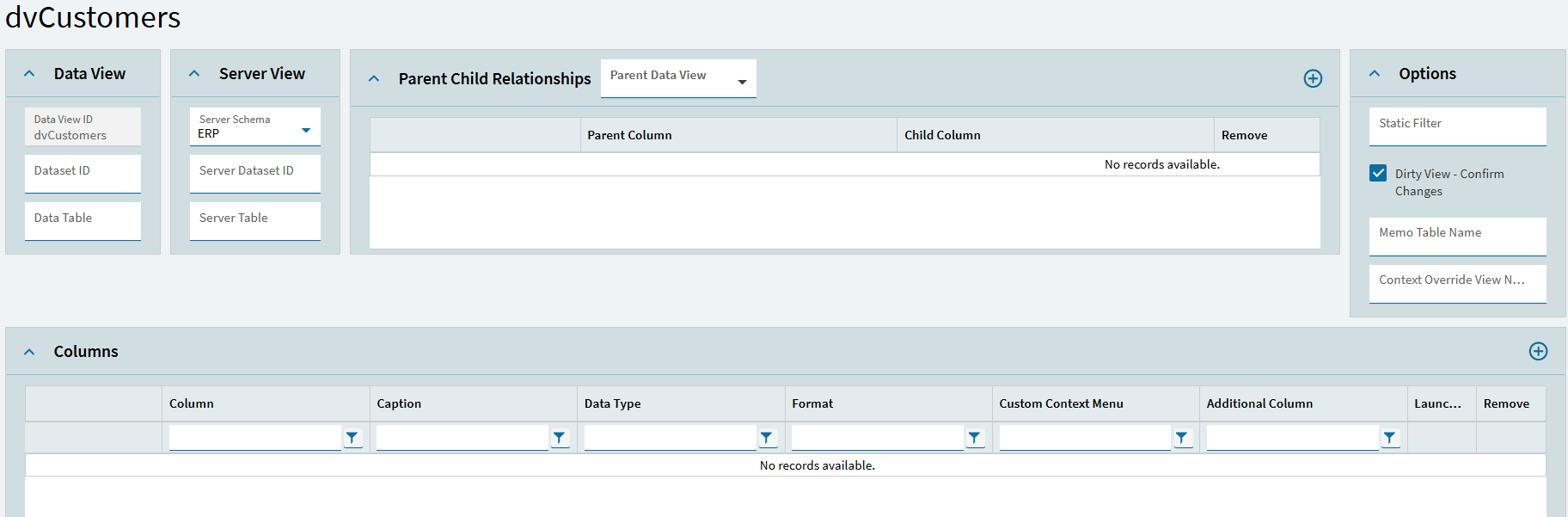
What would cause these ghost columns to appear despite not being any of the columns listed within the data?
What is with the random error about everything must be a string when I have everything already converted to a string before it goes into the dataset?