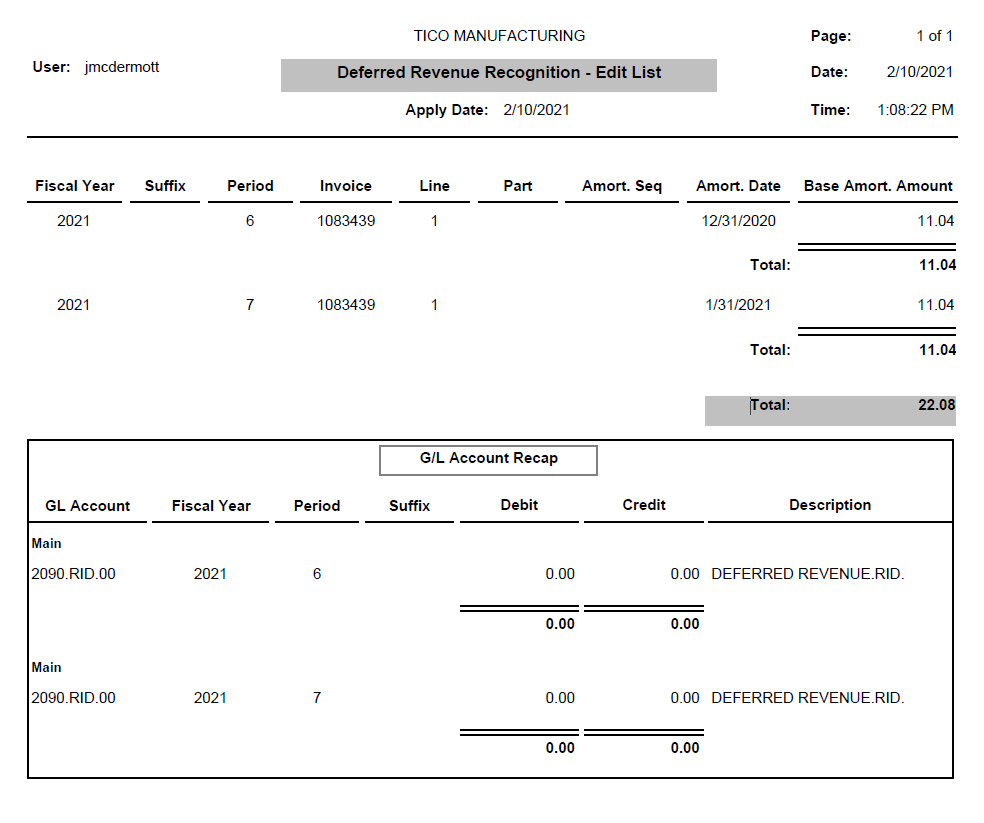
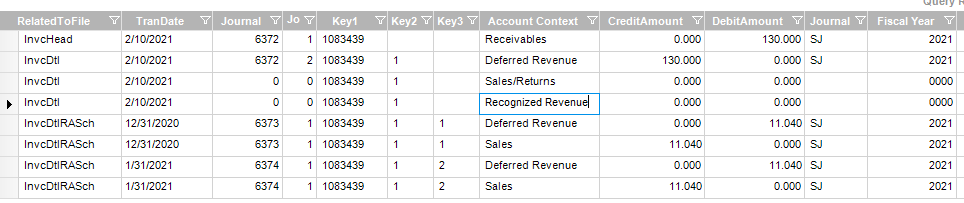
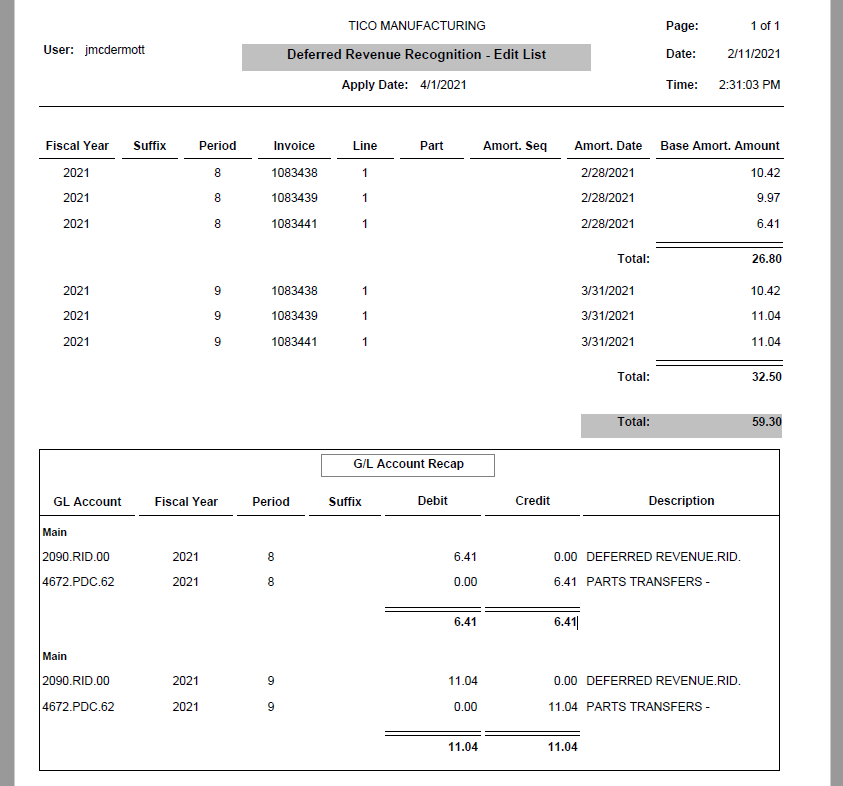
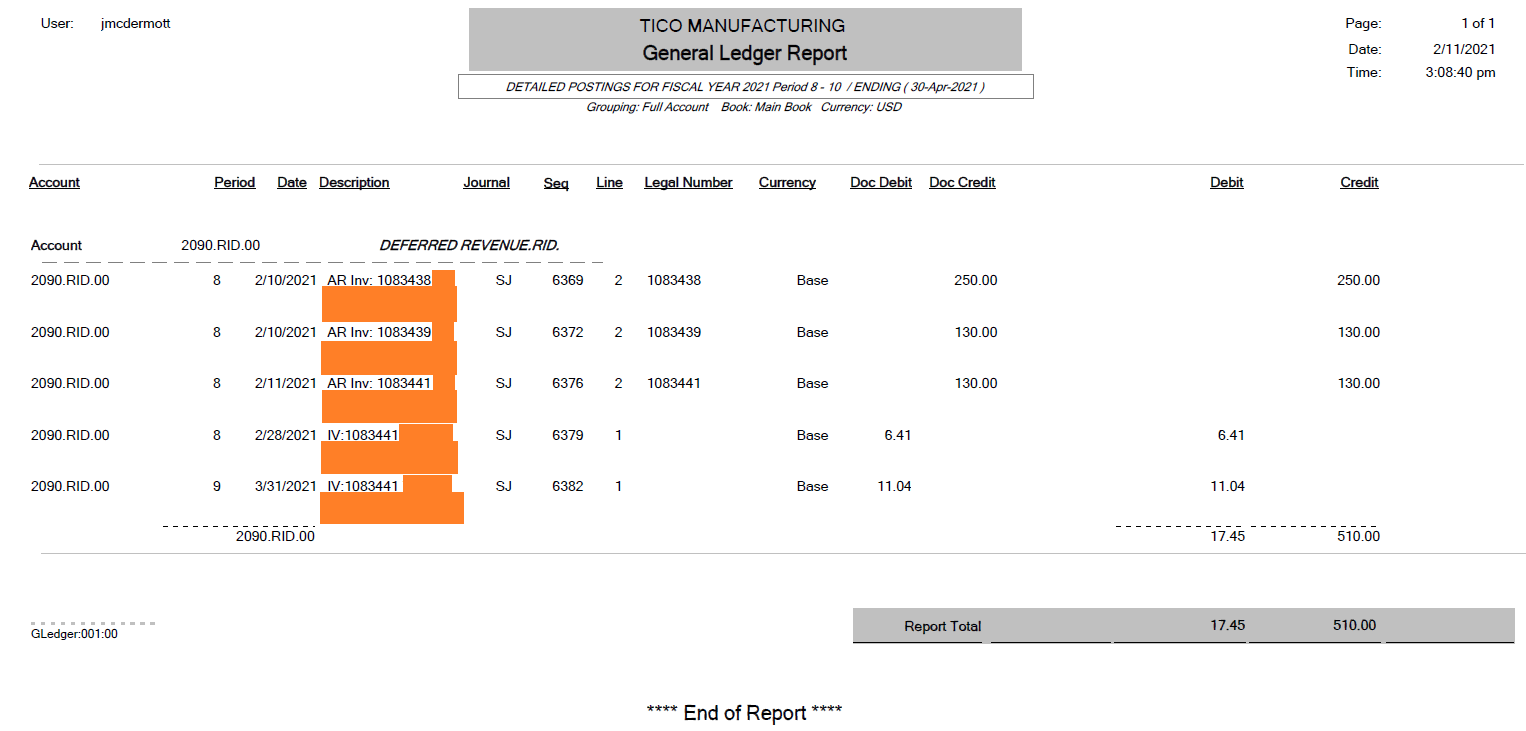
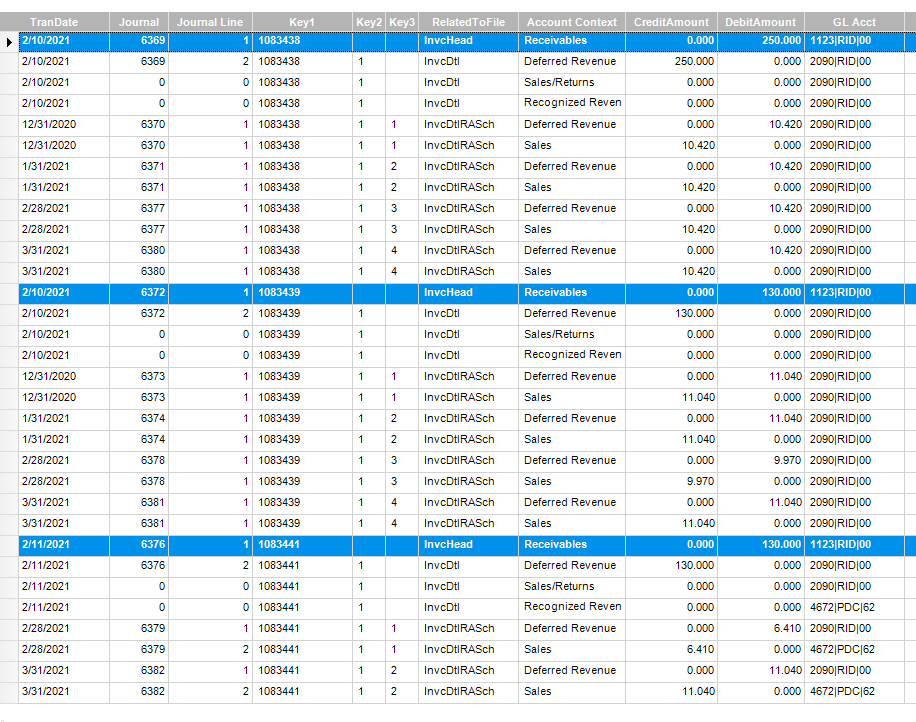
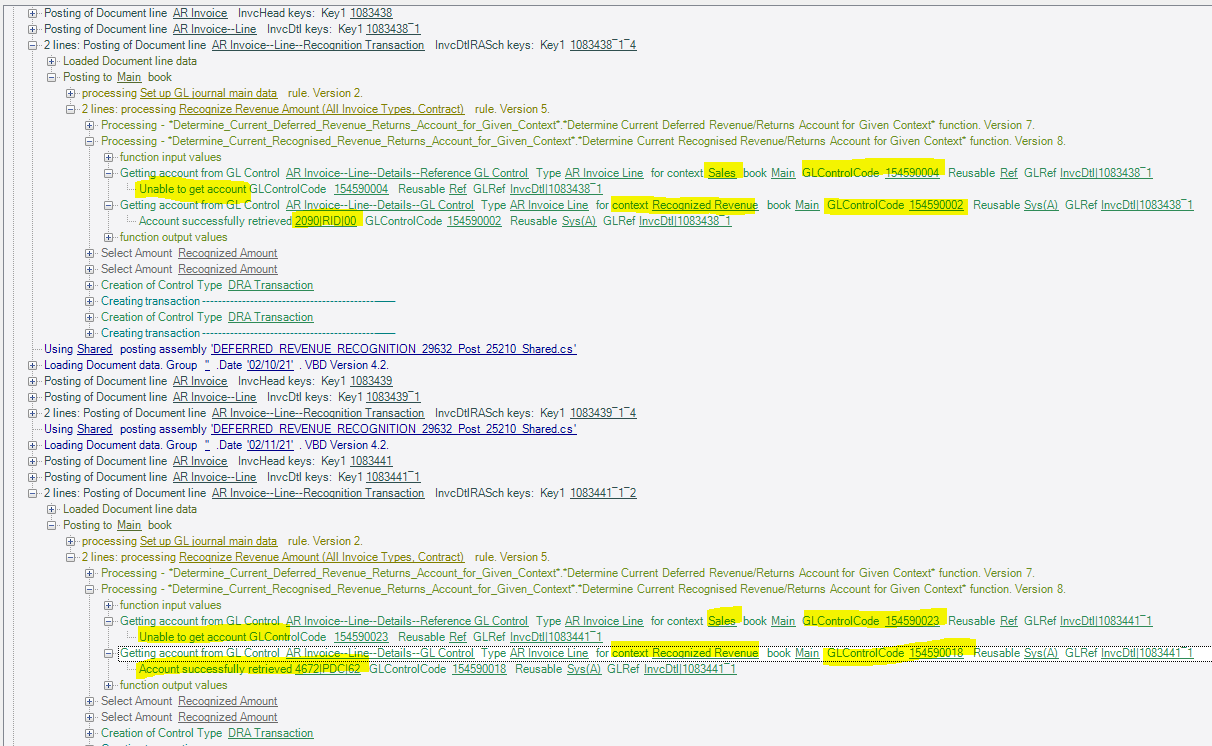
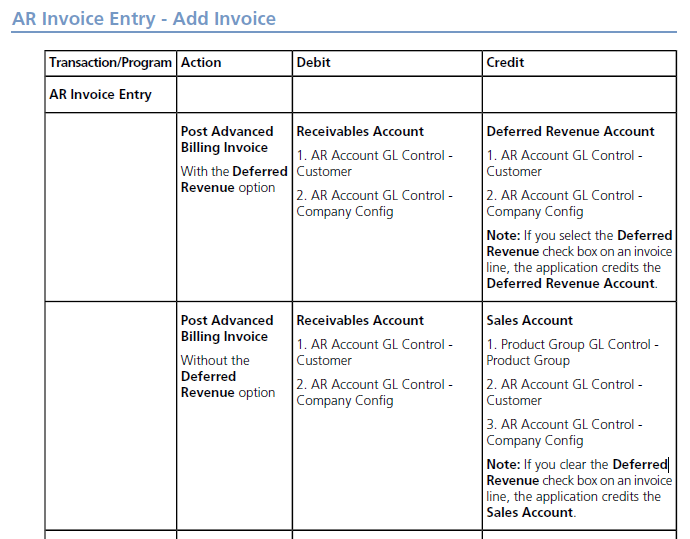
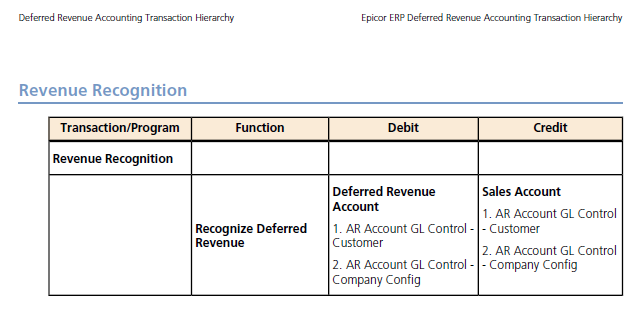
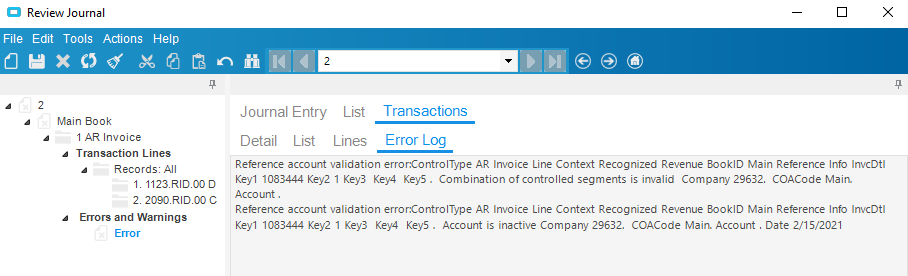
I used this to set up and test and all worked as expected
Issue
What is Deferred Revenue Accounting and how to recognize the revenue.
Error
None
Resolution
*Deferred Revenue Accounting
Deferred revenue stems from the accounting concept of revenue recognition, under which revenues are recognized only when the earnings process is complete.
If funds are received and no goods or services have been provided, the process is not complete, and revenue cannot be recognized. In this case, a deferred revenue liability is recorded. Specifically, the deferred revenue account is credited and cash, or other assets, are debited.
*Revenue Recognition Process.
Run this process when you would like to recognize the revenue.
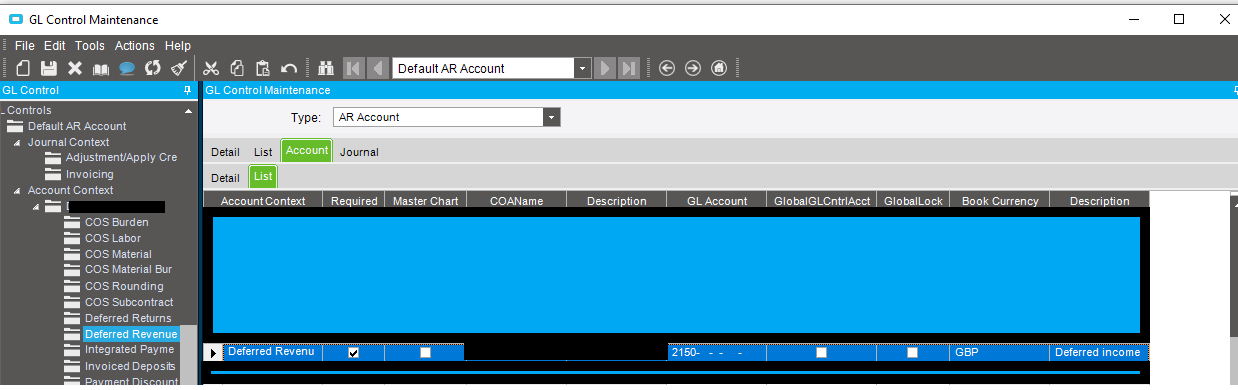
Step 1: NOTE THE DEFERRED REVENUE ACCOUNT
Path: System Management > Company Maintenance > Company
Navigate to the Modules > All Modules > GL Control > List sheet.
Highlight the AR Account GL Control Type.
In the GL Control Code field for AR Account, right-click Default and select Open With > GL Control Code Entry.
GL Control Maintenance displays.
In the tree view, navigate to Company ID - Company Defaults > Account Context > Main Book > Deferred Revenue.
From the Account > Detail sheet, in the Account field, you can see the Deferred Revenue account.
Step 2: CREATE A REVENUE AMORTIZATION CODE
Path: Financial Management >Deferred Revenue Accounting >Setup>Revenue Amortization Code.
-
Click File
-
New.
-
Enter any code and description. (in this case I put TEST as a RA Code)
-
Scope = (AR)
-
Select fiscal calendar = (your fiscal calendar)
-
Duration = (enter 3)
-
Calculation method = (Equal Amounts)
-
Save
Step 3: ENTER THE CODE TO AN EXISTING CUSTOMER
Path: Financial Management + Accounts Receivable + Set Up + Customer (Customer Maintenance)
-
Search and Select the desired Customer (it should be created first)
-
Select the Billing and Details tab
-
Click Deferred Revenue check box
-
Set the RA Schedule as the code that you set up on step 2
-
Click on Save
Step 4: CREATE A MISC INVOICE WITH DEFERRED REVENUE
Path: Financial Management >Accounts Receivable>General Operations> Invoice Entry
-
Click File
-
New> New Group
-
Enter any Group ID
-
In the Invoice Date and Apply Date fields, select the first day of last month.
-
Save
-
File> New > New Miscellaneous invoice.
After you select “New Miscellaneous Invoice” option, you will be referred to Header and Detail tabs.
Once you select the “New Line” option, you’ll be redirected to Line and Detail tabs
-
Enter any part and description in Part/Rev option
-
Enter quantity = 1 unit and price = 1000
-
If the checkbox is unchecked, select it, and select RA Code. If there is no End Date, you can add it, but even if it is not added will not affect the process so far.
-
Press Save
-
Then a window will appear, answer YES to “Do you want to generate the amortization schedules?"
-
Actions Post. The Credit account will go to deferred revenue. Revenue has not recognize yet.
Step 5: Recognize Revenue.
Path: Financial management>Deferred Revenue> General Operations> Revenue Recognition
-
On the As of Date enter the last day of the current month
-
Go to Filter tab > AR Invoice in order to Filter by invoice>select Invoice option and enter the invoice number that you created above. (You can also filter by Customer.)
-
Navigate to the Detail sheet.
-
Actions>Get Amortizations.
-
Actions > Print Edit list. The revenue will be recognized in the current month. (1000 / 3 = 333.33)
-
In the Amortizations grid, highlight the invoice amortization sequences that you want to post.
-
Click Submit.
Sales/Revenue account for current month will be 333.33 posted to GL.
Verified product versions: 10.1.400.x, 10.1.500.x, 10.2.100.x