I think if you go back and read the entire post that started this thread (Function Library - Working With Sharepoint), you will find the answer to this question.
tl;dr
In the original File System attachment scheme, there was a root folder on the server (on-prem only at that time. We shouldn’t store files on application servers anymore and we can’t in SaaS), the root folder contains a folder for each company. Within each company folder is a folder for each attachment table (OrderHed, Part, Customer, etc.). All attachments were stored in these folders and there is no way for the user to alter this file structure. Period.
When SharePoint attachments arrived (both on-prem and online - and recent history discourages SharePoint on-prem!), the exact same folder structure came with the File System storage type. When one creates a Storage Type of SharePoint, and you can only create one, there is a button that says, “Create Site Library”
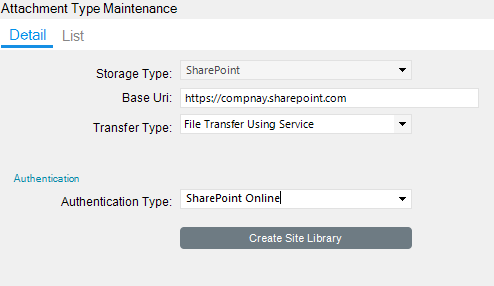
This creates one document library for all attachments for all companies in that instance, just like the File System storage type. Kinetic allows only one SharePoint Attachment Type, so there is only one Document Library. It has the same restrictions as the File System storage type in that you cannot create sub-folders or access files outside of this folder structure.
When one adds meta-data, that ONE document library gets all metadata columns for all Kinetic Document Types. Unlike ECM, the document type in SharePoint is kept in the Category column and is not a real SharePoint Document Type. This makes security, retention policies, etc. less effective than SharePoint can give you.
Unless something has changed in 2025.1 that I’m not aware of, you will not be able to use SPFileExists in the solution path you are on. As mentioned in the previous post, if you want to use the full capabilities of SharePoint with attachments, enable the Unique Document ID service for the libraries you want to track attachments with and then use the Link attachment type. The friction here is the user has to upload the file to SharePoint first and then enter the URL for the document. If you were to go this route, you would use the Graph API to check for the document’s existence.