I have a Simple Dashboard. I have two panel card Stacks. The top stack has a “Job list” panel card grid. When a user selects a job here, the bottom card stack will show details related to it on a number of panel card grids.
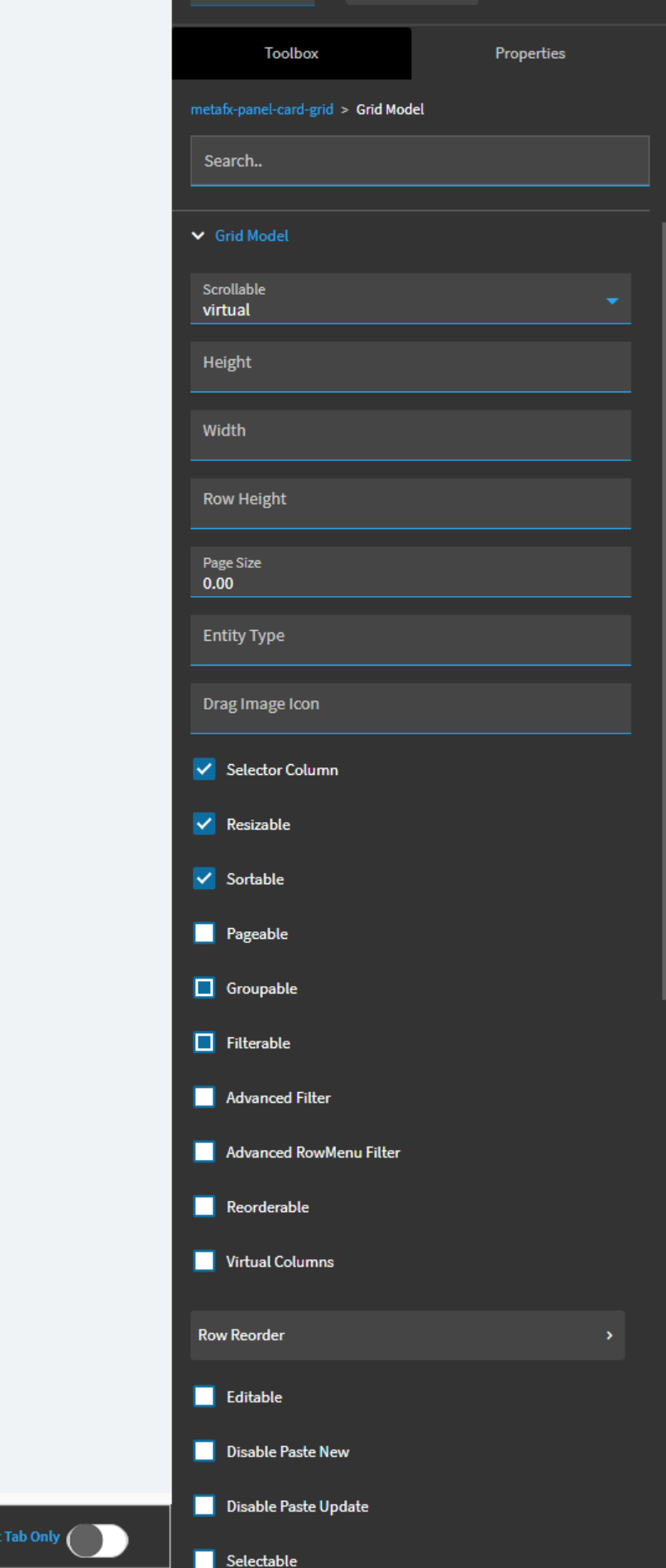
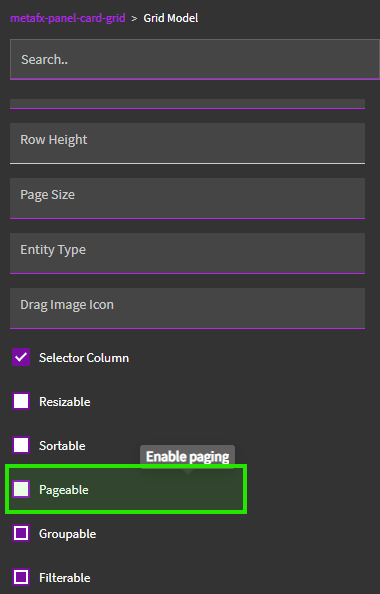
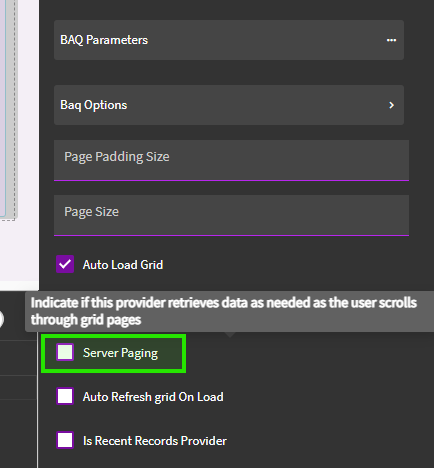
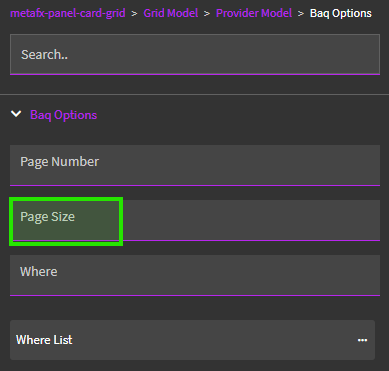
For now it is only displaying 100. If I export to excel or show the count i can see it shows the total number of rows but it just doesn’t really display all the rows. I know it must be a page size setting, I have played with the panelcardGrid > Grid Model > page size. If I leave it blank the row display limit is 150 by deafult.
I am trying to find whether i can Show all rows in a panel card without limiting them.
I had used Advanced > Auto Fill Container, Grid model > Page Size. and had no Luck. current workaround is to set page size to a large number that is most likely to be greater than the grid results. I will keep looking and update if I discover or come across a solution.
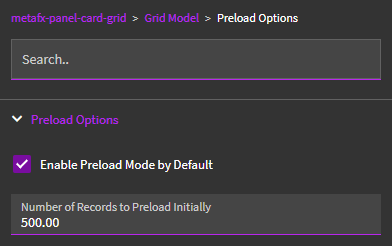
Check the value here and see if it is set to 100. You can up this number to display more rows by default.
I actually like this new setting “Enable Preload Mode by Default”. By checking that checkbox, it adds the counter on the grid:
So… even with my value set to 500… without having to “download more”… I see the record/row count (which is kinda nice)!
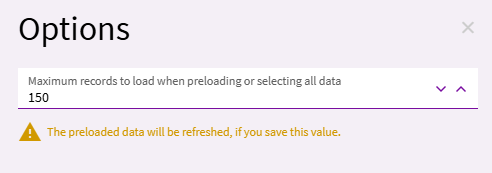
Anyway… this is the “default” value. If I set it to 150… this is the same value that appears if you click on the grid’s overflow menu and look at “options”. A slideout will appear and you’ll see this: