I know… I know… another long one!  But I’m pretty sure some of you may like this one.
Stemming from this Post, where I created my own Find Assembly NUMBER tool…
… I decided I wanted to re-invent the standard/lacking “Find Assembly PART” tool.
The standard Find Assembly Part tool provided in Job Entry is focused on finding a specific PartNum in your job tree, it then refreshes the job tree to the assembly with that corresponding PartNum.
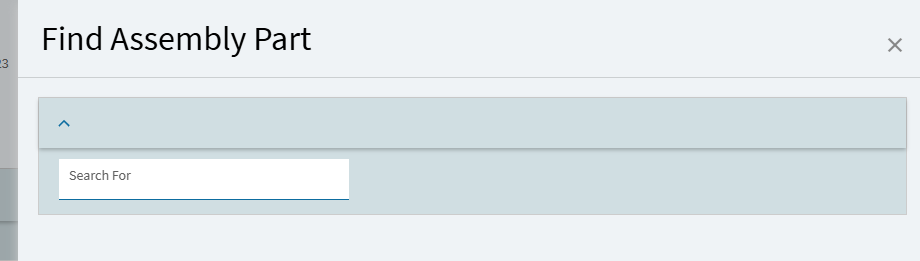
The problem is, you could have that same PartNum as multiple assemblies within the job. The standard tool simply takes you to the first instance of the part.
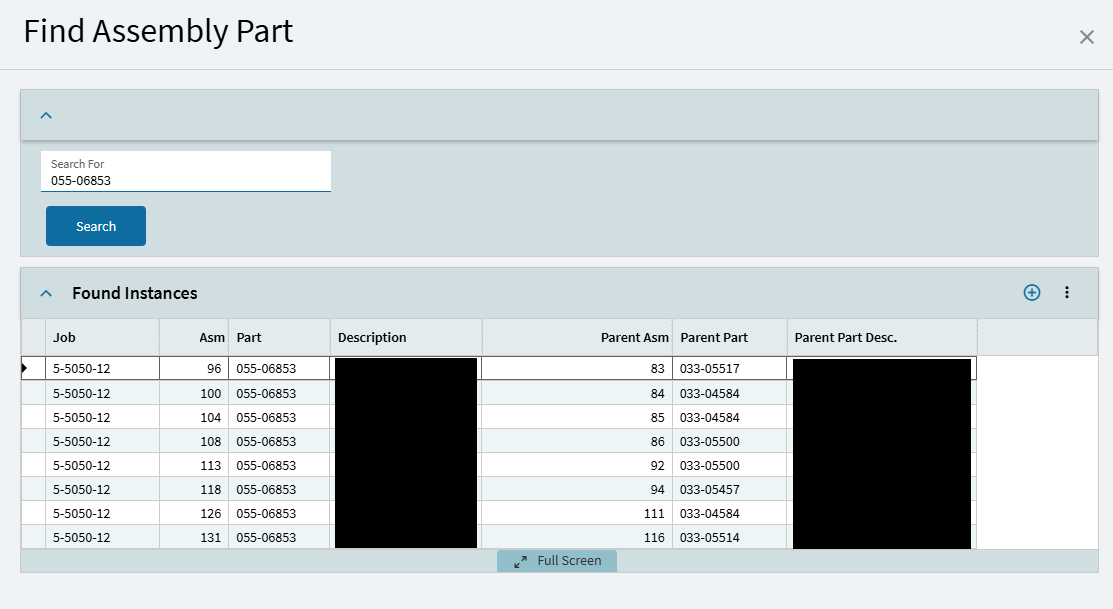
My customization, instead, uses a simple BAQ to query the JobAsmbl table and return all instances of that PartNum (being used as an Assembly PartNum) and displays them in a grid. The user then selects the particular instance of the part they want… and THAT’S what the job tree will refresh to:
If you’d like to build this yourself… below are the steps:
~*~
Customization:
Forewarning: This includes a BAQ, dataview, form custimizations, and (7) different events. Be prepared!

In my previous post (linked above) I created a simple BAQ, just querying the JobAsmbl table. I’m going to use the same BAQ, but I’m going to add some detail to help the user decide which instance of the PartNum they might be looking for. You can add MORE to this BAQ… as much detail as you want… but I’m still keeping it simple at this point.
So, starting with the existing query with the JobAsmbl table:
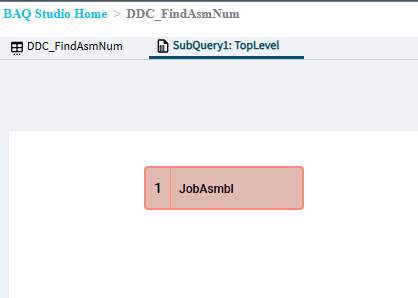
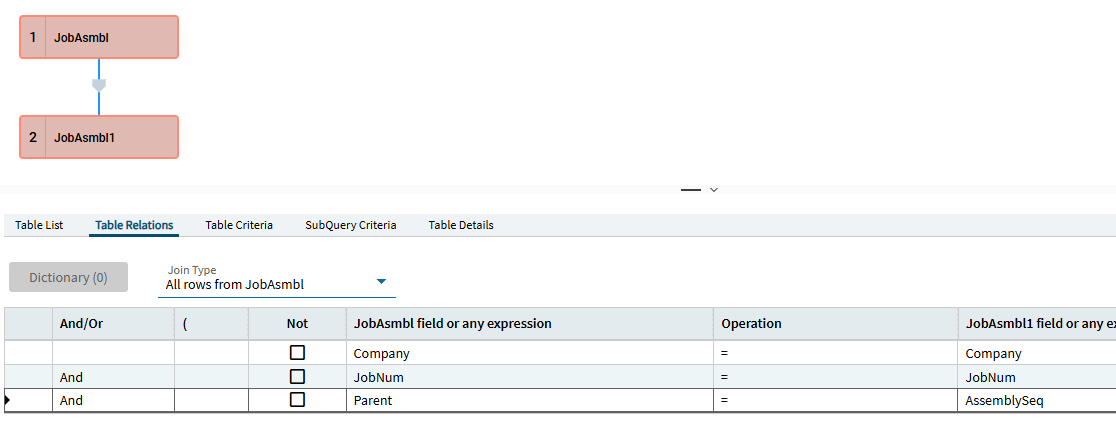
I’m just going to add the JobAsmbl table again. Setting that join to include all rows from the original JobAsmbl table (Left outer join). And then adding the table relationships of:
Company = Company
JobNum = JobNum
Parent = AssemblySeq
For Display Fields, I’m choosing the below:
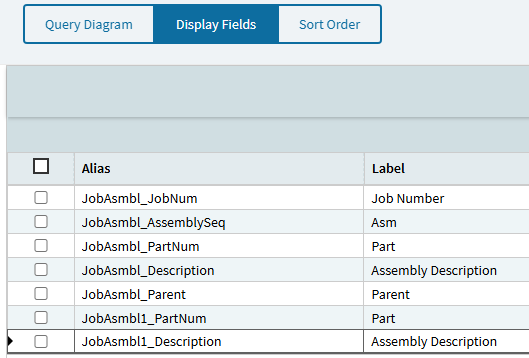
This at least gives the user a few little breadcrumbs when they search for an assembly PartNum, they’ll see the Parent AssemblySeq, the Parent PartNum, and Parent Part Description. Again, if it is helpful for your users to see additional info… add more detail as needed.
Save Changes.
~*~
JobEntry - BAQ Dataview and “Get” event:
In my previous post, I already added a BAQ dataview to my JobEntry for this BAQ, as well as a “get” event to run it. If you need those steps, please refer back to the above post.
~*~
Hijacking the Find Assembly Part page:
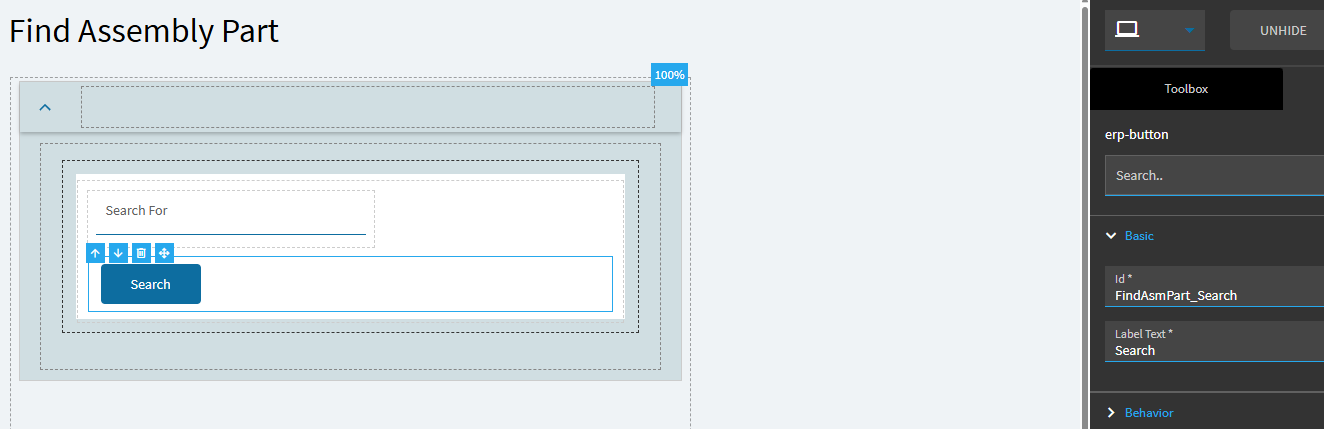
We can just build off the existing page Epicor provides. Edit the Find Assembly Part page and we need to add a button and a panel card grid.
The button is pretty straight foward:
For the panel card grid > Grid Model
We want to bind this grid to our BAQ dataview, and then you can create the corresponding columns.
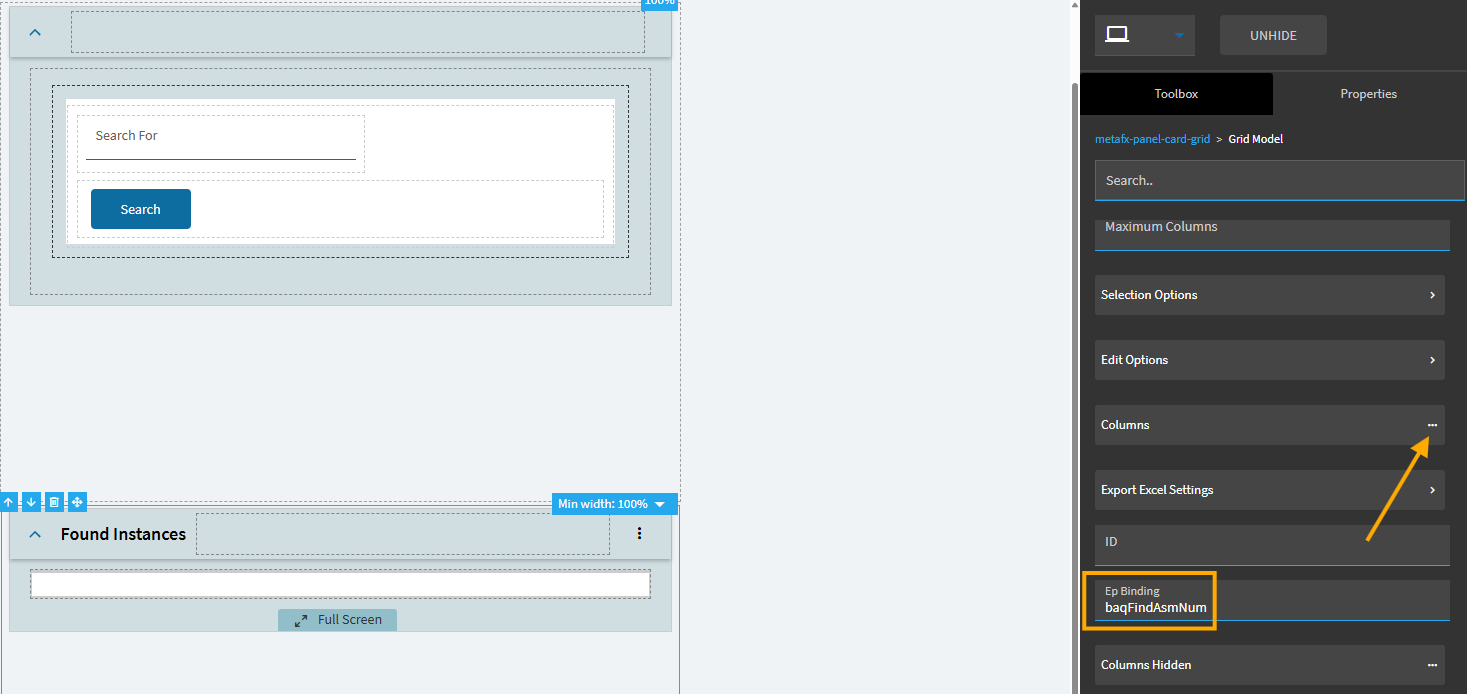
Save when complete.
~*~
EVENTS - Number (1) - BAQ “Get”
First… depending on whether you did the previous post’s customization or not, we need to either modify the BAQ “get” event, OR, create a new one.
In the original post, my “get” event used the below where clause:
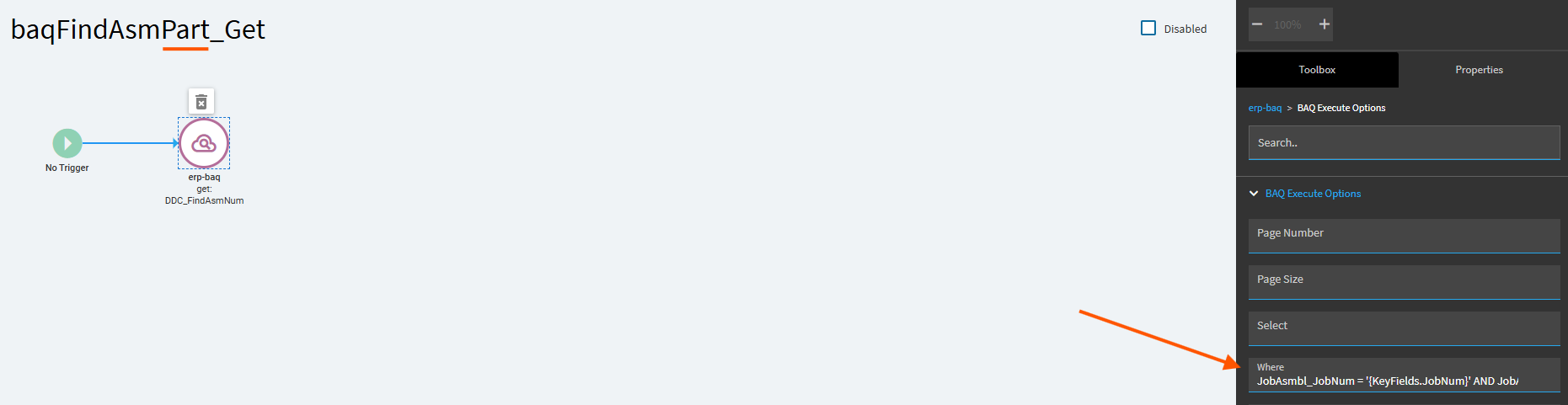
JobAsmbl_JobNum = '{KeyFields.JobNum}' AND JobAsmbl_AssemblySeq = '{TransView.FindAsmNum}'
This worked because we were using our new “Find Assembly NUMBER tool” and feeding it a JobNum and an AssemblySeq.
For THIS tool, we need to feed it a JobNum and a PartNum.
So, if you didn’t do the previous customization… you can just change your get event to include the below where clause (in BAQ Execute Options).
If you DID do the previous customization… you’ll want to copy the original “get” event, rename it, and then use the below where clause. That way, depending on which “tool” you’re using, you’re passing the BAQ different input variables.
JobAsmbl_JobNum = '{KeyFields.JobNum}' AND JobAsmbl_PartNum = '{TransView.PartNum}'
That is what I did in this case… copied the “Get” event, renamed, pasted in the new where clause:
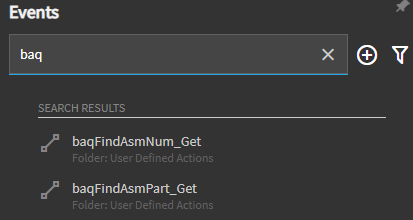
So, I now have two different BAQ “get” events depending on which tool I’m using:
~*~
EVENTS - Number (2) - Search_onClick
For our next event, go back to your Find Assembly Part form click on you button, and in Properties > Behavior > select On Click
In this event, we’ll call an event-next targeting our 1st event (to run our BAQ).
OnSuccess, I added a Row-Update. Here I created a “helper column”. It may not be necessary in the grand scheme of things, but while troubleshooting downstream issues, I started using this helper column and since it works… I’m gonna run with it.
row-update: TransView.FindAsmNum
Value (JSON): "{baqFindAsmNum.JobAsmbl_AssemblySeq}"
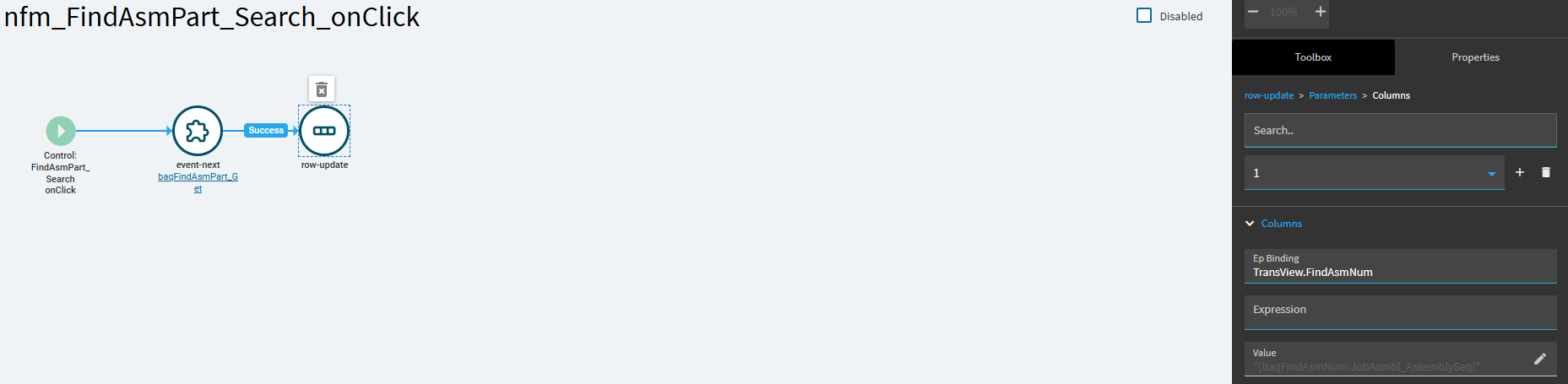
So, with this event, on the Find Assembly Part page, the user will enter a part number. When they click the Search button, we are going to run our BAQ AND pass the returned baq JobAsmbl_AssemblySeq value to our helper column. If your BAQ returns multiple rows (which it may… that IS the point of this customization) it will assign the value of the first returned row.
~*~
EVENTS - Number (3) - BAQ DataView - rowChanged
The next event, just create from scratch. The previous event sets our helper column to the first AssemblySeq value after our BAQ runs. BUT… if the user selects a different row in the Grid, we need to update our help column’s value.
Trigger:
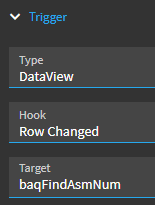
row-update (same as the last one):
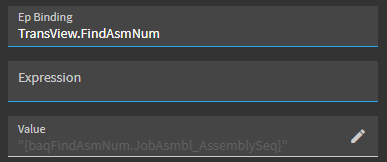
Finished event:
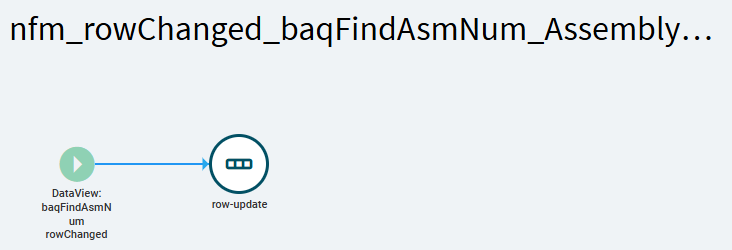
PREVIEW… thus far…
You should be able to enter a valid assembly PartNum and click search. Your grid should be populating.
In the below example, you’ll see our helper column was first assigned a value of (96) as that is the first returned row in my BAQ results. But I then clicked in a different row, and you can see my helped column was successfully updated to (113) by the rowChanged event.
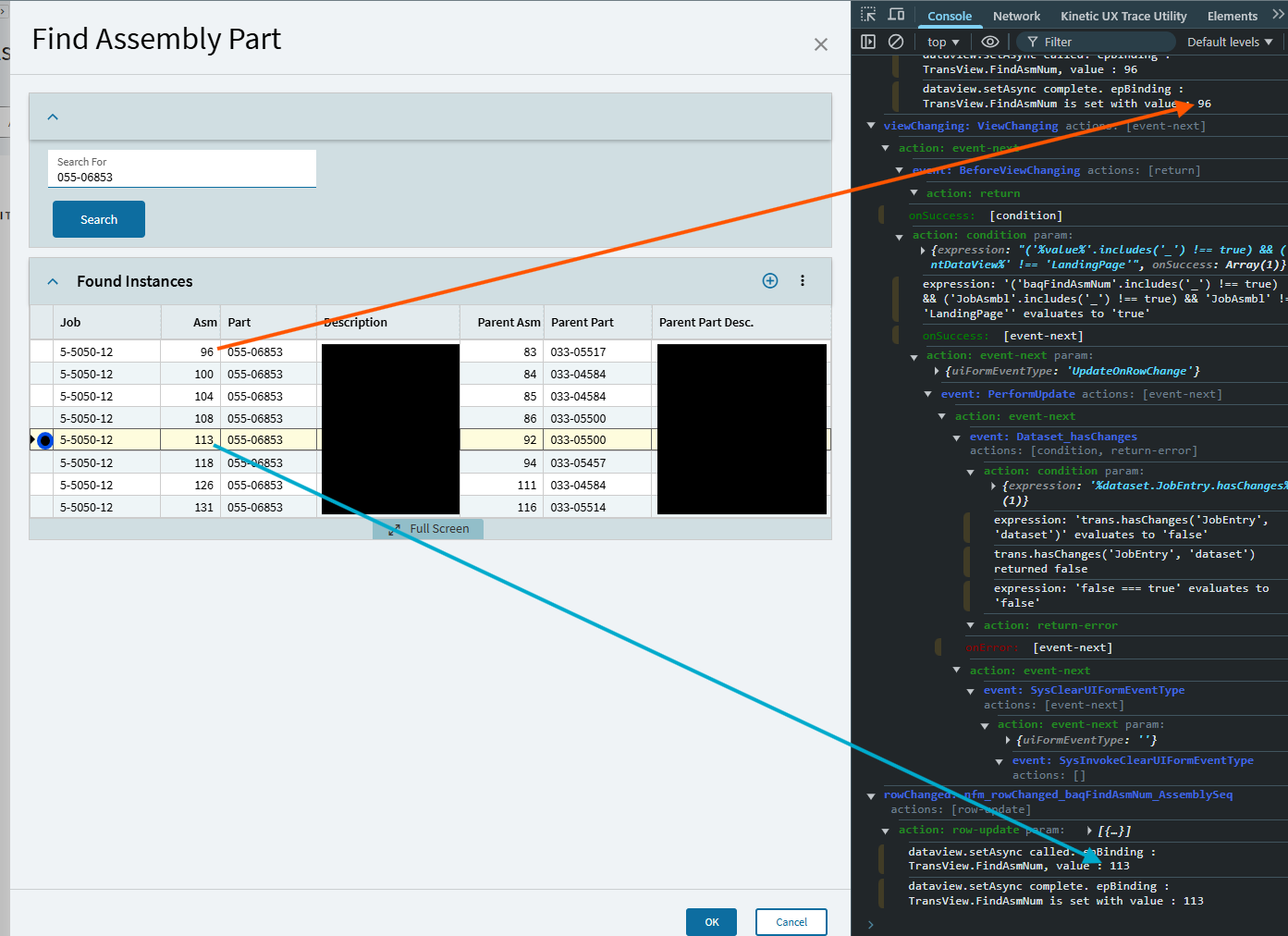
So far, so good.
Now that we’ve selected the assemblySeq we want, we need to change the functionality of what happens when you click “OK”.
~*~
EVENTS - Number (4) - btnFindAssemblyOK_Clicked (override)
Epicor has an event with the above name. This event performs a rest call to the JobEntrysvc FindAssembly method. This method is lacking and will only return the first instance an assembly PartNum is found in the tree. Not good enough!
So, we’re going to bypass this with our own event.
I attempt to copy and modify the stock event for a LONG time and fought it every step of the way.
Here’s the base event:

Here’s my final version:
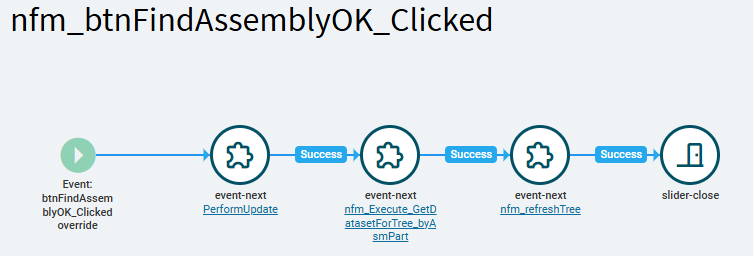
Trying to do everything in one long event chain was causing me issues. Ultimately I found I had to break this event into several smaller ones.
The Issue I encountered... if you REALLY want to know.
The issue I was seeing during testing, I simulated a user selecting a particular AssemblySeq, the tree updated and loaded the selected Assembly. BUT, I then tested the user immediately thinking, “crap, that’s not the assembly I wanted.” So I ran the events again, choosing a different row in my grid.
The event flow (as is) would store the AssemblySeq value from the first pass… and even though I changed the value in my second pass, it used the original value in the dataview-filter-set action, which caused the tree to not refresh to the desired (second selected) assembly.
I found that breaking the refreshTree into its own event forced the dataview-filter-set to pick up the new/updated AssemblySeq value.
Because we want to break this “OK_Click” event into smaller portions, I first attempted to make copies of the original event and hack them up… but I kept running into issue.
Honestly, instead of copying, its easier to start from scratch.
- Create a new event
- Change the name (I mimicked the original Epicor event name)
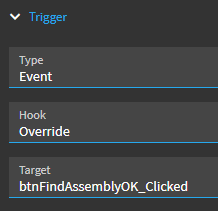
- Set the trigger to override the stock event
-
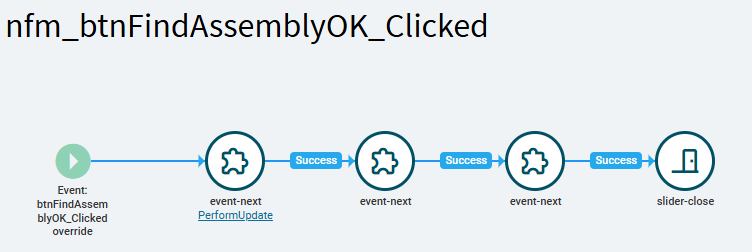
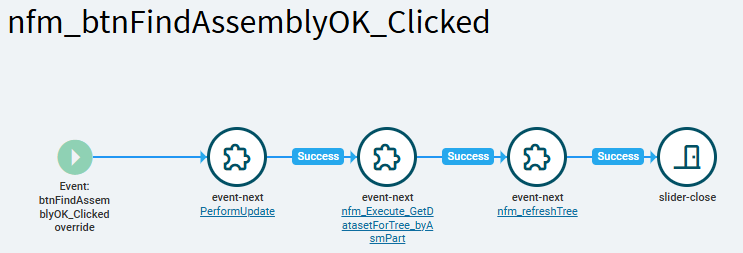
Add (3) event-next actions and a slider-close. (I made these all onSuccess of the preceding action.)
-
Update the first event-next to PerformUpdate.
Event (4) Layout (thus far):
Save (for now… we’ll come back to this event).
~*~
EVENTS - Number (5) - Execute_GetDatasetForTree (our version)
- Copy the stock Execute_GetDatasetForTree event.
- Rename the event.
We need to update most of the Method Parameters in the rest call to the below settings:
ipJobNum Field Value: {KeyFields.JobNum}
ipStartAssemblySeq: 0
ipCurrentAssemblySeq: {TransView.FindAsmNum} (this is the value of our helper column)
ipCompleteTree: false
ipJobTypeMode: MFG,PRJ,SRV (Okay as-is)
SAVE!
Close this event and re-open it. Did ANY of your above changes stick? Because NONE of mine did! (Saw this same issue in my first customization… still can’t figure out why these won’t stick.)
Delete each method parameter and add them back in manually (other than ipJobTypeMode… we didn’t make any changes to that one anyway).
SAVE!
Close the event and re-open it. Hopefuly they stuck this time! (Mine did).
Okay… if your values stuck… we’re done with this event.
~*~
EVENTS - Number (6) - refreshTree
-
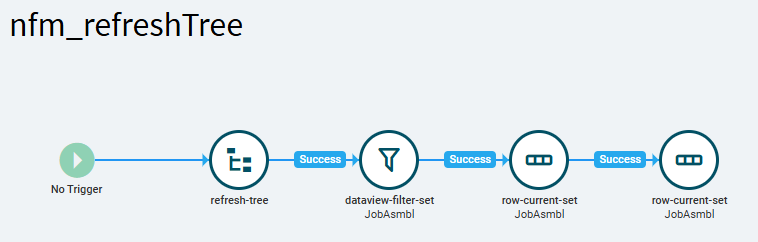
Create a new event.
-
Rename the event (I just called it refreshTree)
-
Add refresh-tree
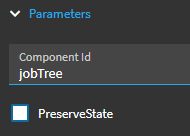
NOTE: “PreserveState” option here is your preference.
True: The tree will (should) keep any previously expanded nodes… AND expand what is needed to get to your chosen AssemblySeq.
False: The tree will (should) completely refresh and only expand the nodes down to your selected AssemblySeq
I prefer False, but, test it for yourself and if you don’t like it, come back and change this later.
- onSuccess - add dataview-filter-set
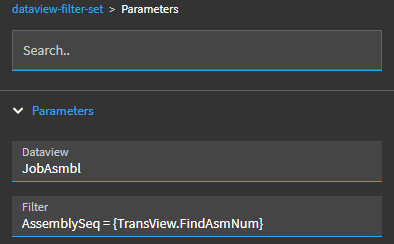
Filter: AssemblySeq = {TransView.FindAsmNum}
This filters the JobAsmbl dataview to our target assembly so all the fields on the form update to values for our specific assembly row.
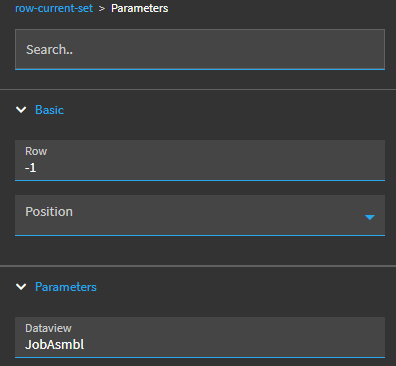
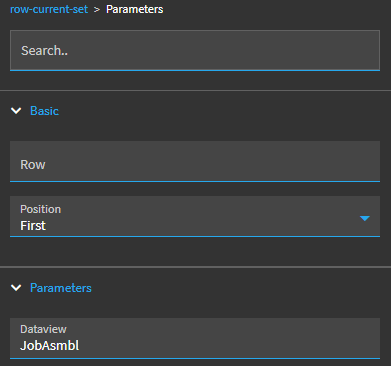
The following double row-current-set is mimicking base event functionality. To the best of my figuring, I think the first one (set to row -1) is clearing the row selection and the second one (“first”) reselects the row we filtered to in our dataview-filter-set. I’m assuming this is forcing stock row-change events and forcing the application to refresh all the bound controls on the form (textboxes, etc.).
Anyway…
-
onSuccess - row-current-set (#1)
-
onSuccess - row-current-set (#2)
Finished product:
Done. Save.
~*~
EVENTS - Number (4 - Revisited) - btnFindAssemblyOK_Clicked (override)
Update your 2nd & 3rd event-next actions to call the events we just created (events 5 & 6 above respectively).
Save. Done.
~*~
EVENTS - Number (7) - OnClick_toolFindAsm_before
Forgot about this one… we need to clear our BAQ dataview in-between runs.
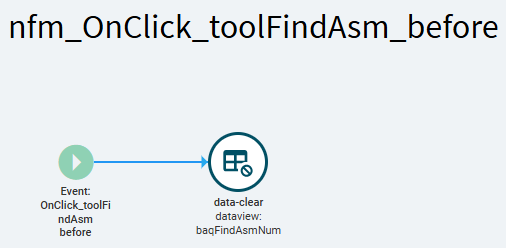
- Create new event.
- Rename
Trigger:
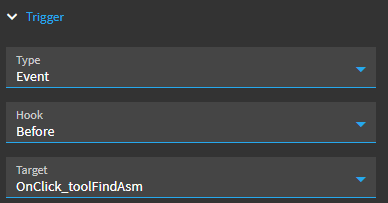
Add data-clear action:
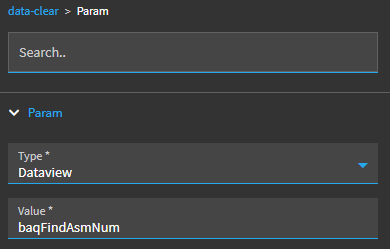
Save. Done.
~*~
Preview time! - RESULTS!!
Clicking the Find Assembly Part tool… again, base functionality would default my tree to opening Assembly (96) - the first instance this PartNum appears as an Assembly PartNum.
Now, with the customization, I have a grid of all instances that PartNum appears as an Assembly PartNum.
I’m selecting AssemblySeq (104), instead.
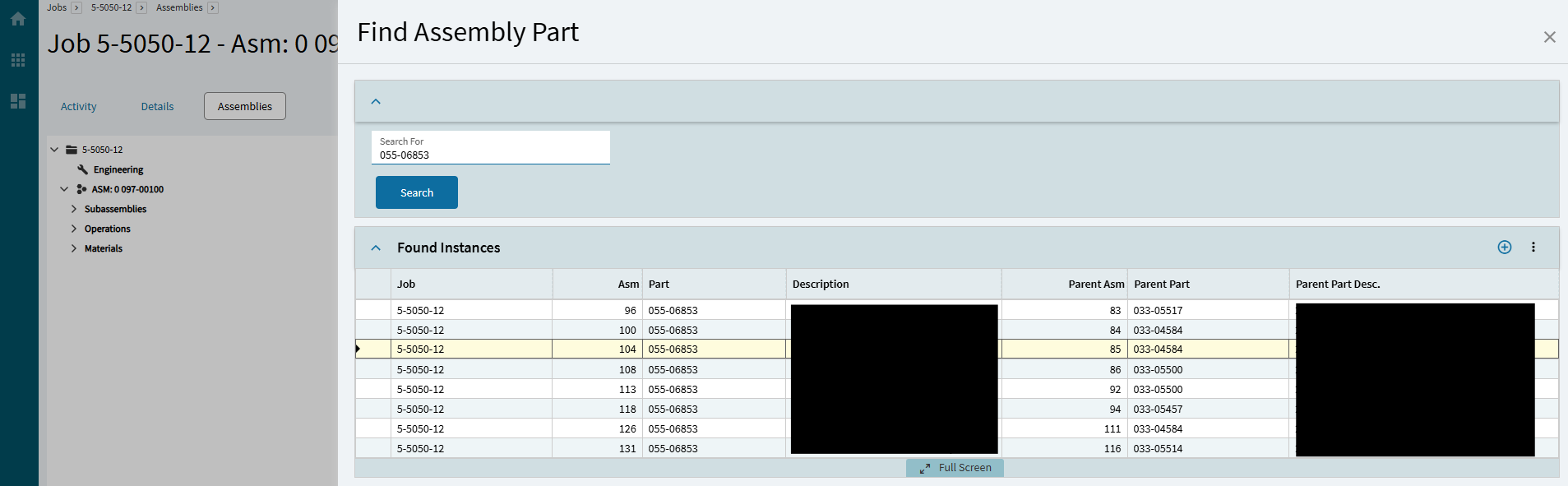
My Job Tree refreshes down to the level of AssemblySeq (104):
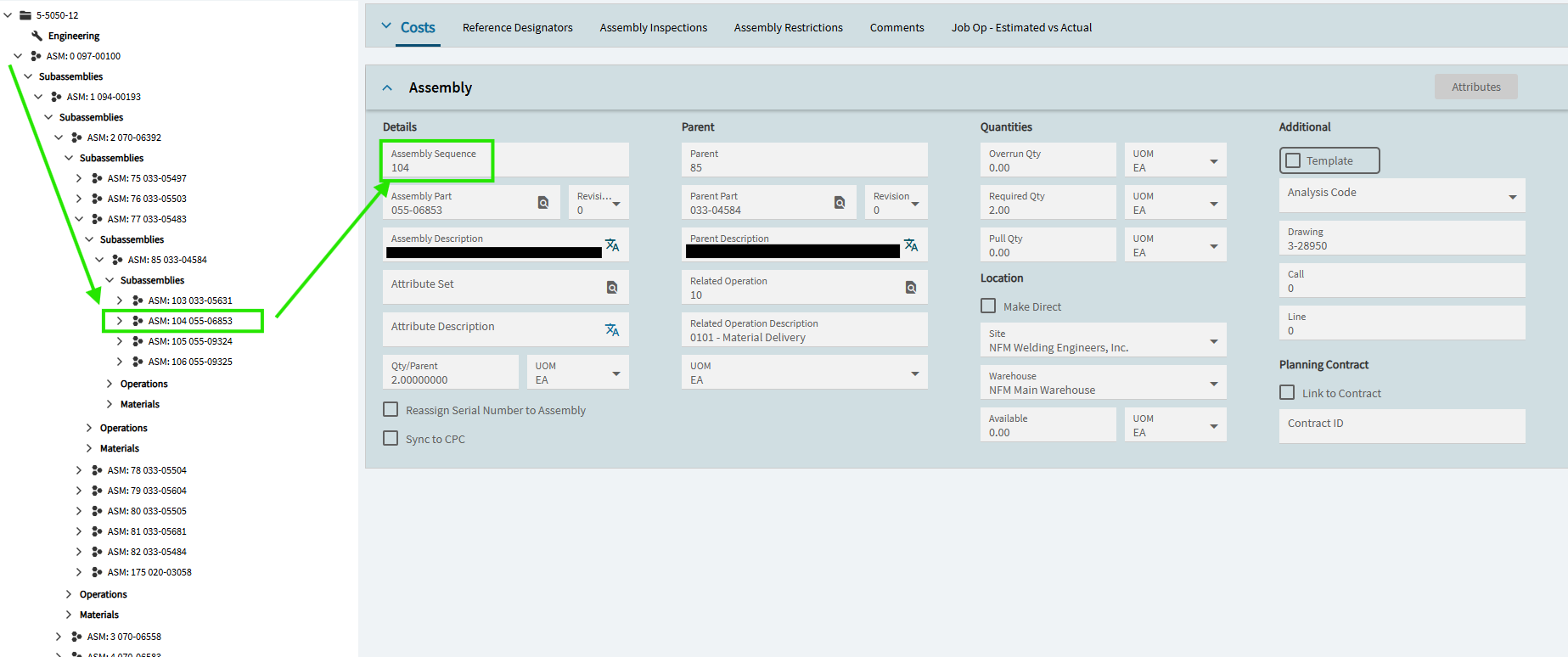
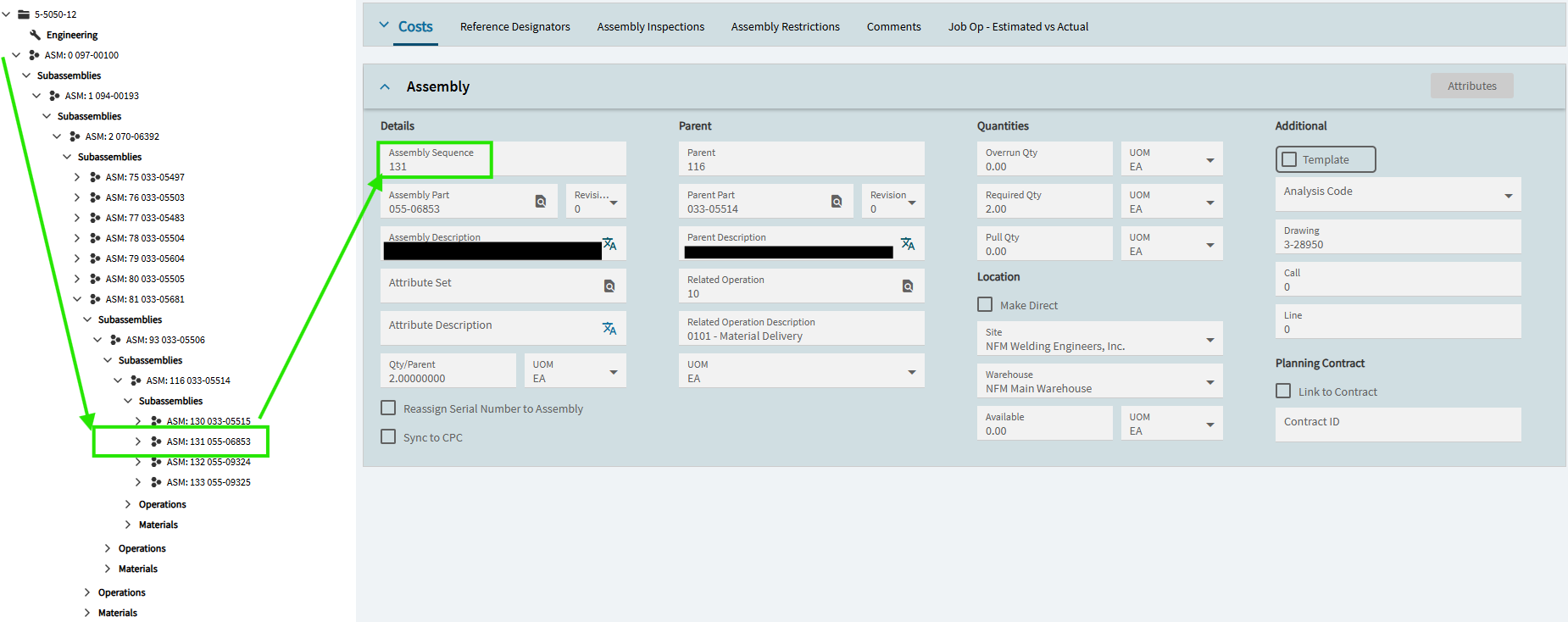
With my tree already expanded to my previous selection of (ASM 104)… I can re-run the events and choose a different assemblySeq (131 in this case):
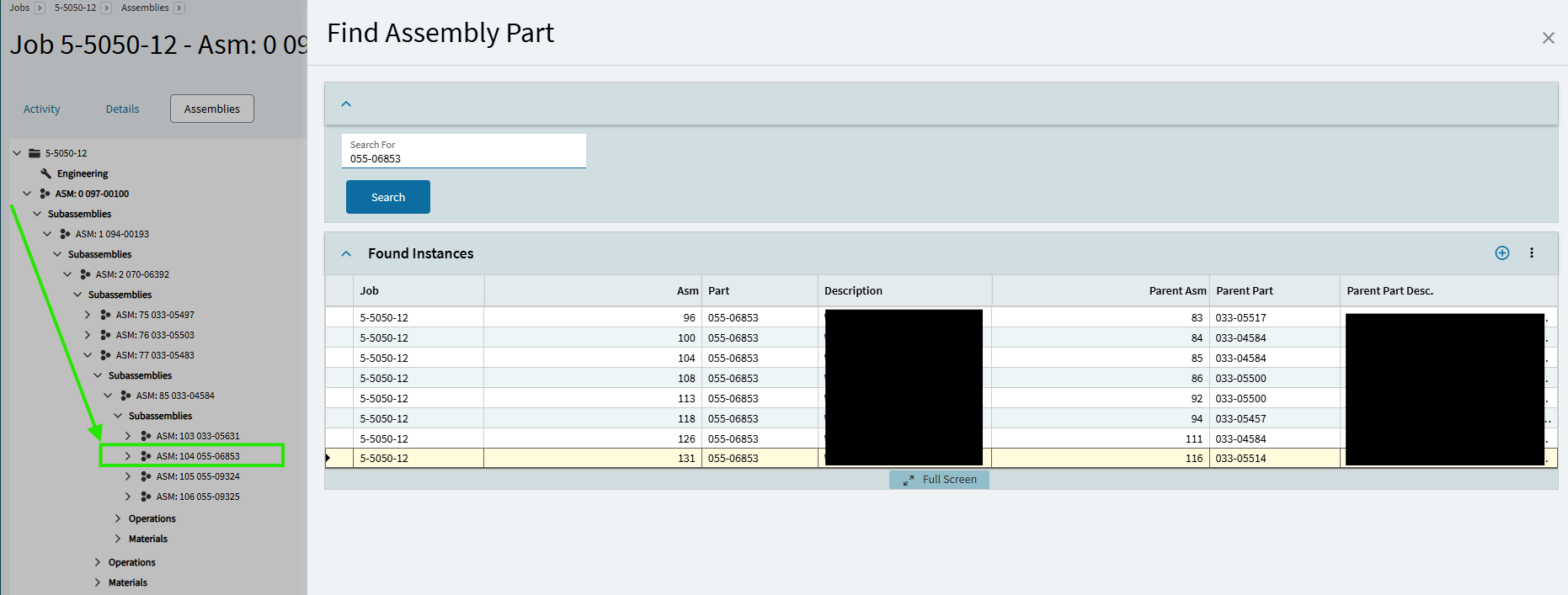
Click OK… the tree refreshes and is now expanded to ASM 131: