Hi Everyone,
I was curious if there is a settings that you can change on the sales acknowledgements to not show the closed releases? We have customers that have lots of releases and then they change the quantities or the due dates and it is annoying when it has every release line on there even if they are closed. I would just like the open releases to be on them. Thanks
You would likely have to modify the SSRS report to suppress the closed lines. This could be via a simple hidden expression on the row in report builder
What if we do not have SSRS reports enabled?
What is your sales order acknowledgment made from? Crystal?
It might be if SSRS is the only other option.
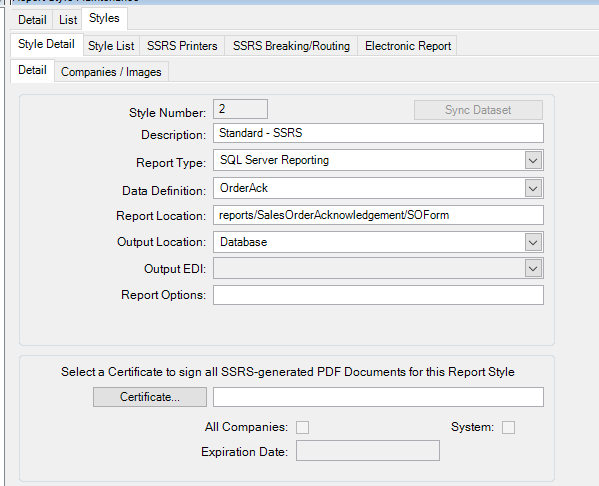
Either way you can still do a suppression of the section in the report. You should be able to tell by going to the Report Style screen and looking at the OrderAck report style. There you should be able to see the default style for when you run reports.
This is what i see. Sorry not sure how to do this:
-
First you will want to go to Actions > Copy Report Style. You NEVER want to modify the out of the box report, also copy a style and make sure the report is pointed to the customer reports folder. This should automatically be done for you when you copy.
-
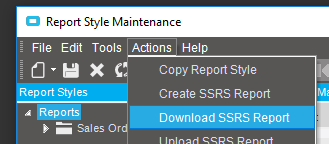
Once you have your custom style, you should be able to go to Actions > Download Report
-
You will need a program called Report Builder installed to modify
https://www.microsoft.com/en-us/download/details.aspx?id=53613 -
The field you want to suppress based on is actually not in the report Out of the box. You will need to duplicate the RDD which is your datasource for the report. Right click open with

-
Actions > Duplicate Report
-
Go to the tab Data Sources > Report Table > Exclusions
-
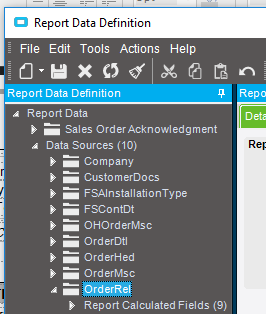
Find and select the OrderRel table from the tree. You will see the exclusions grid refresh.
-
Look for the field name
OpenRelease. Make sure the ExcludeColumn checkbox is UNCHECKED. We don’t care about the label. Save -
After you have created your new RDD. You will need to make sure your new Report Style is using it, so change the Data Definition in the drop down.
-
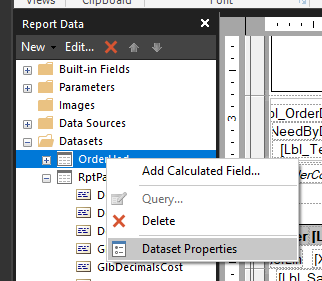
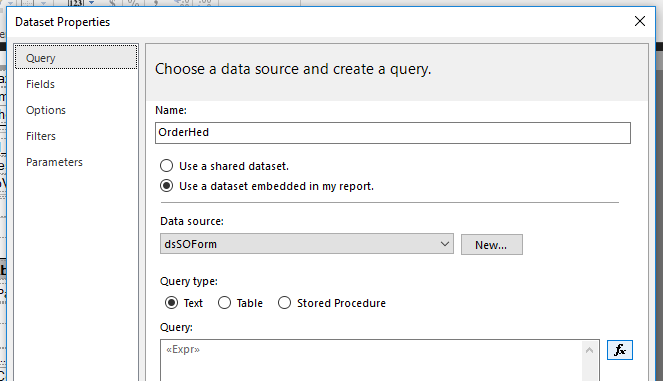
Once you open the report from the downloaded location, Lets add your field into the report so we can use it in an expression. Datasets > OrderHed > Right Click > Dataset Properties
-
Click the formula icon to modify the query, then copy out the text to a text editor like notepad or notepad ++ for better viewing
-
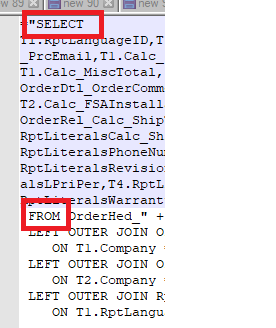
Quick lesson basic SQL. Look at 2 of the 3 main sections in this query. SELECT & FROM. SELECT is where you say I want to see these fields from specific tables in my query. FROM is where you define and link the tables together. In this case our table is already in the query, so we don’t have to add the table. Just find the table and its alias
T3
-
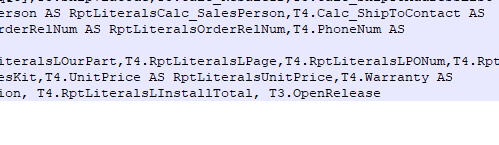
Add this to the end of the SELECT statement with a space after it
, T3.OpenRelease. Then copy the query back into the report
-
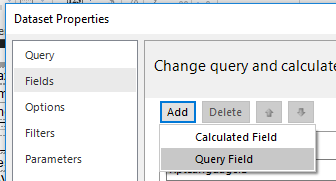
Once its in your query, you have to define it as a field to use in the report. Dataset Properties > Fields > Add > Query Field. Type the field in just as you did in the query
-
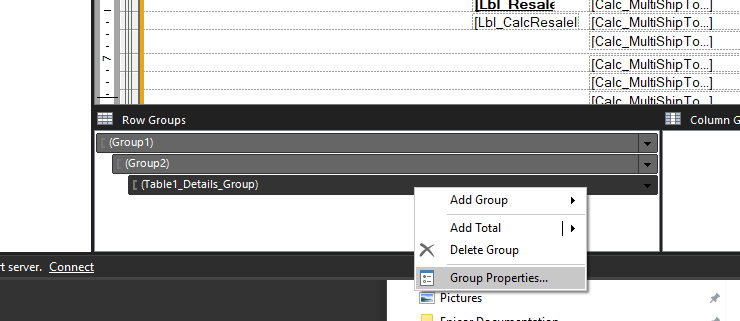
Now that we have done all that work just to get your field in the report, you can use it in a row group expression. Row Groups > Table1_Details_Group > Right Click > Group Properties. You can confirm this is the Order Release group by

-
In the Group Properties screen, Visibility > Show or hide based on an expression > Fx button. Use the below expressione. Save the report.
=IIF(Fields!OpenRelease.Value = FALSE, TRUE, FALSE)
If all went to plan and my instructions were without fault, your report should no longer be showing closed releases. You’ll have a grand old time immersing yourself in the world of report writing, and avoid telling anyone you know how to modify them or that something is possible 
If I would like to only show open lines in addition to open releases would I replicate the process but instead add to the query T2.OpenLine since the field comes from the orderdtl table? I tried doing this already by adding the field and then using a visibility expression on group2 but get the error message “The Value expression for the field ‘OpenLine’ contains an error: Input string was not in a correct format”
Thought it would be a simple to replicate but apparently I am missing something.
Any replies are appreciated!