Not yet.
I got a quote for it today, but it’s goofy how it was done. As soon as I get it cleared up and signed, we can take a peek.
Maybe the product team can do an enhanced web session about dynamic documents? A lot of attention to the product in Nashville and now again in Prague! @timshuwy something for a Wednesday lunch session?
We’ve decided we’re gonna pick it up as well.
We can all have a grand ol’ time playing with it.
Update - Epicor Support has no frickin’ clue about this product - or I’ve not found the right person.
I’m licensed up and thought I’d spend some of my Friday getting this to a point where we can figure out how it works. But the saga has just begun.
The KB says get the Manifest File. The online help says get the installer file.
Support managed to get the manifest file available to me on EpicWeb, but not the installer.
Anyone got a link/location for the installer file?
@jkane @klincecum @Randy @SueLowden
And I guess I need a clue on the value for the manifest file - nothing seems to work, but that could be because I’m missing all kinds of other files in the Installer file.
Setting Up the Manifest File
Install Dynamic Documents on your local machine. Then edit the manifest.xml file so it uses your web address for the Kinetic Dynamic Documents directory.
- Go to a laptop that has Microsoft Office 365. Run the Dynamic Documents installer.
- Launch File Manager and create the C:\DynamicDocs folder.
- Go to the C:_projects\ERP\Current\Deployment\Server\Apps\DynamicDocuments directory.
- Copy the manifest.xml file.
- Paste the manifest.xml file into the C:\DynamicDocs folder.
- Open the manifest.xml file in a text editor.
- Find and replace PROD_DOMAIN_HERE with /Kinetic/apps/DynamicDocuments.
- Save the manifest.xml file.
Microsoft Word can now link with this manifest file.
Defining Folder Security Permissions
-
Return to File Manager.
-
Right-click on the directory to display the context menu. Select Properties.

-
Select the Security tab.

-
Add the Everyone user. Select Edit.
-
The Permissions for DynamicDocs window displays. Select Add.

-
Go to the Enter the object names to select field and enter Everyone.

-
Press OK.
-
If the Multiple Names Found dialog box displays, select Everyone again and Press OK.

-
Go to the Group or user names list and select the Everyone user name.

-
Go to the Permissions for Everyone group box. Select the Read and Write check boxes.
-
Select Apply and then OK.
There seems to be a lot more info in the Kinetic Online help @MikeGross
https://erphelp113100.zendesk.com/hc/en-us/articles/24037083421965-Setting-Up-Dynamic-Documents#Defining
Thanks for that - I just found the online docs for that as well.
I think I got the correct - the docs of course specify an Instance name rather than like it should.
I can’t get the Word ribbon icon to show up - I had it, now it won’t.
I’m so close I can taste it 
Can you confirm that there is only the Manifest file and nothing else?
I don’t know I don’t own this but I really wanna play with it 
Sorry Mike, they said I could play but I still haven’t got my quote back lol.
Not sure if I’d have time to play yet anyway.
@MikeGross , did you go to the add-ins in Word and activate it?
Yeah, I need to restart Word/Outlook (b/c it’s Microsoft). But it won’t connect.
It’s pointed at the Manifest file, in a shared directory on the server, with Everyone permissions, and where I replaced YOUR_PROD_NAME with my server instance value and the rest of the line in the PDF.
The URL seems to work in a browser albeit no response in the browser (no error). But in Word I get
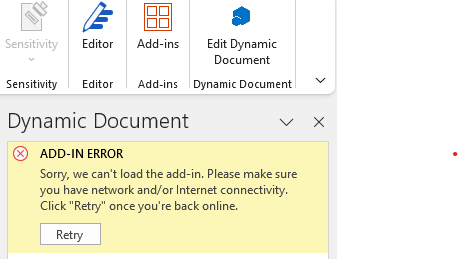
Is your Word Office or M365?
M365 according to the Accounts page and splash screen.
Try opening Word in a browser.
Ah, so Kinetic Word instead of Classic Word?
(going for the dumpster fire badge…)
not there yet
I’ll keep working towards my objective.
no go. the Web pp doesn’t work. No add-in capability or ability to customize the ribbon.
ok - so it’s working now. Fire away with the questions. Or if there are enough of you, I’ll “do the demo” and we can all take a look under the hood.
Here is a word template sample. The PDF is generated on demand, not stored anywhere I can see it.
Sprocket QA form.docx (24.5 KB)
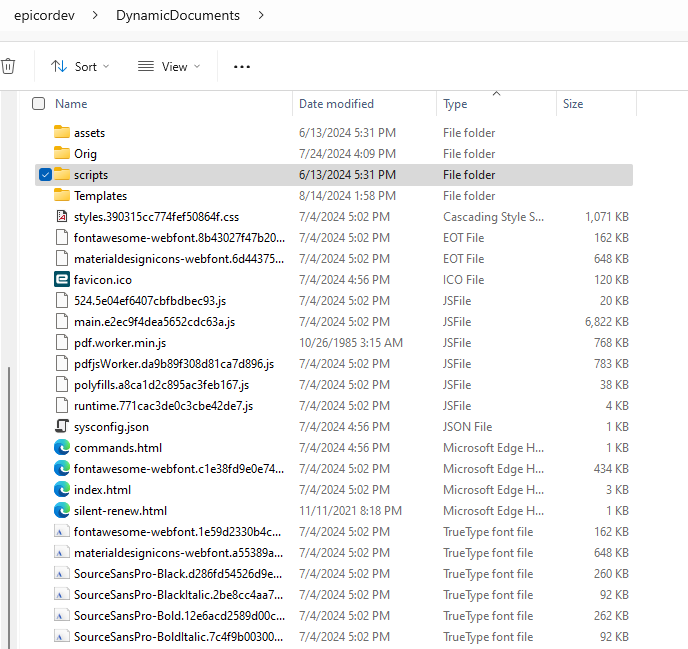
and this is the core of the installed files (the rest are Roboto WOFF font files).
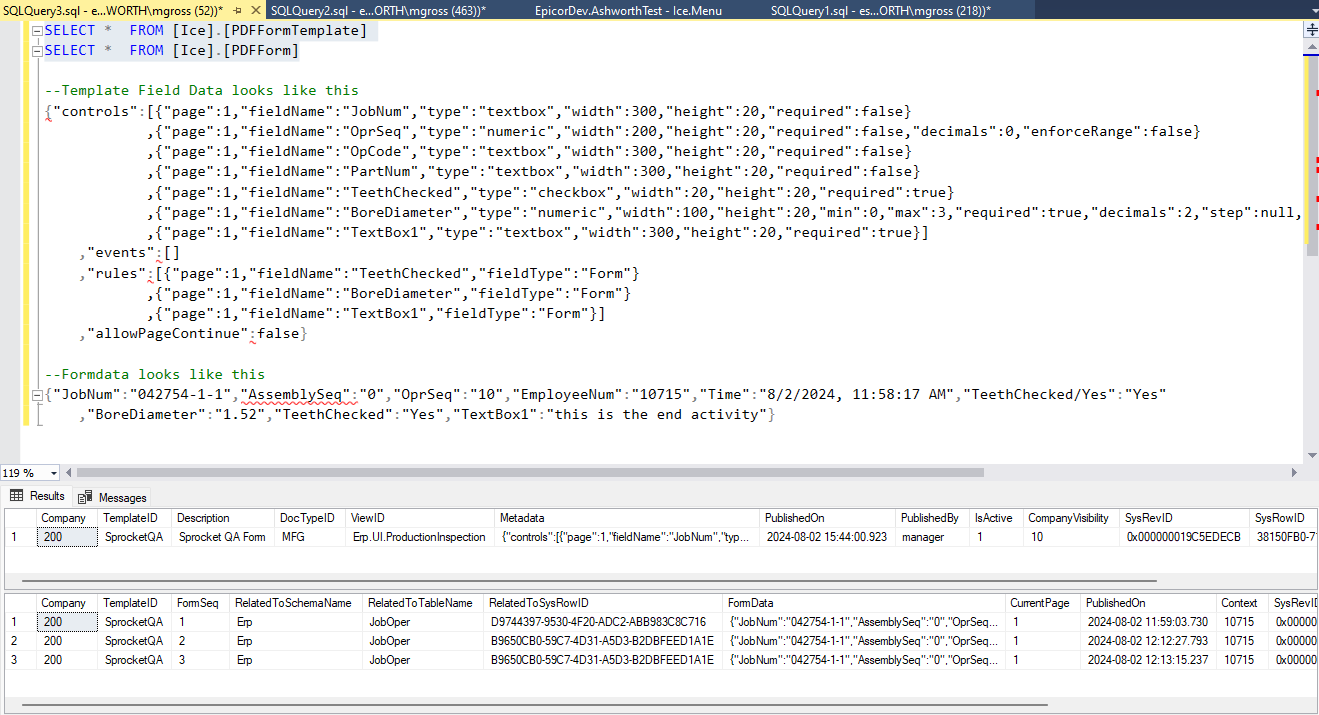
The template and data are stored in two tables and looks like this