App Studio Kinetic 2025.2 Overflow Child Screen Menu

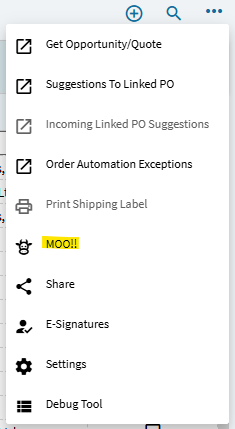
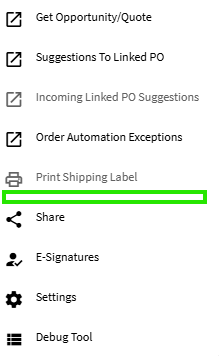
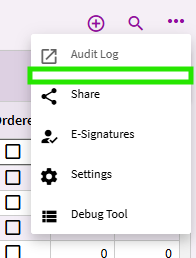
How do I add a menu item to the overflow menu of a child page in Kinetic 2025.2? More specifically to both the sales order and quote screens, the header screen, not the grid screen with all orders listed. Anyway I try to add it, the item appears on every screen, including the main screen.

I tried the following:

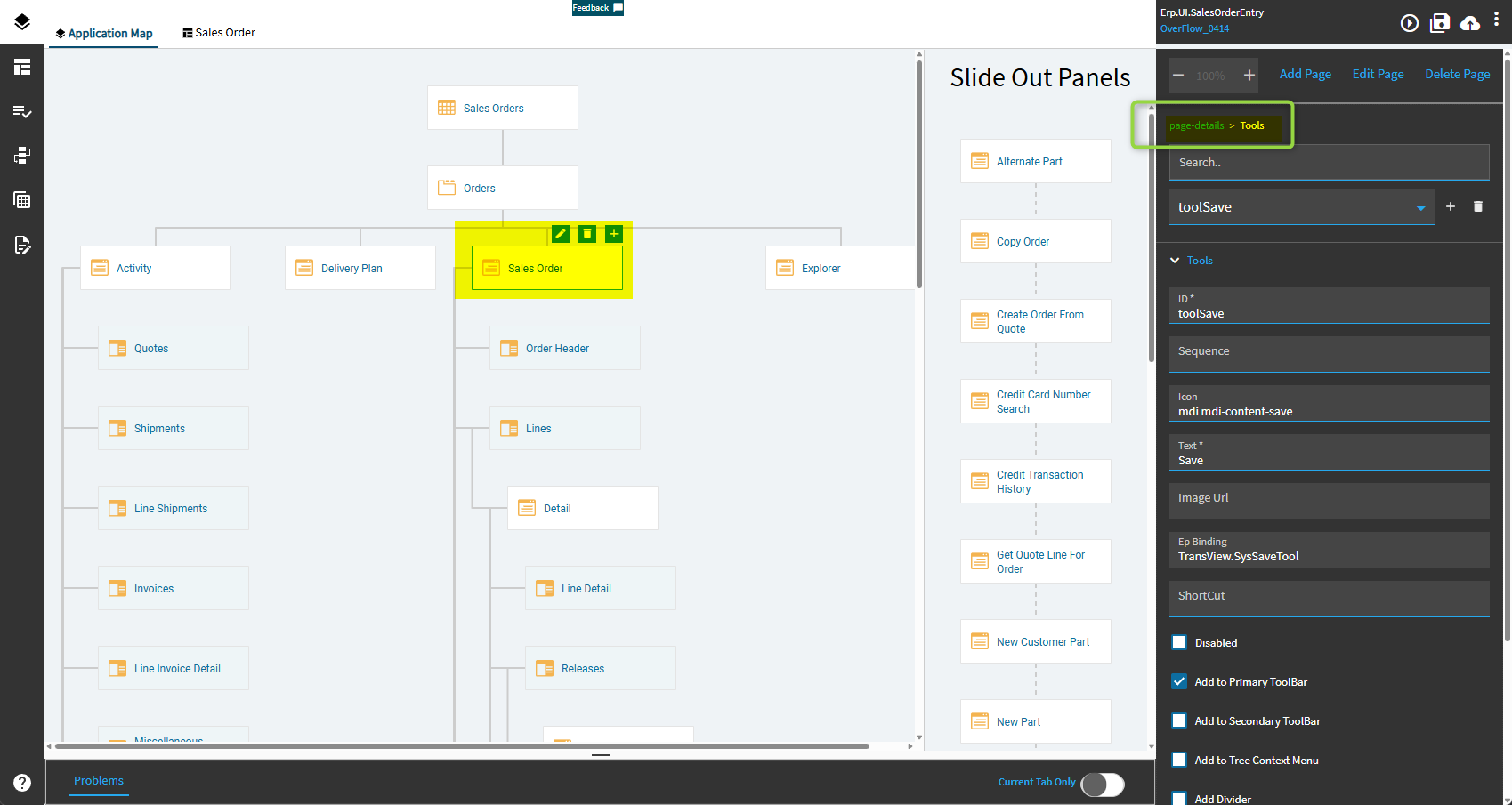
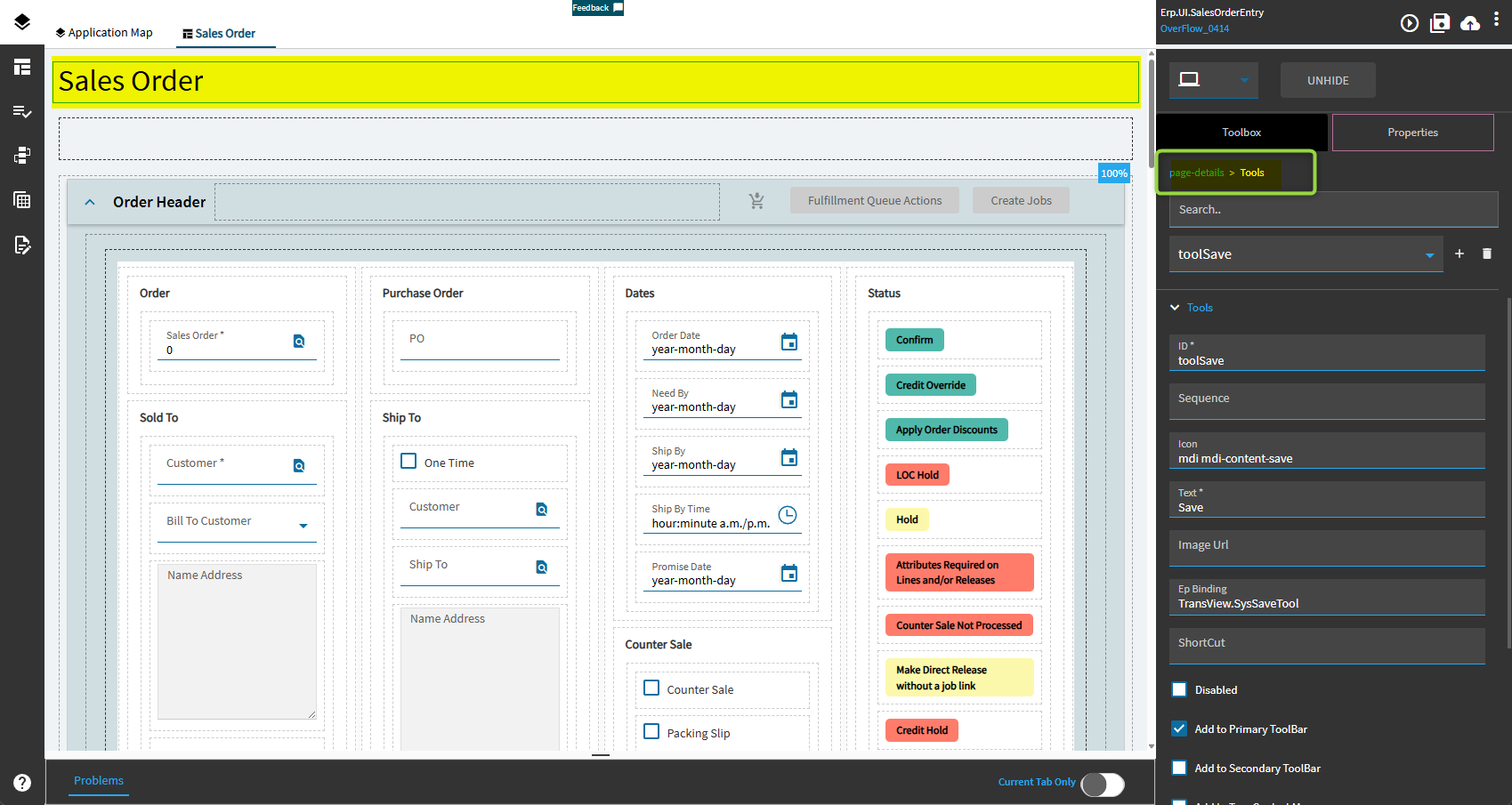
  1. In Application Studio, from the Application map, I selected Sale Order. I then find the Tools on the right and add an item.

  2. In Application Studio, Select the title are and find the Tools on the right and enter a new item.

Also, Can I enabled / disable the menu item to only show when there is an order open?

I think if you leave the icon field empty it stays in the menu rather that sitting on the toolbar

You can hide tools via data rules.

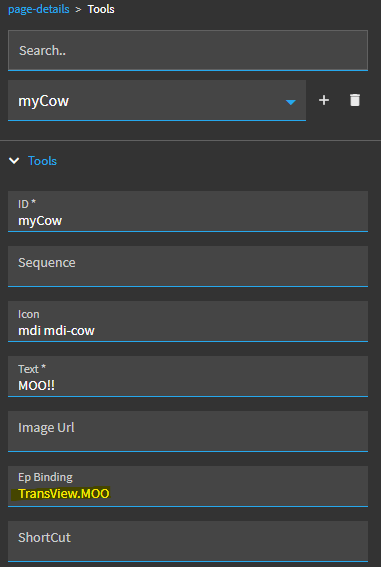
The key is to give your tool a binding.

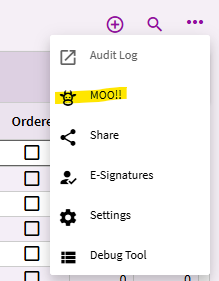
Tools are visible on all pages (including the Landing Page) by default!

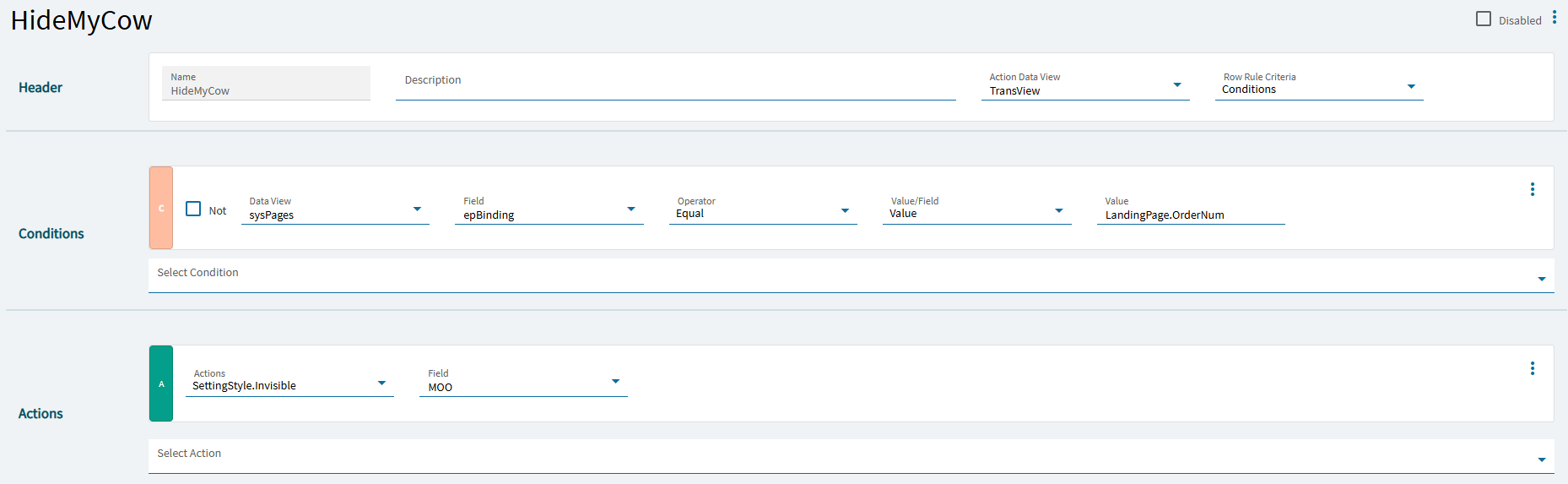
You have to then create data rules to set the tool’s binding to invisible where you DON’T want to see it.

Landing Page:

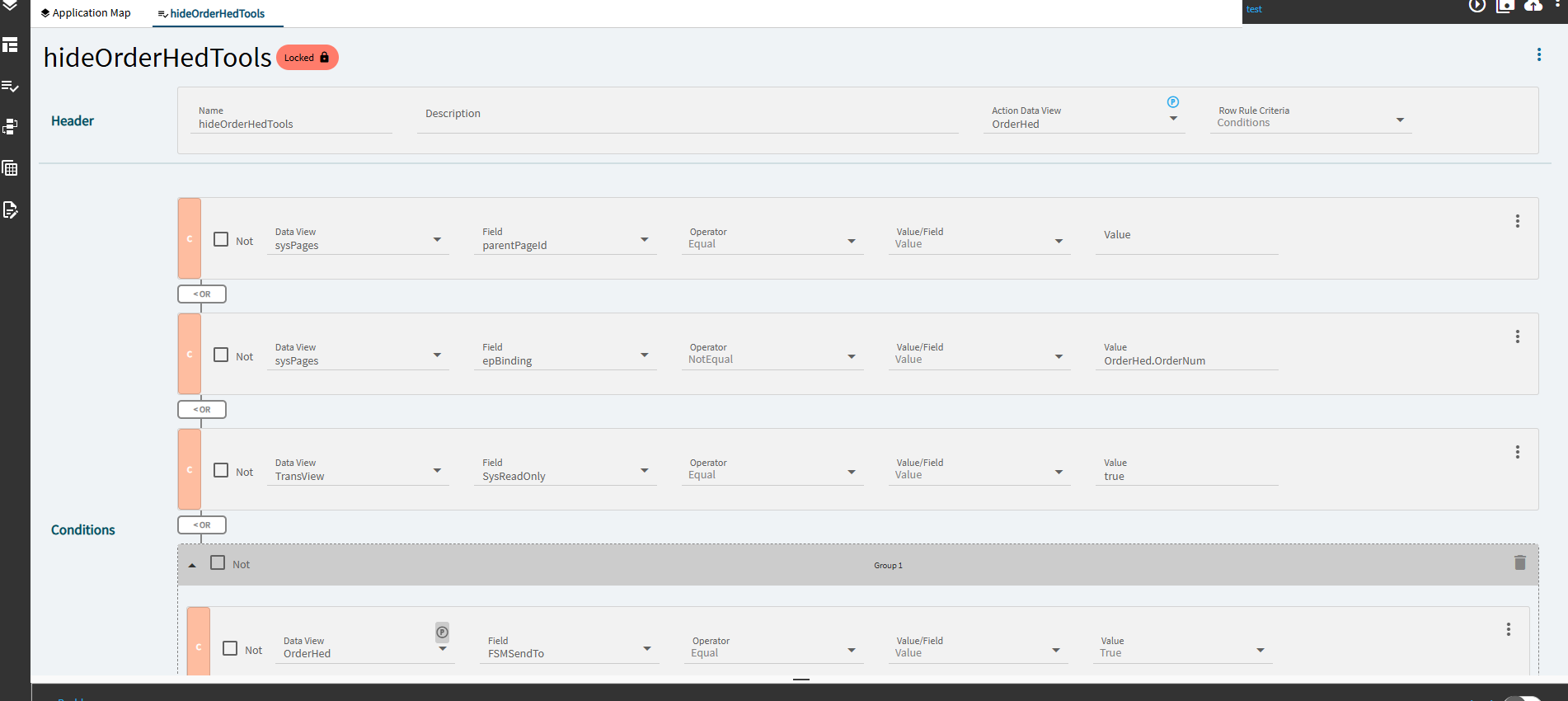
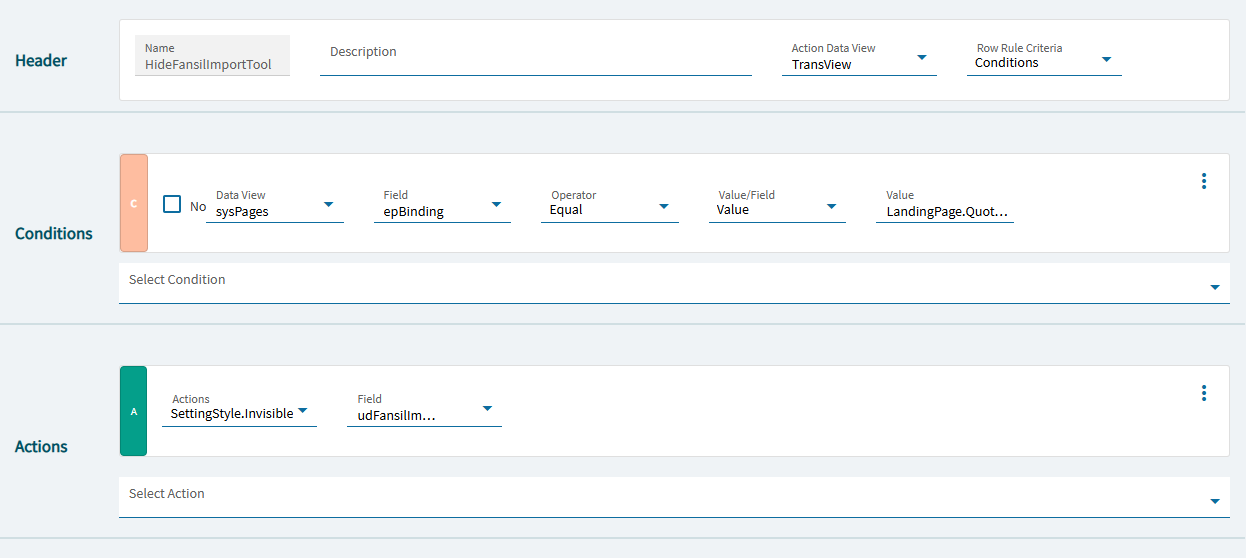
If you search in the DataRules, you can find a number of base rules that “hide” tools depending on what page you’re currently on.

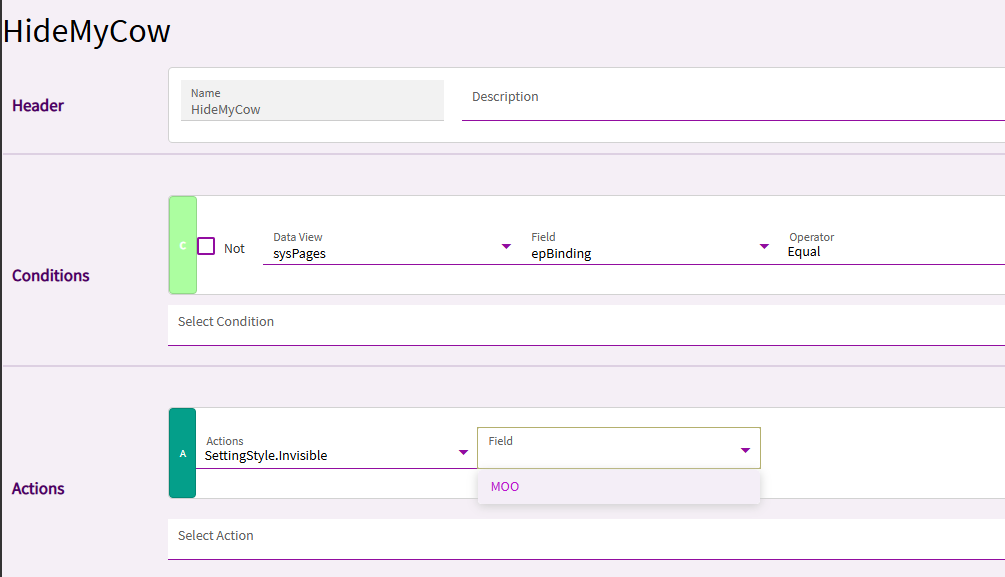
Here’s an example:

You can either copy an existing base rule and modify for your situtation, or use it as an example and start from scratch.

Quick example… if you just want to hide it on the Landing Page:

Let me try this out and see if it works for me. Thanks

Thanks for the detailed explanation, it works as expected.

On the Sales Order, I have successfully hid my Tools from the overflow menu on the landing page with the rule above.
I have not been successful in doing this for the Quote landing page. How is this one different? What other options are there?

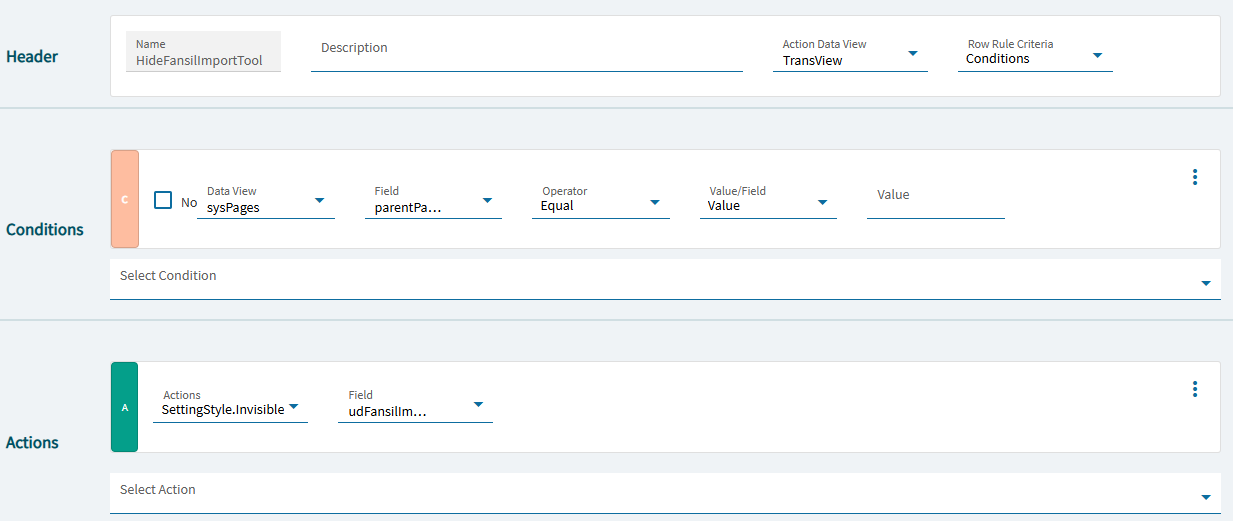
What does your current data rule which is trying to hide your tool look like?

I also tried the following based on other hide rules I found on the quote entry. It did not work as well.

You could test it with no condition… just to make sure your tool’s binding is working.

I just tested and it appeared to work for me:

One thing that just hit my brain… if you copy an existing rule… your new rule is disabled by default. Is your rule enabled?

I set no conditions and nothing happens, so it may not be binding to my tool. I deleted the rule and recreated from scratch, not copied, and still nothing. However, the rule I have to disable the tool works fine. Other than the conditions, the rules are identical.

So, disable works, but invisible does not?

If one rule is working but another is not… I guess I would just scrutinize your binding… I don’t know what your binding is and can’t see the full binding here. But can you find any typos?

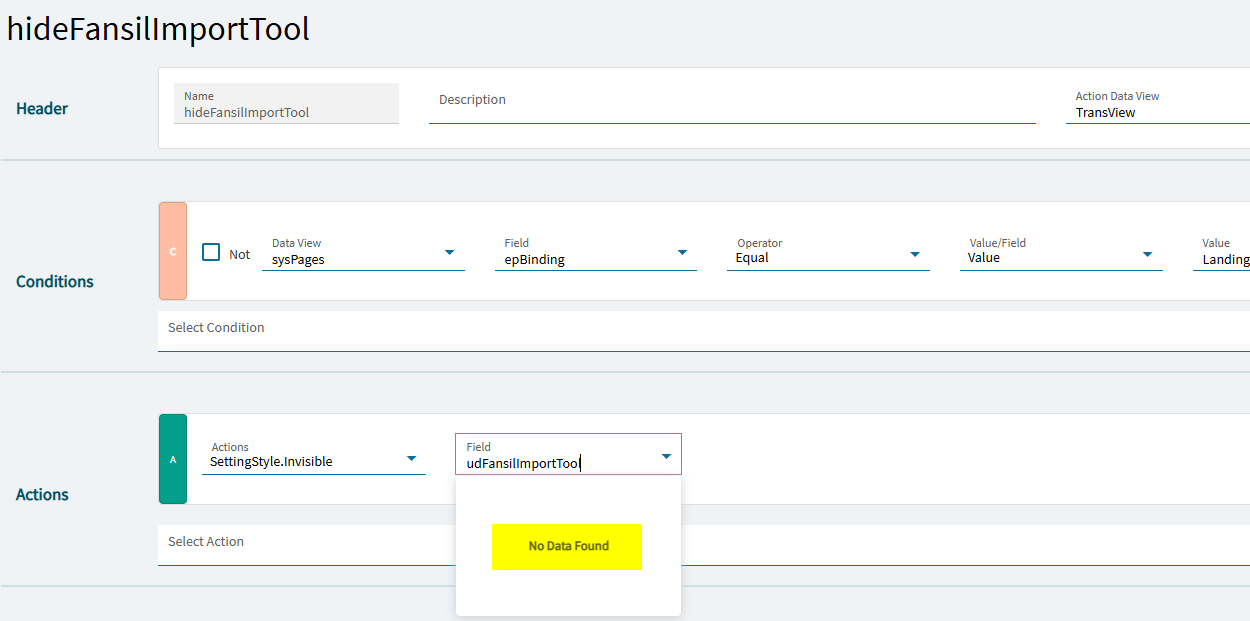
Do you need to manually type your field or does the list populate with all TransView fields? Mine is empty and I need to manually type it.

Visually, the field is spelled correctly. I copied and pasted the field from the other rule to this one and now it works. I don’t how they were different, but it didn’t like it the first time.

Thanks

maybe a trailing space or something?

Fields in places like this only “exist” if they’re in the respective dataview. For TransView, that’s usually not the case.

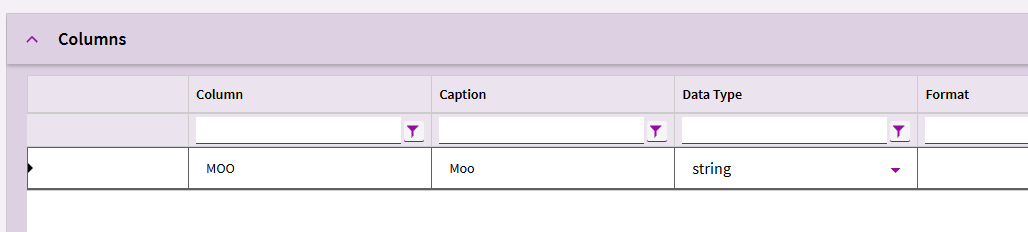
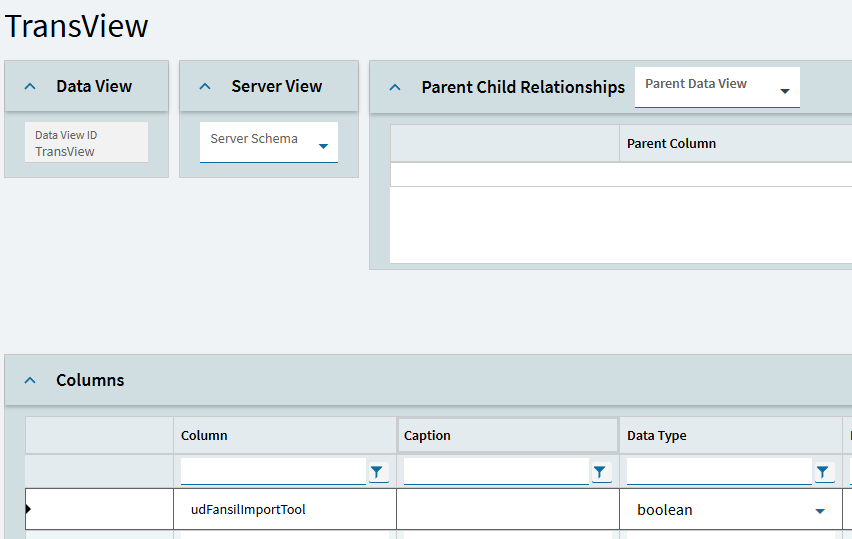
But, if you want to manually enter them into the TransView dataview:

… then they’ll be available in the dropdown lists in areas like Data Rules:

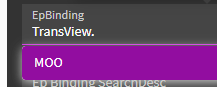
… or even as predictive text when you’re working with component bindings:

image

Not on mine. I have my fields defined in TransView. Any time I have done, I have never had them show up in the dropdown. However, they do show up in component bindings.
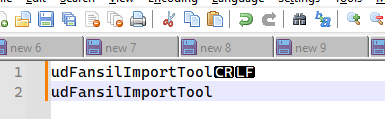
Look that, I pasted the text into Notepad++, some hidden format chars.