Hi all!
I was trying to create a custom SSRS report based on the QuoteForm but I can’t find any guide to do that.
I searched for posts on the forum and I found something but I am unable to do it.
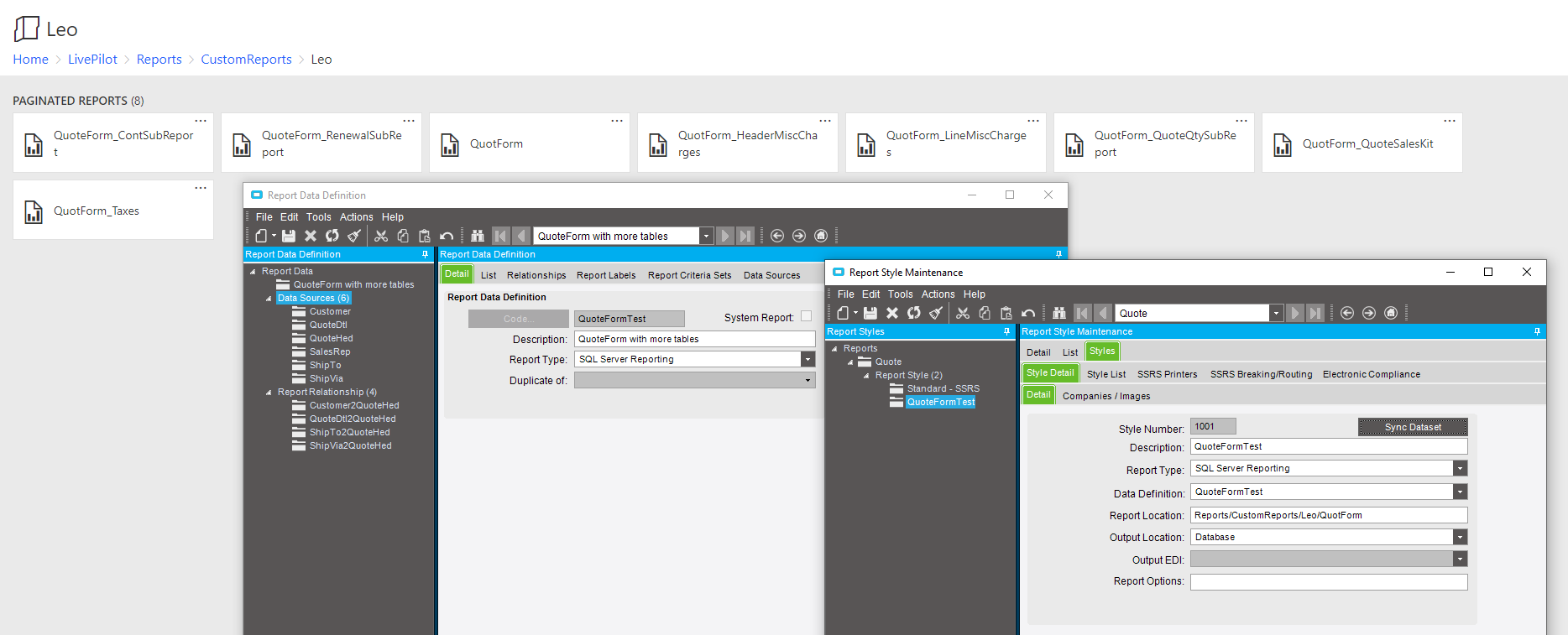
I went in to Report Style Maintenance and created a copy of the Standar - SSRS report of the Quote (named QuoteFormTest). I set the same details of the parent and the new location of the report on the ssrs server (I copied the QuoteForm one and put in another folder).
From there I moved in Report Data Definition where i created a new one (QuoteFormTest). Here I added on the Data Sources all the tables that I needed (Customer, ShipTo, QuoteHed, SalesRep, ShipVia and QuoteDtl and enabled all columns and labels for all tables) and I created the relationship between the tables with the common fields.
Now when I try to launch a PrintPreview of the new custom report it show nothing and on System Monitor there is no trace of my report.
Can someone help me go through this?
Thanks
Edit: I saw that in the Report Style there is a button “Sync Dataset”.
When I press it it throws me an error sayin that the item QuotForm can’t be found, even if I can see clearly that there is…
It’s strange tho, while the file name is “QuotForm”, the error says that the file that can’t be found is “QuoteForm_QuoteSalesKits”. Why is that? I never used QuoteSalesKit or something similar.
That sync dataset button apparently only works BAQ reports, it tends to mess things up otherwise. The steps you described look like you are headed in the right direction though.
It’s strange there’s no activity in the system monitor. Did you assign the RDD to your report style after you made the new one? Did you modify the SSRS report in the Report Builder at all yet (not necessary for it to at least run, just wondering)?
You should have Duplicated the existing QuotForm RDD, naming the new one something like “QuotForm_001”.
Make your changes to that RDD, and then specify that RDD in Report Style for your new style.
Edit
If you don’t need any of the functionality that the RDD does, then make it as a BAQ report.
And no, I do not know if there is any documentation for what special things each RDD may do. I do know that the SSRS RDD does A LOT!!. And the BOM RDD’s are probably recursive so they can go many levels deep.
I deleted the ‘Leo’ folder on the server and the Style associated with it.
I created a new Report Style of QuoteForm and the report location now is “Reports/CustomReports/Leo/QuoteForm”. On the server I can see the folder (and files) in the correct location.
I tried to launch another report (QuoteForm) but again it does nothing. I can’t understand where I am wrong…
@ckrusen
I need the Report. I created a copy of that cause I need to add some tables (Customer, ShipTo) to it other that just QuoteHed and QuoteDtl.
EDIT: After a bit of frustration I deleted all the copies in Style and Data that I created before.
Now when I try to PrintPreview a Quote (QuotForm report) I can see the finished report and it appears in the System Monitor but when I try to paste the GUID in the Report Builder it throws me an error. I can’t understand how it can be like that.
It’s a nightmare.
Did you set the archive when you ran the standard report? If not, the GUID “expires” in about 1 hour.
Some things that you can try - which are mostly just for a learning experience …
Get the process of making a new report down pat, by trying to make a new one with only the minor changes. basic steps:
a. Duplicate Report Style, and keep the original RDD.
b. Modify that duplicated report RDL. Do something very basic, like changing the text or background color,
c. Run that duplicated report style to see that your changes took affect
d. Duplicate the RDD, but don’t make any modifications.
e. Change the RDD specified for your duplicated report style, to the RDD you just made
f. Run that duplicated report style to see that it works with the new RDD and RDL
g. Modify the RDD by adding a desired table (just one) and setting the relationships
h. Run that duplicated report style to see that it works with the updated RDD. It should look exactly like the reprot from step c.
i. Modify the RDL to add fields(start with just one) from the table added in step g.
j. Run that duplicated report style to see that it works and that the new fields show.
Repeat steps g - j until you get the desired results
Also, If you add tables to an RDD, that new RDD should still work with the “Standard - SSRS” style. If the report comes up blank or errors with “No records selected”, that indiactes your new RDD has issues. You’ve probably over constrained the relationships with the newly added tables.
I created a copy of the QuotForm.
It worked but I am still unable to use the GUID in SQL Report Builder (or on the SQL Server) to get an instant report based on that, it keeps me throwing errors like “Query execution failed for dataset ‘RptParameter’”. I was able to add a Customer table on that.
If I start the report by the Print Quote Form it goes without error, but I can’t use the GUID. I don’t know why
That is strange. Are you running the SSRS Report Builder (or whatever MS calls the program that you use to modify and RDL) from your machine, or launched via browsing the ReportServer?
The problem today is gone. I don’t know why but now I can use all GUID and they work.
However I faced another issue: when printing a report thePrint Preview is different from the Print itself. In the Report Builder the “preview” of the design I am modifying is different from the Print Preview on Epicor…
Is this a bug?
Also, I often set the background color of rows or fields to help identify which field in the Report Builder shows up as which field on the rendered report.