Maybe it was just for my version - 10.1.600.37
But my automation through PowerShell of DMT last night failed.
When I investigated, seems DMT had an update to install. This update failed. This made my DMT not process. The domino effect results in my automated functions failed.
Once I opened DMT manually and realized its update couldn’t restart the software - error said DMT still running, I used Task Manager to kill the DMT from running. Then the DMT update would install and restart DMT as it was programmed.
Now, I test my PowerShell scripts and they can run again.
Again, this may just be for me.
TL::DR If you reply on PowerShell automation and DMT, make sure they ran in the last 24 hours.
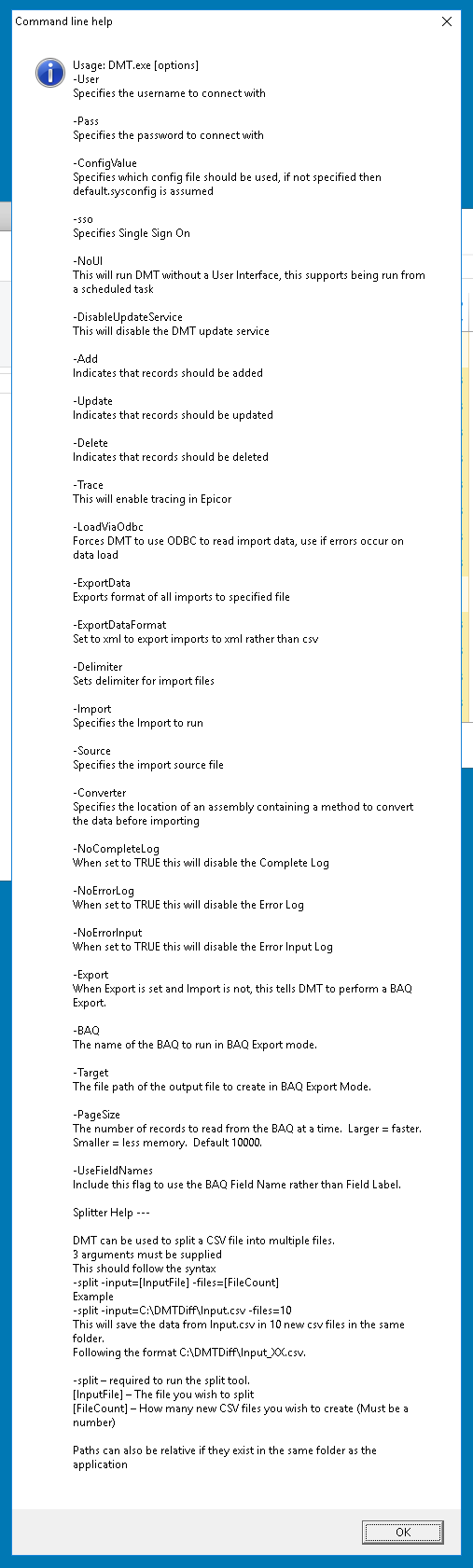
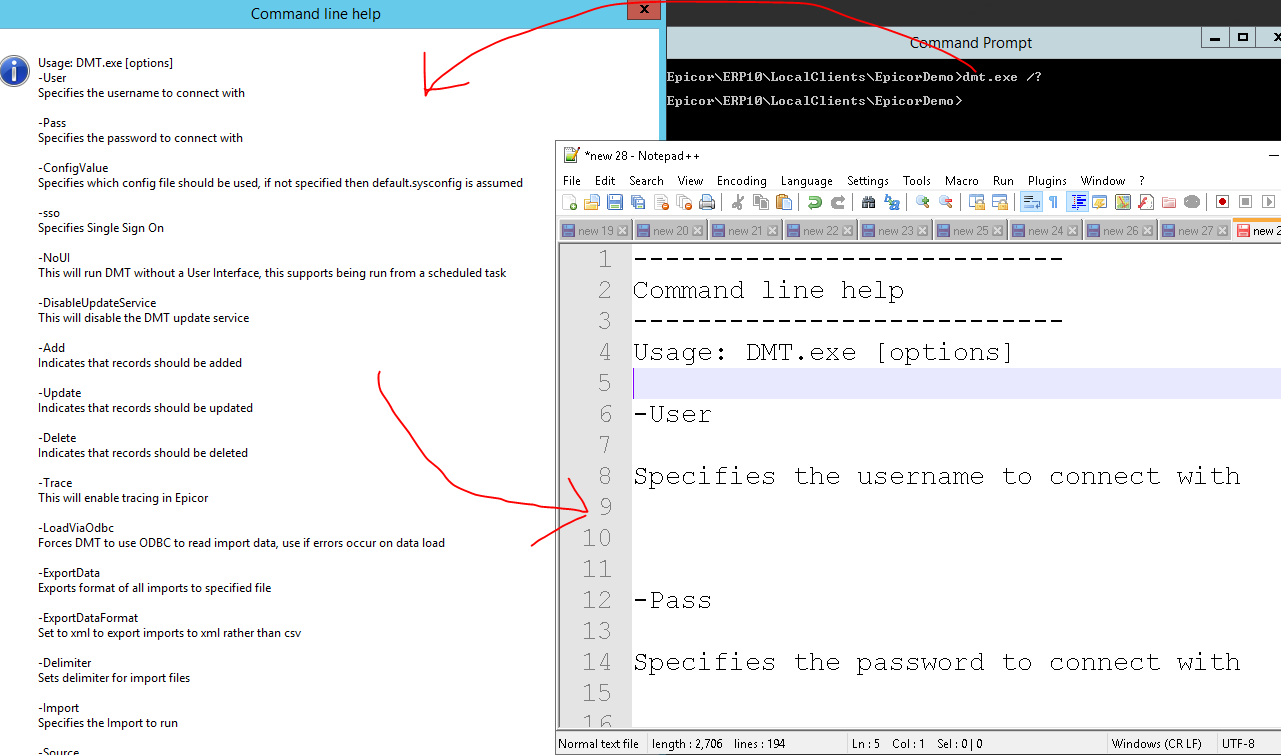
Great tip Mark. I just tried this and when it displays all DMT switches, it does so in a new window which is too tall for my monitors, so I can’t see what is at the end of this window or how many more switches there are. Is there a way to make DMT display the switches within the powershell console rather than a pop-up window?
I was able to fiddle with my remote desktop settings to make the DMT switches window fit. Though too small to read on those settings, I was able to use the Snipping tool and save the image. Now I can zoom in on the image and scroll.