Hello,
I am trying to enable a menu customization on our cloud database.
We are moving from on premise to cloud.
When I go into menu maintenance, all the options are grayed out.
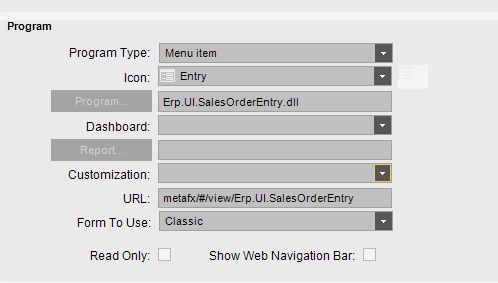
Any ideas how to get that unlocked?
Hello,
I am trying to enable a menu customization on our cloud database.
We are moving from on premise to cloud.
When I go into menu maintenance, all the options are grayed out.
Any ideas how to get that unlocked?
On the Security tab, have to done the Copy Security to Current Company? By default, all menus are locked down until you do this step.
I am not following what you are saying.
Can you give more detail please?
In menu maintenance, I believe on the actions menu at the top, you can select Copy Menu Item to current compNy, or you can just copy the security.
I believe but not certain you will need to copy the whole menu item.
Then you can apply a customization.
When you open menu maintenance again, only yours will show.
As the above posted mentioned.
See KB0113967 - Deploying customization on a Cloud/SaaS environment.
https://epicorcs.service-now.com/epiccare?id=epiccare_kb_article&sys_id=KB0113967
In Menu Maintenance highlight the menu item, then go to Actions > Copy to Current Company. Notice the ‘Owning Company’ field is populated with the SiteID.
Now the fields should be available and will be able to select the customization from the dropdown.
Don’t worry about the duplicate menu items on the tree on the left. When saving the menu and refresh now only the company specific menu item will show up on the tree.
The: Actions → ‘copy to current company’ while on the menu item I need to change worked!
I want to thank you all for the help!