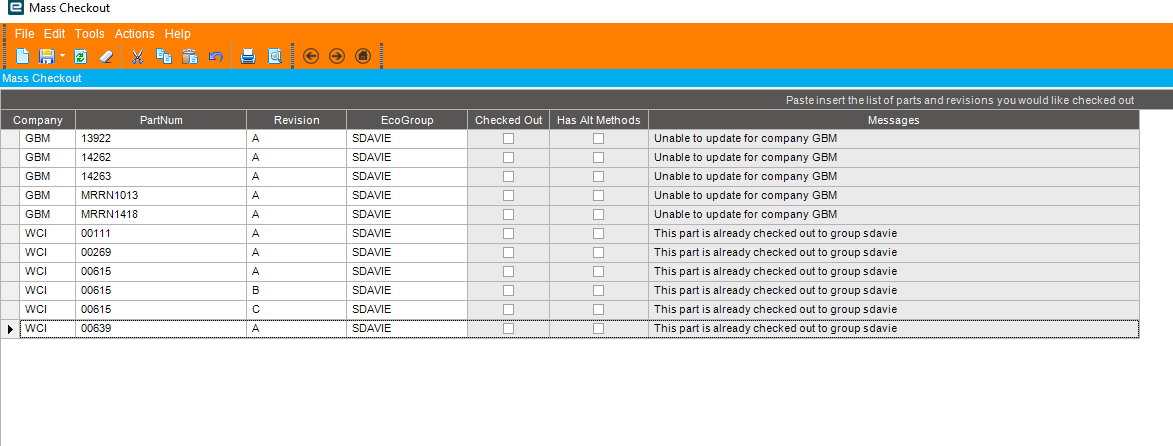
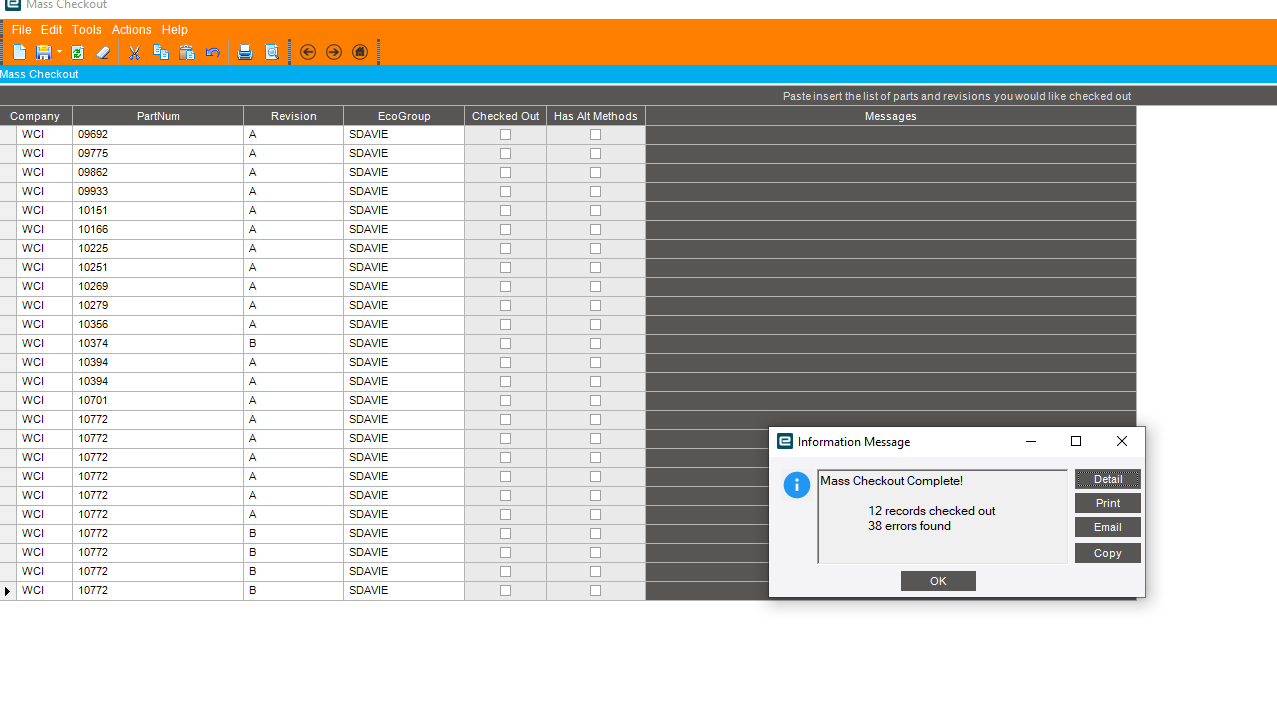
So there has been a lot of talk of making a mass checkout solution for engineering workbench, because if you have a large list of parent parts you need to check out, it’s very slow to check out one at a time.
I made a UBaq and Dashboard to to a mass checkout. There are NO checks in place for verification, and I skipped a password check that showed up in the trace and went right to checkout.
With the dashboard, you can paste insert a list into the grid and it will check out what you have in the list. You need the udpate field to be true, the company, part number, revision and ECO group. (obviously you have to deploy it to be updateable)
Updated for 2022.2. Performs all rows update vs 1 by 1 with stats displayed at the end. Because it’s a paste insert update column removed for implicit update, error messages displayed instead of exceptions thrown.
at Ice.Lib.Framework.BAQDataView.HandleAppControlEvent(AppController AppController, AppControlEvent AppEvent)
at Ice.Lib.Framework.UIApp.AppController.HandleBaqUpdate()
at Ice.UI.App.WCI_MassCheckout.MainController.HandleAdapterUpdate()
at Ice.Lib.Framework.UIApp.AppController.OnSave()
at Ice.Lib.Framework.UIApp.AppControllerPanel.OnClickSave()
at Ice.Lib.Framework.UIApp.AppControlGridManager.grid_GridPasted(Object sender, EventArgs e)
at Ice.Lib.Framework.EpiUltraGrid.OnGridPasteInsert()
at Ice.Lib.Framework.EpiContextToolsManager.handleGridPasteInsert(EpiContextTool epiTool)
at Ice.Lib.Framework.EpiContextToolsManager.handleToolClick(ContextToolClickedEventArgs e)
at Ice.Lib.Framework.EpiContextToolsManager.OnToolClick(Object sender, ContextToolClickedEventArgs e)
at Ice.Lib.Framework.PopupMenuBuilderBase.ToolbarManager_ToolClick(Object sender, ToolClickEventArgs e)
at Infragistics.Win.UltraWinToolbars.UltraToolbarsManager.OnToolClick(ToolClickEventArgs e)
at Infragistics.Win.UltraWinToolbars.UltraToolbarsManager.FireEvent(ToolbarEventIds id, EventArgs e)
at Infragistics.Win.UltraWinToolbars.ToolBase.OnToolClick()
at Infragistics.Win.UltraWinToolbars.ToolMenuItem.OnClick()
at Infragistics.Win.UltraWinToolbars.PopupMenuItemUIElement.DoClickProcessing(MouseEventArgs e)
at Infragistics.Win.UltraWinToolbars.PopupMenuItemUIElement.OnMouseUp(MouseEventArgs e)
at Infragistics.Win.TextUIElementBase.OnMouseUp(MouseEventArgs e)
at Infragistics.Win.ControlUIElementBase.ProcessMouseUpHelper(Object sender, MouseEventArgs e)
at Infragistics.Win.ControlUIElementBase.ProcessMouseUp(Object sender, MouseEventArgs e)
at Infragistics.Win.Utilities.ProcessEvent(Control control, ProcessEvent eventToProcess, EventArgs e)
at Infragistics.Win.UltraWinToolbars.PopupControlBase.OnMouseUp(MouseEventArgs e)
at System.Windows.Forms.Control.WmMouseUp(Message& m, MouseButtons button, Int32 clicks)
at System.Windows.Forms.Control.WndProc(Message& m)
at System.Windows.Forms.Control.ControlNativeWindow.OnMessage(Message& m)
at System.Windows.Forms.Control.ControlNativeWindow.WndProc(Message& m)
at System.Windows.Forms.NativeWindow.Callback(IntPtr hWnd, Int32 msg, IntPtr wparam, IntPtr lparam)
Just thought I would comment on this… as a Consultant, I created a mass checkout dashboard way back in 2017-2018 timeframe, and it worked “ok”… it allowed you to not only create the new rev, it also checked out the part to the EWB, and also did a “get details” from the old (specified) revision to the new revision you created. The dashboard performed at a rate of a couple of seconds per part/revision… I ended up installing this on 3-4 different customer’s systems.
FAST FORWARD to a couple of years ago, as a Product Manager, I specified that this should be put into base code. I created the design, submitted it to development… The design was NOT to use an updatable dashboard but to make this fully embedded into the Engineering Workbench.
The solution was rather elegant. Development did an amazing job at implementing this.
you go into EWB
Recall an ECO Group
Choose Mass Checkout in the overflow menu
Add as many parts/revisions as you desire… you can simply checkout here, or you can create a new rev, and check it out and get the details from the old revision.
You can copy/paste in a list of parts to check out as well.
When you press the “go” button (dont remember what it is called… but it is what makes the magic happen), it processes all the entries in your list. It processes dozens of checkouts and get details in seconds rather than one per second.
All this said, If you are on a more recent version of Kinetic (not a smart client app) you should try this out…
ALSO, note, that almost everyone at Epicor uses this to check out parts, even if only checking out one part… the “Mass” checkout is the fastest way to check out a part to the EWB… faster than from Part, faster than Quick Checkout.