I have noticed that if you have a grid with large number of rows, when you scroll down you cannot see the column labels. This did not use to be the case in classic dashboards etc. Is there an option to always show column labels as you scroll?
I don’t think I’ve ever come across this. Can you provide a screen shot or something? I’ve never come across not being able to see my column labels.
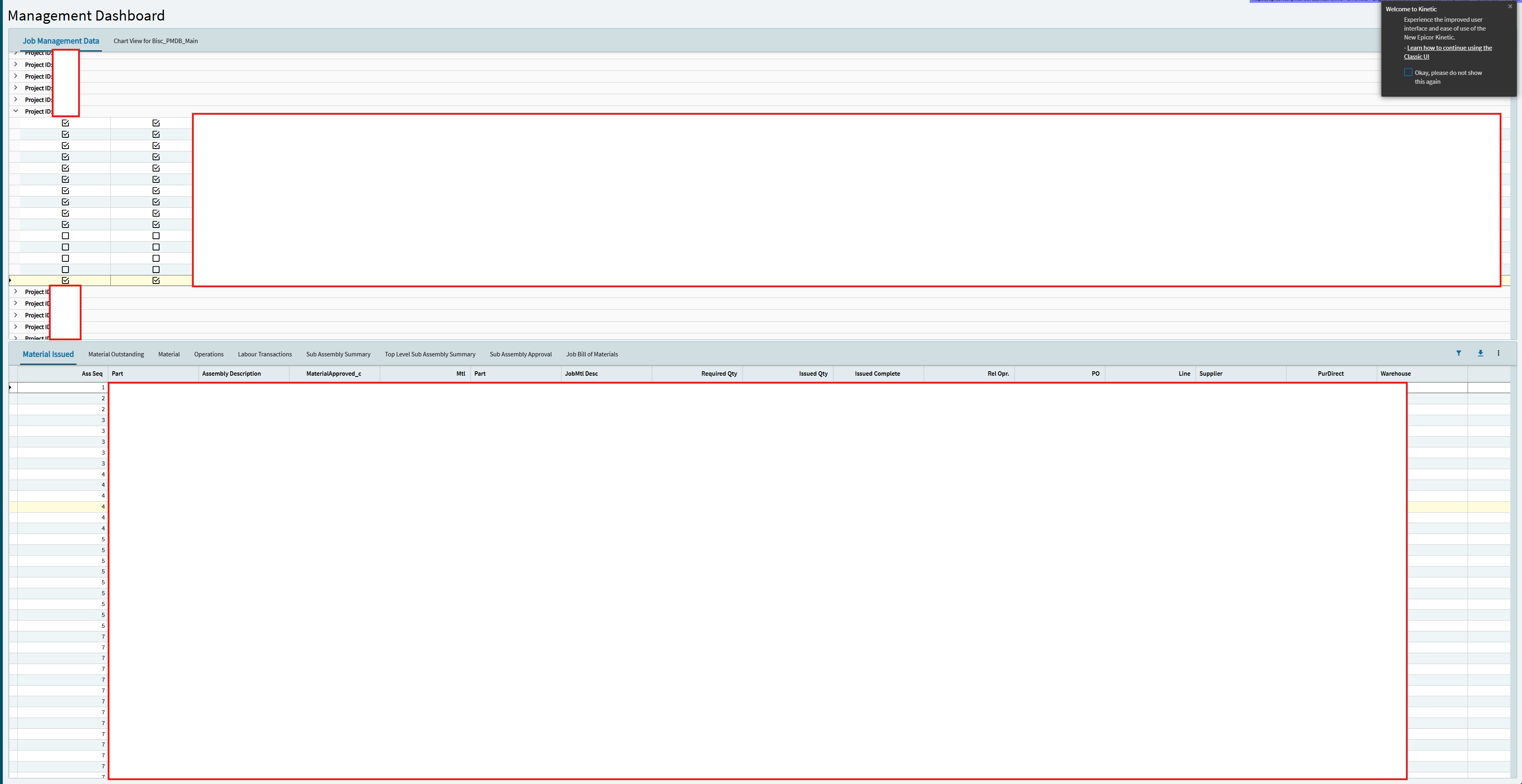
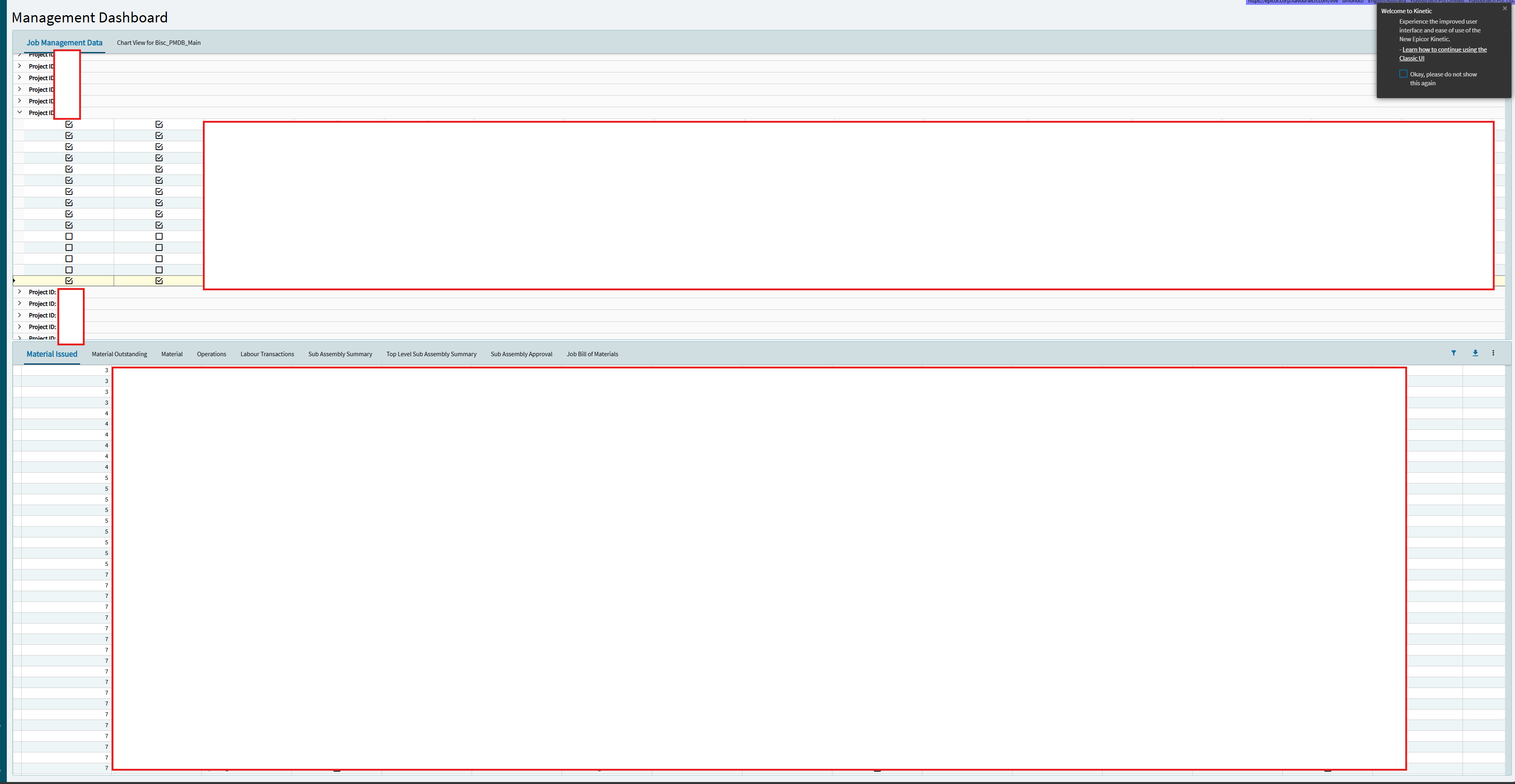
Thanks for the support David, for example I select a specific job under a project and want to view issued materials. So i go to ‘Issued material’ and i scroll down in the ‘Material Issued’ panel card, the column labels will not stay in place and will move up with the rows as i scroll. What I’m looking for is something similar to “Freeze top row” in MS excel.
Well, I was able to recreate this. This appears to be driven by (or at least CAUSED by) the “Fit to Page Mode” property on the page.
Here’s how I recreated it.
I created a panel card stack and threw in a few things. A Panel Card, A Panel Card Grid, and just a grid… just to see if things acted differently. Everything worked fine.
I then deleted all that and started over. This time (looking at the images you supplied), I felt perhaps you had used “Fit to Page Mode”… so I quickly recreated my Panel Card Stack in that setup.
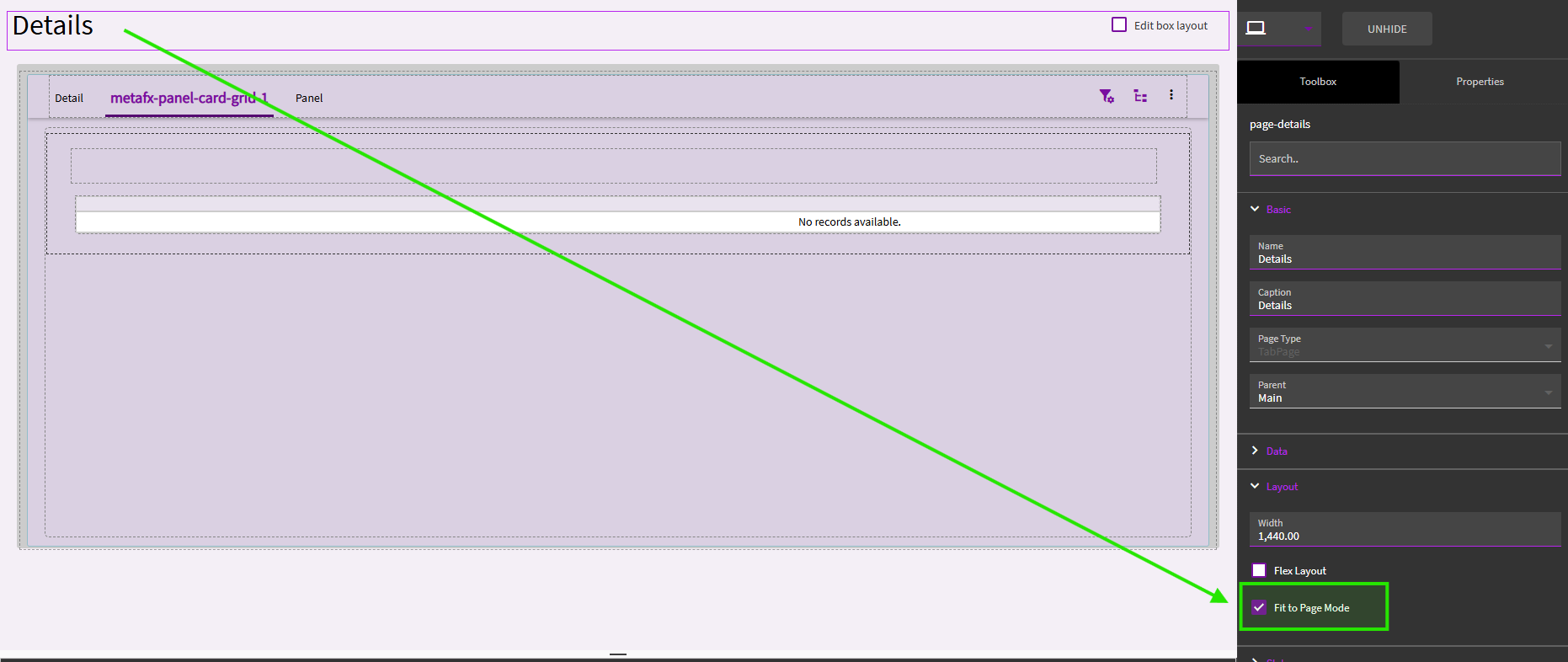
Previewed:
I was able to scroll and my column headers scrolled with it!
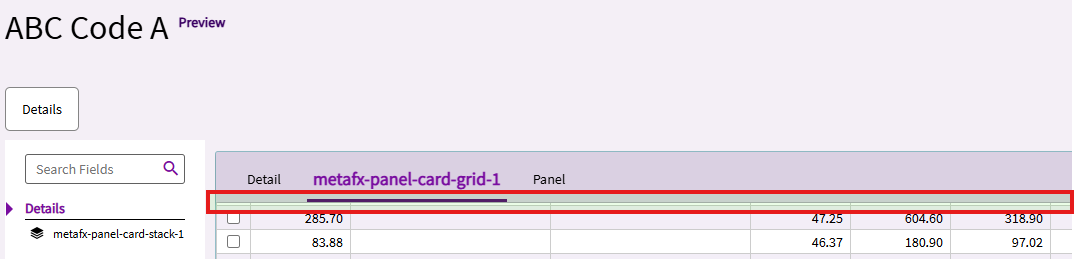
I then went back into App Studio and turned OFF “Fit to Page Mode”.
Maybe hard to see… but I can scroll and the column headers stick!
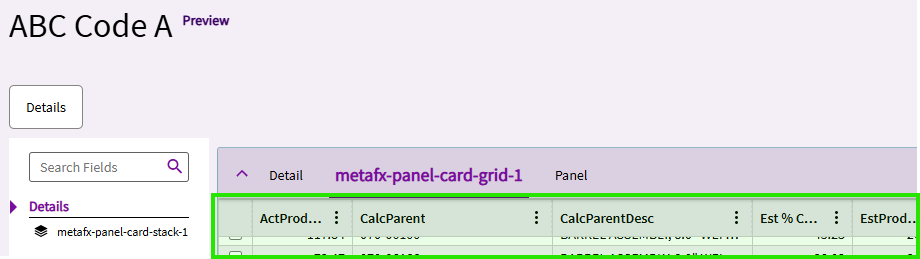
I then wanted to recreate this… to verify this setting is definitely the reason this is happening. So, I went back to App Studio and turned “Fit to Page Mode” back on.
This is a pain, because it will re-size all your boxes and you have to reconfigure them… but at least for this test, I only had one (my panel card stack) to resize.
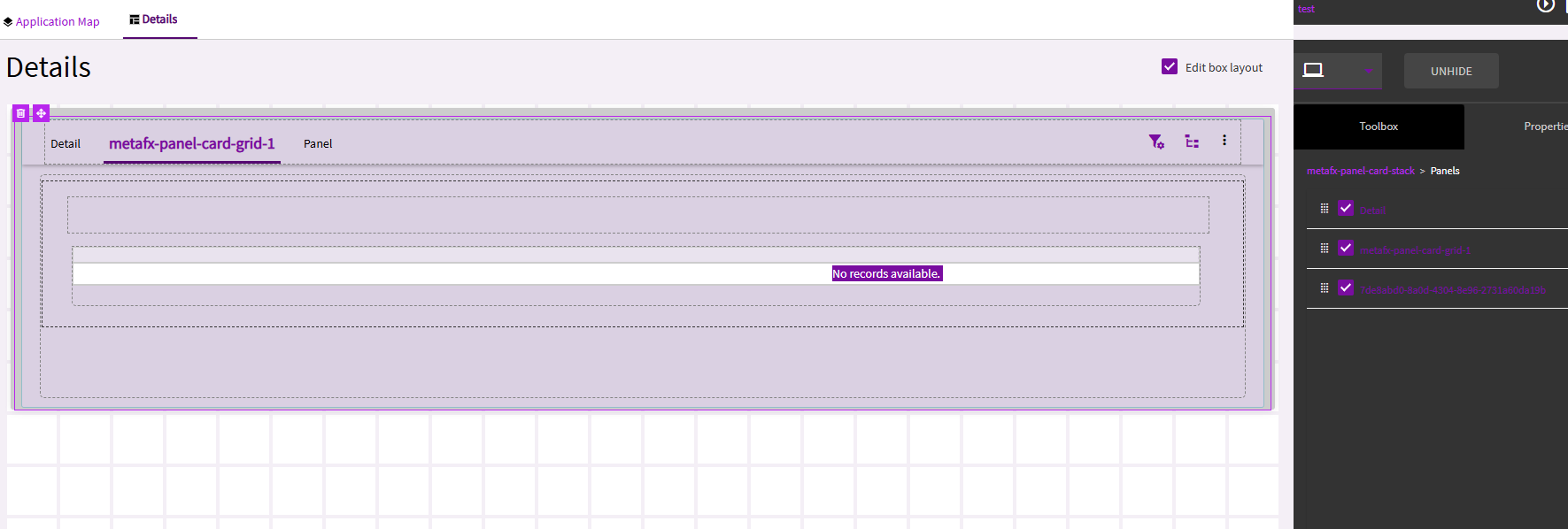
All I did was turn “Fit to Page Mode” back on… Preview…
My column headers STAY IN PLACE!!! Even WITH “Fit to Page Mode” turned on!!!
So… not a definitive “feature” of this property!
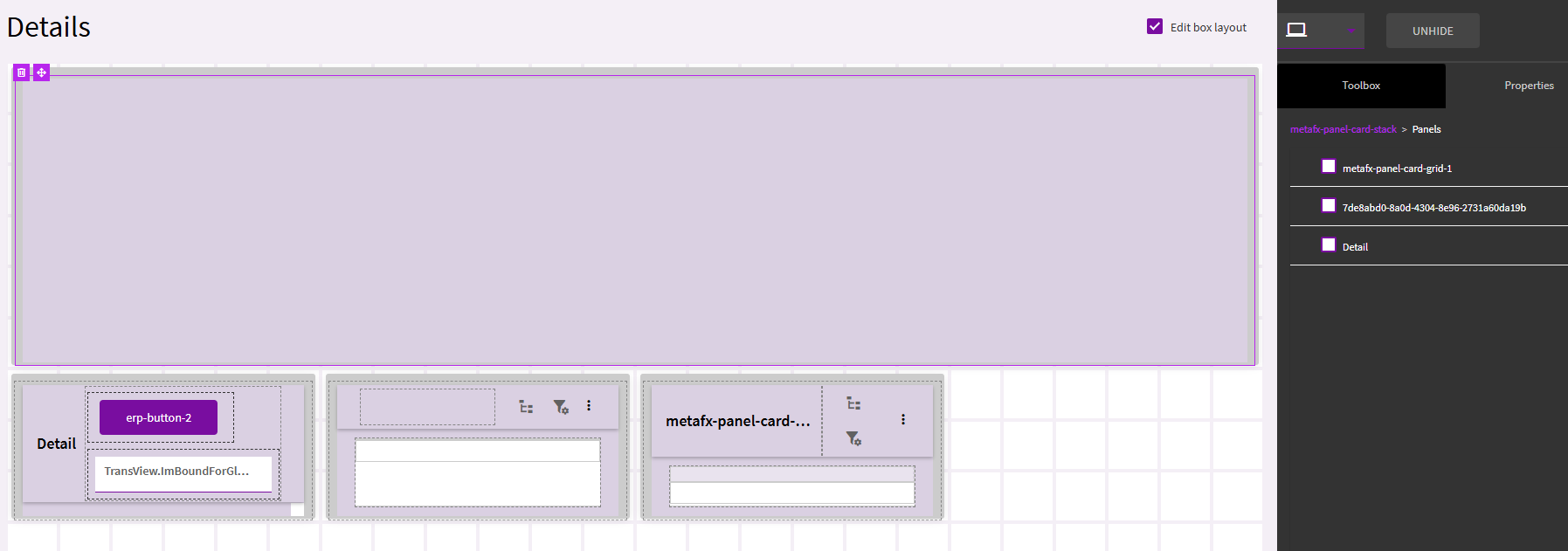
So… on a whim, I went to recreate this whole process. But, instead of deleting and recreating everything… I just unstacked my panels from the panel card stack… and then re-added them
unstacked:
restacked:
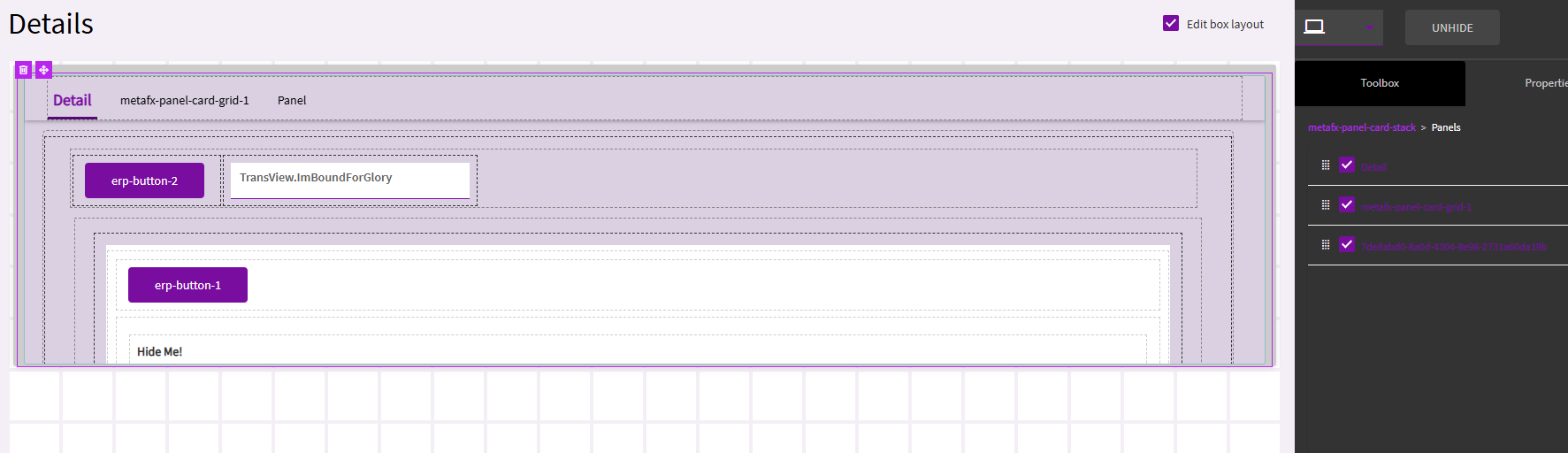
Preview: … and I’m back to losing my Column Header row.

So, I don’t think this is a “feature” of the “Fit to Page Mode”. Instead it appears to be a glitch. The PROBLEM is… when you turn off “Fit to Page Mode”… it reconfigures your screen components. Puts them all back to full width/height, etc.
To FIX:
In your case… I THINK all you’ll need to do is:
Turn off “Fit to Page Mode”… then turn it back on and reconfigure your layout. This SHOULD correct it for your and your column headers will stick.
To Eliminate this in the future:
After experimenting… I found that if I created my Panel Card Stack with “Fit to Page Mode” OFF… then turned it on and configured all my components on the page… everything worked normally and column headers stuck.
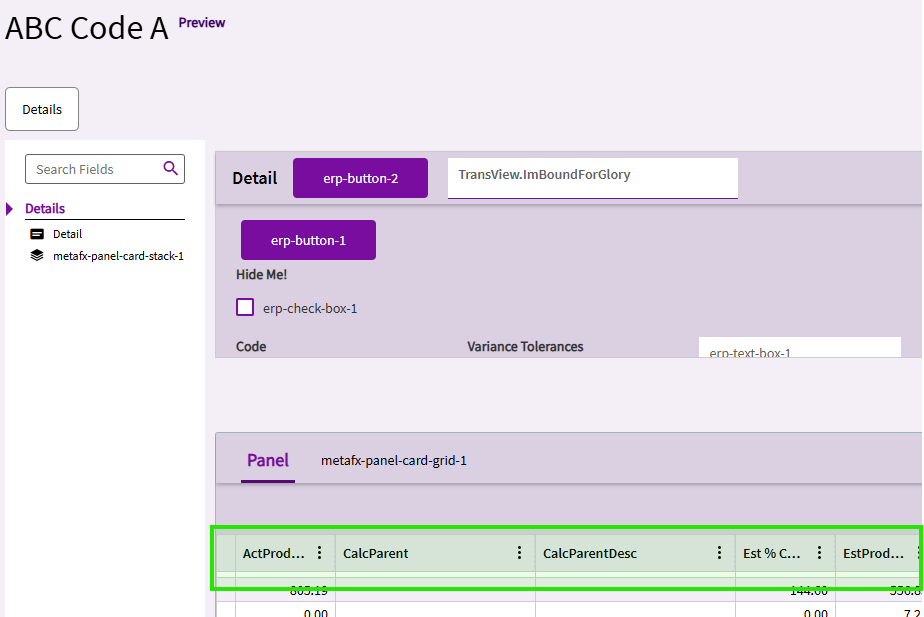
But if I created my Panel Card Stack while “Fit to Page Mode” was ON… the headers would scroll with the rows.
So… word to the wise… create your Stack first… THEN turn on “Fit to Page Mode” if you want to move things around and resize.
Hi David! I am absolutely thankful for all the time and effort you put into this. 
I can confirm that your solution works like a charm. I toggled the “Fit to Page Mode” and that fixed the problem.