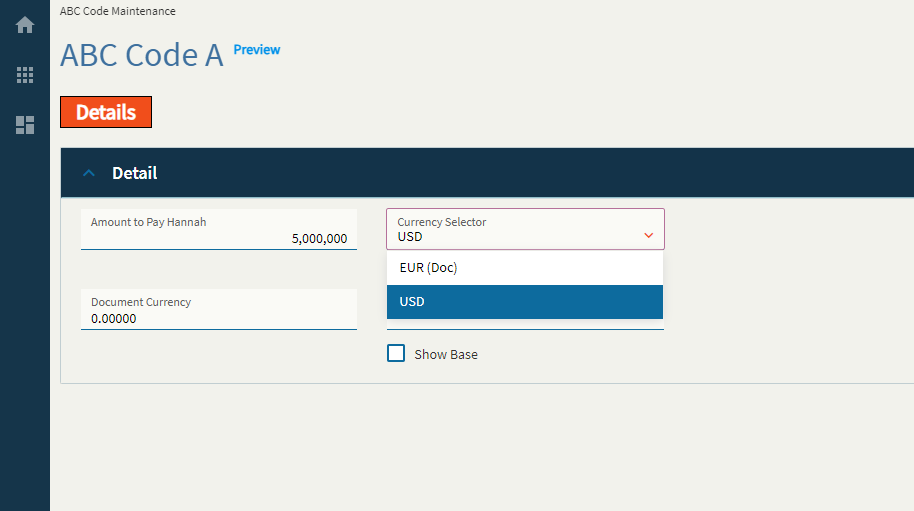
Currency Selector
Sister control to the Currency Box–this allows a user to select a currency type from a dropdown.
| Property Group | Property | Description |
|---|---|---|
| Basic | Id | This is the control’s unique identifier |
| Basic | Label Text | Alter the display text on the button (Fig. A) |
| Behavior | On Click | Click this to create an OnClick Event. On Click is triggered when a user clicks the button. |
| Behavior | On Blur | Click this to create an OnBlur event for the control. On Blur is triggered when the control loses focus. |
| Comments | Comments | Add some developer notes to the control. These are not customer-facing and are only visible in App Studio (Fig. B) |
| Data | Key Field | Indicates that a bound component is a key field. If true, the field is enabled if there is no current record, allowing the user to select an existing record or create a new one. Not applicable to this control. |
| Data | EpBindingDocument | Bind the control to a DataView.Column. This is your Document Currency field. |
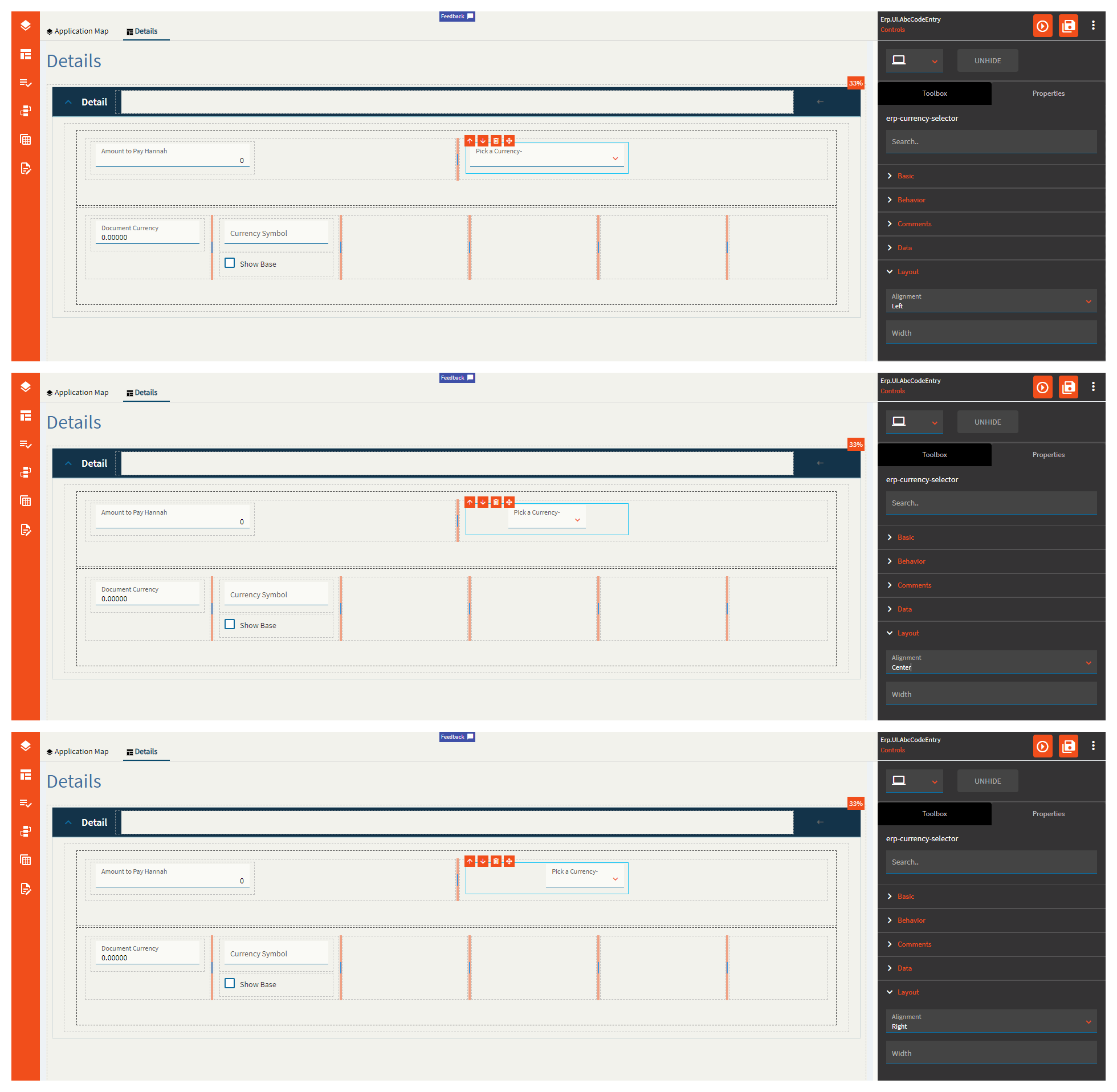
| Layout | Alignment | Set the alignment for the control. Valid options are Left, Center, Right. (Fig. C) **Behaves weirdly depending on the control size. |
| Layout | Width |  Sets the specific width (pixels) for the control. Does not woooork. Sets the specific width (pixels) for the control. Does not woooork. |
| State | Personalizable | If true, a user can personalize this component(hide/show) |
| State | Customizable | If true, a user can customize this component in child layers |
| State | Hidden | Hides the control from view. |
| State | Disabled | Disables the control. The control will not allow editing or focus. |
| State | Read Only | Makes the control read only so that it will not allow editing. The control can still be focused. |
| Advanced | Show Document Currency | When enabled the doc currency type will be ignored and base currency will be used. Does not seem to work. |
Figure A: Label Text
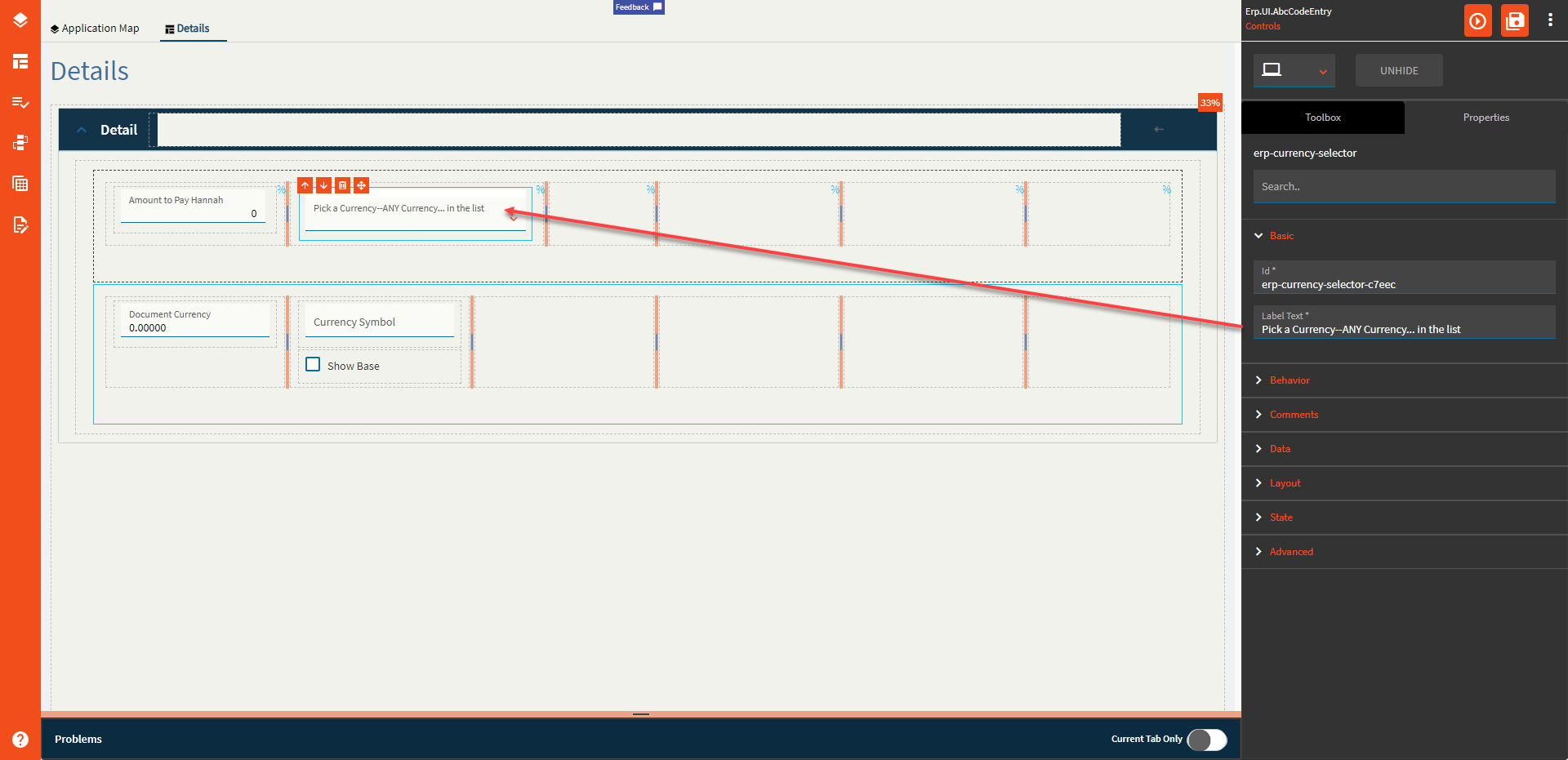
Figure B: Comments
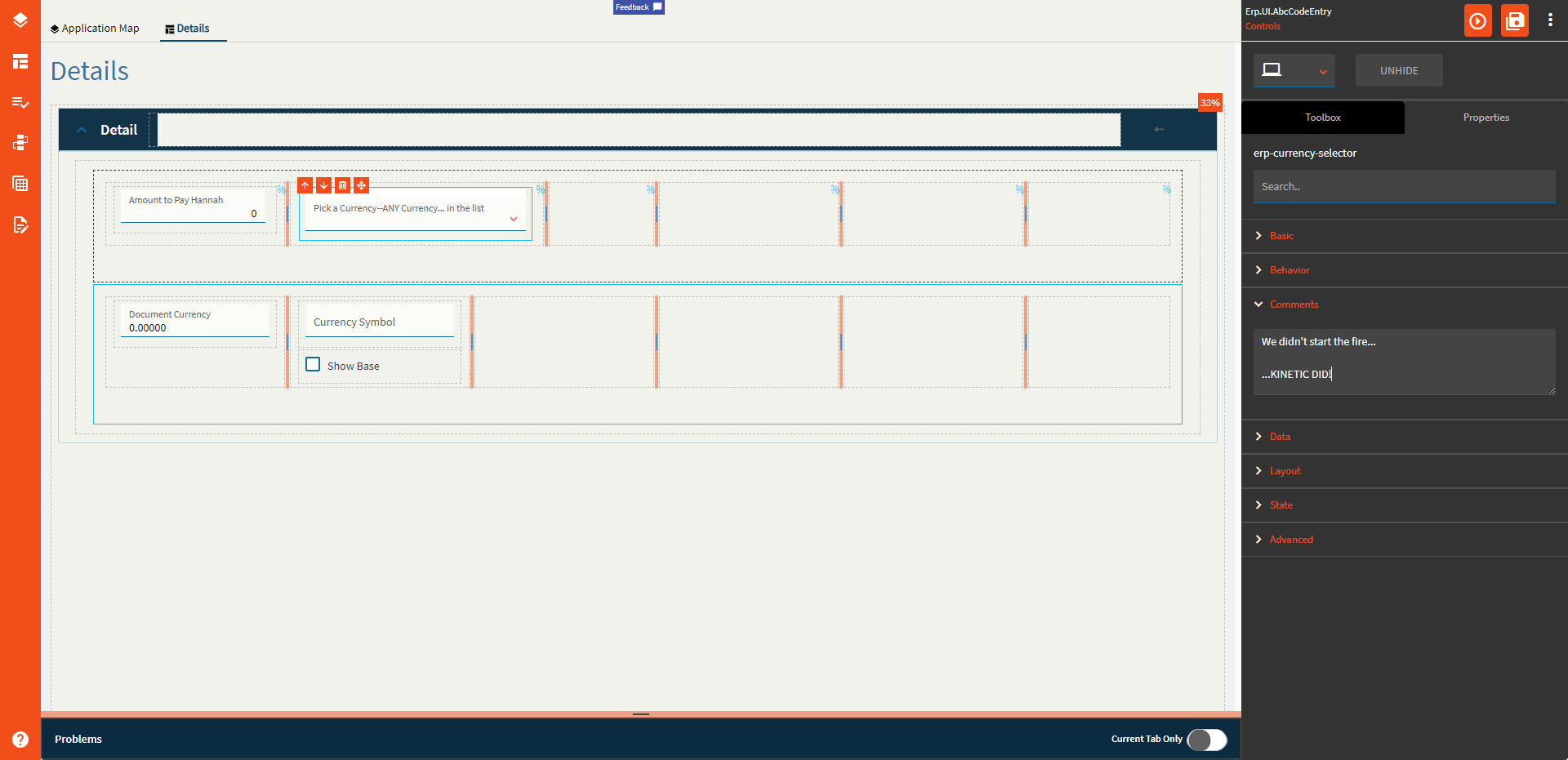
Figure C: Alignment