I have a situation with Time Phase where some users are used to in Classic of pulling in a list of Parts into Time Phase to review and they ‘thumb’ through them via the Navigation Control in Classic.
They would like to do the same in Kinetic, though I demonstrated how to use the ‘Breadcrumb navigation’ but it 'takes too many clicks and is not easy to scroll through.
So I’m trying to add a Row Navigator to Time Phase in Application Studio and no matter what Data View I use, it never populates the list of parts that were selected in the search, so I’m not sure what’s going on nor what I’m doing wrong.
Any insights on any tricks to get this to work in Time Phase, is it special some how?
When you search for parts, they come back in the searchResult dataview… but they are also copied to the LandingPage dataview. The LandingPage dataview is what is used by the Breadcrumb navigation.
So, in order to advance to the next part, we want to:
- Find the current LandingPage row
- Index it by 1
- Then pass the PartNum of that row to KeyFields.PartNum
Updating the value of KeyFields.PartNum will trigger native events to load that record.
You can pull this off with a single row-update event.
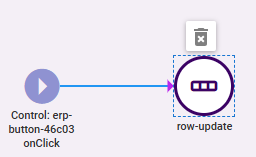
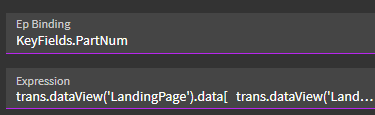
Expression:
trans.dataView('LandingPage').data[ trans.dataView('LandingPage').data.findIndex(r => r.PartNum === '{KeyFields.PartNum}' ) + 1 ]?.PartNum ?? '{KeyFields.PartNum}'
This expression is going to search the LandingPage dataview for where PartNum = KeyFields.PartNum and return the row index. It then adds (1).
It then returns the PartNum of the newly selected row.
If the value returned is undefined or null… it returns the initial value. This is for when you run out of rows. It just won’t load another record. Without that last bit, it will return undefined and clear your form.
Wash, rinse, repeat with a -1 in the expression for Previous Part.
Not sure if its already been mentioned to the end user already, but I found Ctrl + L Arrow & Ctrl+R Arrow to be a huge game changer when navigating multiple records from the Bread Crumb Nav.
At least in menu maint. it allows me to move through the list without having to move the cursor/perform any clicks.
I’m out of time…
I was able to get my parts to show using the below settings. But selecting a different part doesn’t DO anything. Doesn’t trigger any row-change events. I can play with it more tomorrow.
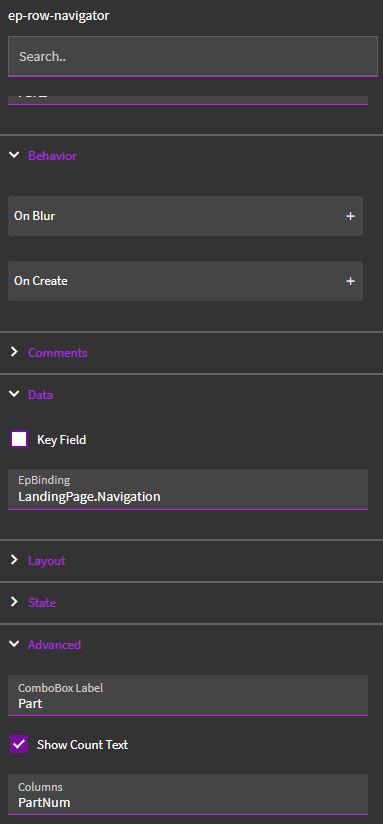
I also had to add my made-up “Navigation” column to the below Data Rule so it wouldn’t be disabled by default:

Like I said, I can make a different selection in the Row-Navigator… but it doesn’t change the value of KeyFields.PartNum which drives the form.
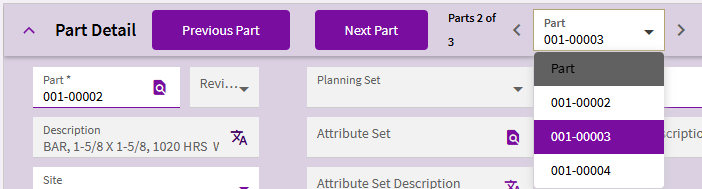
Probably just need to create an event, but I need to go pick up my kids. Can play with it tomorrow if you don’t get it by then.
@dcamlin thanks so much for taking the time to look into this… way more complex than I expected… but at the same time it’s not that bad.
So here is what I got working… all due to your insights and examples, not sure it’s the best way, but it seems to work:
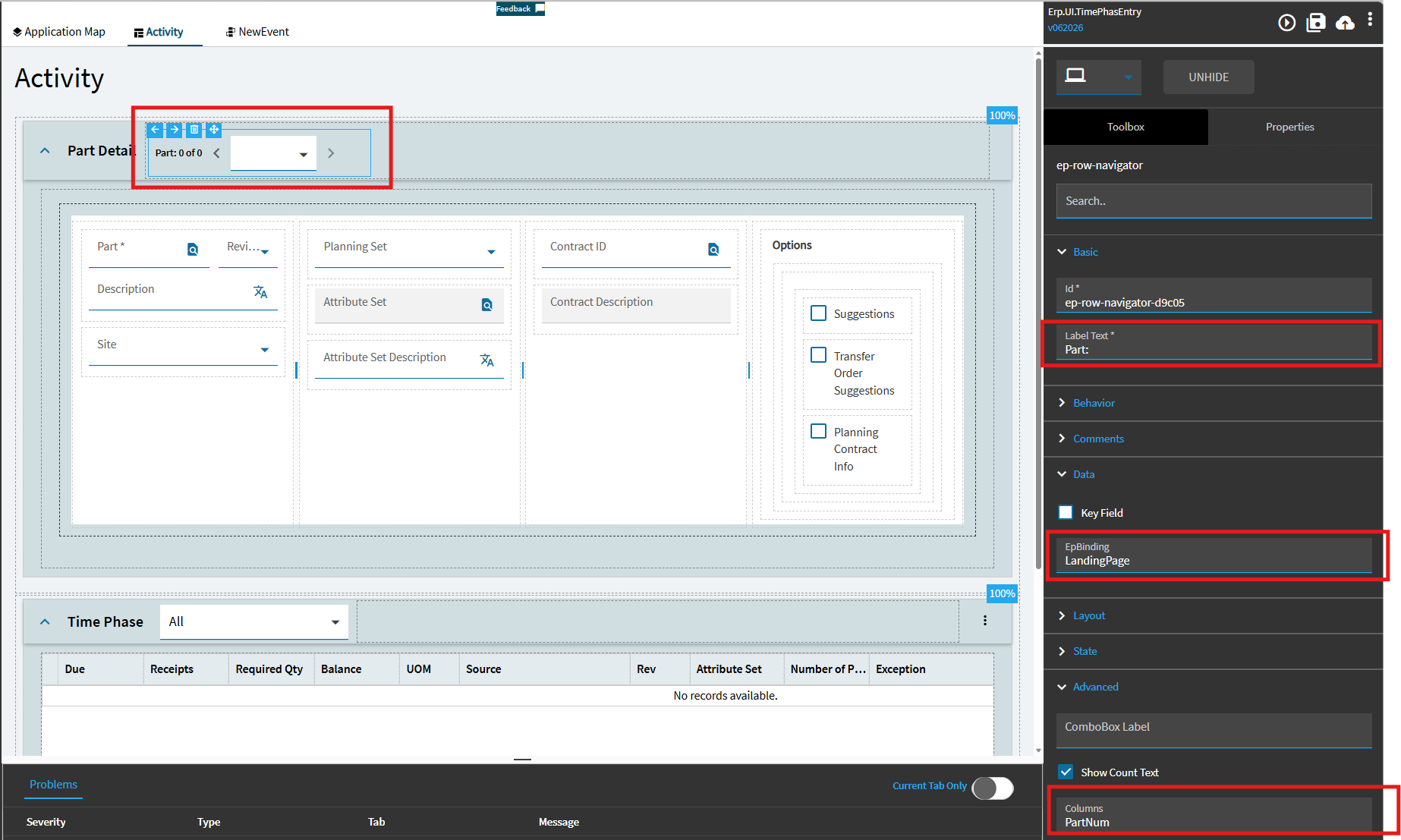
I added a ‘ep-row-navigator’ control to the Grid Card of the Part Detail with an EpBinding of ‘LandingPage’ and Columns set to ‘PartNum’
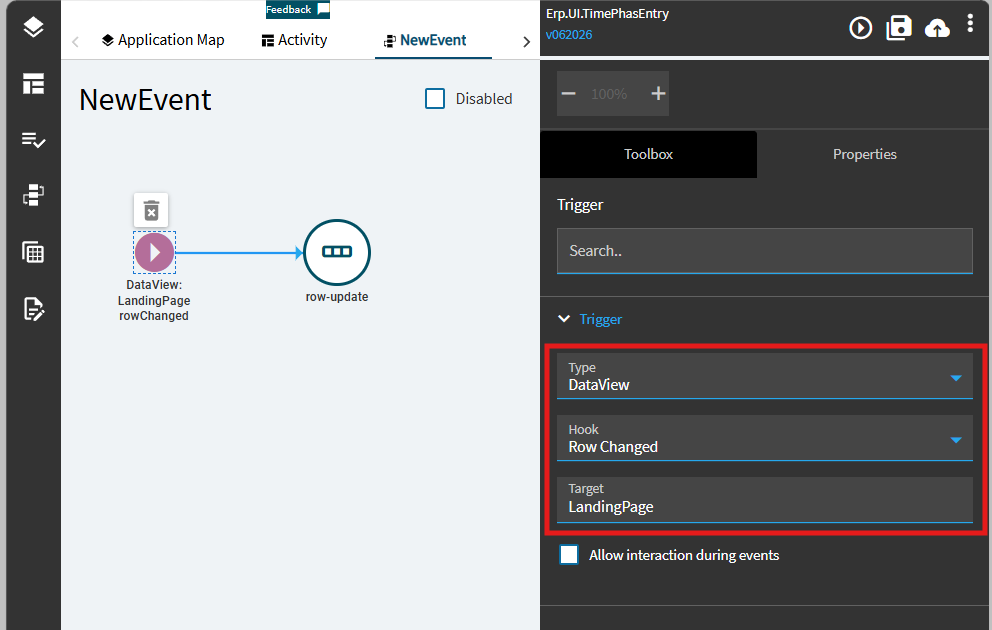
Then I added a DataView Event on ‘LandingPage’ for when the Row Changed:
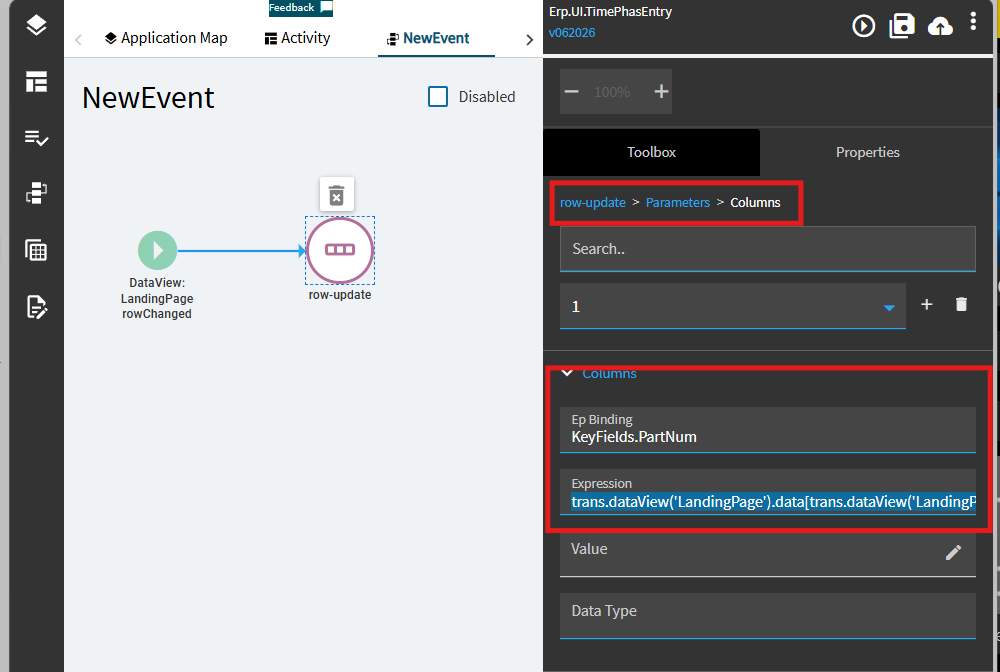
Called ‘row-update’ that sets the KeyFields.PartNum to the current value of LandingPage.PartNum using the following Expression (which your’s was a great hint for adjusting to fit this):
trans.dataView(‘LandingPage’).data[trans.dataView(‘LandingPage’).row]?.PartNum ?? ‘{KeyFields.PartNum}’
That’s all it took. If anyone has any feedback or a better way to do this, I’d love to see it!
(at least it seems to work now.)
Nicely done gentlemen.
Semantics but another way to have it not call getDataView twice is like:
// IIFE: pass LandingPage data view as dv
((dv) => dv.data[dv.row]?.PartNum ?? '{KeyFields.PartNum}')(trans.dataView('LandingPage'));
Awesome… I think that actually improves the performance a bit… seems to save a second.
Thanks for the improvement!
Now, if only I can figure out how to make the Navigator wider.
So Phase 2 challenge:
In Classic you can also browse the parts from the tree view list… any idea how to replicate that?
It seems like the only way to enable the tree view is by enabling ‘Navigation’ on a page… but is there another way?
Its a bit of a mystery to me. @dcamlin proved left nav can be enabled on some app types with a panel card grid. How to get left pane navigation?