Does anyone have a successful installation of Edge Agent for their on Premises Deployment where users access Epicor through a web browser and can print directly from the browser? If so, what were the options you selected during installation? I’m testing this on my own machine and I can’t get it to pull my printers. All of our printers are on a print server but installed on all machines by GPO. My computer sees them, chrome sees them, Edge Agent does not…
I have a ticket open with epicor right now about this happening for one user, same setup working fine everywhere else.
We are seeing this in the edge agent log, have you checked the log output from the tray app to see if you have anything similar? What shows up in the diagnostics page?
fail:   3/30/2026 8:07:30 AM -04:00 KineticTray.TrayApplicationContext [0]                            Unable to get printer list.
System.ComponentModel.Win32Exception (0x80004005): The operation completed successfully.
   at System.Drawing.Printing.PrinterSettings.GetHdevmodeInternal(String printer)
   at System.Drawing.Printing.PrinterSettings.GetModeField(ModeField field, Int16 defaultValue, IntPtr modeHandle)
   at Edge.Directives.AgentPrinting.WindowsPrinterSettings.LoadData(ILogger`1 logger) in C:\agent\_work\2\s\src\directives\Printing\Operatives\PdfPrintingCore\WindowsPrinterSettings.cs:line 49
   at Edge.Directives.AgentPrinting.WindowsPrinterSettings.GetPrinters(ILogger`1 logger) in C:\agent\_work\2\s\src\directives\Printing\Operatives\PdfPrintingCore\WindowsPrinterSettings.cs:line 31
   at Edge.Directives.AgentPrinting.PdfPrintingCoreOperative.GetWindowsPrinterDetails() in C:\agent\_work\2\s\src\directives\Printing\Operatives\PdfPrintingCore\PdfPrintingCoreOperative.cs:line 766
   at Edge.Directives.AgentPrinting.PdfPrintingCoreOperative.GetPrinterDetails() in C:\agent\_work\2\s\src\directives\Printing\Operatives\PdfPrintingCore\PdfPrintingCoreOperative.cs:line 136
   at Edge.Directives.AgentPrinting.PdfPrintingCoreOperative.GetPrinters() in C:\agent\_work\2\s\src\directives\Printing\Operatives\PdfPrintingCore\PdfPrintingCoreOperative.cs:line 119
   at KineticTray.TrayApplicationContext.GetPrinters(Boolean refresh) in C:\agent\_work\2\s\src\KineticTray\TrayApplicationContext.cs:line 145
warn:   3/30/2026 8:46:49 AM -04:00 Microsoft.AspNetCore.StaticFiles.StaticFileMiddleware [WebRootP   The WebRootPath was not found: C:\ProgramData\Epicor Software\LocalEdgeAgent\RunOnPort\6071\SelfUpdate\1.2.616.0\edgeapp\wwwroot. Static files may be unavailable.
No issues here, yet. Our printers are installed via GPO with a print server as well. So far it’s picked up any installed printers.
Did you try right clicking on the edge agent icon running in the system tray and selecting “refresh printer list”
We ran into an issue trying to view Print Previews from Classic screens launched via the Edge Agent.
What worked for us was initiating a Client session (just log in and leave it minimized). Once that session was active, all of our Edge Agent launched screens started handling print previews as expected.
If all else fails, it might be worth trying 
I do and am happy to give a brain-dump of what I’ve learned.
Lessons learned:
- Deploy using Run as Admin (in my case I use Atera, which always deploys in elevated mode)
- Make sure to start the agent the first-time using Run As. All subsequent logins can be regular, non-elevated.
- If your users have printers directly mapped locally (either USB or via TCP, eg. not pointing to a central print server) then you want the Local Mode edge agent.
- If you’re using a Printer Server and all users get their printers from the print server, you’ll want to install the Network Edge Agent on just the Print Server (this is by far the least complex option).
- You can view the Edge Agent diagnostic page using this URL:
https://localhost:6071/#/home
(change the port number if you don’t/can’t use the default 6071) - I found it’s not uncommon to check the diagnostic page right after installing the Edge Agent and have NO printers listed. That threw me off as I thought the install was failing. In reality, so long as you used Run As for the installs, the agent will show a list of printers after a few minutes. If after say 10 minutes no printers are listed, then I would validate the edge agent was installed correctly.
And my personal opinion…this edge agent needs to be rebuilt from the ground up and configured to use today’s modern installation methods, e.g. fully documented MSI package would be best. We haven’t completed our migration to GovCloud yet, but I’m definitely worried that this agent could be problematic.
I’ll post my install scripts separately
Here are my two installation scripts. First installs the agent, and the second does a one-time start as Admin so that the agent can properly initialize.
EdgeAgent-InitiateOneTime.txt (565 Bytes)
EdgeAgent-LocalMode-Installer.txt (4.9 KB)
I should add we’re using just the browser. No Kinetic clients.
We’re running NEA - we did Live on 6071 and had to do Pilot on 6072. Originally told we could run the same agent across the two environments…until it came time to do so and then we couldn’t. It’s worked pretty well overall…once in a while it needs a service restart but no worse than any other application.
That’s odd. We were told one edge agent can support at least four separate Kinetic tenants (URL’s in the Agent config). And as it stands today, we do have both Pilot and Live working on the same port (as shown in the script I attached) and I can be logged in to each simultaneously with printing and/or file access working.
I think this points squarely to inconsistent messaging from Epicor. You can ask three different people at Epicor about various functionality of the edge agent, and you’ll likely get three different answers.
As best I can tell…
Local Edge Agent supports multiple URLs/environments
Network Edge Agent supports one URL/environment
I would like to point out there are 3 effective modes, Local, Network and Multi-User.
Local is good if you have a machine that only ever has a single user logged into Windows at a time, if you have users switching Windows User Accounts Local will be a nightmare and it will fail for everyone but the first logged on user.
Network is what is used for Epicor’s Server Side Printing as opposed to Client Side (AFAIK you can’t use it with Client Side Printing, you would need something installed on the client, one of the other two methods). You can mix this method, meaning if your instance is set to support both Client & Server Side printing you can have some printers setup through the Network Agent and some through the Client Agent but which method gets called depends on which print button you press (again, as far as my experience goes running a client print uses a different print button than the server side printing). The big downside with the Network Agent is that you cannot (at least not in an easy way, if at all) set the default printer for a user, I believe the workstation settings in Epicor may contain this setting but I’ve not played with it.
What I am trying to say here is that just because you use a print server or network printers, it does not necessarily mean that the Network Agent is the best solution, IMO it depends on those trade offs.
Finally there is the Multi-User Agent, this is the holy grail IMHO, it is a local agent that allows multi-user windows machines and user profile switching and picks up each users printers and presents them to the user, it is basically the Local Agent done right.
Local and Multi-User both allow up to 4 environments to be specified during install.
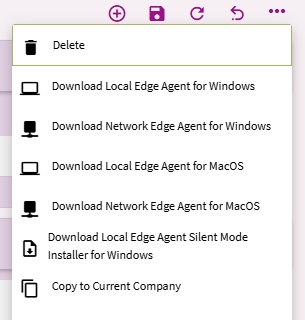
No, they hide it.
You want the Network Installer then when you launch it you select Local Installation for Virtual Desktops.
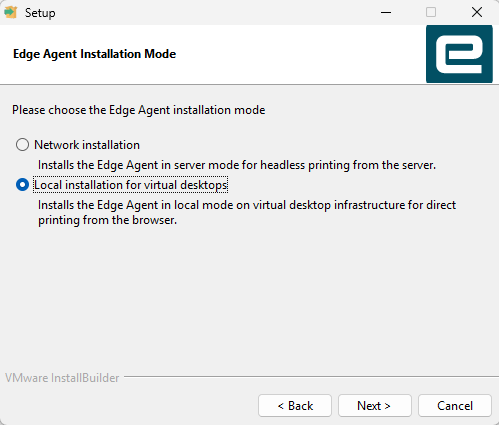
From there you can enter all the normal parameters.
If however you have a software deployment tool like PDQ you can also install it that way, my options file (2025.2 - They changed some of the options between 2024.1 and 2025.2 , I think specifically between 25.1 and 25.2 but I am not sure exactly):
mode=unattended
installMode=multiSessionInstall
clientExePath=C:\Epicor\ERP4.3.100.5Client\Client\Epicor.exe
allowedURL=https://SERVER-1-FQDN/kinetic2024_1
allowedURL2=https://SERVER-2-FQDN/Kinetic2024_1
allowedURL3=https://SERVER-3-FQDN/Kinetic2025_2
You can have the 4 client paths as well but I only run the single one as it is essentially legacy at this point for us, you would just add each with the same 2, 3, 4 as the allowed URLs.
Edit to Add IMPORTANT CAVEAT:
Since this is the Network Installer it will not auto-update like a full local will, I accept that tradeoff as I have PDQ and that is how I push this out, swings and roundabouts no matter which version you go with really.
Oh in this case I’m definitely experimenting with this tomorrow!
I use Atera for deployments so not very concerned about auto-updates either.
This is a perfect example of Epicor managing three separate apps, likely three separate development paths and no convergence across apps.
To whomever is responsible for developing the Edge app, please consider switching to a single app package installer (MSI) and let the installer UI or Options file set the mode and option features.
It was separated to support auto update without admin rights.
and it is not MSI because it needs to work on the MacOS too.
Same here.
I thought this was the case because IIRC in earlier versions it was a single installer that had all 3 options.
Also, not trying to start an argument but I feel the Mac installer could be handled differently, then the windows one could be an MSI?
It is usually better to use one product then many for the same goal, so we were looking specifically for the OS-independent installer back then.
Why would you want MSI anyway, any specific reason?
For me and the Edge Agent specifically, no real reason TBH, it was more of a response to the post earlier regarding it.
In general I prefer MSI because it is usually easier to deploy & remove MSI installed applications than EXE when you are using PDQ. EXE works, and for the EA I have not come across a specific problem with it but as a general rule if I have a choice I will always pick the MSI version of an installer.
I’m also not a Mac person (a lifetime ago I was a Linux person) so I didn’t realize they could install EXE, I thought they used PKG files.