GL Account Editor
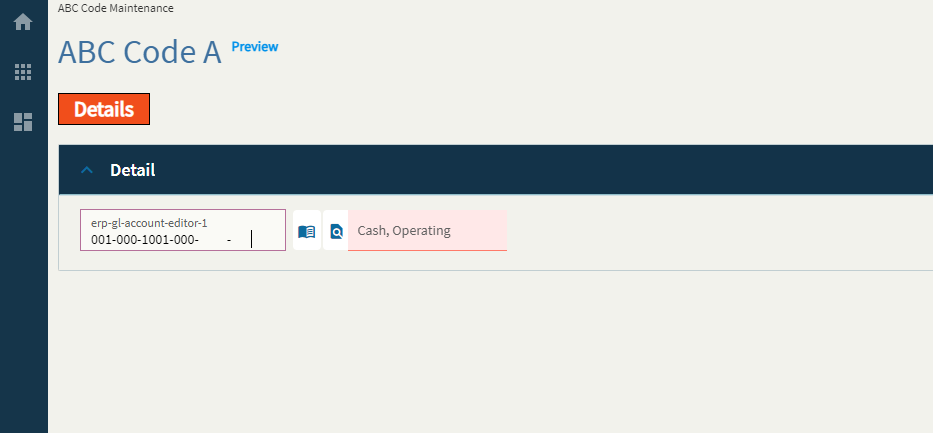
General Ledger Multi-book account editor component with possible multi-book account code entries.
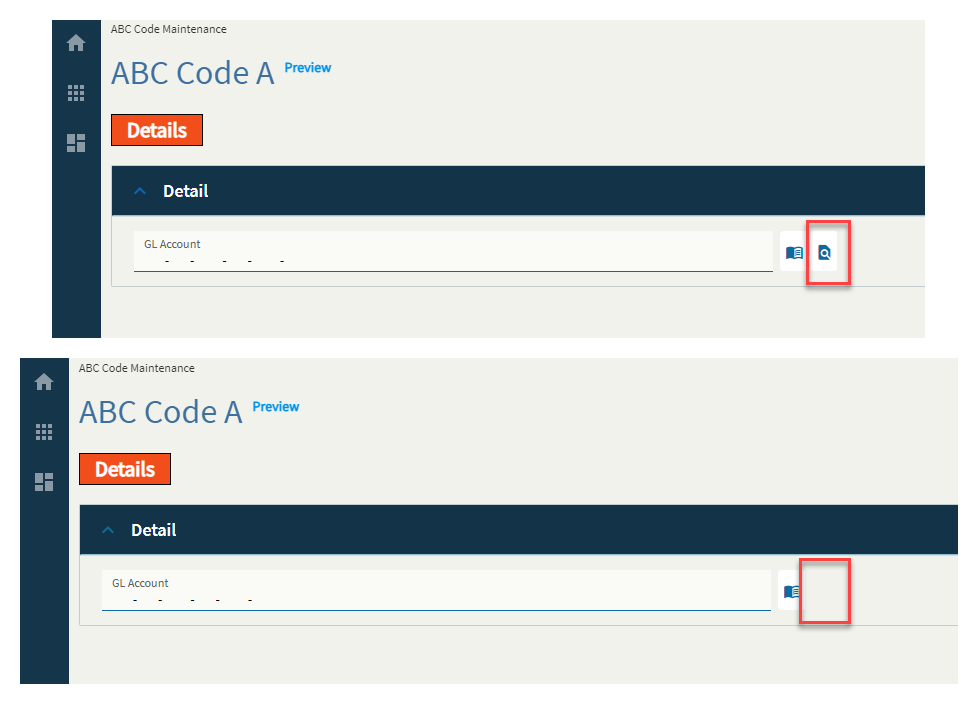
I can’t, for the life of me, figure out how to make the description stop being red by using the properties of this field alone. 
| Property Group | Property | Description |
|---|---|---|
| Basic | Id | Unique identifier for the control |
| Basic | Label Text | Sets the label within the control. (Fig. A) |
| Behavior | On Book Select |  Click this to create a useless event you’ll have to delete. (Fig. B for the lulz) Click this to create a useless event you’ll have to delete. (Fig. B for the lulz) |
| Behavior | On Blur | Click this to create an OnBlur event for the control. On Blur is triggered when the control loses focus. |
| Behavior | On Create | Click this to create an OnCreate event for the control On Create is triggered when the control is painted to the GUI. |
| Comments | Comments | Add some developer notes to the control. These are not customer-facing and are only visible in App Studio (Fig. C) |
| Data | Key Field | Indicates that a bound component is a key field. If true, the field is enabled if there is no current record, allowing the user to select an existing record or create a new one. |
| Data | EpBinding | Bind the control to a DataView.Column. |
| Data | Coa Code Column | Set the data binding for the COA Code using the format View.Column. This is a column the control pulls from to read the COA Code. Needs to be an actual DB column. (Fig. D) |
| Data | Binding External CompanyId | Set data binding for the External CompanyID. Format: View.Column. (Fig. E) |
| Data | Binding Description | Set the data binding for the Description. Format: View.Column (Fig.E) |
| Data | Binding Acct Disp | Set the data binding for the Account Display. Format: View.Column. (Fig. E) |
| Data | Binding Segments | Set the data binding for the Segments. This will generate 20 different bindings in the format of View.Column1 - View.Column20. Format: View.Column (Fig. E) |
| Data | Binding Invalid Account Message | Set the data binding to retrieve the invalid message. Format: View.Column. (Fig. E) |
| Layout | Alignment | Set the alignment for the control. Valid options are Left, Center, Right. (Fig. F) |
| Layout | Width | Sets the specific width (pixels) for the control. (Fig. G) |
| Layout | Description Width | Sets the width of the description which must be less than the total width. (Fig. G) |
| State | Personalizable | If true, a user can personalize this component(hide/show) |
| State | Customizable | If true, a user can customize this component in child layers |
| State | Hidden | Hides the control from view. |
| State | Disabled | Disables the control. The control will not allow editing or focus. |
| State | Read Only | Makes the control read only so that it will not allow editing. The control can still be focused. |
| State | Auto Focus | When enabled, the control is automatically focused on creation. |
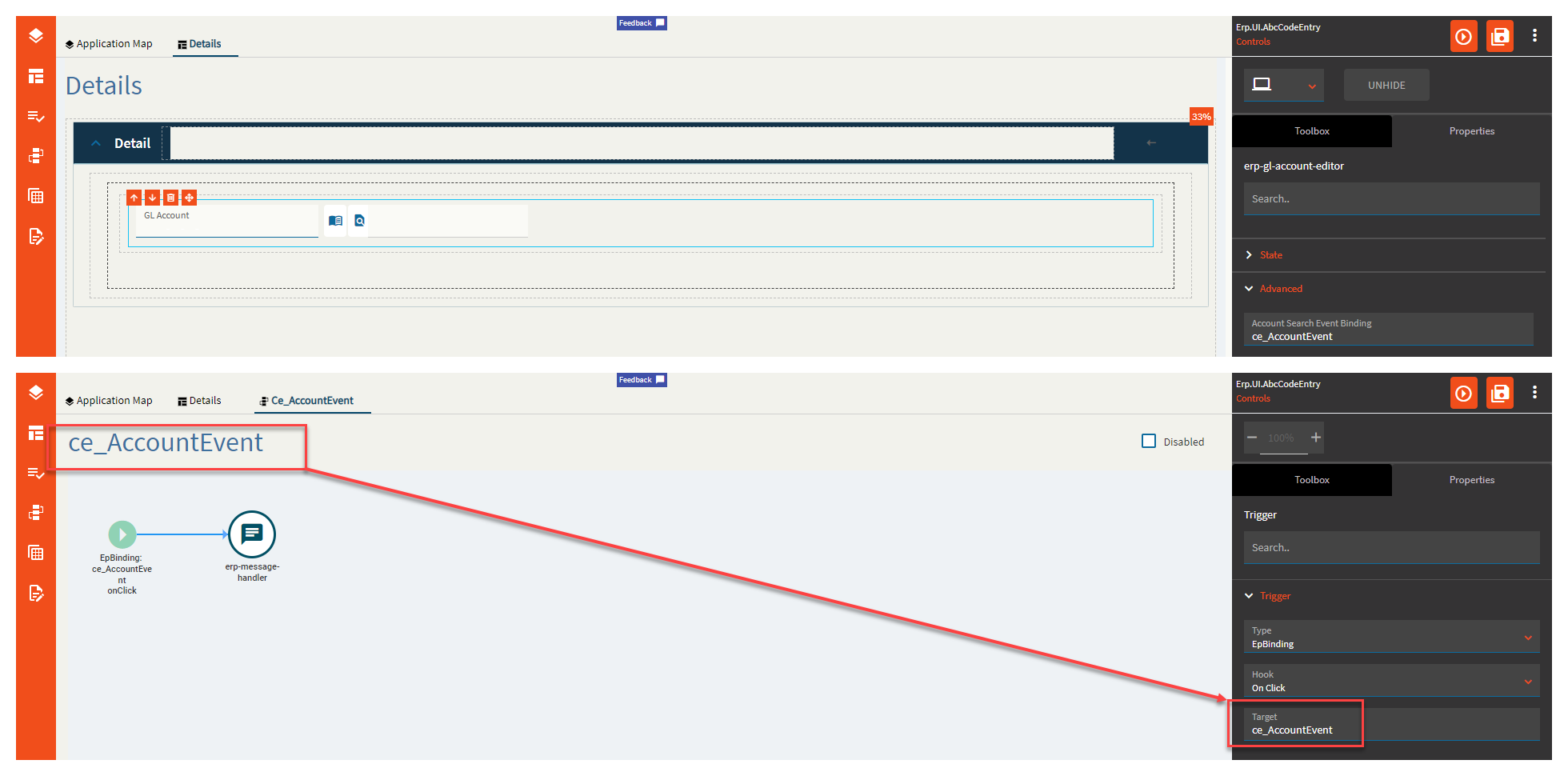
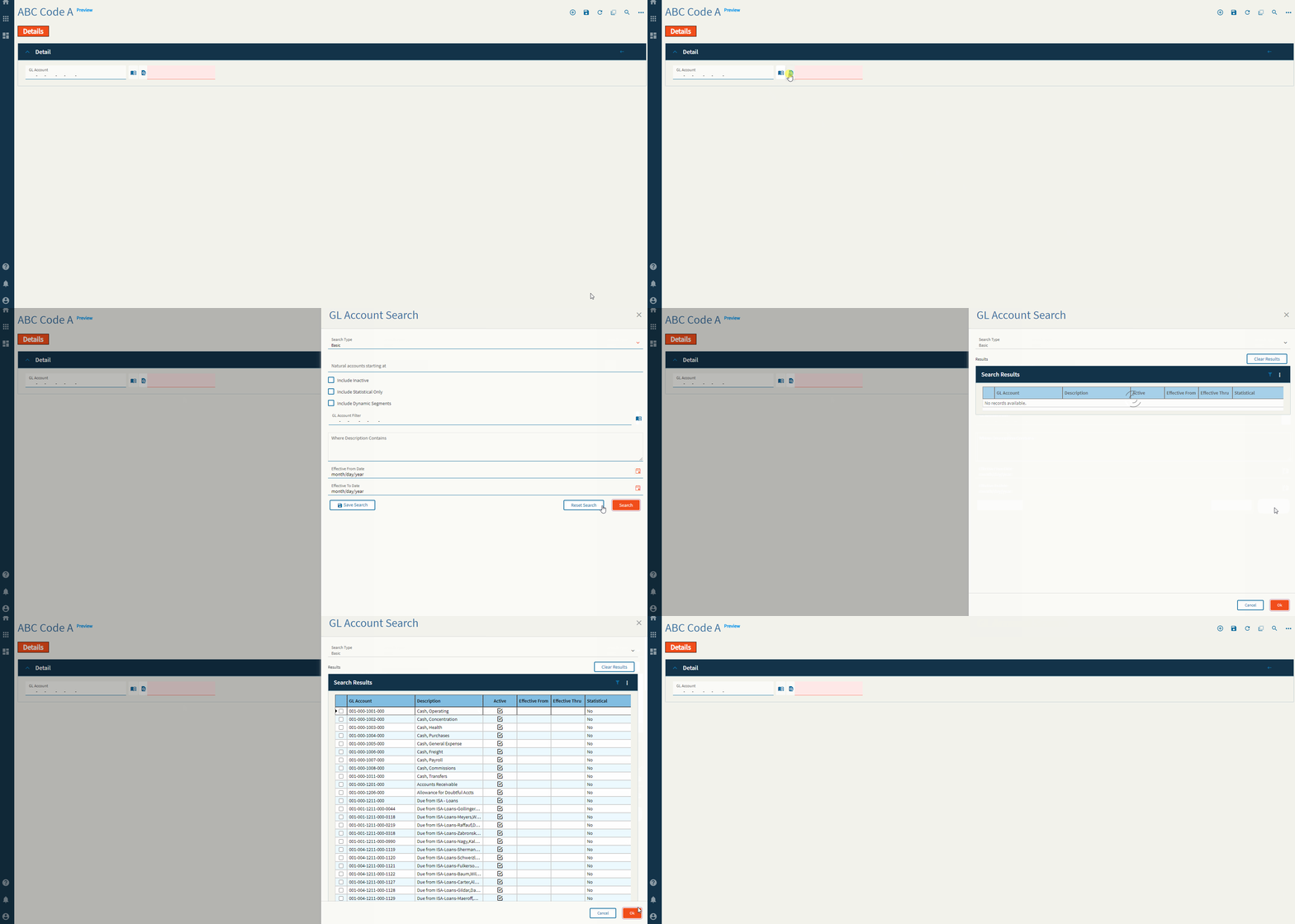
| Advanced | Account Search Event Binding | Set an event name to overwrite the default account search event. The trigger for the event needs to be EpBinding/OnClick/EventName where the event name is the event you’re currently editing. Yup. (Fig. H) |
| Advanced | Segment Search Event Binding | Supposed to be the same as the account one, but for segments, but I could not get this one to fire. Maybe it’s the book icon? If so–that one is broken too. |
| Advanced | Description Orientation | Set the orientation for the description field. Valid Options include: horizontal and vertical. (Fig. I) |
| Advanced | Hide Dynamic | Enable to hide dynamic segments. |
| Advanced | Do not require Dynamic | Check this to disable dynamic segments required |
| Advanced | Allow Pattern | Enables patterns in account. This is some GL-ese I don’t speak. Not sure what this does. |
| Advanced | Pattern Options | Select a pattern option allowed in the account. Valid options include: All, percent, underscore. Again–this is some GL-ese I don’t speak. Maybe someone in finance can weigh in? |
| Advanced | Validate Segment Values | Enable to include segment validation when typing in a GL. (Fig. J) |
| Advanced | Validate Account Code | Enable to include account code validation when typing in a GL. (Fig. J) |
| Advanced | Validate Account on Load | Enables validation when the account is loaded. Not sure how to test this to fully describe it. |
| Advanced | Validate Required Segments | Enables validation of the entered required segments. (Fig. J) |
| Advanced | Validate Segment Properties | Enable to include segment property validation. (Fig. J) |
| Advanced | Hide Segment Labels | Marked as obsolete. |
| Advanced | Show Description | Enable to show the description field. (Fig. K) |
| Advanced | Do not cache description | Checking this disables the description caching. Not quite sure what this means. |
| Advanced | Show Account Search Button | Checking this shows the search button. (Fig. L) |
Figure A: Label Text
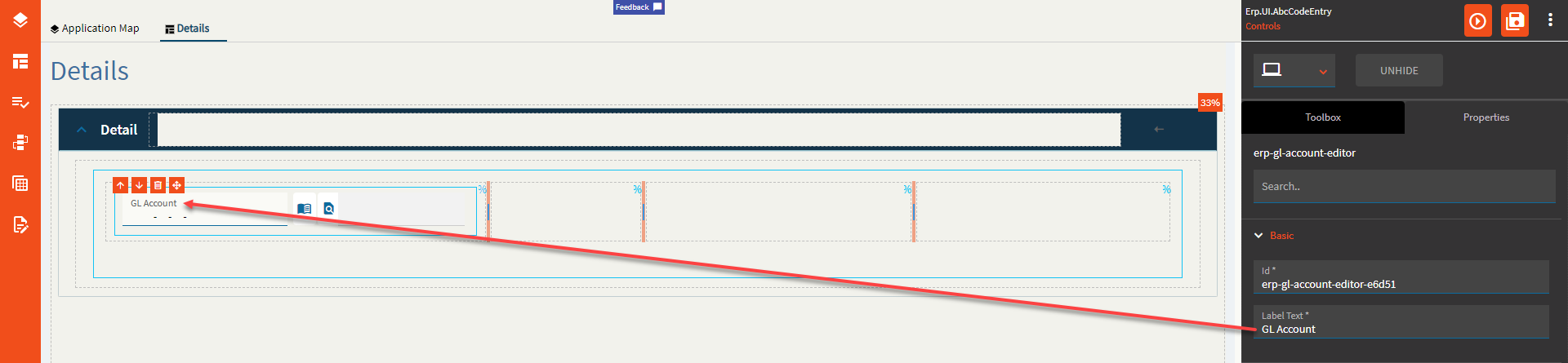
Figure B: On Book Select
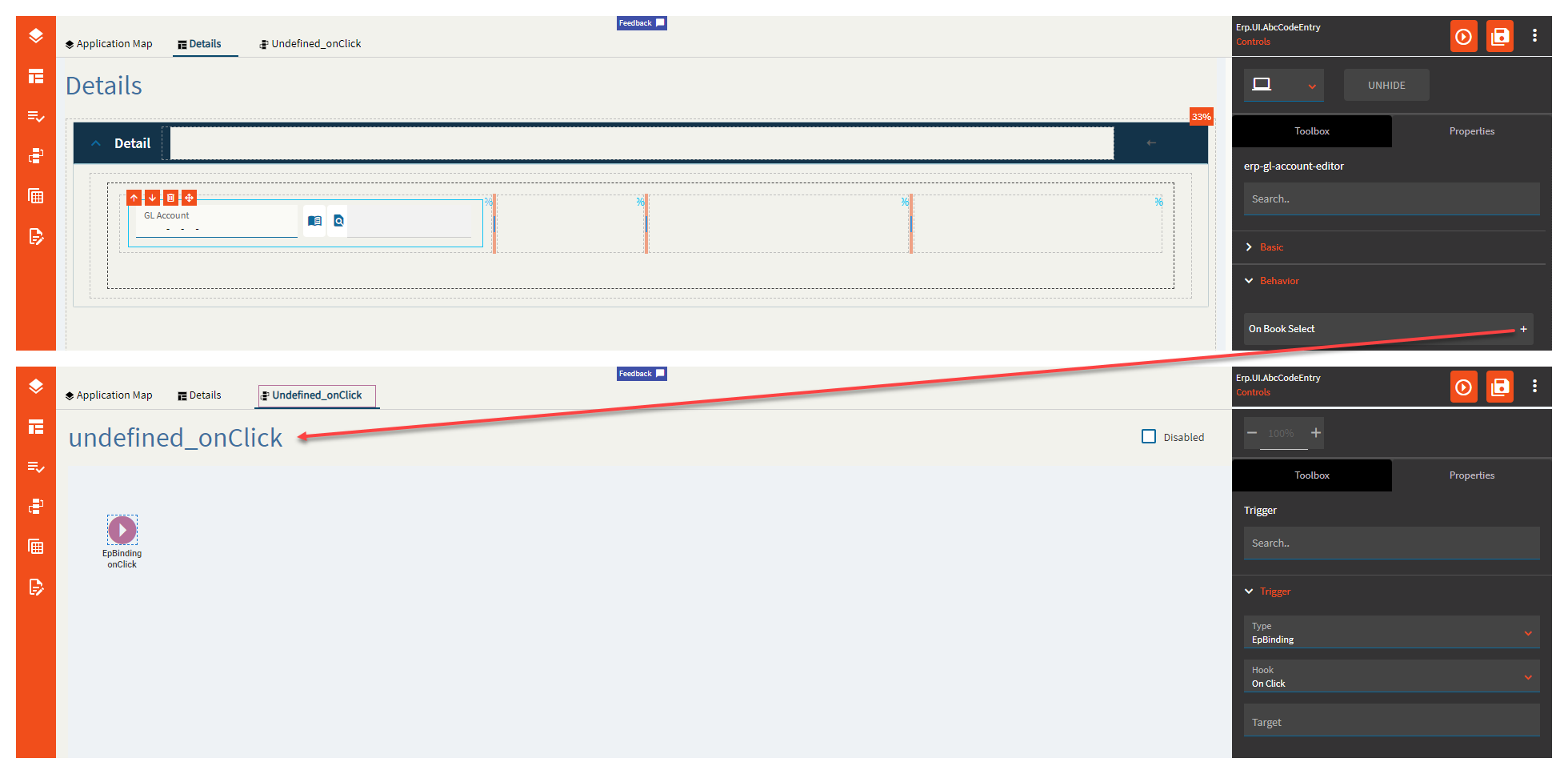

Figure C: Comments
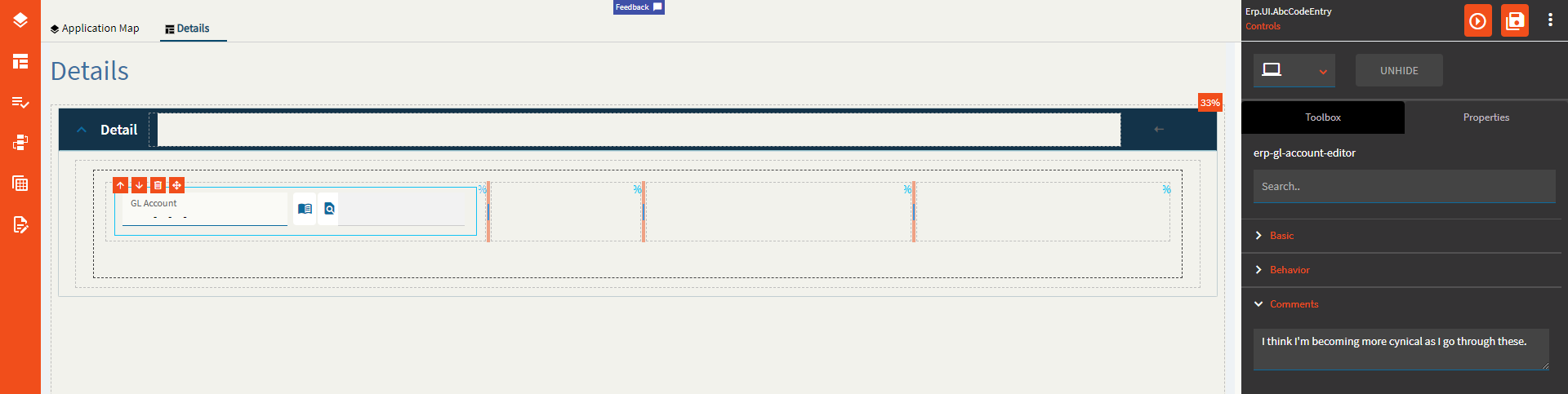
Figure D: COA Code Binding
Note–I’m using the currency column because it’s the only string column I had to use that wasn’t a KeyField.
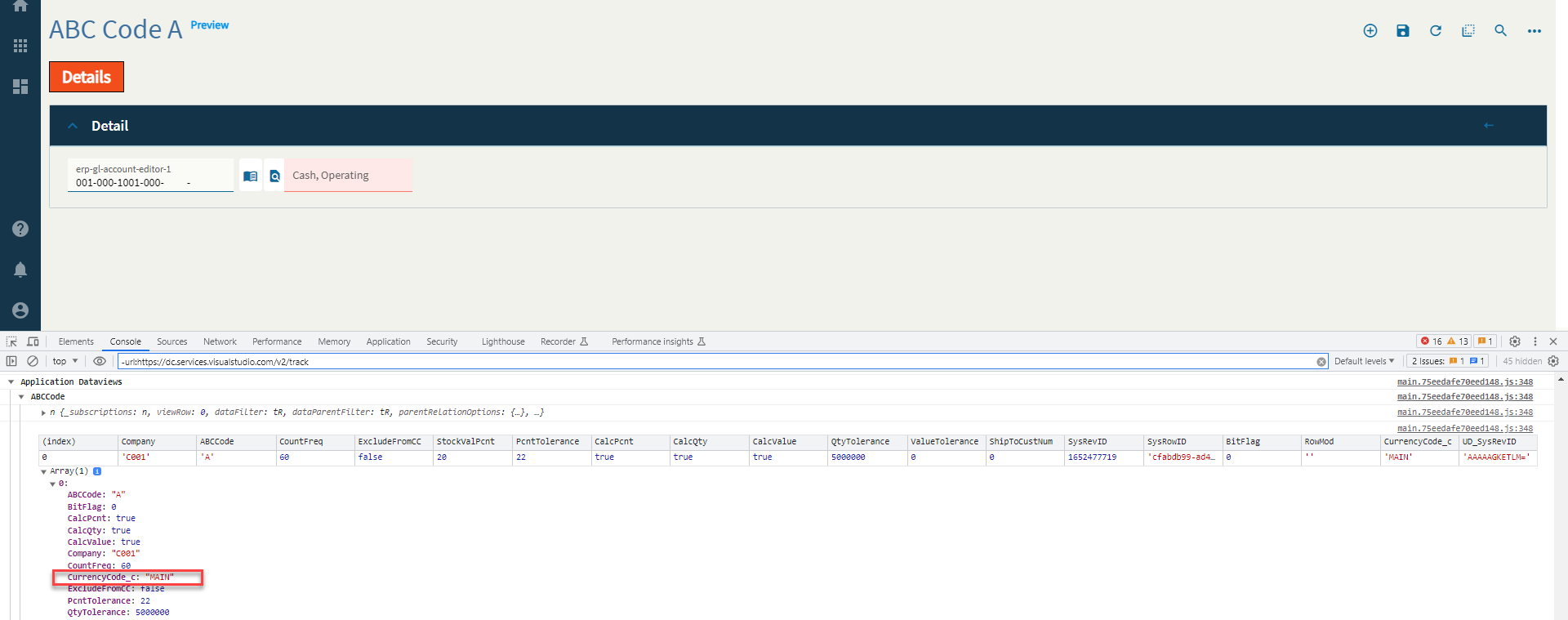
Figure E: Data Bindings
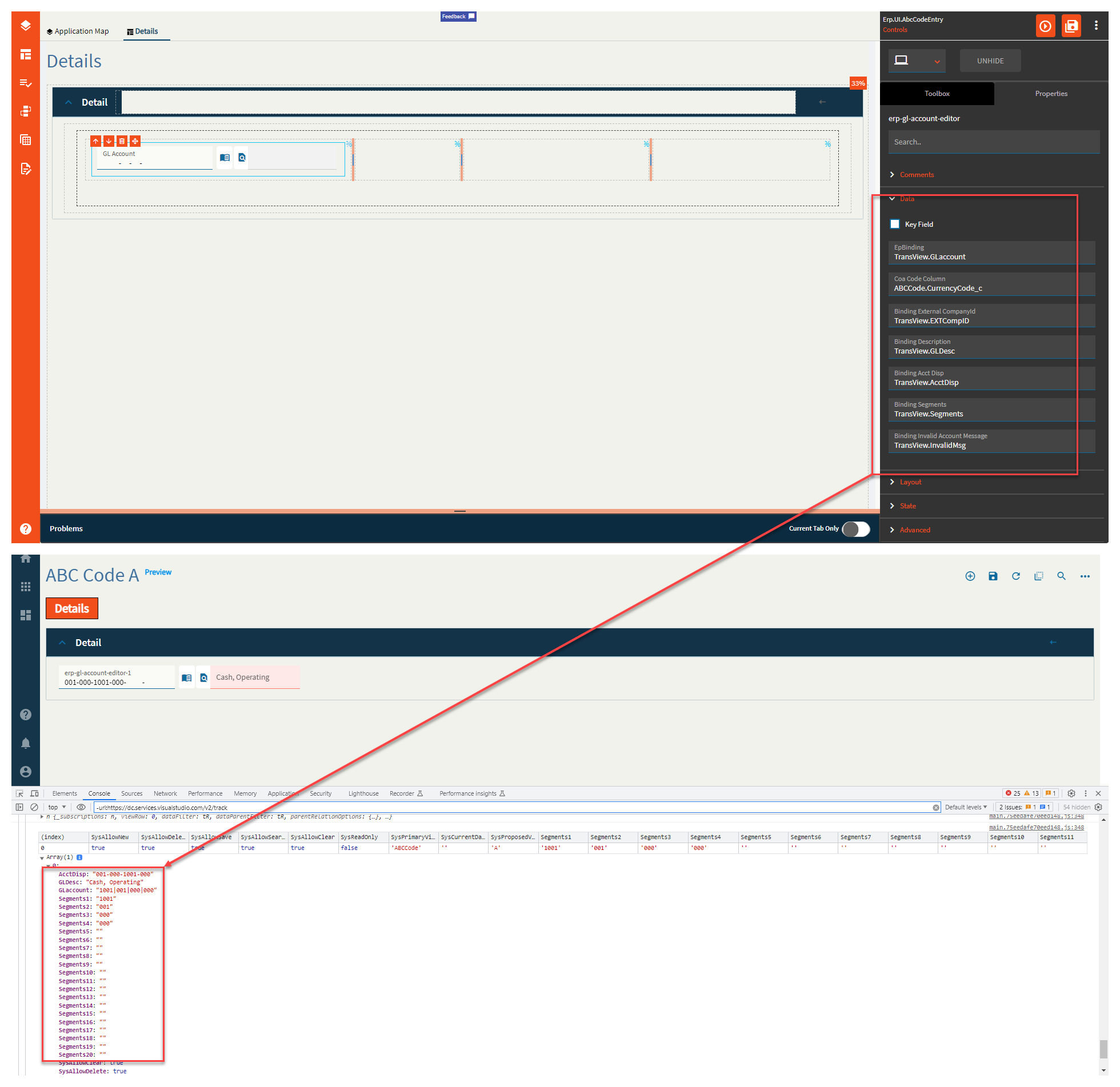
Figure F: Alignment
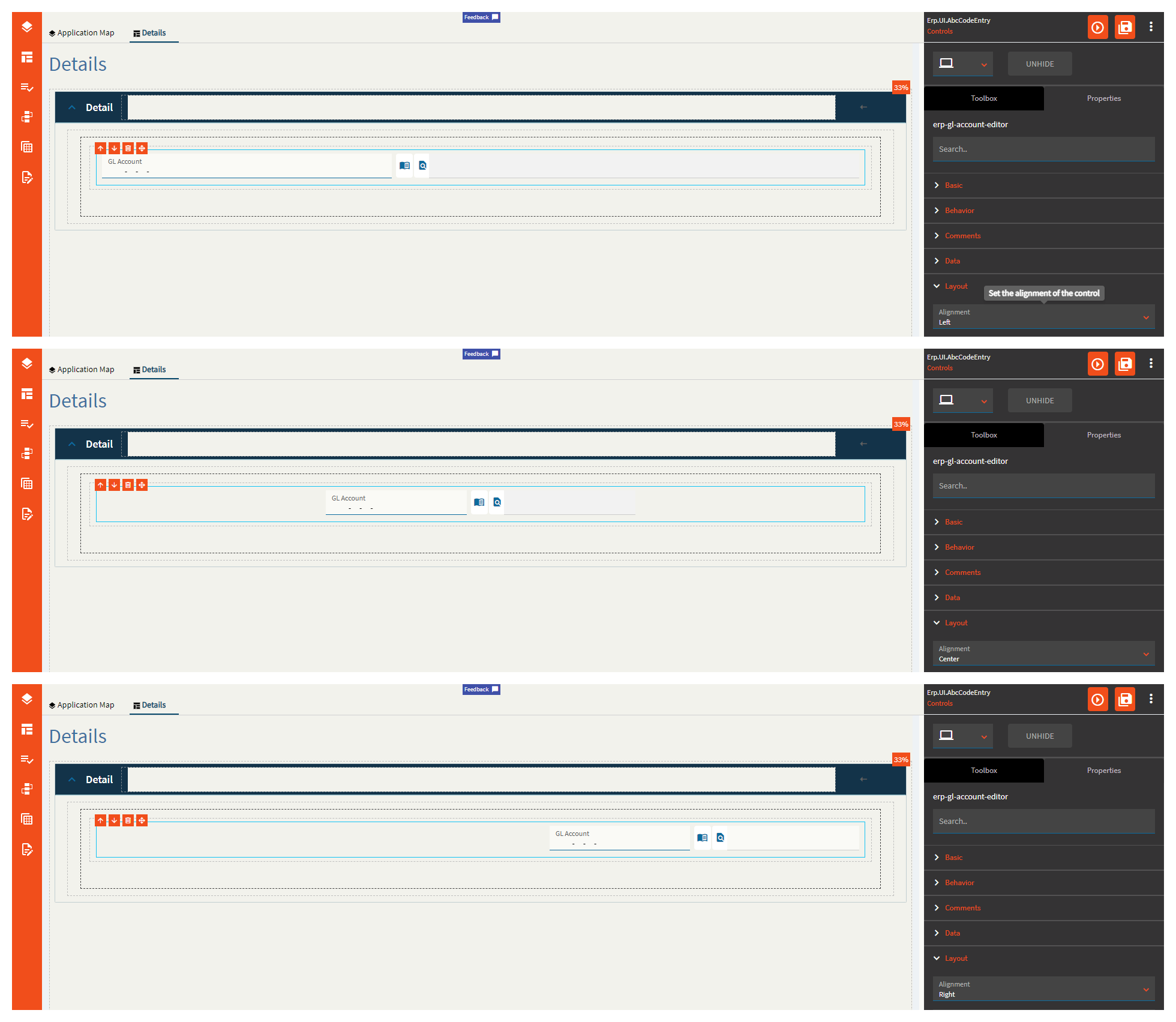
Figure G: Width
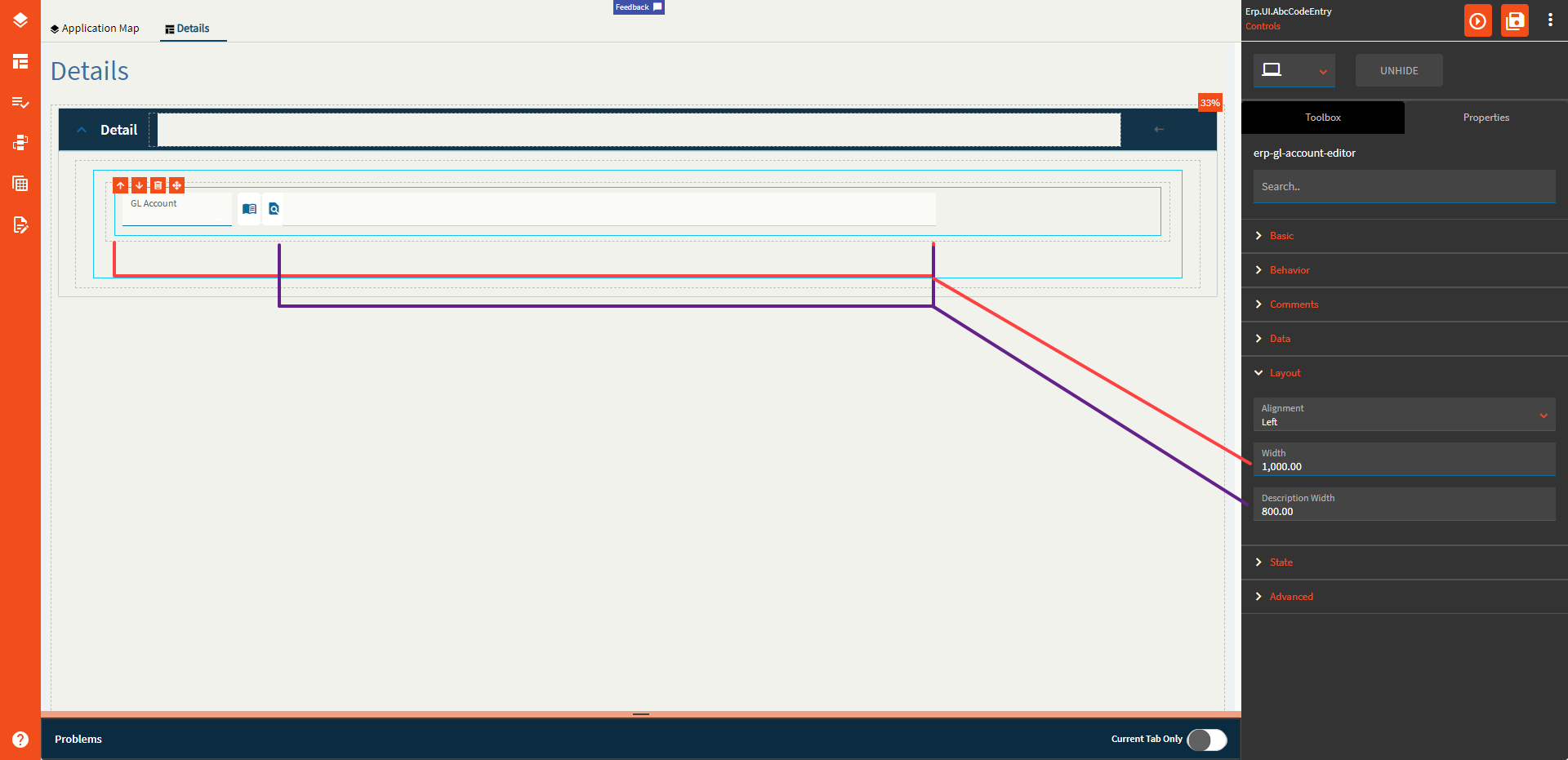
Figure H: Account Event Binding
Default
Custom Event
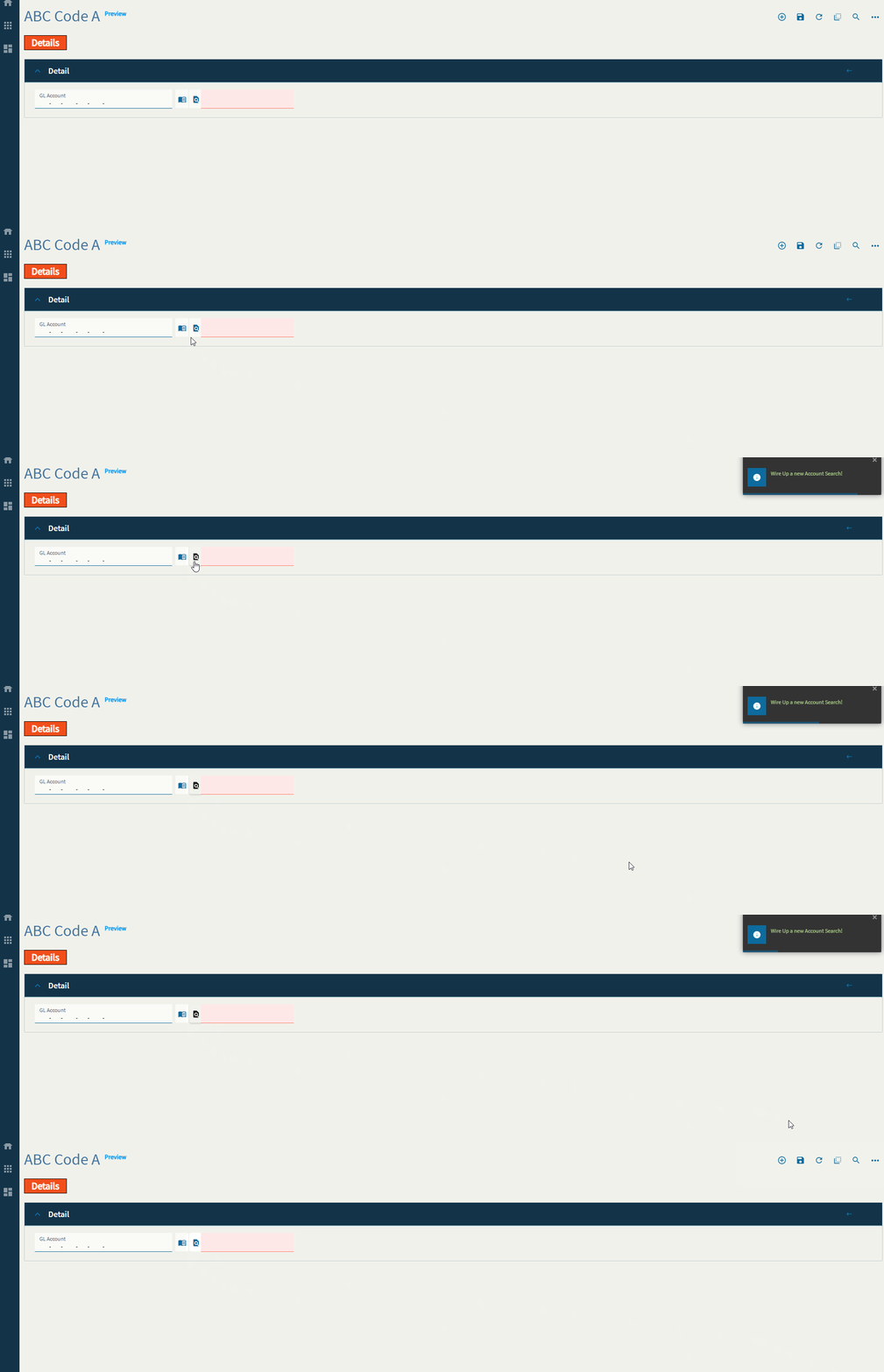
Figure I: Description Orientation
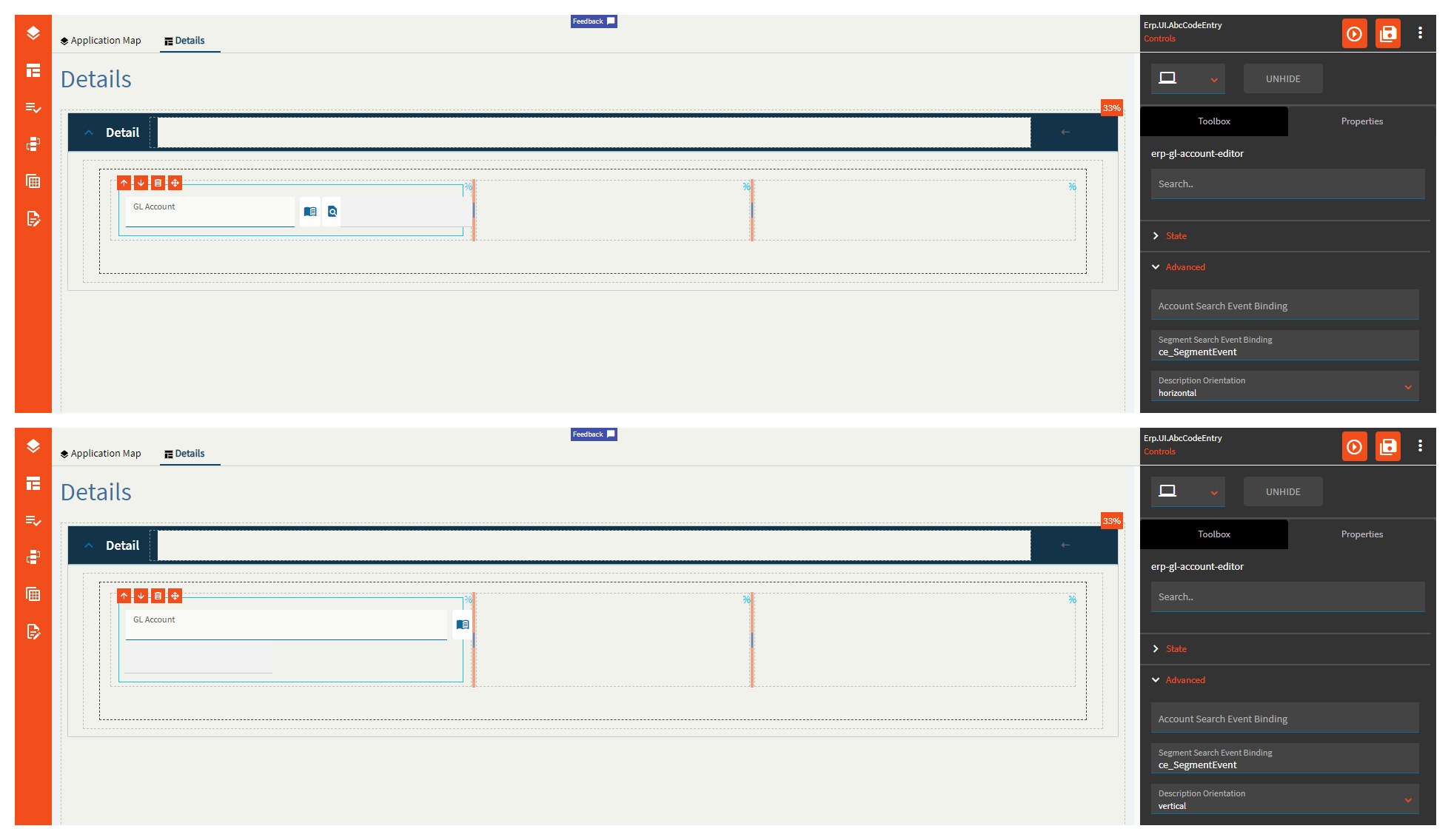
Figure J: Validations

Figure K: Show Description
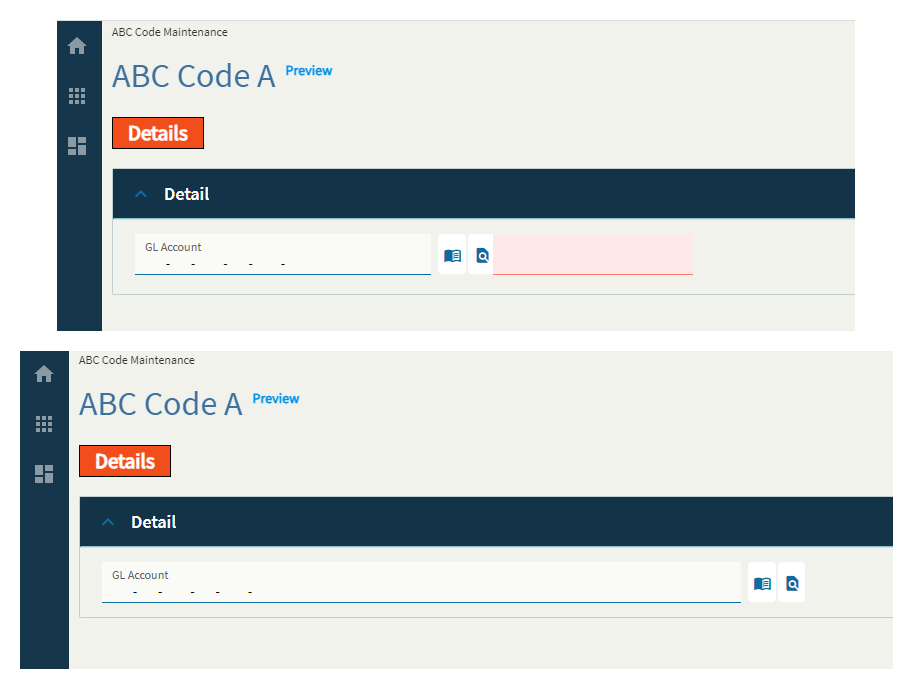
Figure L: Show Account Search