GL Control Panel
A grid of GL Control Types and Codes.

This control is busted. I can’t get it to do anything. It doesn’t even react–as in no console or network activity of any kind. At all.
I will outline the properties and what they should do, but don’t expect this one to work. Or–if you do get it working, come tell me what TF I’m missing.
But FIRST! … Some code discrepancies between my control setup and Epicor’s native one.
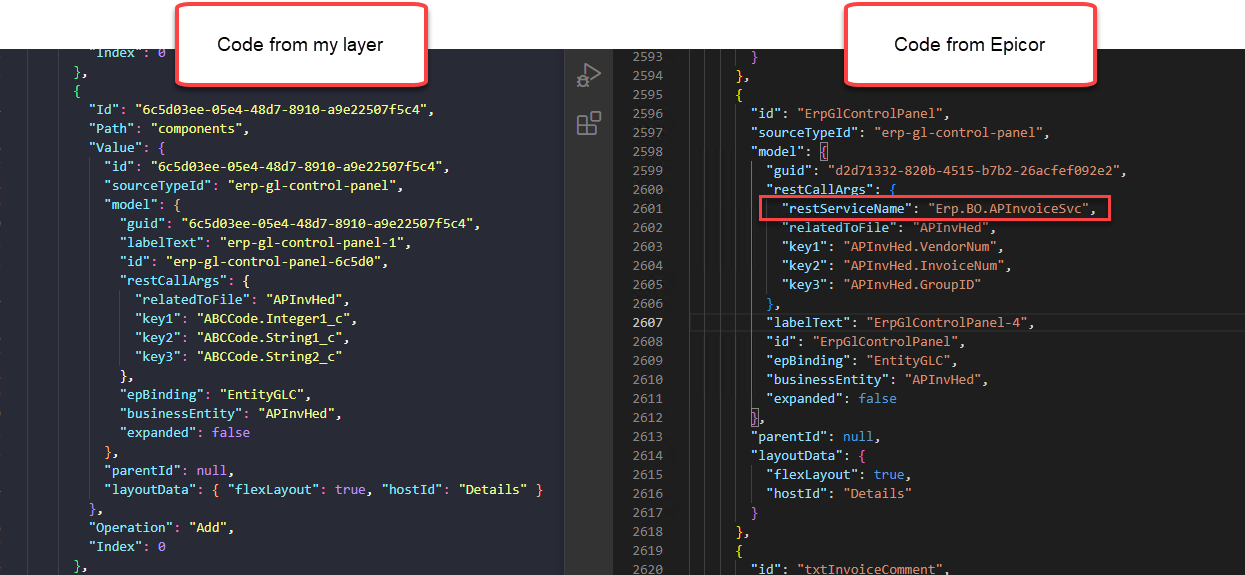
Look at that. That boxed line there. The Rest Service.
Do you see that property anywhere? No? Me neither. But has that ever stopped me? …Nope! So, I went and added the line in myself in the JSON and pushed it back into the DB. Did it fix the control? Also nope. Whatever. I’m over it. I am NOT patient enough to submit this one to support. To walk them through how to set this up… I can’t won’t do it!
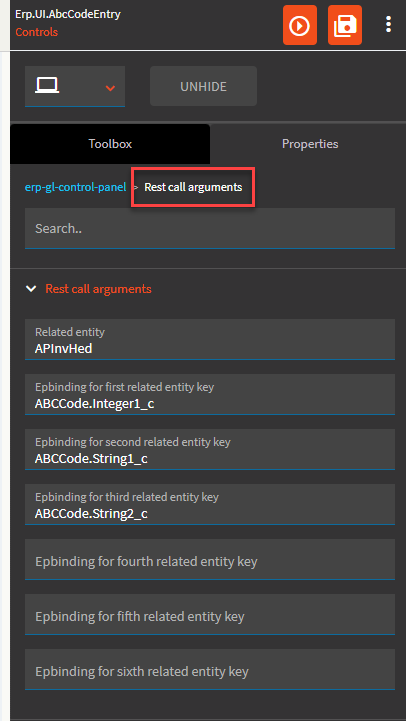
And now for something completely different.
| Property Group | Property | Description |
|---|---|---|
| Basic | Id | Unique identifier for the control |
| Behavior | On Blur | Click this to create an OnBlur event for the control. On Blur is triggered when the control loses focus. |
| Behavior | On Create | Click this to create an OnCreate event for the control On Create is triggered when the control is painted to the GUI. |
| Comments | Comments | Add some developer notes to the control. These are not customer-facing and are only visible in App Studio (Fig. A) |
| Data | Key Field | Indicates that a bound component is a key field. If true, the field is enabled if there is no current record, allowing the user to select an existing record or create a new one. Not really relevant to this control. |
| Data | EpBinding | Bind the control to a DataView only. No column. You will also need to configure the dataview (Fig. B) |
| State | Personalizable | If true, a user can personalize this component(hide/show) |
| State | Customizable | If true, a user can customize this component in child layers |
| State | Hidden | Hides the control from view. |
| Advanced | Expand At Runtime |  Expand the panel by default when the form opens at runtime. Doesn’t work. At all. It doesn’t even add it to the JSON. I can add it to the JSON and make it work. But the property doesn’t. (Fig. C) Expand the panel by default when the form opens at runtime. Doesn’t work. At all. It doesn’t even add it to the JSON. I can add it to the JSON and make it work. But the property doesn’t. (Fig. C) |
| Advanced | Business Entity | Set the business entity that the GL control type links to. The business entity defines what areas of the database the GL control type updates through its account and journal contexts. Example: APInvHed |
| Advanced | Search for GL Control Type | Set the search to run for the GL Control Type Field. Default search used is ‘GLCTEntity.GLControlType’. This comes up when you click the New Row icon, then Search. (Fig. D) See Addendum for how to configure the REST call to make new New button work. |
| Advanced | Search for GL Control | Set the search to run for the GL Control Type Field. Default search used is ‘GLCTEntity.GLControlCode’. This comes up when you click the New Row icon, then Search. See Addendum for how to configure the REST call to make new New button work. |
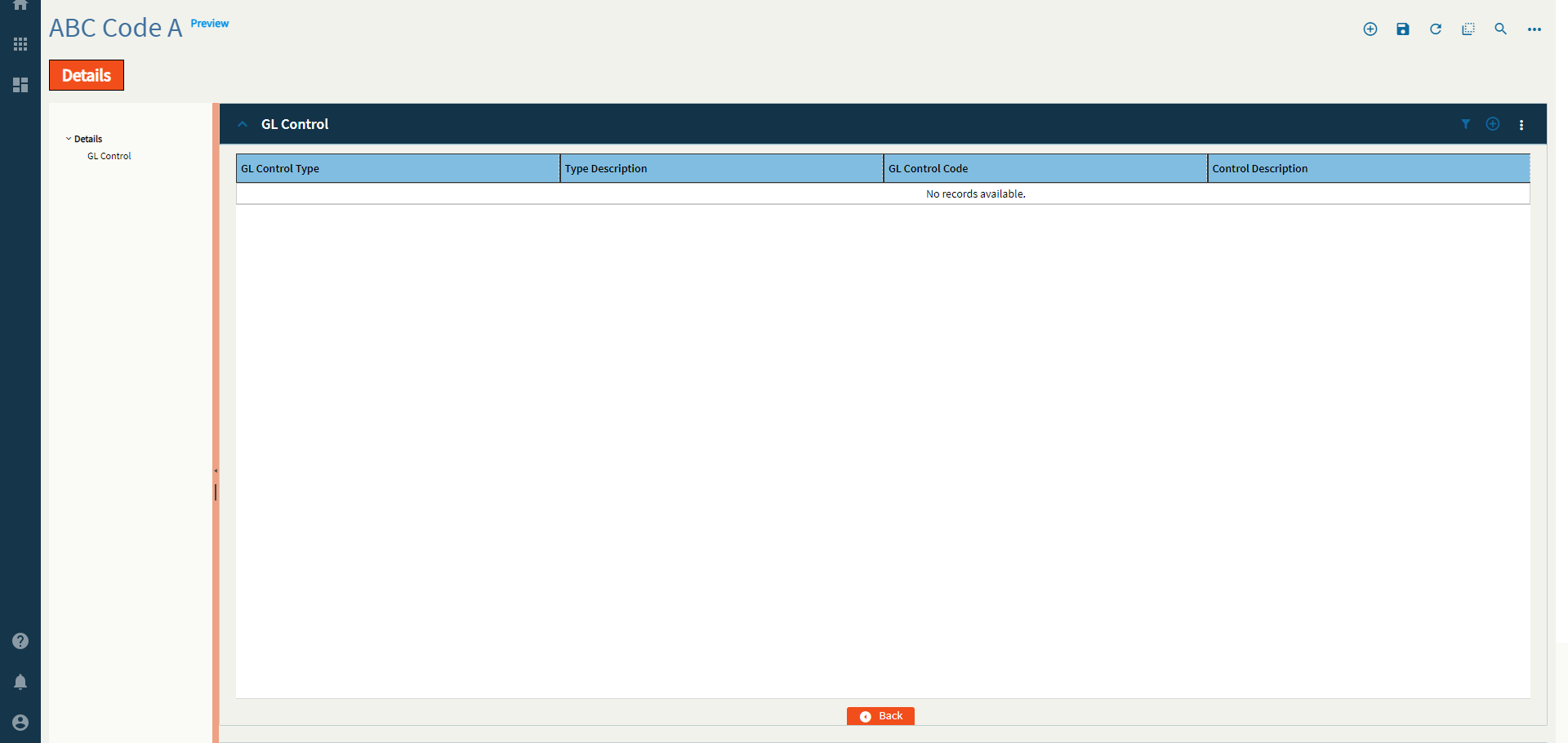
| Advanced | Full Screen | Enable full screen mode! (Fig. E) |
| Advanced > Rest call arguments | Related Entity | Set the data binding in the format View.Column for the realtedToFile parameter value. Example: ApInvHed |
| Advanced > Rest call arguments | Epbinding for first related entity key | Set the data binding in the format View.Column that will provide the value for the first key in the relatedToFile Table. Example: ABCCode.Integer1_c which maps to VendorNum. Run a BAQ on the EntityGLC table to get some sample data for each RelatedToFile. |
| Advanced > Rest call arguments | Epbinding for second related entity key | Set the data binding in the format View.Column that will provide the value for the second key in the relatedToFile Table. Example: ABCCode.String1_c which maps to InvoiceNum. |
| Advanced > Rest call arguments | Epbinding for third related entity key | Set the data binding in the format View.Column that will provide the value for the third key in the relatedToFile Table. Example: ABCCode.String2_c which maps to GroupID. |
| Advanced > Rest call arguments | Epbinding for fourth related entity key | Set the data binding in the format View.Column that will provide the value for the fourth key in the relatedToFile Table. |
| Advanced > Rest call arguments | Epbinding for fifth related entity key | Set the data binding in the format View.Column that will provide the value for the fifth key in the relatedToFile Table. |
| Advanced > Rest call arguments | Epbinding for sixth related entity key | Set the data binding in the format View.Column that will provide the value for the sixth key in the relatedToFile Table. |
Figure A: Comments
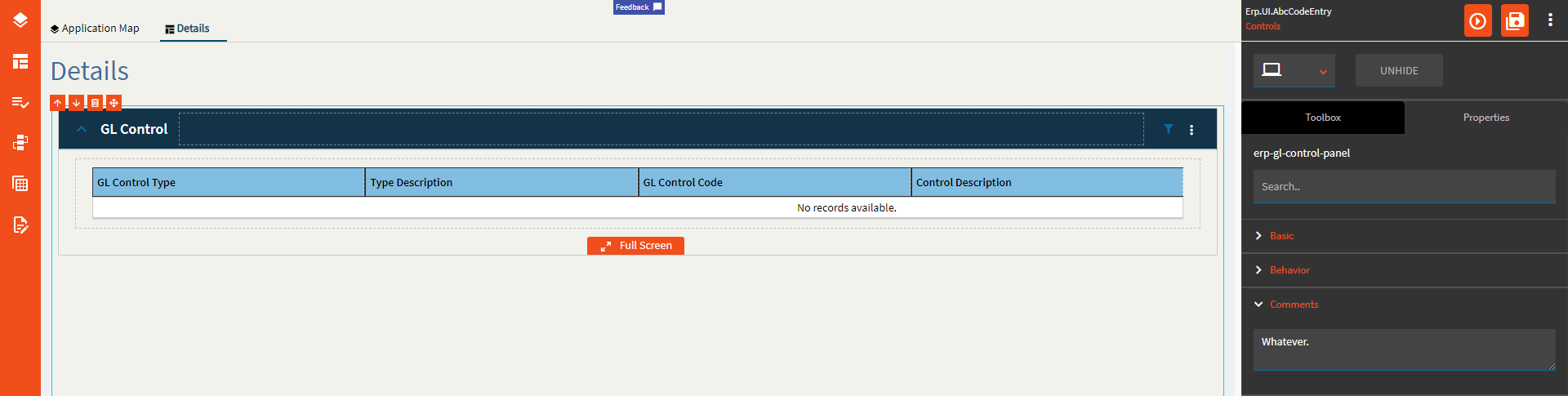
Figure B: EpBinding
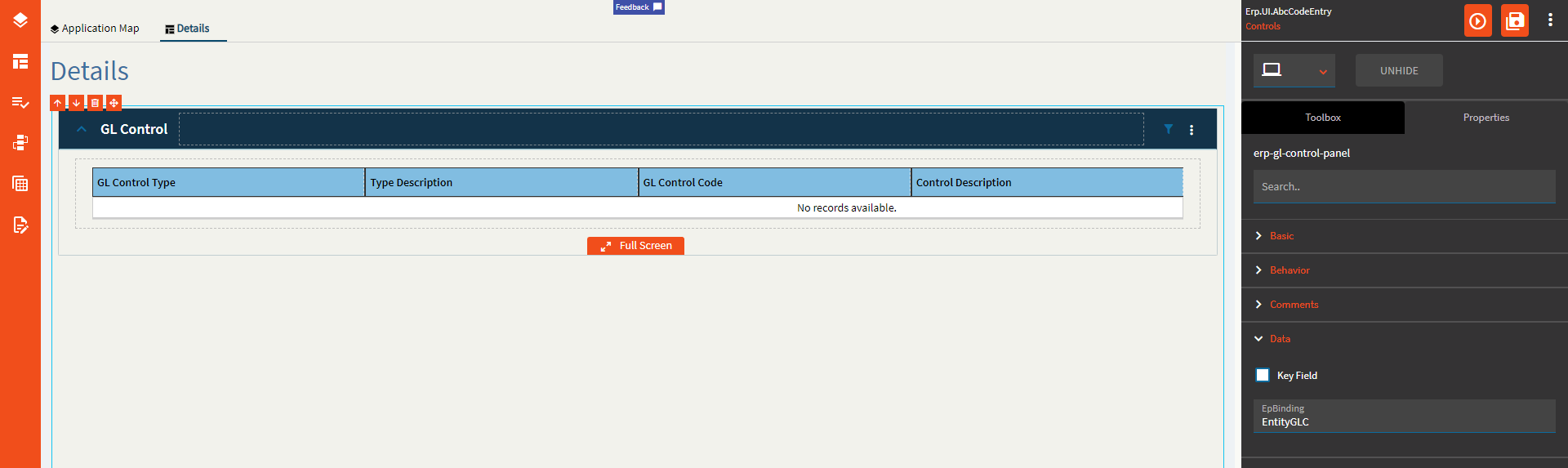
Note the difference Dataset/Table
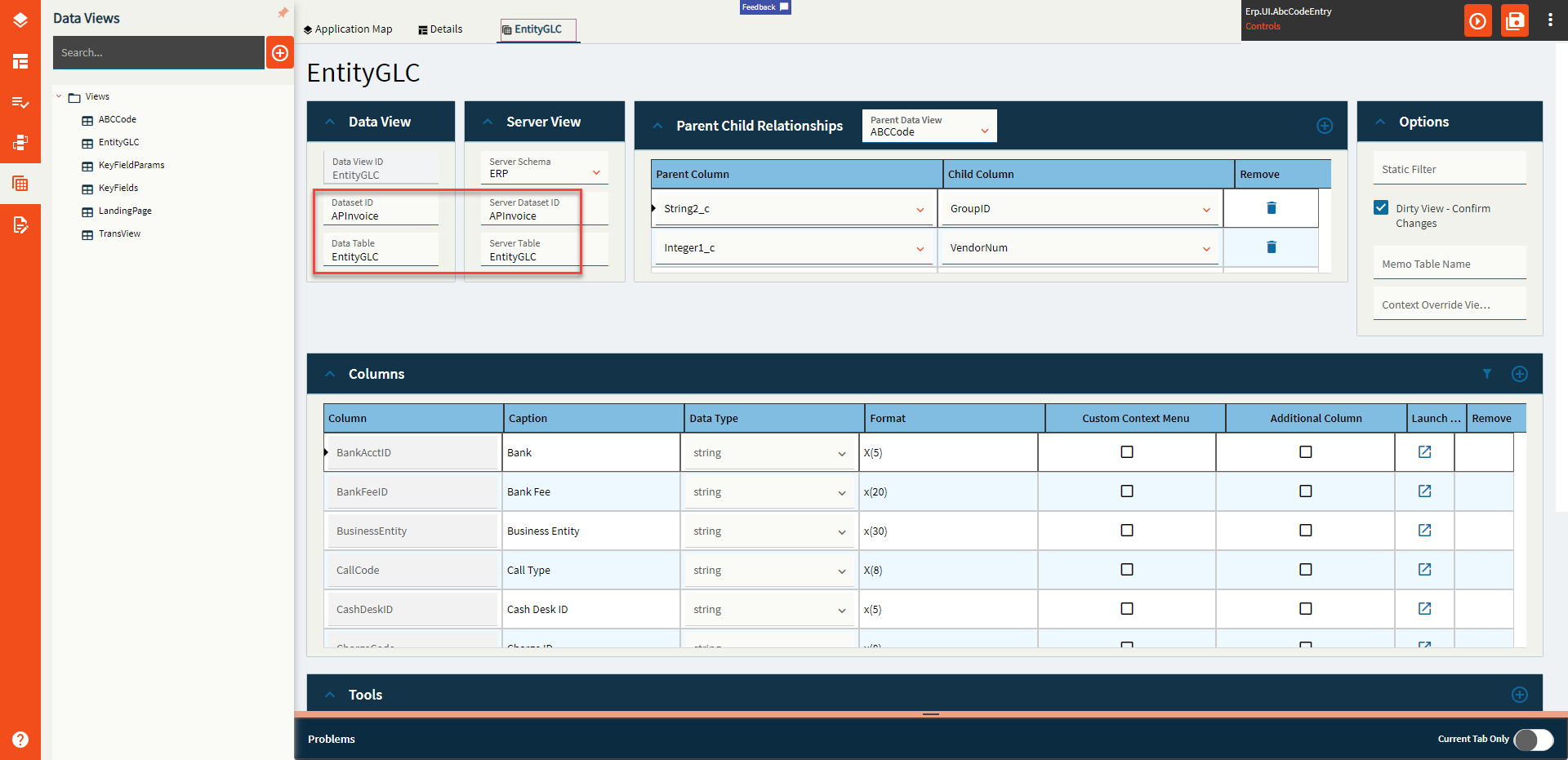
Figure C: Expand at Runtime JSON
The only way I could get this to work is to add it myself to the code. I’m not going to explain how.
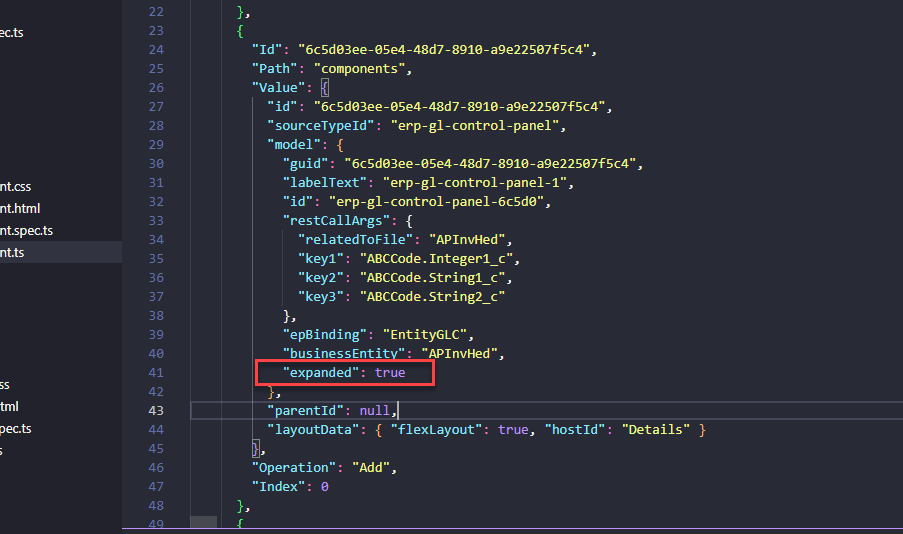
Figure D: Search for GL Control Type

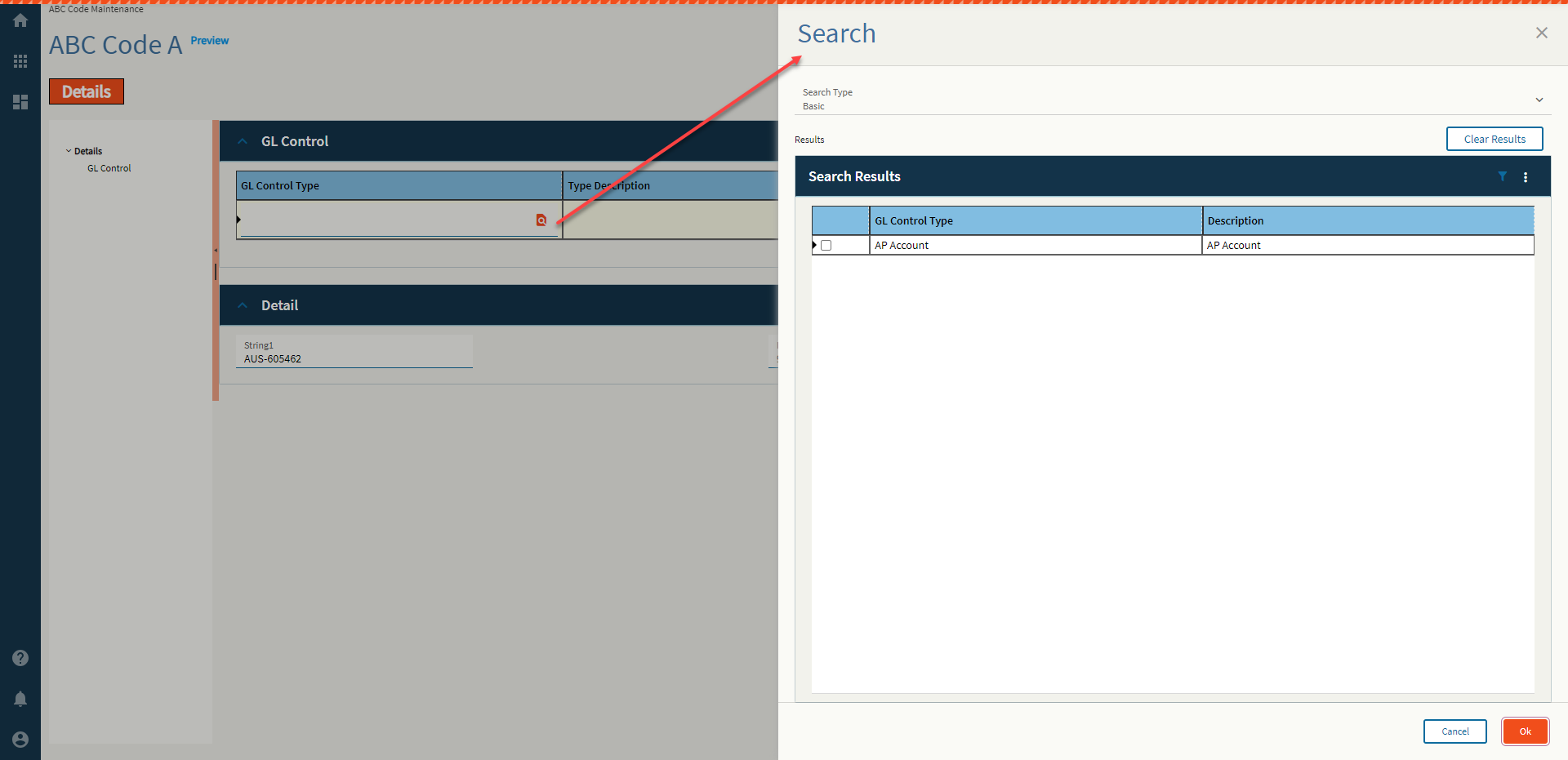
Figure E: Full Screen
Addendum
REST Setup for New button
The event must be called GetNewEntityGLC (or some variation of your dataview). If you named your dataview Stroopwafel, then name the event ‘GetNewStroopwafel’.
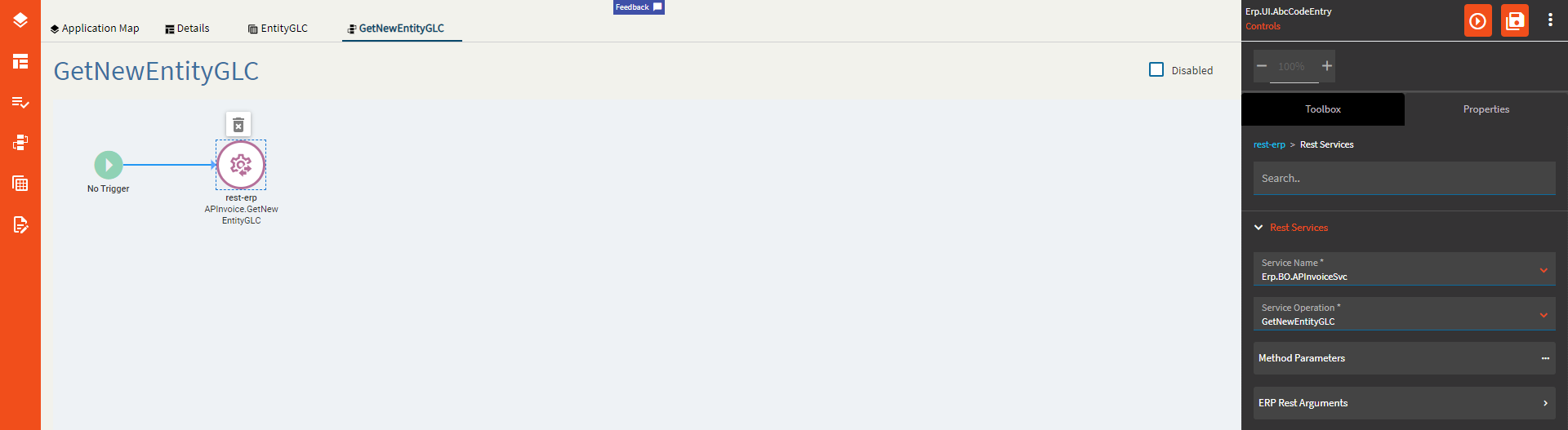
Method Parameters (modify to your specific BO call):
ds: empty
realtedToFile APInvHed
key1: Bound vendor column {ABCCode.Integer1_c}
key2: Bound invoice number column {ABCCode.String1_c}
key3: Enter a space, this is empty.
key4: Enter a space, this is empty.
key5: Enter a space, this is empty.
key6: Enter a space, this is empty.
ERP Rest Arguments > Request Parameters > Dataset (modify to your specific BO)
System Code: ERP
Dataset Id: APInvoice
#SuperGoodEnough
.
.
.
.
.
.
.
.
.
.
.
.
.
.
.
.
.