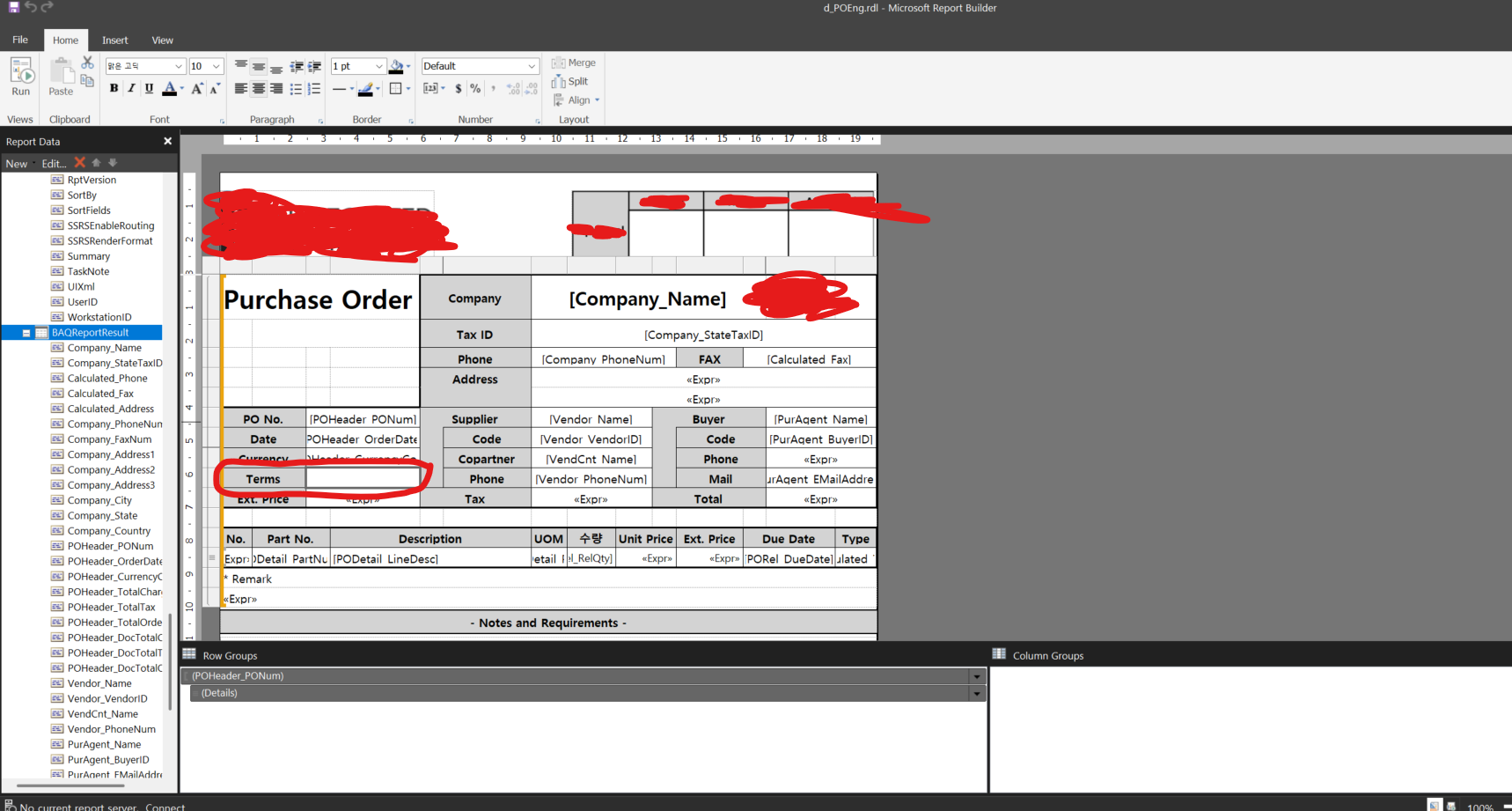
I’m in trouble because of a report I didn’t create. This report was created by someone else in BAQ Report Designer, and one of the fields was pointing to the wrong DB field. So I’m trying to change this field to the correct DB field.
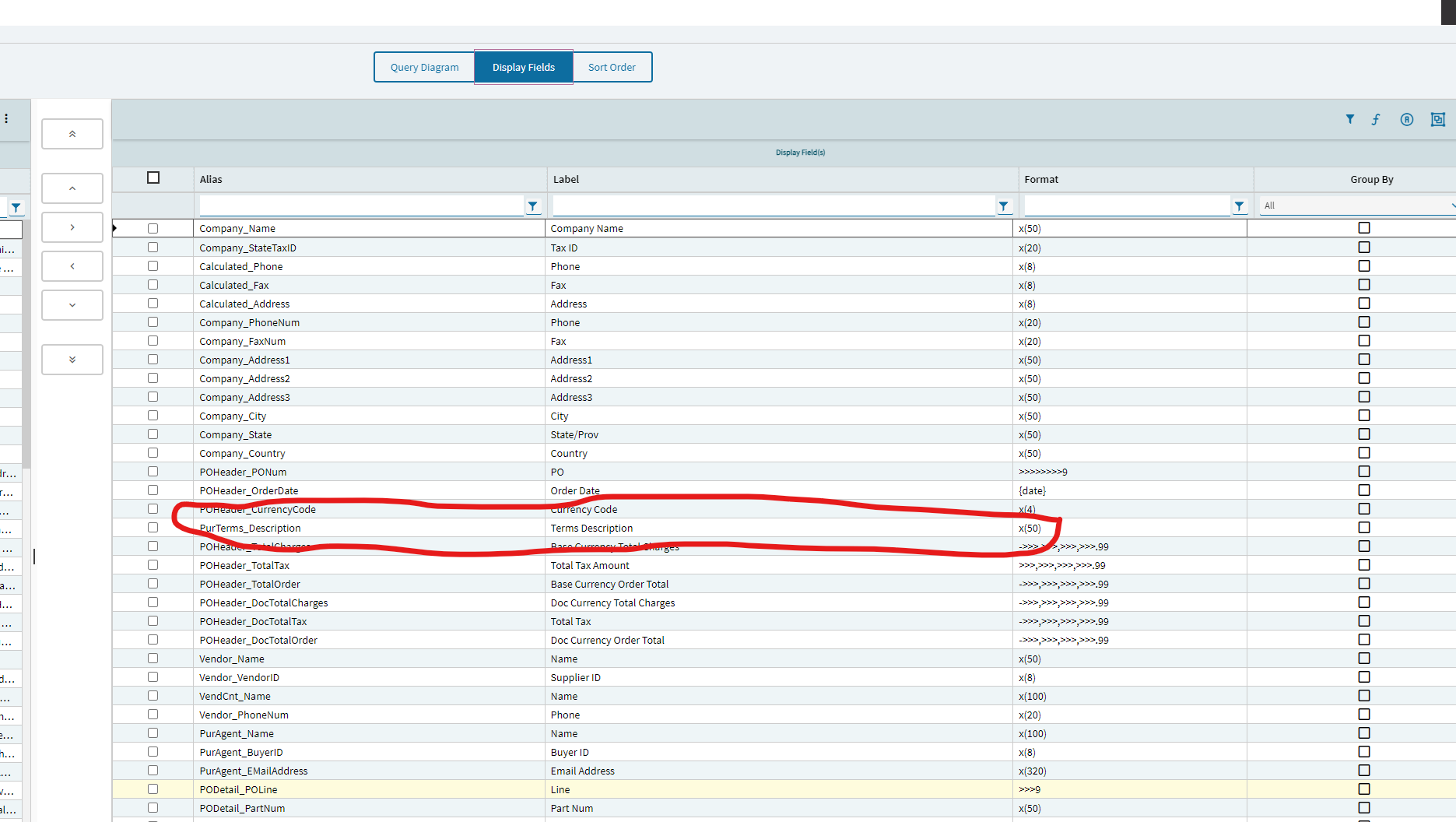
I deleted the incorrect columns and added the correct columns in my Business Activity Query in Epicor. And I downloaded SSRS Report from BAQ Report Designer.
This is all I could do with my limited knowledge. As someone new to Micro Report Builder and BAQ Report Designer, I’m at a loss as to what to do next.
The field I want to change is the Terms field, and I’ve gotten as far as deleting the incorrect DB field. Could you please explain how I can add a new DB field there and what to do next?
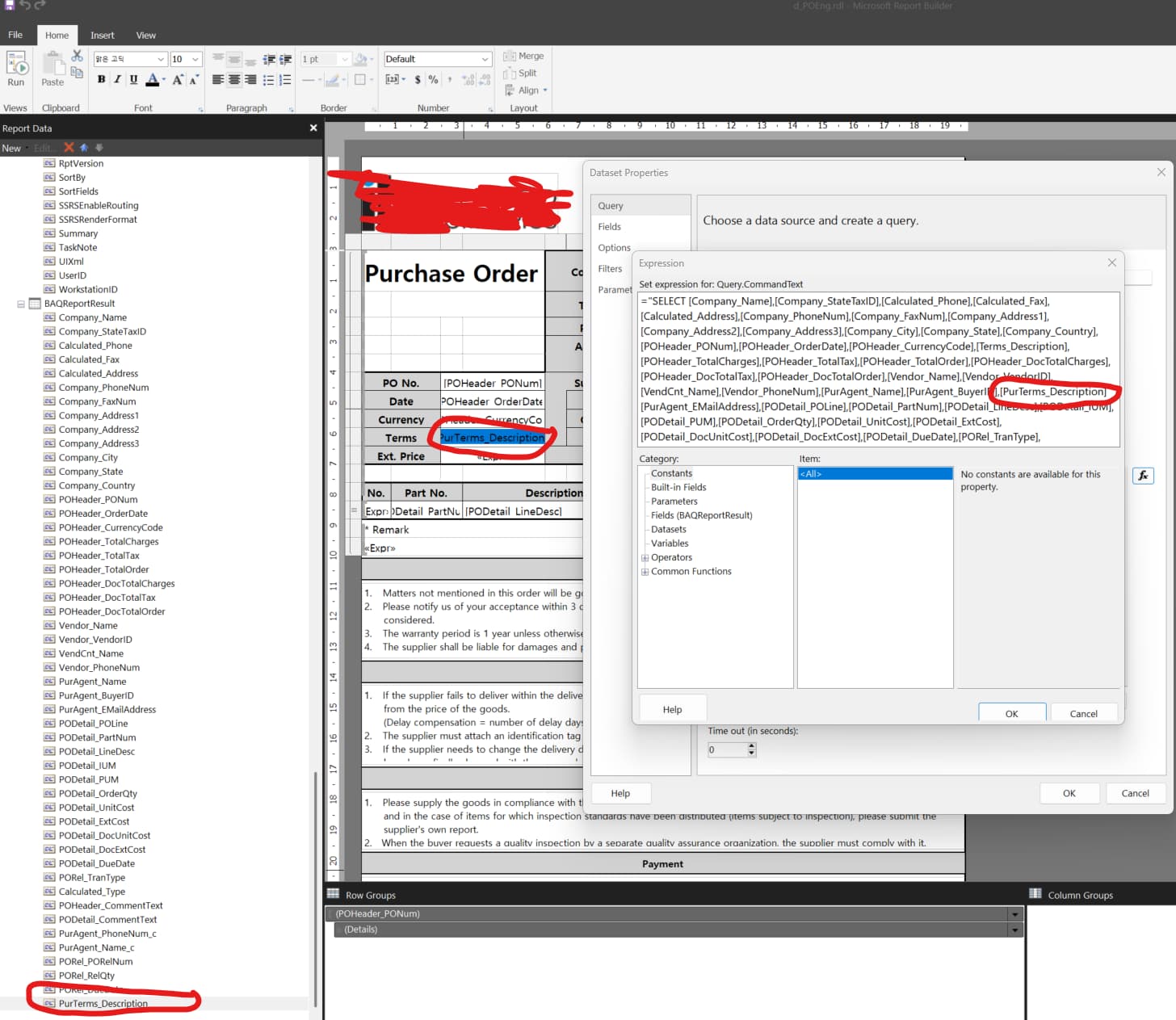
Right click “BAQReportResult” - which is your dataset - go to properties. In Query - click “fx” - this loads the SSRS SQL Query Text in a window. Copy/paste it out to a text editor with sanity like VS Code or Notepad++.
The first thing to do is understand the sql, and add your field(s) to the query. You might be able to ask an AI to do this for you, if you tell it that it is SSRS Query text and you want to add “x, y, z” fields from “a, b, c” tables. You will be adding something like T1.POHeader_NewField to the query.
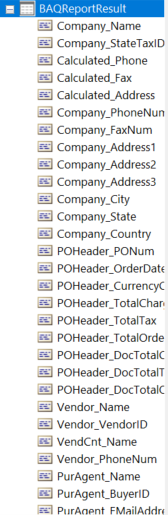
Then, you need to close the Query Expression editor, and go to “Fields” - here, add the same fields you just added to the query, left side = right side.
Now, your fields will show up in the list of the screenshot above.
You should be able to use them the same way as the field that was there in Terms box originally. Right click it and edit the expression - set it up with the new field, something like =T1.POHeader_NewField
You’ll be adding it into the SELECT statement of the query. You’ll already see a bunch of other fields formatted just like that. As @GabeFranco pointed out, you’ll add your fields there with those other fields.
If you deleted columns from your BAQ, you will also need to remove them from your Select statement and the Fields within the dataset properties. Additionally, you’ll need to remove any references in the report to those columns.
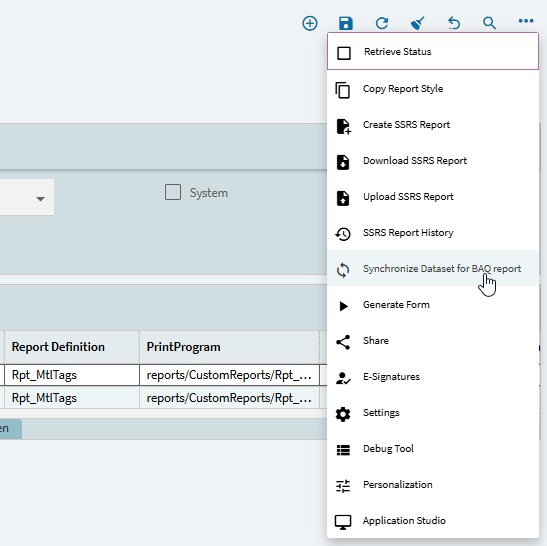
As it’s a BAQ report, wouldn’t this be the time one can use “Synchronize Dataset for BAQ report” in Report Style? I know non-BAQ reports it corrupts them but is supposed to work for BAQ reports.
Note: I’ve never used it as I do it the hard way outlined above by @GabeFranco and @dr_dan. As the hard way is the only way to change non-BAQ reports so I know that process well.
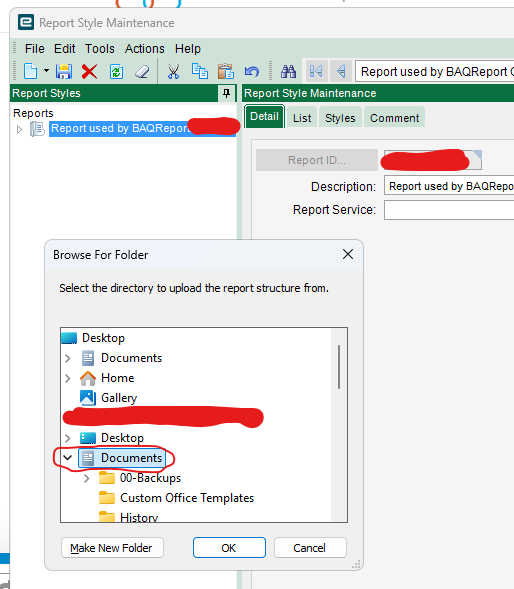
With your help, I managed to change fields in Microsoft Report Builder. However, when I ran Upload SSRS Report in BAQ Report Designer (or Report Style), I got the error pop-up below. How should this issue be resolved?
Thanks in advance!
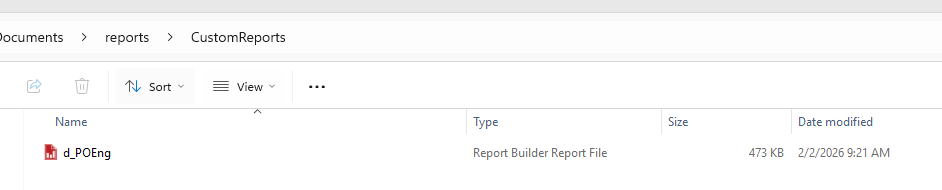
This looks like it’s trying to find the rdl file locally and cant access it. Maybe a permissions issue. Please locate the file on C:\somefolder\file.rdl and work with it there.
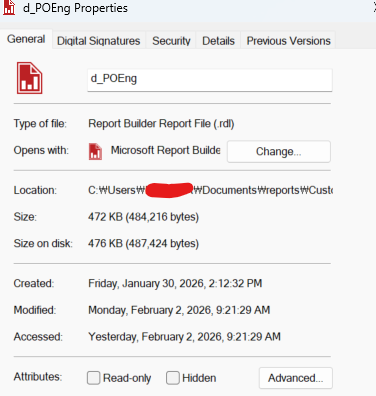
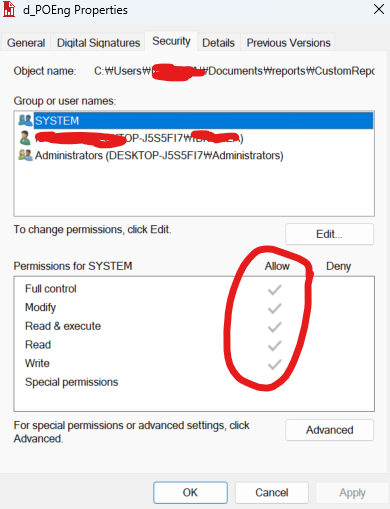
First of all, thank you for your continued patience in answering my questions. As you can see in the properties of my file, it doesn’t seem to be a permissions issue. I have uploaded rdl files a few times, though not many times.
Wow! The upload issue was this simple. As you mentioned, I uploaded it from the document and it worked.
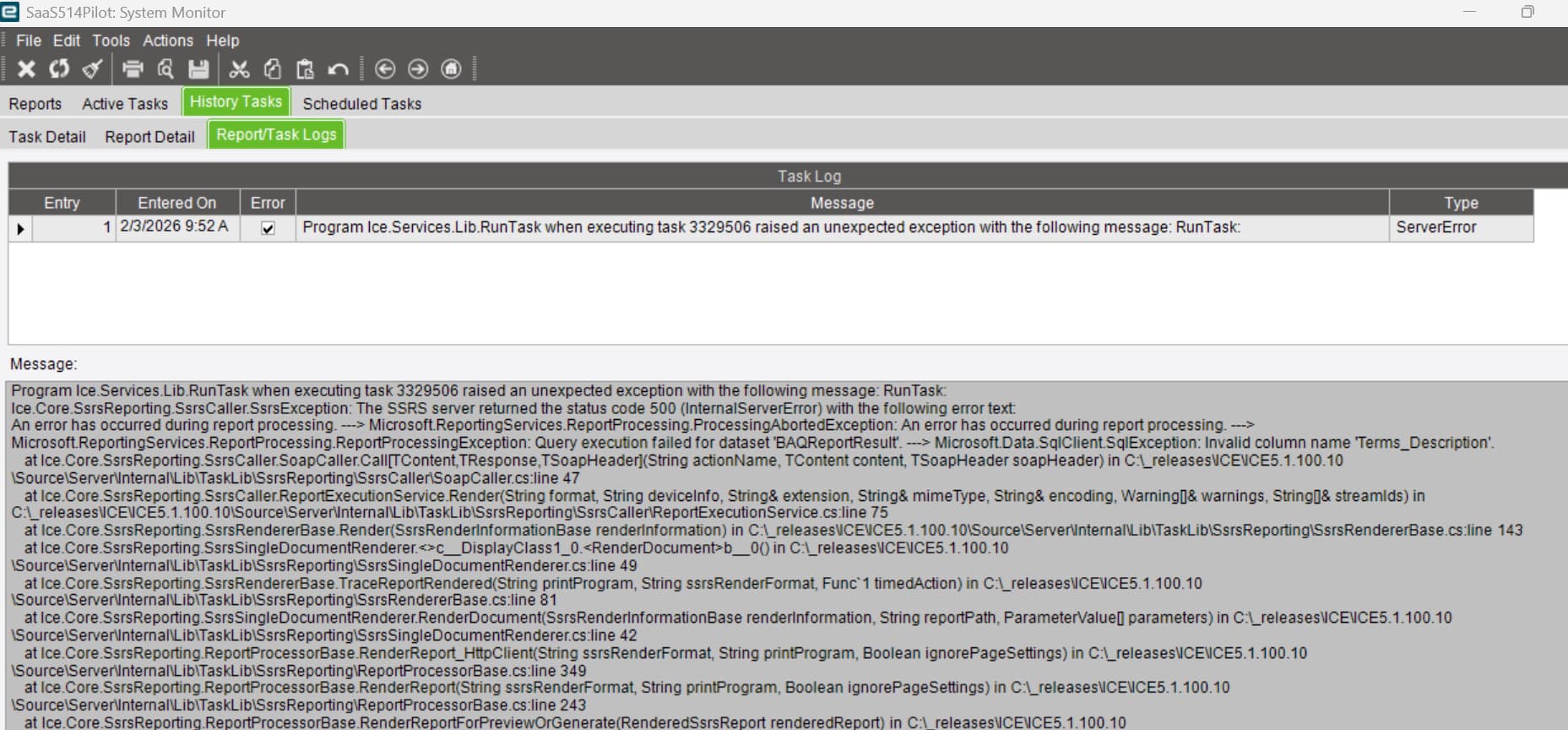
But, One problem leads to another. After completing the upload, when I try to print this report, I get this error.
I changed this [Terms_Decription] to [PurTerms_Description] in Microsoft Report Builder and uploaded it. Do I need to do something else or configure something else?
You have to check a few places, first check in the ‘dataset > query’ whether you are selecting the column. then you have to add that field in the data set fields. you also have to make sure you BAQ has that column. From what I understand all three places need to be consistent. I believe when you changed [Terms_Decription] to [PurTerms_Description] in your report builder report, you probably didn’t change in one of the other places.
can you paste your .rdl query text here in a </Preformatted Text> block?
Note that your error shows Terms_Description, but in your .rdl it shows PurTerms_Description. It seems maybe your .rdl is not uploaded to kinetic.
What version are you on?
There is a known version with RDL uploading in some versions. 2025.2.9 and before.
In Report Style Maintenance - show the full Report Path